
Add Your Registered WhatsApp No. Details
After completing WhatsApp onboarding and activating your subscription, add your registered business WhatsApp number in TallyPrime. This connects TallyPrime to your WhatsApp Business setup through the Interakt portal and enables document sharing.
You can add more than one number in TallyPrime and use a unique business name for each, once you have registered the numbers with WABA through your Interakt account.

Ensure that:
- Your WhatsApp subscription is active.
- One or more WhatsApp templates have been approved by Meta.
- You have your Interakt username and password.
If you haven’t signed up for WhatsApp yet, you can sign up directly from TallyPrime while adding your registered WhatsApp number and submit a sign-up request for WhatsApp for Business.
Add Registered WhatsApp No.

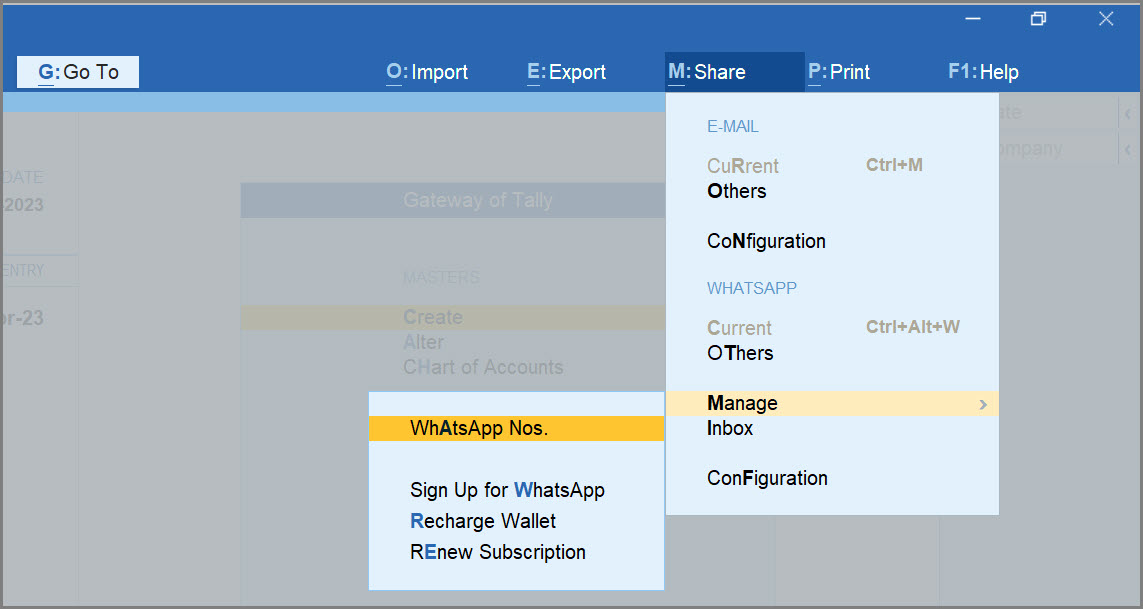
- Press Alt+M (Share) > Manage > WhatsApp Nos.
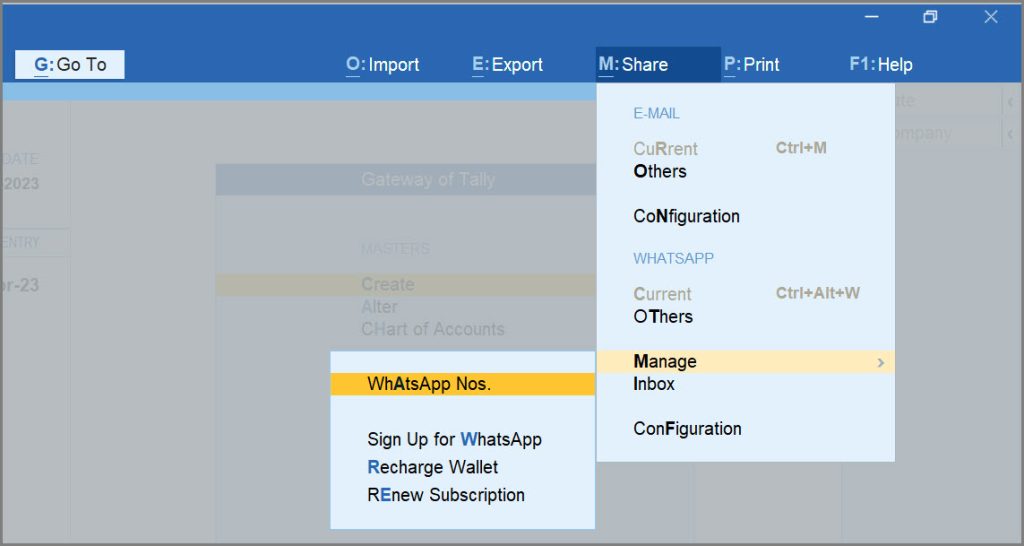
- In the Sign Up & Use Registered Business WhatsApp No. screen, press A (Enter WhatsApp Details).

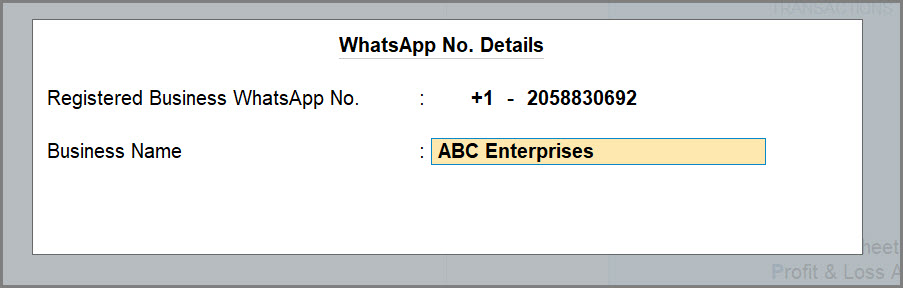
- In the WhatsApp No. Details screen, enter the Registered Business WhatsApp No. and the Business Name.
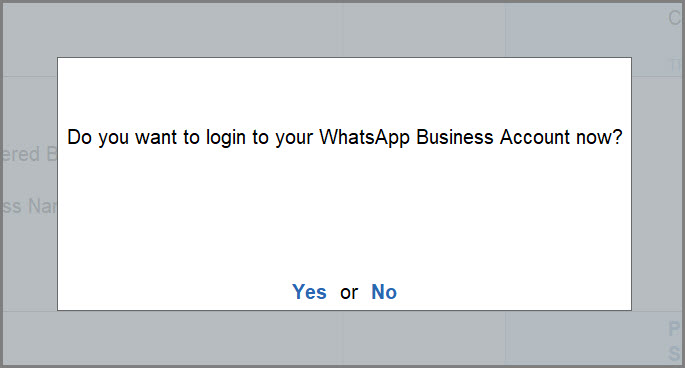
A confirmation message appears asking you to log in to your WhatsApp Business Account.
-
Press Enter or select Yes to confirm for log in.
If you select No, the number still gets added to your Company.
However, you will need to log in prior to sending documents using this number.-
In the Sign Up & Use Registered Business WhatsApp No. screen, press A (Enter WhatsApp Details), select the WhatsApp No. for which you want to log in, and press Enter.
-
-
- In the Login for WhatsApp screen, enter the Username and Password that you use to log in to your Interakt account, and press Enter.
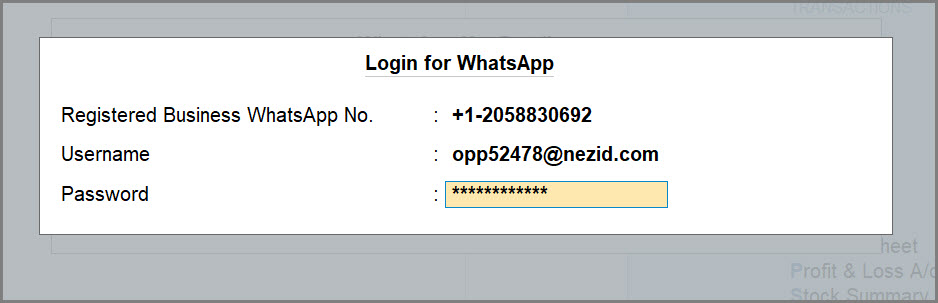
Adding the registered WhatsApp no. connects you with WABA through the Interakt portal. It also retrieves all the predefined WhatsApp templates from your Interakt account into TallyPrime.
Once the login is successful, you can start sending documents using TallyPrime with WhatsApp.
Modify WhatsApp No. Details
If you wish to change your registered business WhatsApp number, you have to again register the number with Meta and add the number in TallyPrime.
- Press Alt+M (Share) > Manage > WhatsApp Nos.
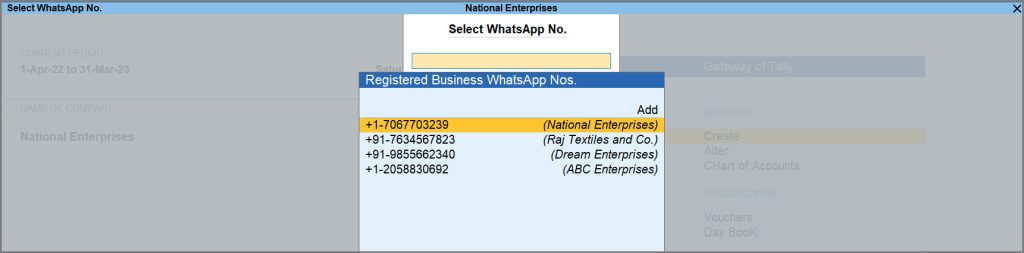
- In the Select WhatsApp No. screen, select the Registered Business WhatsApp No. that you wish to modify and press Enter.
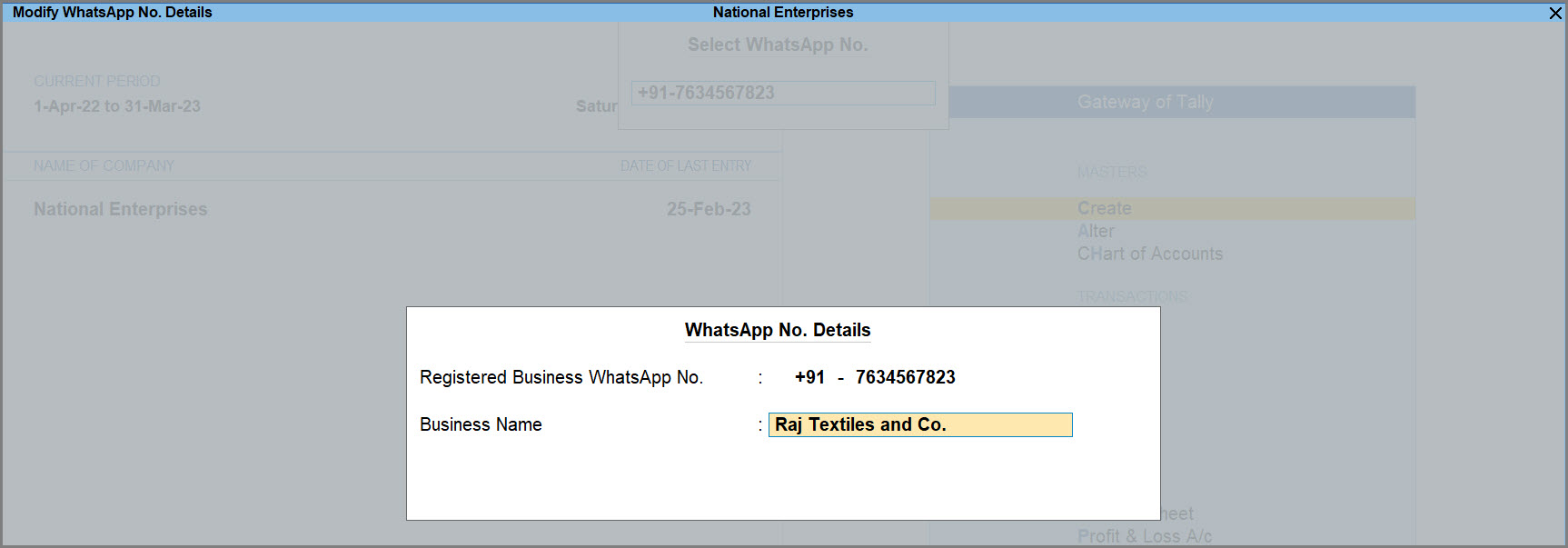
- In the WhatsApp No. Details screen, change the Business Name as per your requirement and press Ctrl+A to save.
Questions & Answers
- Can I add more than one registered business WhatsApp Number in TallyPrime?
Yes, you can add more than one number in TallyPrime and use a unique business name for each, once you have registered the numbers with WABA through your Interakt account.
- I want to change the registered business WhatsApp No. added to TallyPrime. What should I do?
If you wish to change your registered business WhatsApp number, you have to again register the number with Meta and add the newly registered number in TallyPrime.
- Can I modify the business name for the Registered WhatsApp No. in TallyPrime?
- Press Alt+M (Share) > Manage > WhatsApp Nos.
- In the Select WhatsApp No. screen, select the Registered Business WhatsApp No. that you wish to modify and press Enter.
- Change the Business Name as per your requirement and press Ctrl+A to save.


