
Add an Existing WhatsApp Business Contact Number to WABA
To use TallyPrime with WhatsApp for your business, you have to add a contact number to your WhatsApp Business Account (WABA). You can add either your existing WhatsApp Business No. or a new number to your WhatsApp Business Account (WABA). This number will be used as your registered business WhatsApp No.
It is recommended to follow the sign-up process on a computer where you are already logged in to your Facebook business account.


Ensure that you have:
- GST registration certificate.
- Mobile number with SMS access.
- Facebook account credentials (if using Facebook login) are ready.
- Business website URL or Facebook business page link (required only when GST verification is not used).
Step 1: Log in to the Interakt portal.
Log in to your Interakt portal and access your account.
Step 2: Verify the prerequisites and update your Business location.
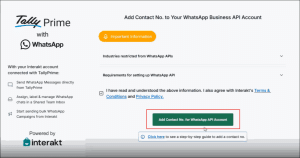
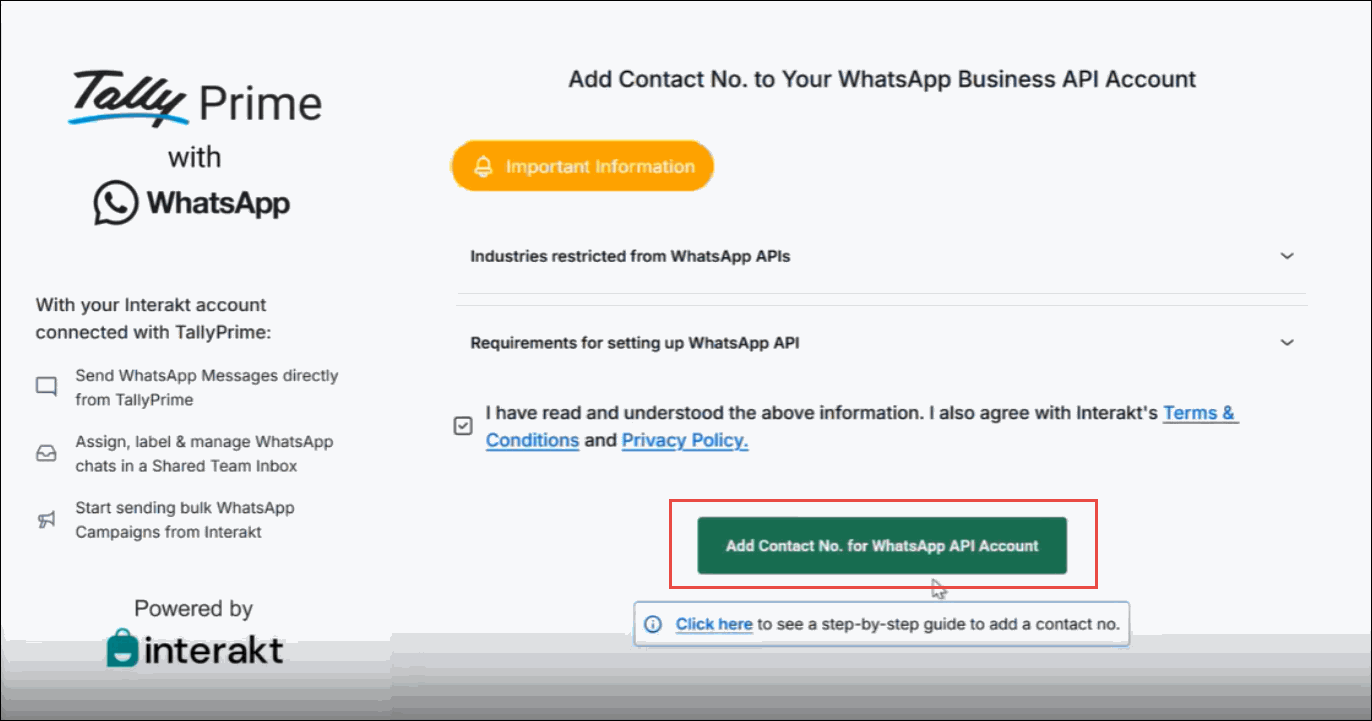
- Select Add Contact No. for WhatsApp API Account.
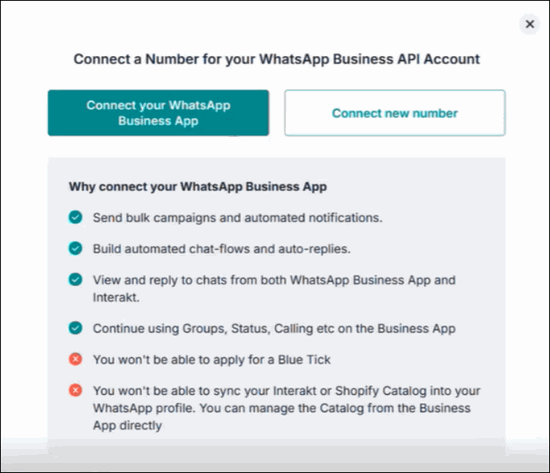
- Select Connect your WhatsApp Business App, if you already have a mobile number that is registered for your WhatsApp Business Account.
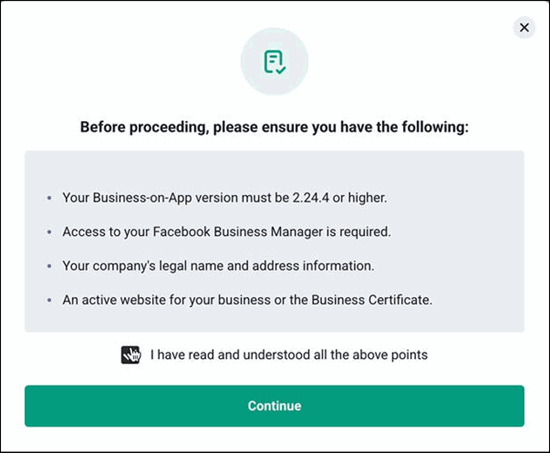
- In the pop-up screen, read the prerequisites, select the check box to confirm, and click Continue.
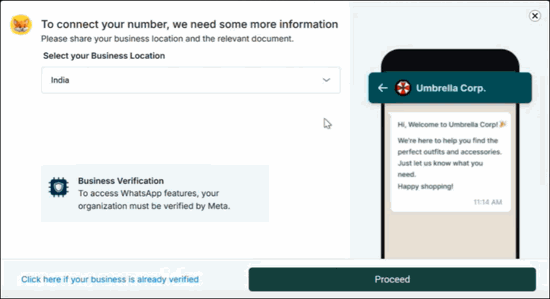
- Select your business location before proceeding for verification.
Step 3: Upload Your GST Certificate.
If your business is based in India, we highly recommend uploading your GST certificate for a hassle-free approval by Meta.
However, if your business in located outside of India or if do not have a GST Certificate, click Continue Without GST Certificate, and move to step 4 directly.
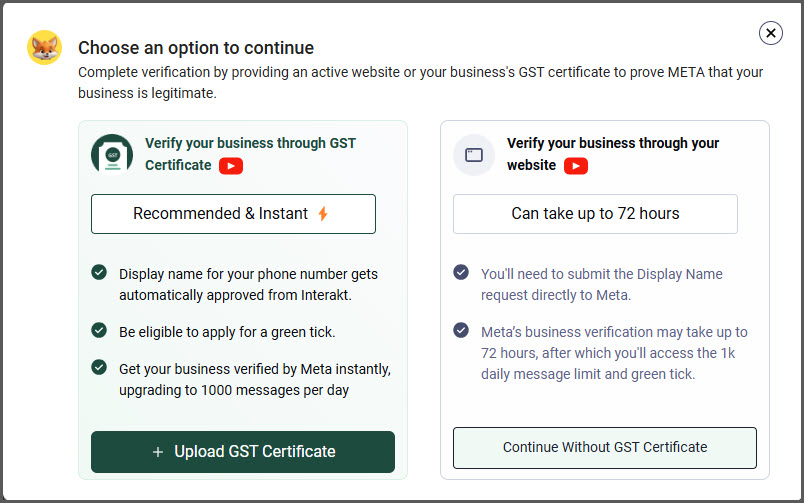
- Click Upload GST Certificate and select your GST certificate to upload.
- On successful upload, click Proceed.
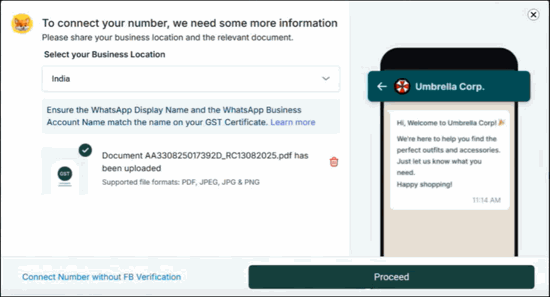
Select Connect Number without FB Verification, if you have already completed the business verification.
Now, you have the following two options:
- Log in with WhatsApp business app
- Log in with Facebook
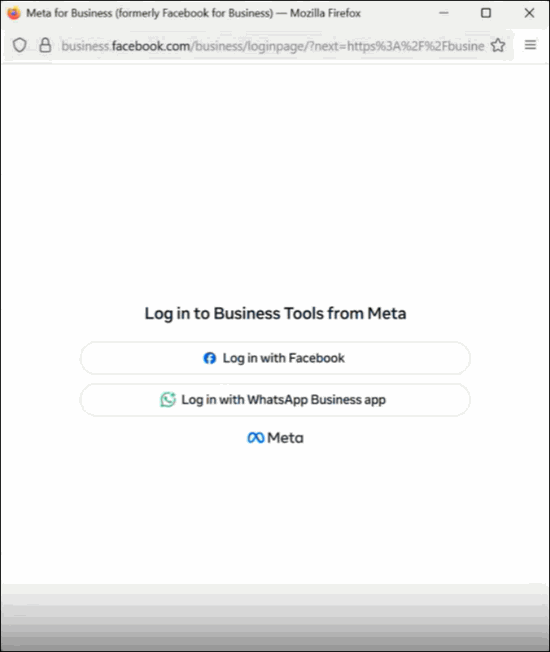
Step 4: Log in to Integrate your Existing WhatsApp Business Number with Meta.
Log in with WhatsApp Business app
You can choose this login method if you do not have a Facebook account.
- Enter your WhatsApp Business phone number and click Next.
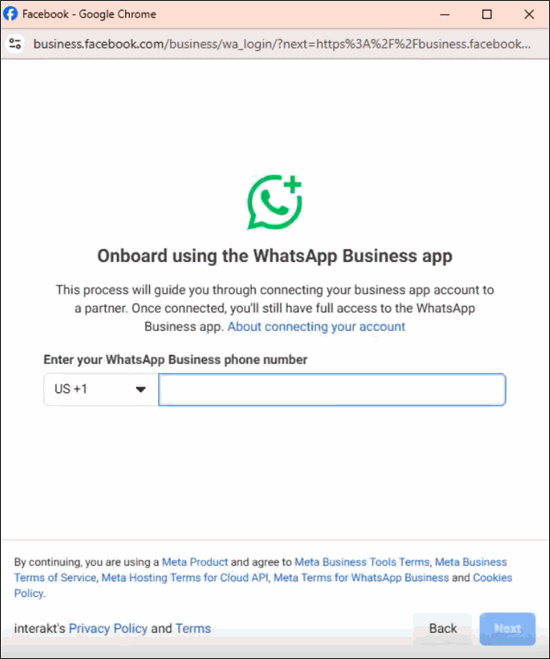
- Scan the QR code to verify your phone number and click Next.
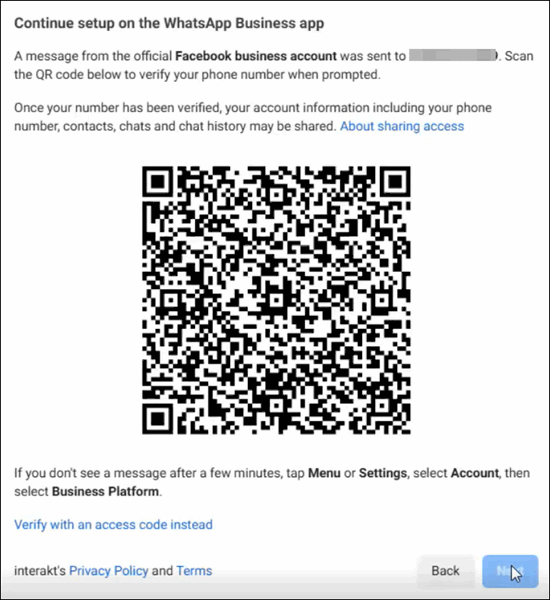
- Select Continue.
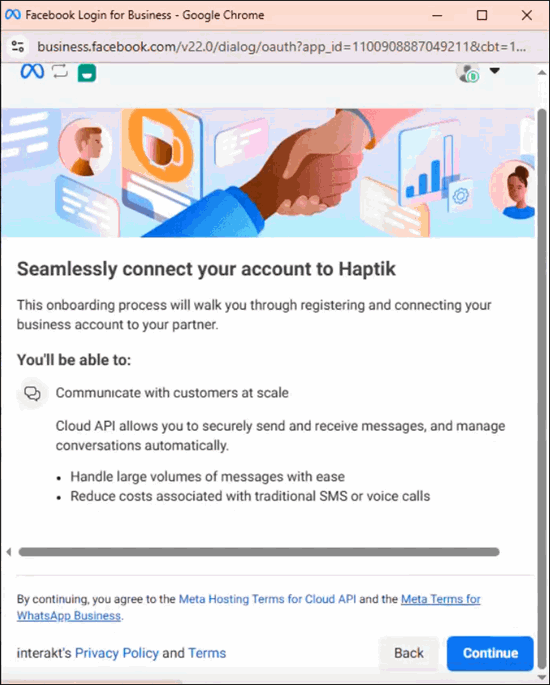
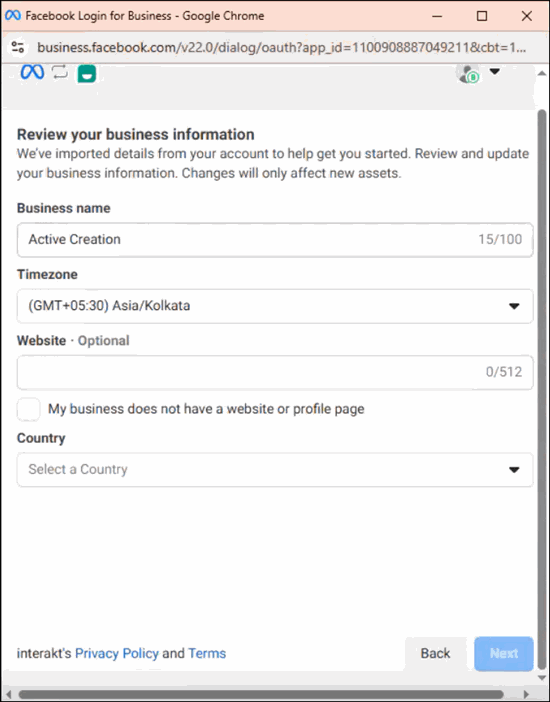
- Review your business information.
- Verify your Business name as per your GST certificate.
- Verify the timezone or update the appropriate timezone, as per your business location.
- Website or Profile Page: This is required on if you have not uploaded your GST Certificate or your business location is outside India. Enter your business website URL or Facebook page link.
- Select the country as applicable, and click Next.
Log in with Facebook
If you are already logged in, you will be prompted to continue with the same log in.
- Enter your log in credentials in the Log in to use your Facebook account with Interakt screen, if not logged in.
Alternatively, click Continue as…
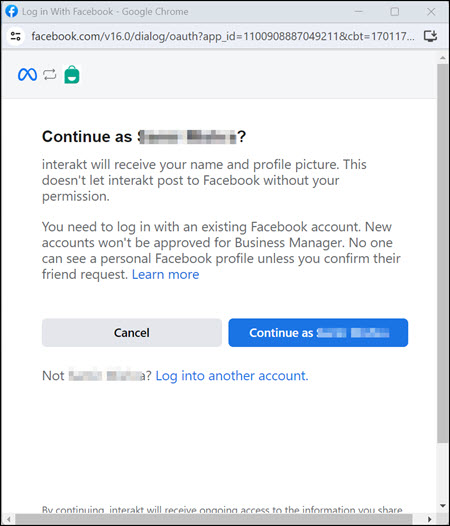
- Click Get Started and Fill in your Business information.
Follow on-screen instructions to complete the steps.
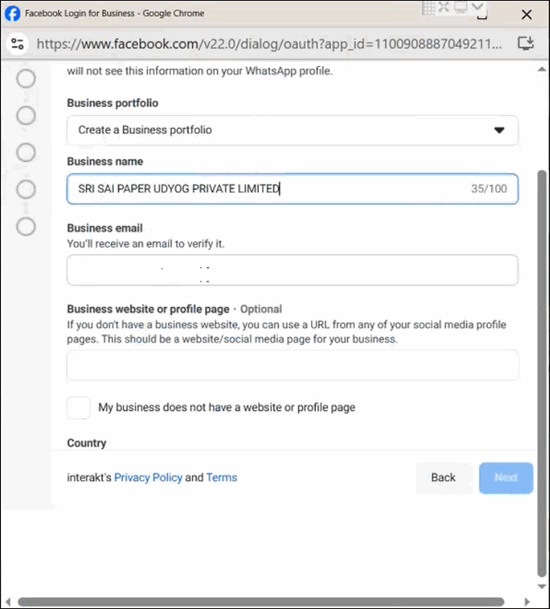
- Select your Business portfolio. If you don’t have one, select Create a Business Portfolio.
- Business Name & Business Email: Enter your legal business name, and the email address for receiving communications from Meta.
- Business Website or Profile Page: This is required only if you have not uploaded your GST Certificate. Enter your business website URL or Facebook page link.
The Facebook page or business website must reflect the Business Name correctly. - Select the country as applicable, and click Next.
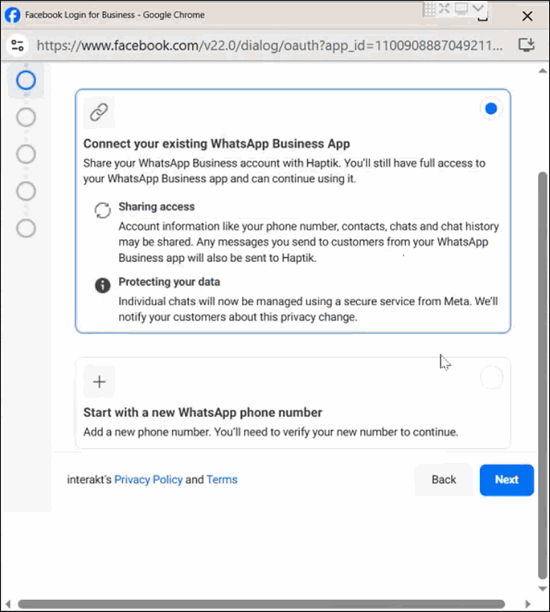
- Select Connect your existing WhatsApp Business App and click Next.
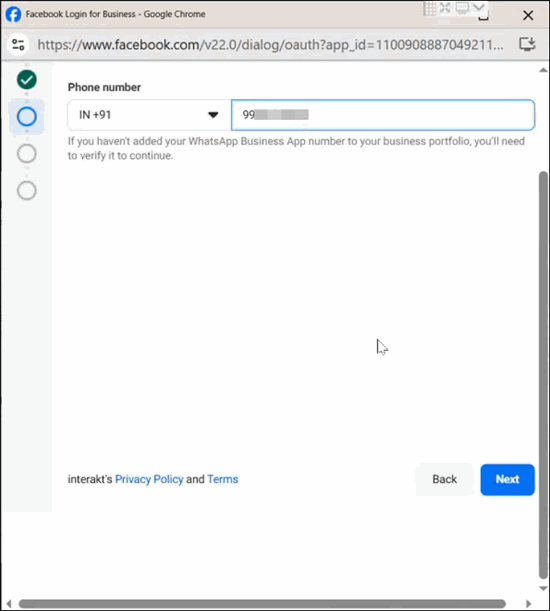
- Phone number: Enter the phone number that you want to add for the WhatsApp Business Account.
This number will be used for all your business communications, including sharing documents from TallyPrime, with your parties.
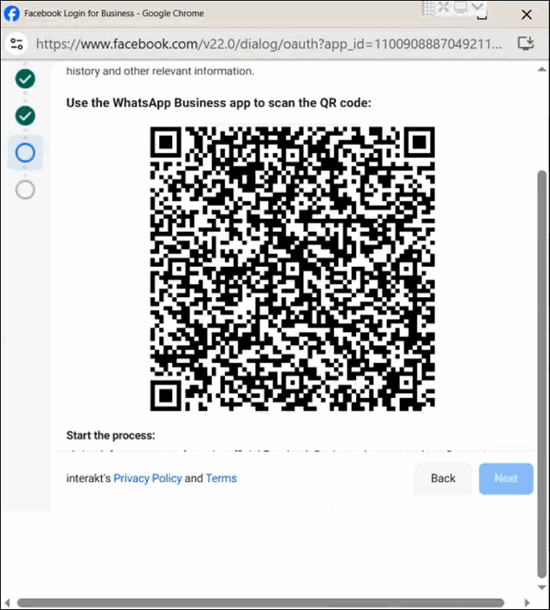
- Scan the QR code using the WhatsApp Business app.
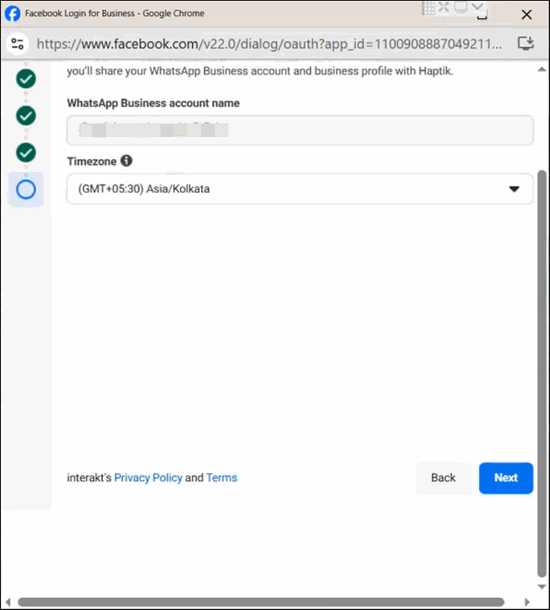
- Verify your WhatsApp Business account name, select the Timezone, and click Next.
Step 5: Complete adding your contact number to your WhatsApp Business Account.
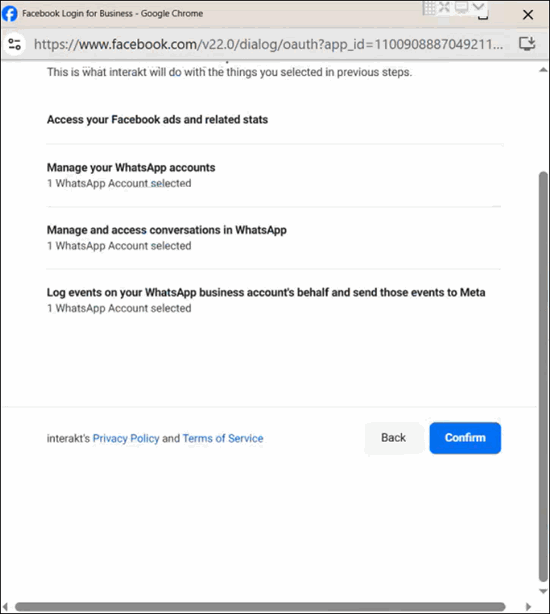
- Click Confirm to allow Interakt to allow access permissions required for completion of onboarding.
- Click Finish.
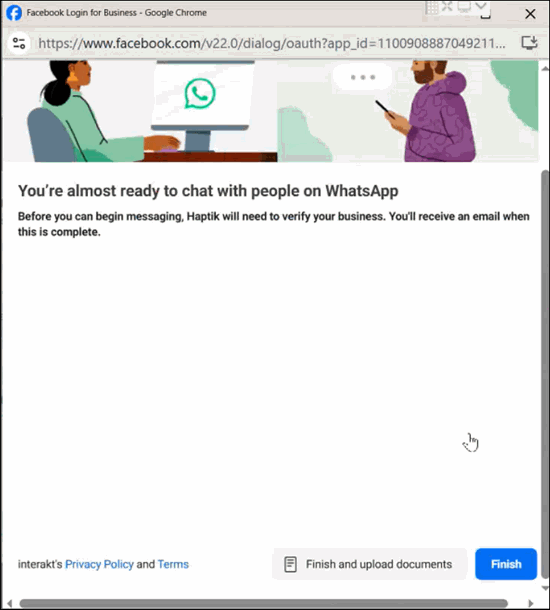
On your Interakt account screen, you will see a congratulations message for successfully adding your contact number to your WhatsApp Business Account. If you do not see the congratulations message, just refresh the Interakt screen.
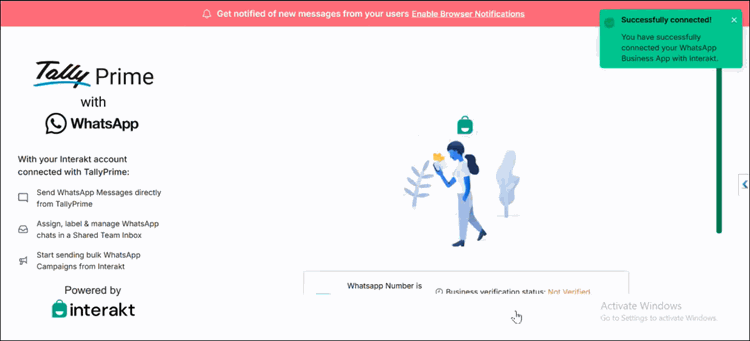
Now that you have successfully connected your contact no. to WABA, you can proceed for business verification.


