
Record GST Adjustments in TallyPrime
For TallyPrime 3.0 & later
|For TallyPrime 2.1 & Earlier|
Recording GST adjustment entries in TallyPrime helps you to manage Input Tax Credit (ITC) changes, handle ineligible credits, and account for additional liabilities, such as interest, penalties, and late fees.
Adjust Input Tax Credit (ITC)
In TallyPrime, you can record such changes using GST adjustment entries using journal vouchers to ensure accurate reporting in GST returns.
To know more, refer to the scenarios for adjustments against Input Tax Credit.
Account for increase in ITC
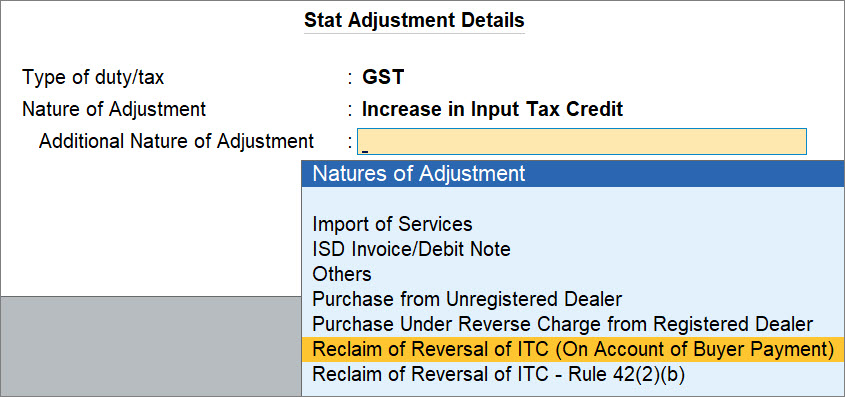
- In a Journal voucher, press Alt+J (Stat Adjustment) and update the tax details in the Stat Adjustment Details screen.
- Type of duty/tax: GST.
- Nature of Adjustment: Increase in Input Tax Credit.
- Additional Nature of Adjustment: Select the appropriate nature of adjustment.
-
Select Debit and Credit ledgers, and enter their amounts.
-
Under By (Debit), select the tax ledgers, as applicable, and enter the ITC amount to be adjusted.
-
Under To (Credit), select the purchase or expense ledger, as applicable, and enter the ITC amount to be adjusted.
In the Inventory Allocations screen, enter Name of Item, Quantity and Rate.
-
-
Provide the narration, as needed, and press Ctrl+A to save.
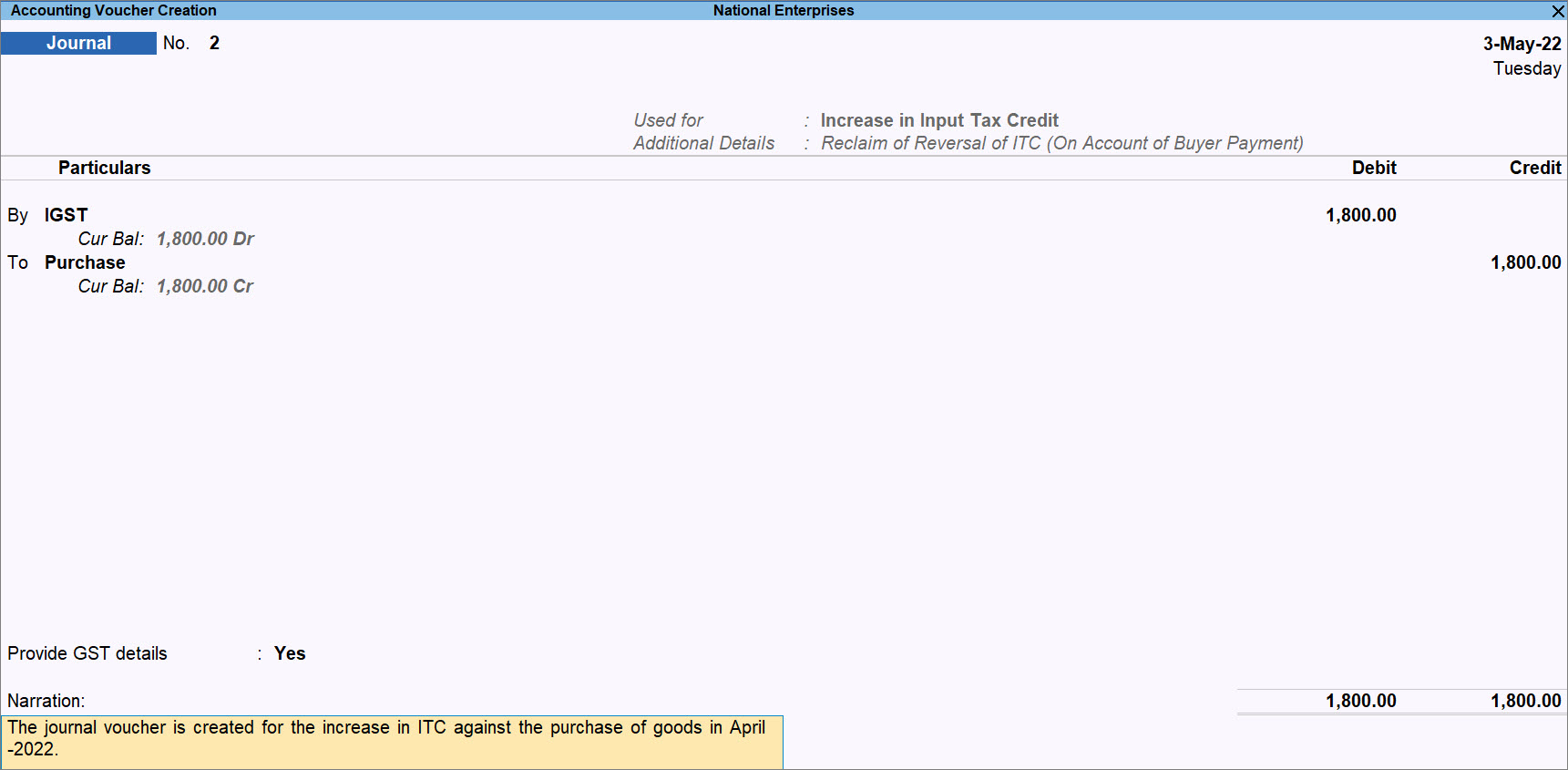
The voucher gets included in the return for the period, and appears in GSTR-3B under Other Adjustments (Included in Return) section.

To know more, refer to the ledgers to be debited and credited while accounting for increase in ITC.
Click here to know more about natures of adjustment and section or topic for reference for increase in ITC.| Additional Natures of Adjustments | Section or Topic for Reference |
|
Advances Paid Under Reverse Charge |
Raise Tax Liability for Advances Paid section under the Advance Payments Under GST in TallyPrime topic |
|
Import of Services |
Record Import of Services in TallyPrime Under GST Reverse Charge Mechanism (RCM) topic |
| ISD Credit Note Rule 39(1)(j)(ii) | |
| On Account of Advance Receipts | Raise Tax Liability for Advances Received section in the Advance Received Under GST in TallyPrime topic |
| Purchase from Unregistered Dealer |
Record Inward Supply Under Reverse Charge section under the Record Reverse Charge Mechanism (RCM) Purchases Under GST in TallyPrime topic |
| Purchase Under Reverse Charge from Registered Dealer | Record Inward Supply Under Reverse Charge section in the Record Reverse Charge Mechanism (RCM) Purchases Under GST in TallyPrime topic |
Account for reversal of ITC
- In a Journal voucher, set the Type of duty/tax as GST in the Stat Adjustment Details screen and update the nature of adjustment.
- Nature of Adjustment: Reversal of Input Tax Credit.
- Additional Nature of Adjustment: Select the appropriate nature of adjustment.
- Select Debit and Credit ledgers, and enter their amounts.
- Press Ctrl+A to save.
The voucher gets included in the return for the period, and appears in GSTR-3B under Input Tax Credit Reversed section.

To know more, refer to the ledgers to be debited and credited while accounting for reversal of ITC.
Click here to know more about natures of adjustment and section or topic for reference for reversal of ITC.Adjust Reversal Due to Ineligible ITC
For a purchase, ITC can be either,
- Ineligible: Record a purchase transaction to reflect the same in the GSTR-3B report.
- Eligible initially but later becomes ineligible: Reverse the ITC amount using a Journal voucher. For example, if goods are lost during transit, the related ITC becomes ineligible and must be reversed.
Account for ineligible ITC during purchase
- Ensure that the Eligible for Input Tax Credit option is disabled for the required stock item and purchase ledger.
- Create a purchase voucher using the stock item and the purchase ledger, on which tax credit cannot be claimed.
The voucher appears in GSTR-3B under the Ineligible ITC under section 16(4) and ITC restricted due to PoS rules section.

Account for ITC reversal for ineligible ITC
- In a Journal voucher, set the Type of duty/tax as GST in the Stat Adjustment Details screen and update the nature of adjustment.
- Nature of Adjustment: Reversal of Input Tax Credit.
- Additional Nature of Adjustment: Ineligible Credit.
- Select Debit and Credit ledgers, and enter their amounts.
- Press Ctrl+A to save.
The voucher gets included in the return for the period in the Input Tax Credit Reversed section.
Adjust Interest, Penalty, Late Fee, and Others in GST
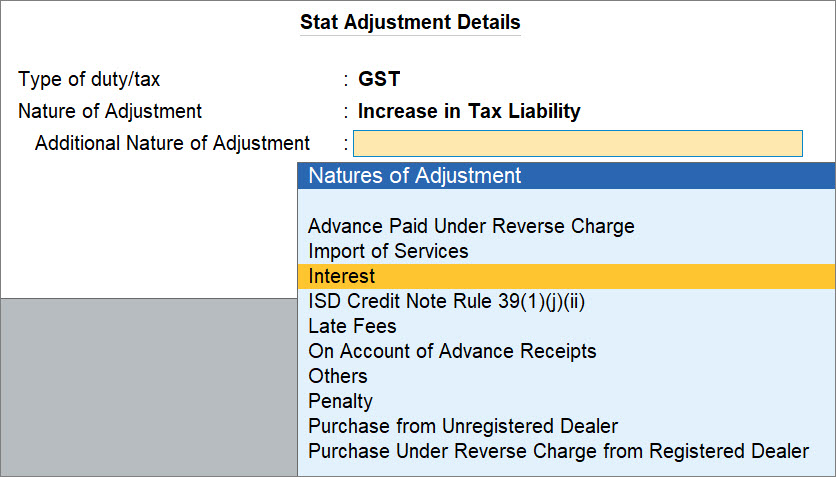
- In a Journal voucher, set the Type of duty/tax as GST in the Stat Adjustment Details screen and update the nature of adjustment.
- Nature of Adjustment: Increase in Tax Liability.
- Nature of Adjustment: Select the appropriate nature of adjustment, for example Interest, Penalty, Late Fee, or Others.
- Select Debit and Credit ledgers, and enter their amounts.
- Press Ctrl+A to save.
The voucher gets included in the return for the period in the 6.1 Interest, Late Fee, Penalty and Others section of GSTR-3B.

To know more, refer to the ledgers to be debited and credit while recording the increase in tax liability because of interest, penalty, late fees, and other dues.


