Record Sales Return in TallyPrime
Customers may return goods or services after a sale due to reasons such as damage, quality issues, late delivery, or excess supply. In TallyPrime, you can record sales returns using Credit Notes, either before or after receiving payment from the customer.

Ensure that:
- The original sales invoice details are available, including the invoice number and date.
- The returned stock item details are available, including the quantity returned and rate.
Record Sales Return
- Press Alt+G (Go To) > Create Voucher > F10 (Other Vouchers) > type or select Credit Note.
Alternatively, Gateway of Tally > Vouchers > F10 (Other Vouchers) > type or select Credit Note. - Press Ctrl+H (Change Mode) and select Item Invoice mode.
- Enter the Party Details.
- Party A/c Name: Select the party to whom the goods were originally sold.
- Receipt Details: Enter the required details and specify the Original Invoice No. and Date.
- Select the Sales ledger.
- Under Name of Item, select the stock item being returned. Enter the Quantity and Rate.
- Link the Credit Note using the appropriate Type of Ref.
- Press F12 (Configure) > set Use default Bill-wise details for Bill Allocation to No.
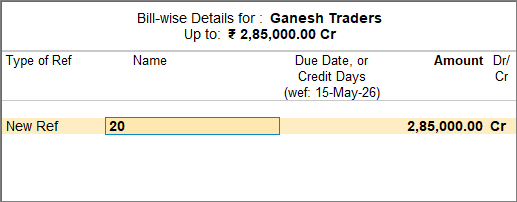
- In the Bill-wise Details screen, select the appropriate Type of Ref.
- Agst Ref: Select this option if the customer has not yet paid for the original sales invoice. Select the original sales invoice from the list.
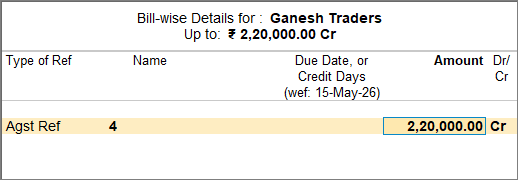
- New Ref: Select this option if the customer has already paid for the original sales invoice. The Credit Note is recorded as a new reference and can be adjusted against a future sales invoice or payment.
- Agst Ref: Select this option if the customer has not yet paid for the original sales invoice. Select the original sales invoice from the list.
- Provide Narration, if needed, and press Ctrl+A to save the voucher.
Once the sales return is recorded, you can view the transaction in the Credit Note Register.
Record Sales Return Against Delivery Note
If a customer returns or rejects goods after you have recorded a Delivery Note but before recording the Sales Invoice, you can record a Rejections In voucher against the Delivery Note.
- Press Alt+G (Go To) > Create Voucher > F10 (Other Vouchers) > type or select Rejections In.
Alternatively, Gateway of Tally > Vouchers > F10 (Other Vouchers) > type or select Rejections In. - Under Ledger Account, enter the party name.
- Under Name of Item, select the stock item.
- In the Stock Item Allocations screen, select the relevant Tracking Number of the delivery note.
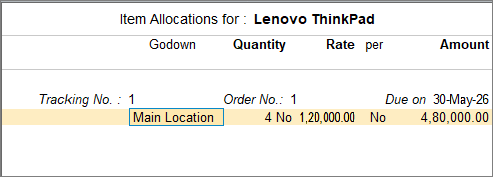
- Enter the Quantity and Rate.
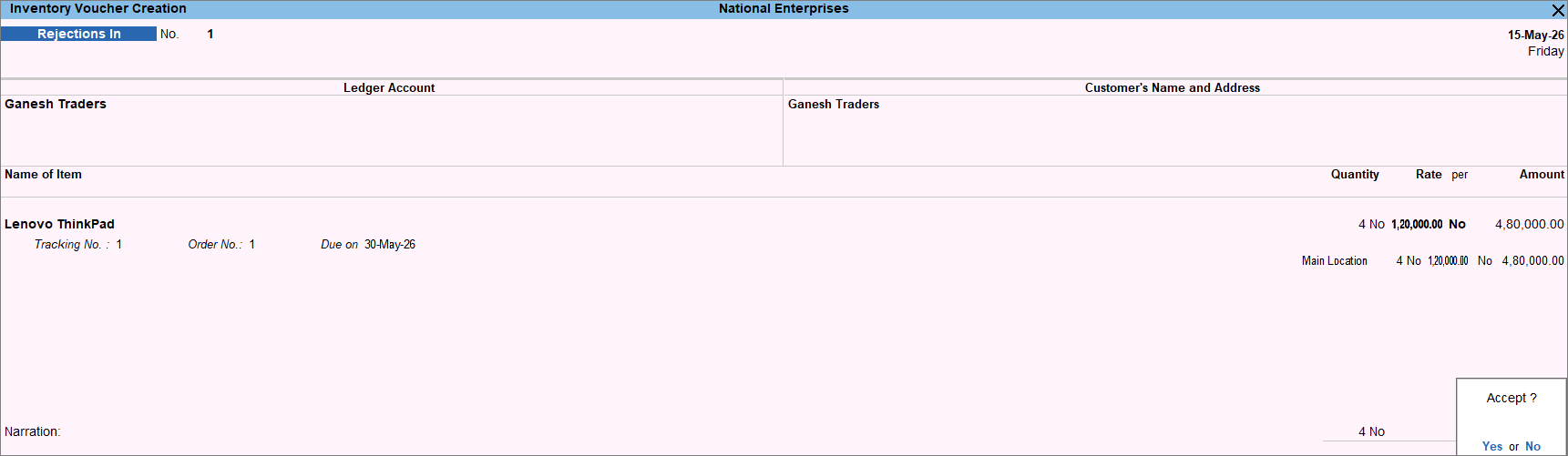
- Press Ctrl+A to save the voucher.
The stock quantity increases by the quantity entered in the Rejections In voucher.
Questions & Answers
- Can I exchange a product instead of refunding the customer?
Yes. You can record the sales return as a Credit Note using New Ref and adjust the Credit Note against the new sales invoice for the exchanged product. - What happens to stock when goods are returned?
A sales return increases the stock by the returned quantity. However, if the returned goods are damaged, they are recorded separately and do not become part of the closing stock.
Is this information useful?
YesNo