
Manage Cheques Using Cheque Register in TallyPrime
Cheque Register in TallyPrime gives you a complete account of cheques. A centralised view of all types of cheques:
- Enhances cash flow management.
- Improves internal controls.
- Supports audit readiness.
- Reduces manual errors in reconciliation.
With Cheque Register in TallyPrime, you get to know the following types of Cheques:
Available: You get to know about the cheques that are still unused and can be issued. Therefore, you can plan your payments and manage cheque books efficiently.
Unreconciled: You can identify transactions that are not complete. Once you know, you can follow up either with the bank or the party, as applicable. This avoids overdraft payments.
Reconciled: You can know the transactions that are complete and ready for audit.
Blank: You can track the physical inventory of the cheques and prevent misuse and loss of blank cheques.
Cancelled: You get to know the cheques that were voided due to errors or other reasons, thereby preventing confusion.
A centralised view of all types of cheques:
- Enhances cash flow management.
- Improves internal controls.
- Supports audit readiness.
- Reduces manual errors in reconciliation.

- Correct Period is selected to view the Cheque Register.
- Cheque-based Transactions are Recorded.
- You have access to banking reports.

- Press Alt+G (Go To) > type or select Cheque Register and press Enter.

View Cheques with Specific Statuses
To view Cheque Register report for all banks for cheques with a specific status, press F8 (Cheque Status) and select the status, based on the type of cheque you want to view.
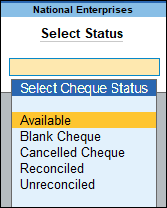
View Cheques with Status for Specific Banks
To view cheque with respective statuses for a specific bank, drill down from the following columns of the corresponding bank rows.
Available Cheques: View the cheques available, if you have set a cheque range while creating your bank ledger.
Alternatively, set a cheque range by pressing Alt+B (Alter Chq Book) > Cheque Book Management.
Unreconciled: Drill down from these columns to view the cheque details, including the related payment details.
Reconciled: View the reconciled cheques with details of the payments that are complete.
Blank or Cancelled: Drill down to view details of all your blank and cancelled cheques.
- Issue a blank cheque to your party from this report.
- Cancel an available cheque or a cheque that is already issued.
- Out of Period: View the number of cheques that do not belong to the current period chosen. The cheques may be
- Issued in the previous financial year
- Post-dated and not part of the current financial year
View Cheques Based on Range
View cheques based on the different cheque ranges you have set, depending on the business requirements. For example, you can set cheque ranges for:
- Cheques to be issued from different departments.
- Cheques to be issued to different parties.
To view Cheques based on the range specified in the Bank Ledger:
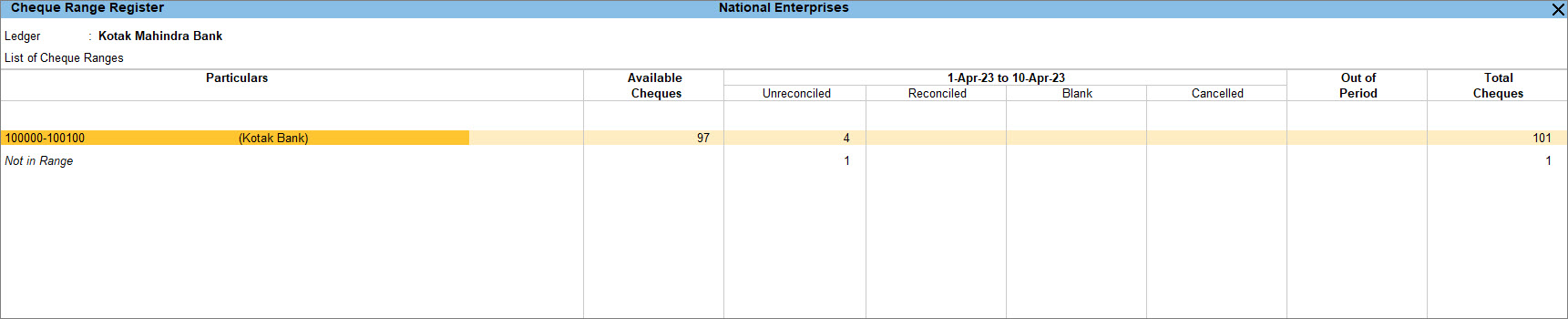
- Drill down from the required bank ledger in the Cheque Register report.
You can view all the cheque ranges in the Cheque Range Register screen.
View More Details in Cheque Register
Include Not in Range cheques: Press Ctrl+B (Basis of Values) and then you can view the cheques for which the cheque range is not yet set.
Ignore completed Cheque Ranges: Press Ctrl+B (Basis of Values) and then you can remove completed cheque ranges from the report.
View Post-Dated Transactions: Press Ctrl+J (Exceptions Report) to view the transactions with a future date.
Search Cheques: Press Alt+Q (Quick Search) to look for the required cheque with a specific cheque number, bank name, or party name.
Reconcile Cheque Transactions: To navigate to the Bank Reconciliation report from either Cheque Register or Cheque Range Register report, press Alt+R (Reconcile).
Questions & Answers
- How do I know if a cheque is cancelled?
You can view Cheque Register, based on the status of the cheques.
- How do I know if my cheque payments are audit-ready?
To ensure that your cheque payments are audit-ready, you need to reconcile all the payments.
To view if all the cheques are reconciled, you can view Cheque Register with the status as Unreconciled.
If there are transactions in the report, then you need to reconcile them before your Cheque Register is audit-ready.
- How do I view the Cheque Register with specific cheque numbers only?
You can view the Cheque Register with only specific cheque numbers.
However, you can easily view the report for cheques falling into a specific date range.
Press F2 (Period) and set the From and To dates.
You can also view the Cheque Register based on the cheque range.


