
Send Payments from Your Kotak Mahindra Bank Accounts Using Connected Banking
Aided by Connected Banking, TallyPrime brings in the facility of online payments from your Kotak Mahindra Bank accounts.
All you need to have is the following:
-
Connected Banking login with your Tally.NET credentials
-
Online payments enabled for your Bank Connection
- e-Payments enabled in your bank ledger
Once you have the above, you can send payments from your Kotak Mahindra Bank accounts, securely directly from TallyPrime, thereby:
-
Saving a lot of time – faster process, leading to smooth cashflow and a relation of trust with your vendors
-
Reducing manual error.
If you are making a payment for an amount exceeding Rs. 1 Lakh, then you need to ensure that the beneficiary details are added on the Kotak Mahindra Bank portal.
What’s more, for online payments from Kotak Mahindra Bank accounts using Connected Banking, you can also:
-
Check and update the payment status right in TallyPrime.
-
Send payment advice to your suppliers.
-
From anywhere in TallyPrime, press Alt+Z (Exchange) > Send Payments.
-
Press Enter on the relevant Kotak Mahindra Bank ledger.
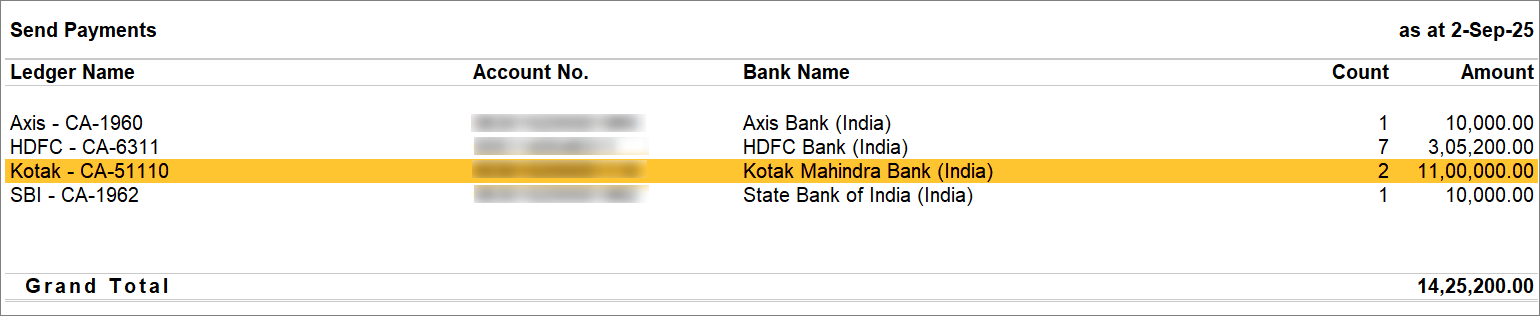
From the e-Payments report, if you open the Send Payment report for the Kotak Mahindra Bank ledger, then the report opens for this ledger.
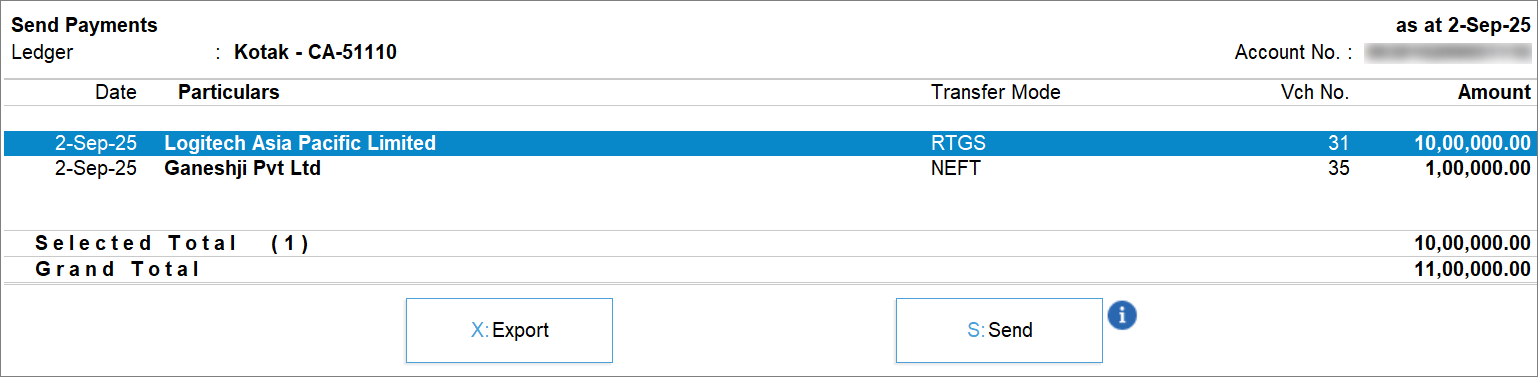
-
Select the transaction and press S (Send).
-
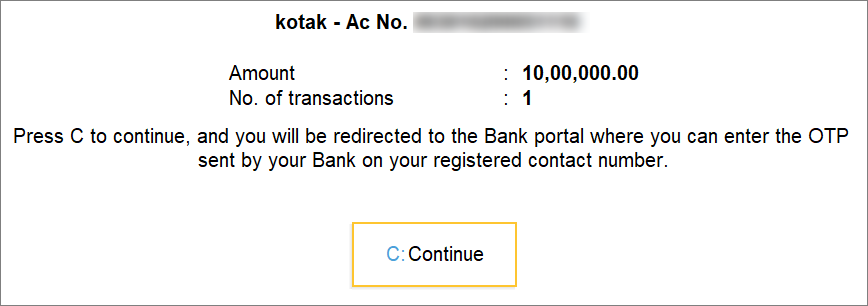
Press C to complete the payment on the bank portal, where you will get redirected.
-
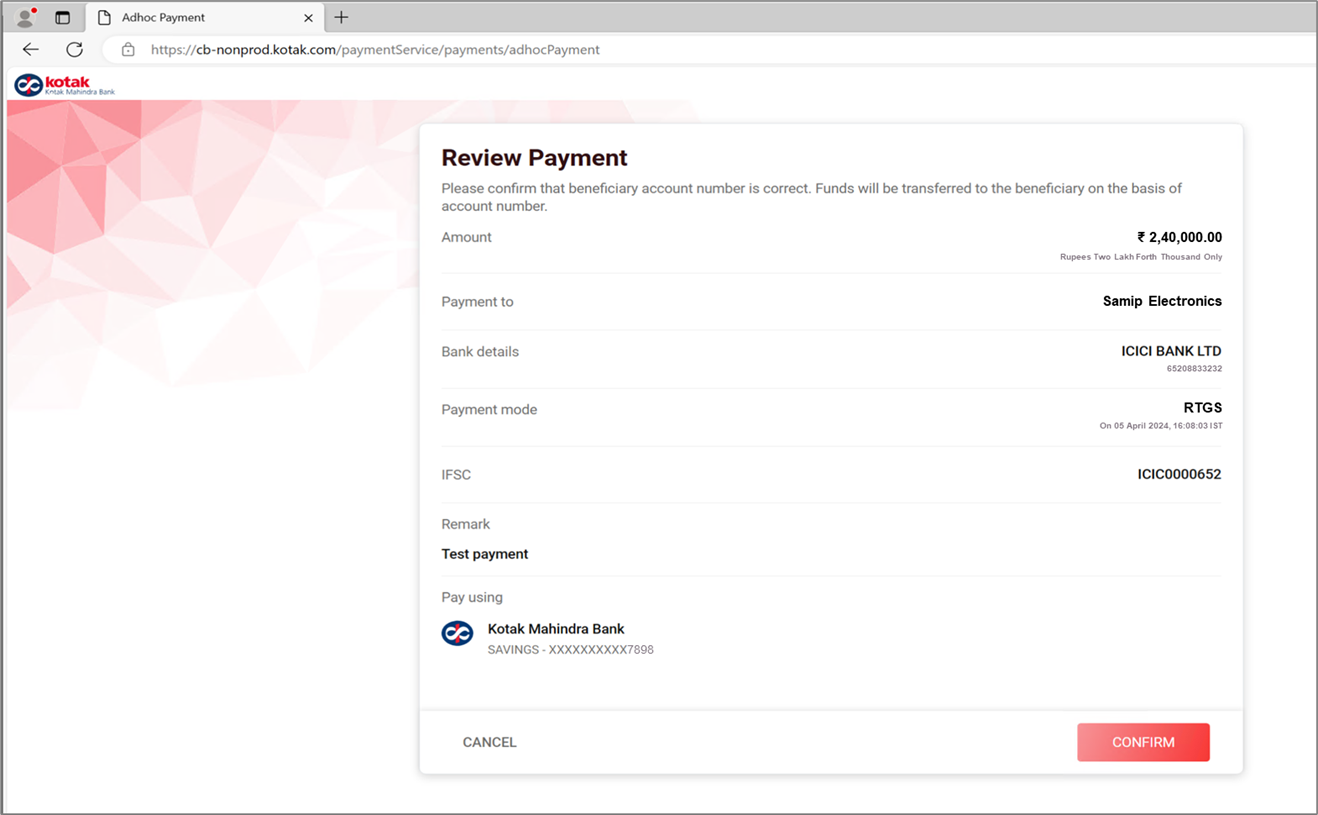
Review the transaction details on the portal.
-
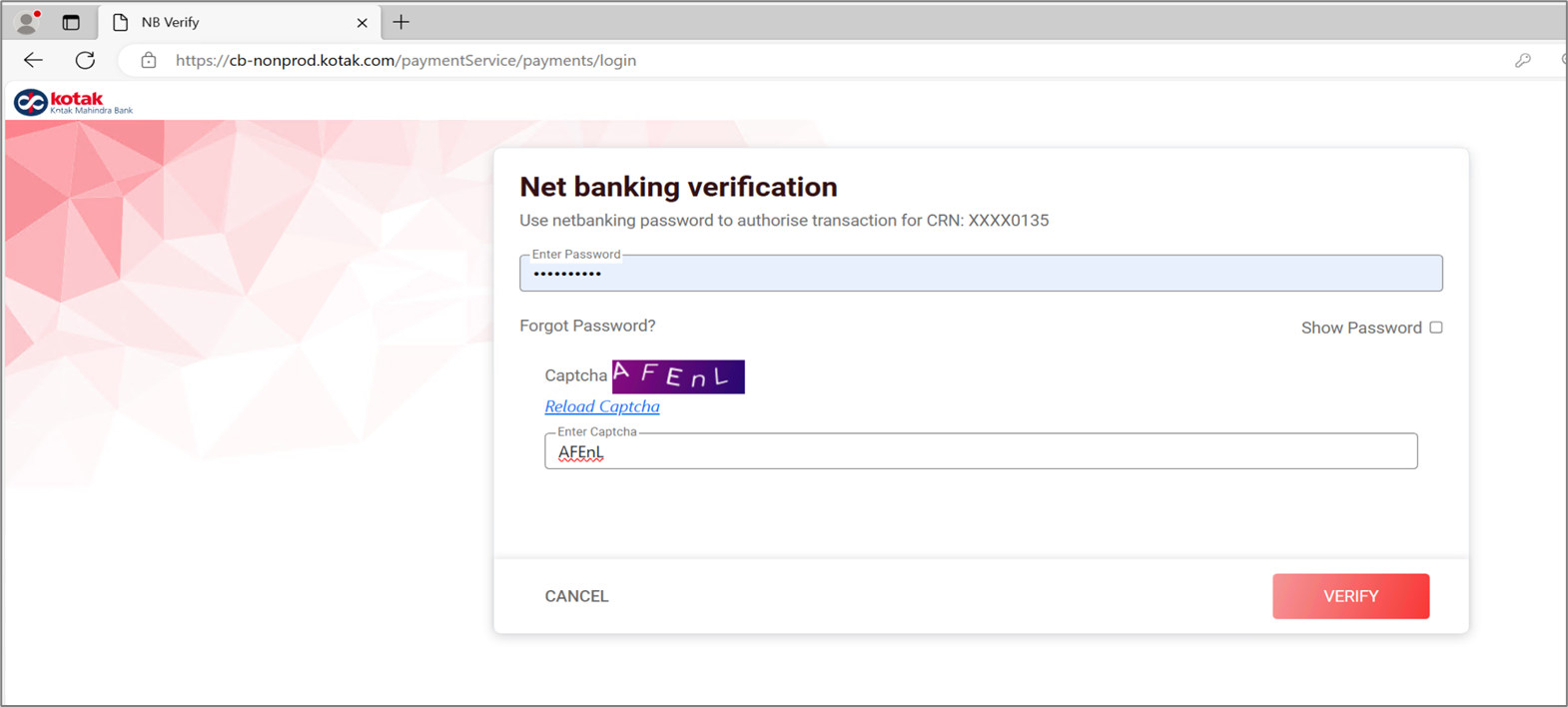
Enter the bank credentials.
-
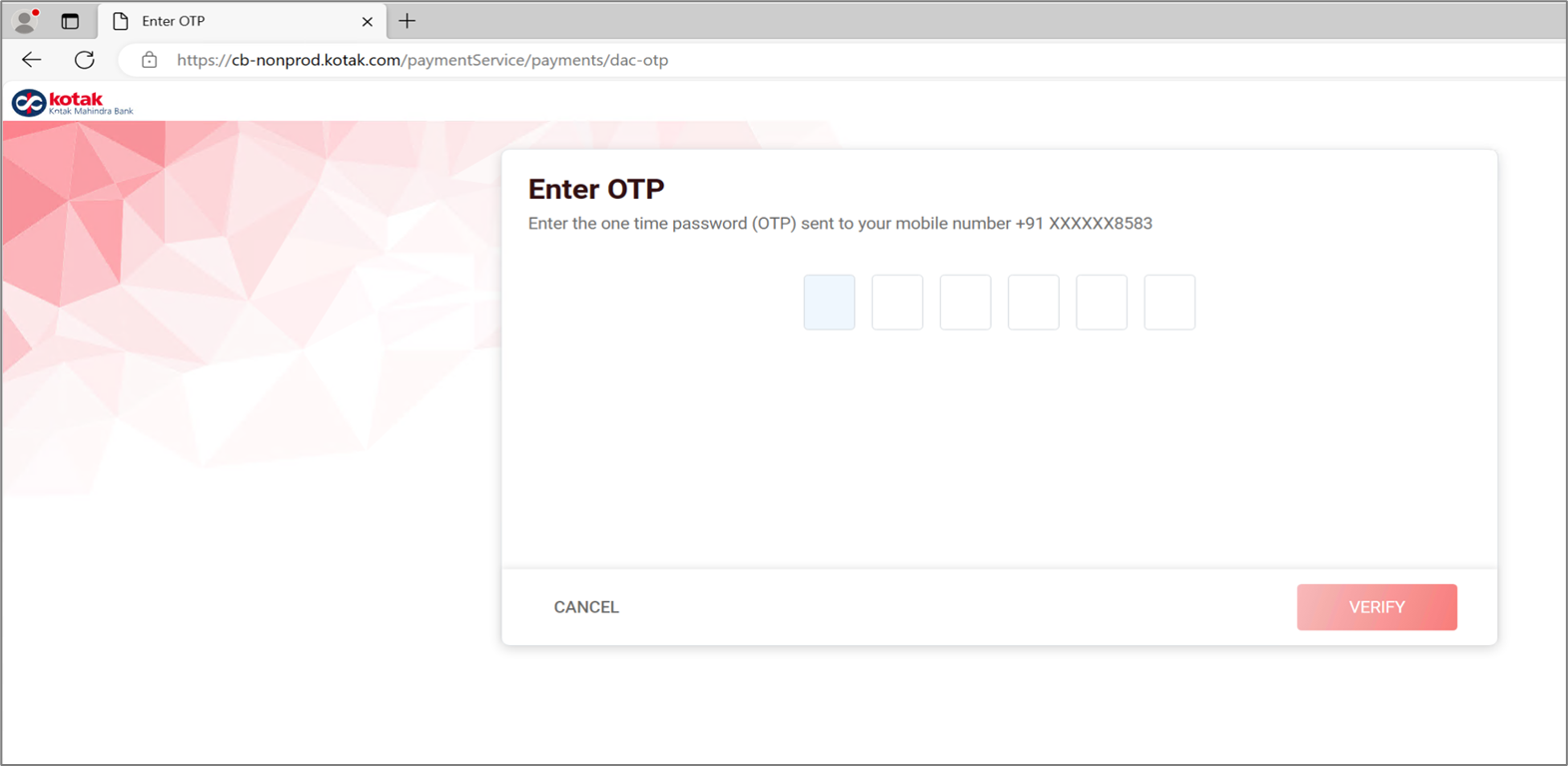
Enter the OTP.
The payment is successful.
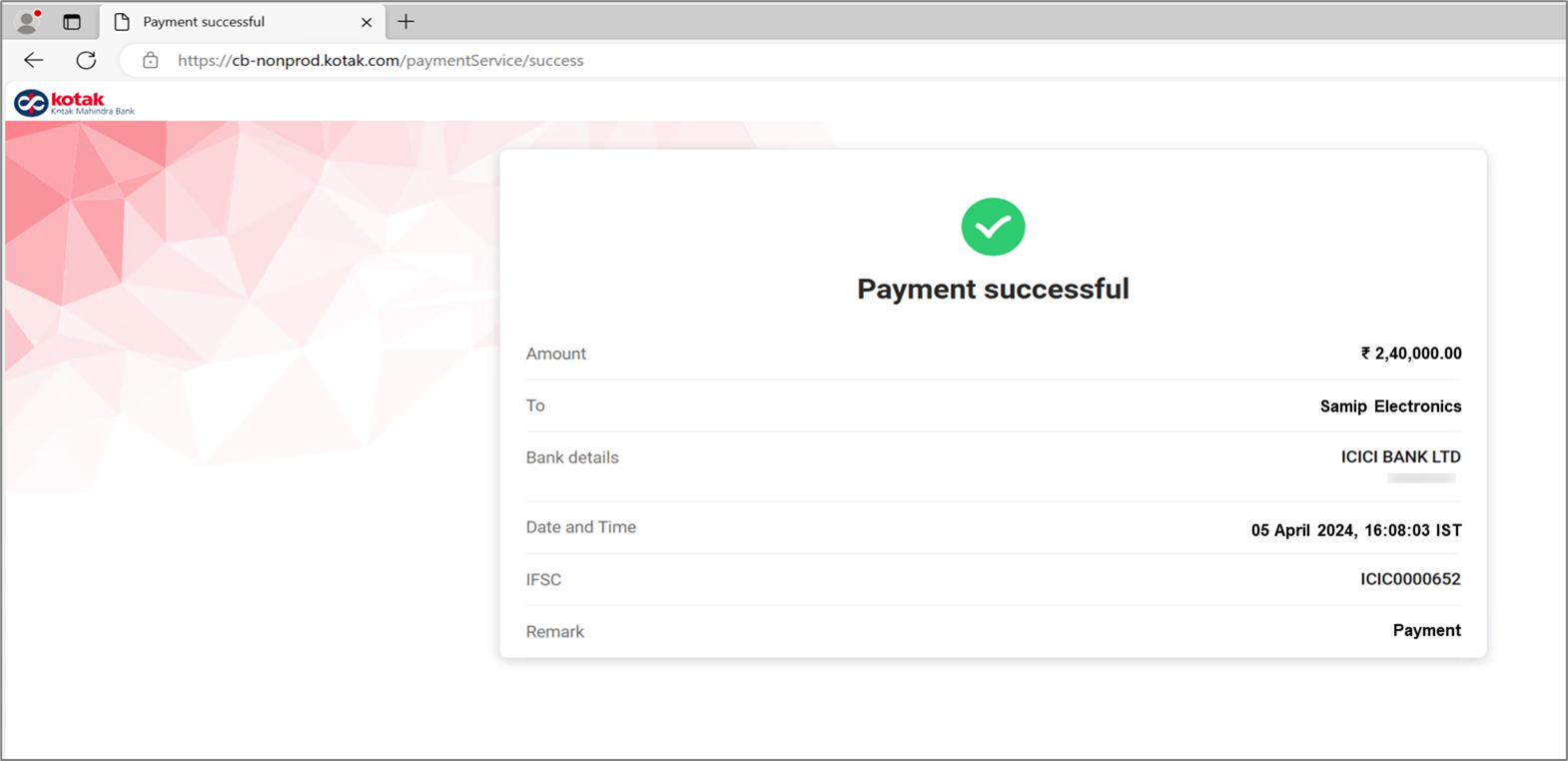
Once you initiate the payment, switch to TallyPrime. You will see a success message indicating the transaction has been submitted to the bank.
As you have completed the payment on the portal, you can view the updated status by going to the e-Payments report.


