Allocate Bills for Payments or Receipts
For TallyPrime 5.0 & later
You can settle your customers’ or suppliers’ accounts as you pay or collect money from them by keeping track of payments and receipts against the relevant bill numbers. By using the Bill-wise Details option in TallyPrime, you can adjust those bills even before entering the amount received or paid.
Once you have selected your creditor for payment, TallyPrime lists out all the outstanding bills you have to pay to determine the current payment amount. The total immediately appears beneath the amount column once you’ve chosen the bills you want to pay. Depending on your business practices, you can choose to view the pending bills based on the order of their due dates, or bill dates or the balances and allocate the payment/receipt amount against an existing bill reference.

Adjust Amount Based on Due Date
When recording a Payment or Receipt voucher, you can apply the sorting method based on due dates for your pending bills. TallyPrime will automatically adjust the older bills against the amount received or paid.
If you prioritise not adjusting the bills based on due dates, you can also adjust the bills by selecting other sorting methods.
- Set the sorting method of your pending bills based on due date.
- Press F1 (Help) > Settings > Display > set Due Date (Increasing) under the Sorting Method for Pending Bills in Vouchers.
- Record the receipt or payment voucher.
- Press F12 (Configure), and set the option Preallocate bills for Payment/Receipt/Journal Vouchers to No.
- Select the party and enter the amount received or paid.
- In the Bill-wise Details screen, select Type of Ref as Agst Ref.
Press Ctrl+A to accept the Bill-wise Details screen to automatically adjust the bills based on due date for the voucher amount.
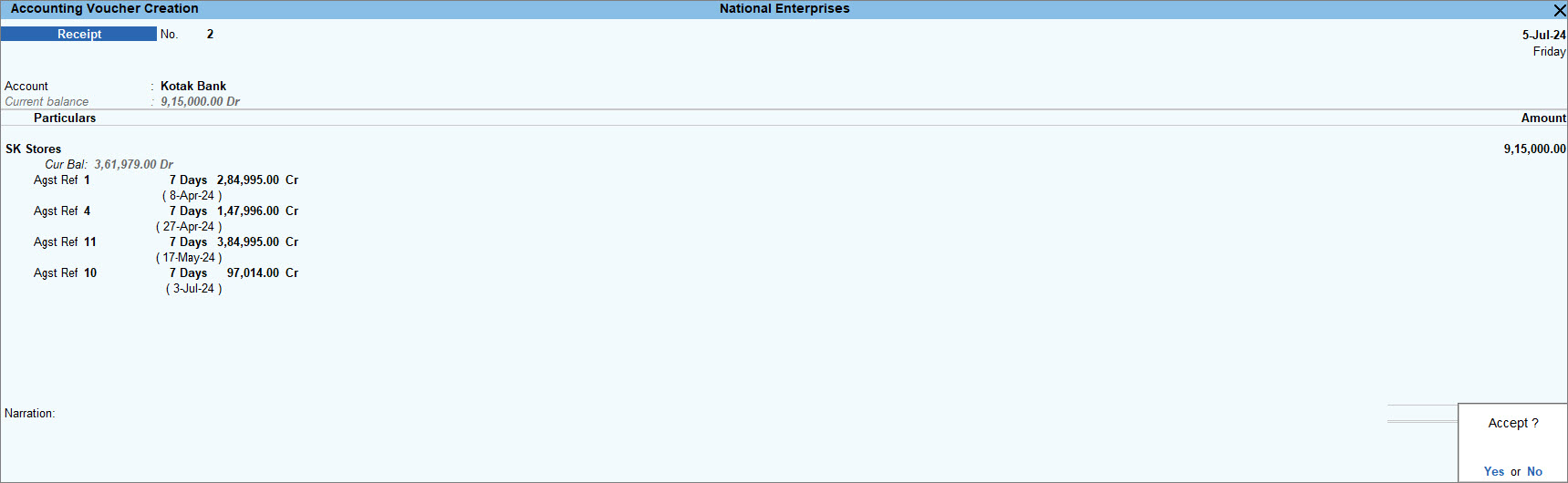
- As always, press Ctrl+A to save the voucher.
As you can see, the receipt got auto adjusted based on the due dates.
Preallocate Amount for Pending Bills

In the Payment or Receipt transaction:
- Press F12 (Configure) to configure for Bill-wise details.
- Set the option Preallocate bills for Payment/Receipt/Journal Vouchers to Yes, to select the bills immediately after selecting the party ledger.
- Set the options Show list of Bills for selection and Show Final Balances for each Bill to Yes, to view the list of pending bills with Due Date, Balance, and Final Balance for each bill.
- In the Bill-wise Details screen, allocate one or more bills against any existing bills.
- Under Type of Ref, select Agst Ref
- Under Name, select the name of the existing bill against which you are allocating this bill.
If you had specified sorting of pending bills as per their Due Dates, the Bill-wise details would display the pending bills as per the order of the due dates.
You can view the Name of Pending Bills that is yet to be settled against the party along with their Due Dates and the corresponding balance for each date.
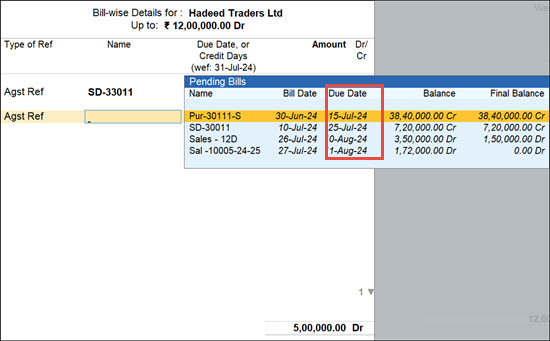
If you have specified any credit days for the party in the master, the due dates will be displayed including the credit days.
In case you have enabled the options Show Bill-wise Details and Show Bill-wise details in multiple linesto Yes for the voucher, you can view the pending bills details on the voucher screen itself.
- Provide any other necessary details and press Ctrl+A to save the voucher.
Based on the bill allocation, the amounts gets settled for the selected party. You can view any remaining outstandings from the party in the Ledger Outstandings report.