
Set Up Party Ledgers for e-Invoicing in TallyPrime (KSA)
Before generating e-Invoices, you can set up your party ledgers to contain all the mandatory customer details, including address information, buyer identification, and VAT registration details required by ZATCA compliance.

Ensure that you have:
- The mailing details as per the party’s official address. The buyer’s mailing details must also be provided in Arabic, as required by ZATCA.
- The National ID, if taxability is zero-rated and category code reason is Private Healthcare for Citizens or Qualifying Metals.
- The VAT Registration Details including registration type and VAT no.
- Open a ledger in alteration mode or create a new party ledger under Sundry Creditors or Sundry Debtors.
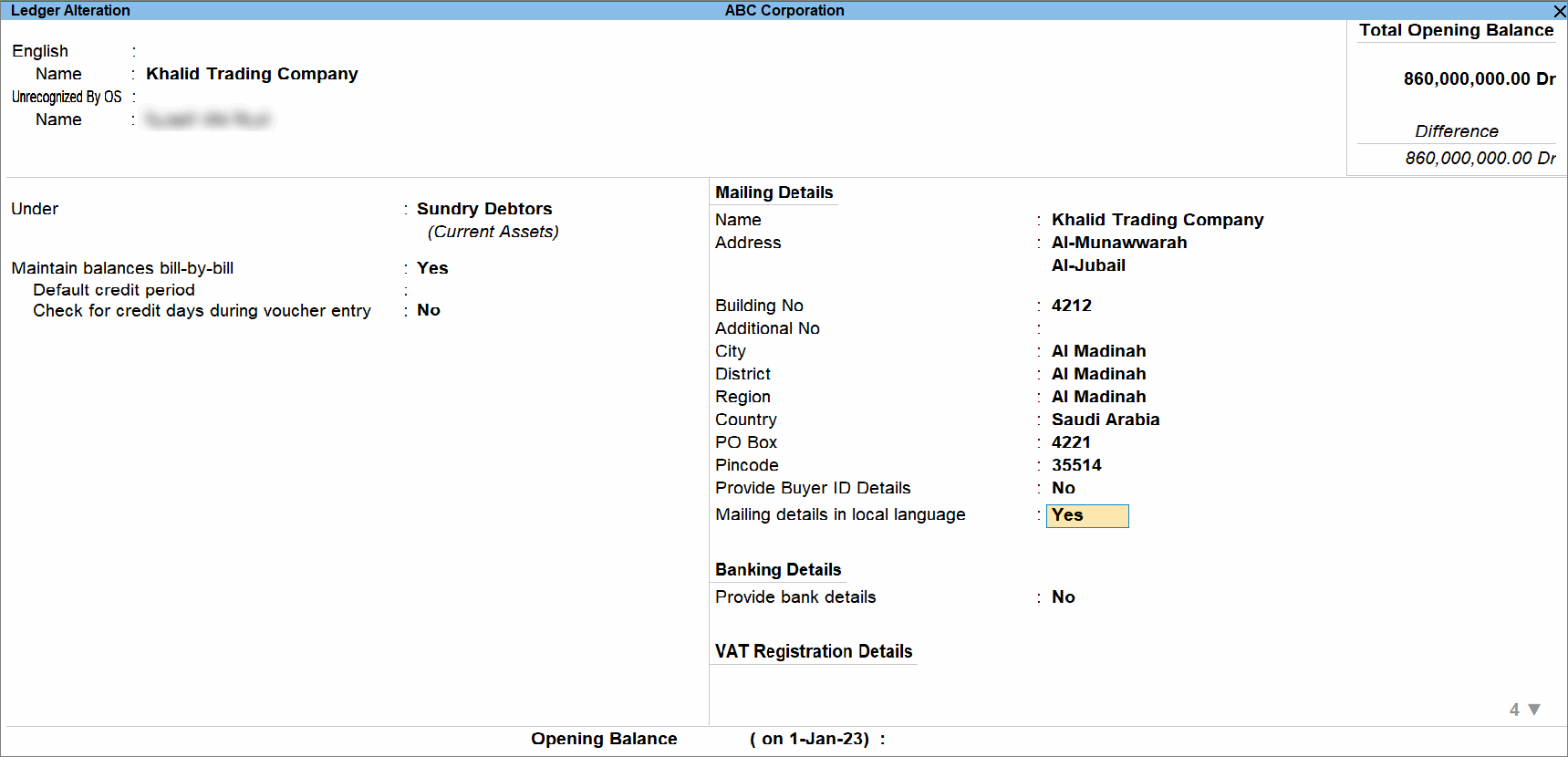
- Press F12 (Configure) > enable Provide language aliases or Name and enter the name of the ledger in Arabic.
- Specify the Building No., City, District, Region, Country, PO Box, and Pin Code.
- Enable Buyer ID Details and in the Buyer ID Details screen, specify only one of the buyer ID details.
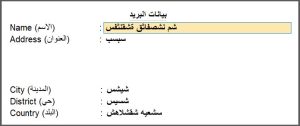
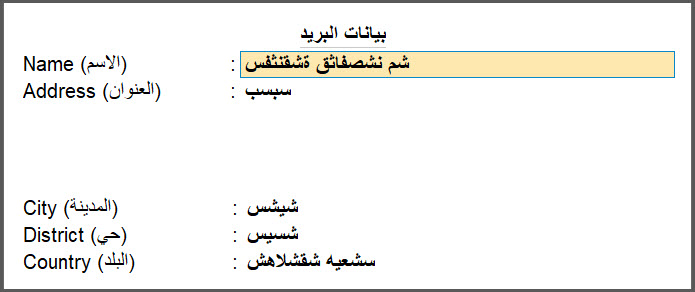
- Enable Mailing details in local language and update the address in Arabic.
- Under VAT Registration Details, specify the required details.
- Registration type: Registered or Unregistered, as applicable.
- Date of VAT registration: The date on which the Company had registered for VAT.
- VAT No.: The Company VAT registration number.
- VRN Type: Company Registration or Headquarter Registration, based on the nature of registration.
- Press Ctrl+A to save.
ZATCA now validates customer TIN and CRN during invoice exchange, so you can use the Buyer ID Details Report in TallyPrime to review all Buyer IDs in one place.
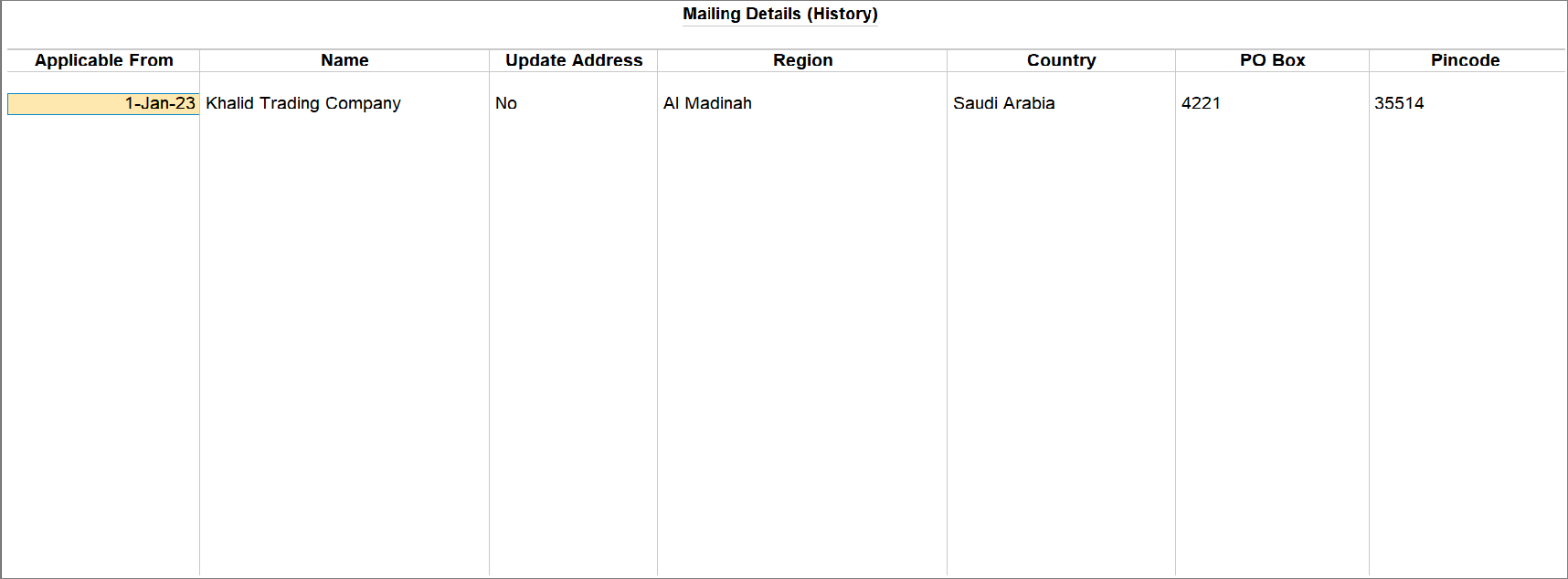
View Mailing Details (History)
Applicable only to KSA Integration Phase
- Press Alt+G (Go To) > Alter Master > Ledger > type or select ledger and press Enter.
- Press Ctrl+I (More Details) > Mailing Details (History) and press Enter.
Is this information useful?
YesNo


