Set Up for e-Invoice Integration Phase in TallyPrime (KSA)
Set up your company and VAT details as per Zakat, Tax and Customs Authority (ZATCA) requirements to onboard for KSA e-Invoicing Integration Phase. Generate e-Invoice login credentials and complete the setup required for e-Invoice generation in TallyPrime.

Ensure that you have:
- Enabled TallyPrime Edit Log or upgraded to the latest version of TallyPrime Edit Log.
- A valid TSS and it is eligible for e-Invoicing in TallyPrime.
Set Up Company Details for e-Invoice Integration Phase
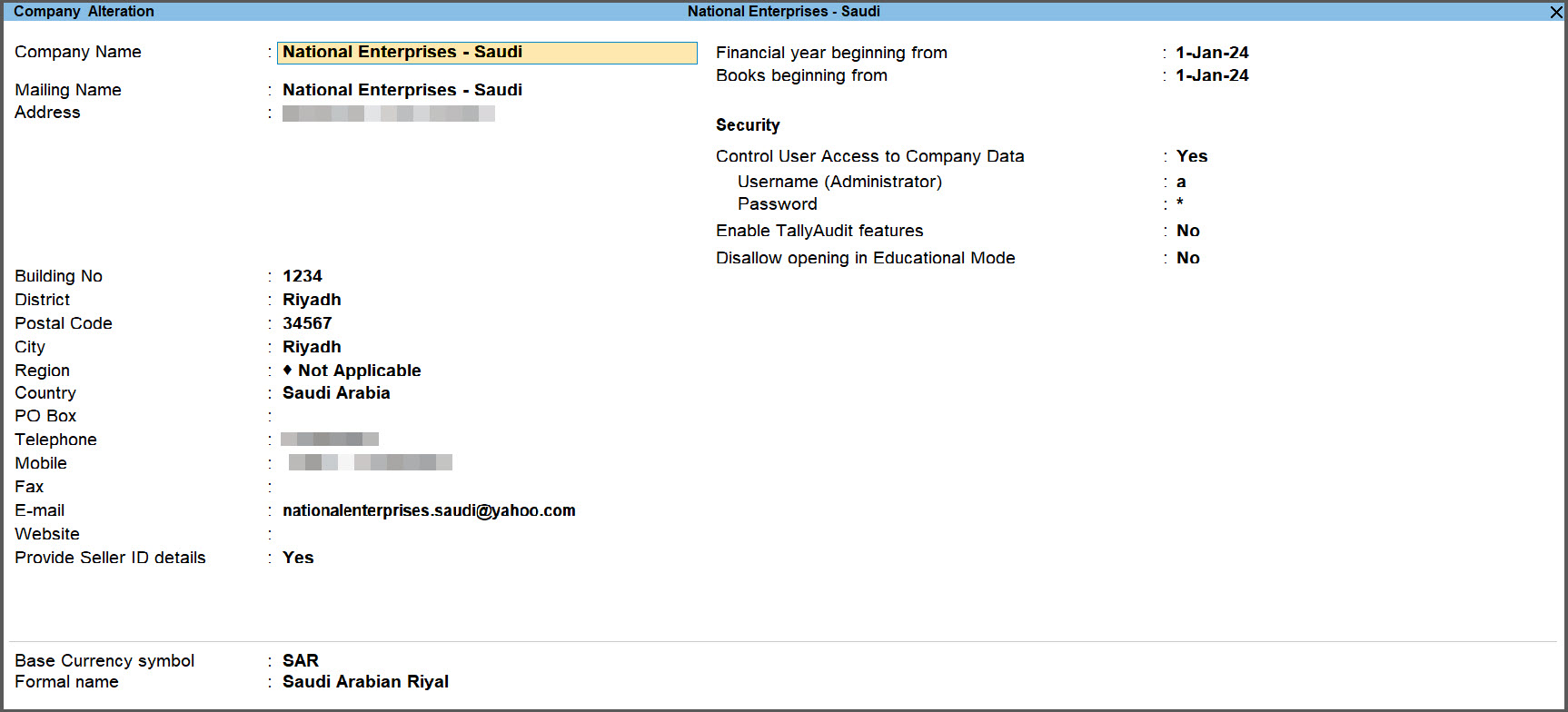
- While creating a Company, enter Address, Building No., District, Postal Code, City, Telephone, Mobile, and E-mail.
These details are necessary to generate or renew e-Invoice Login Credentials for your Company.
If you have not set up your company as per the ZATCA regulations during company creation, you can alter your Company to update the necessary details. - Set Provide Seller Details to Yes and press Enter.
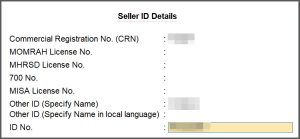
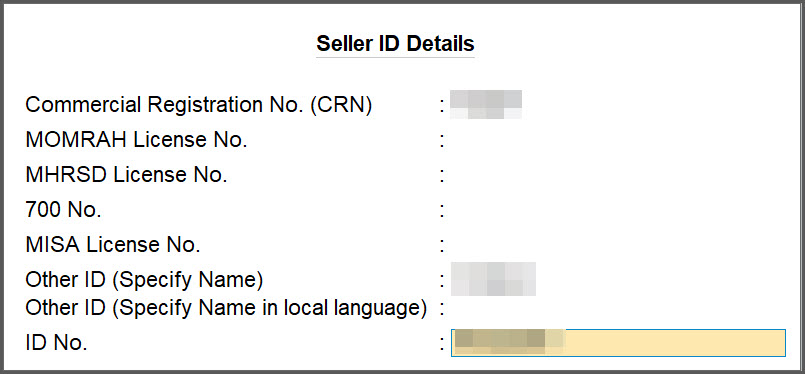
In the Seller ID Details screen, specify any one ID out of the following:- Commercial Registration No. (CRN): Enter the CRN which is a 10-digit number shown at the top left corner of the commercial registration certificate.
- Momrah License No.: Enter the identification number of the license provided by The Ministry of Municipal Rural Affairs and Housing.
- MLSD License No.: Enter the identification number of the license provided by The Ministry of Labor and Social Development.
- 700 No.: Enter the 700 No. which is applicable if your Company is a defence institution or organization.
- MISA License No.: Enter the identification number of the license provided by The Ministry of Investment.
- Other ID (Specify Name): Enter the name of Other ID such as Driving License, Passport, or other, as applicable.
- ID No.: Enter the identification number of the Other ID.
- Update security details to configure user access control.
- Press Ctrl+A to save.

Set Up VAT Details and Generate Login Credentials

- Press F11 (Company Features) and in the Company Feature screen, set Enable Value Added Tax (VAT): Yes.
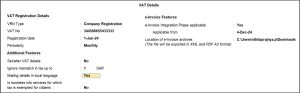
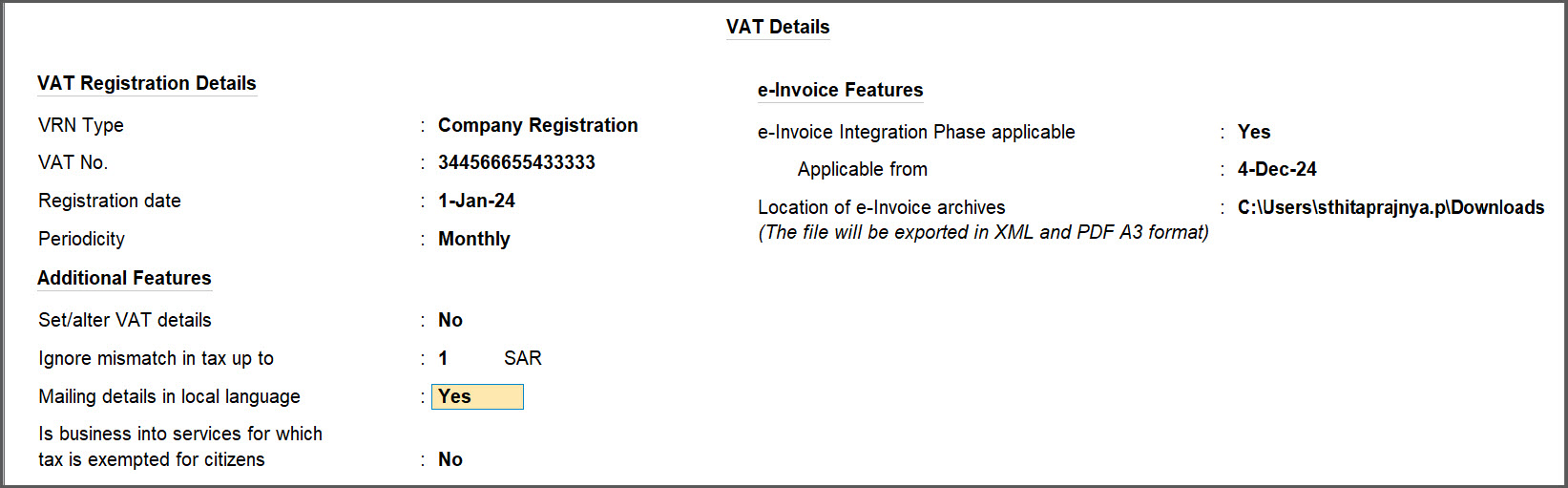
- In the VAT Details screen, specify the VAT Registration Details.
- VRN Type: Select either Company Registration or Headquarter Registration, based on the registration of your Company.
- VAT No.: Enter the VAT registration number of your Company.
- Registration Date: Enter the Date on which your Company had registered for VAT.
- Periodicity: Select either Monthly or Quarterly to set the periodicity of your VAT returns.
- To update VAT Details, enable Set/Alter VAT details.
In the VAT Rate Details screen, the Taxability is set as Taxable and Tax rate is set as 15%.
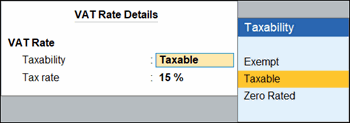
- If you wish to change to change the Taxability as Exempt or Zero Rated, set the Applicable from date.
- Provide mailing details in Arabic.
- Mailing details in local language: Yes.
- In the Primary Mailing Details screen, enter the name of the company and mailing details in Arabic.
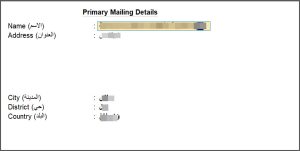
If you have multiple addresses, press F11 (Company Features) > Enable multiple addresses and provide relevant details.
To print the invoice in both English and Arabic, in the Voucher Printing screen > Configure > Print Type > Bilingual.
- Mailing details in local language: Yes.
- Specify the applicability of e-Invoice Integration phase.
- e-Invoice Integration Phase applicable: Yes.
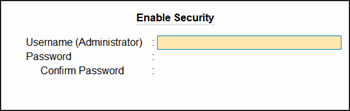
As per the ZATCA regulations, if you have not updated the security details for your Company, you will be prompted to provide an username and password for your Company.
- Applicable from: The date from which e-Invoice Integration Phase is applicable to your Company.
- e-Invoice Integration Phase applicable: Yes.
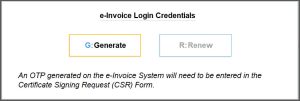
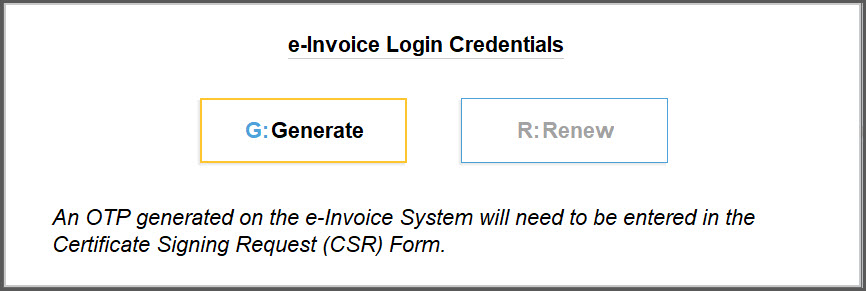
- In the e-Invoice Login Credentials screen, press G (Generate).
-
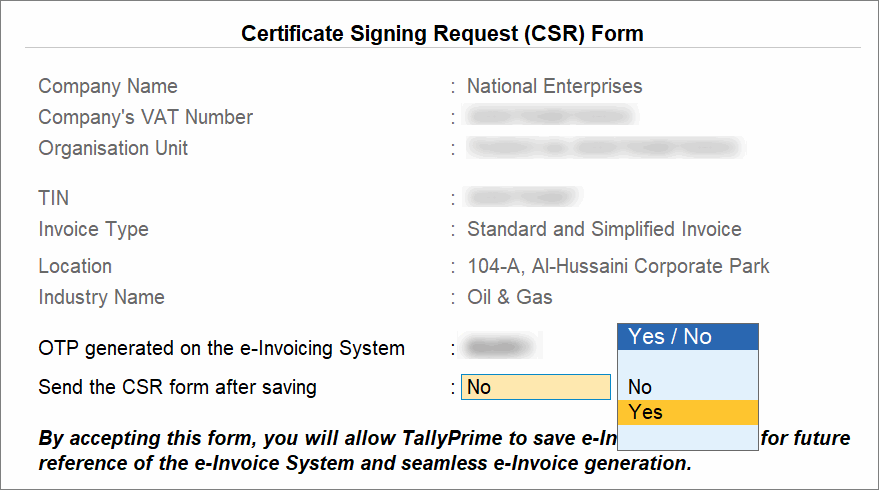
In the Certificate Signing Request (CSR) Form, enter the required details except for the prefilled fields like Company Name, Company VAT Number, and Organisation Unit.
-
TIN: Enter the Taxpayer Identification Number, as per your VAT registration.
-
Invoice Type: Select Simplified Invoice for B2C transactions, Standard Invoice for B2B transactions, or Simplified and Standard Invoice for both B2C and B2B transactions.
-
Location: Mention the location of your company.
-
Industry Name: Enter the name of your industry, such as Automobile, Oil & Gas, or other, as applicable.
-
-
Log in to the e-Invoice System or Fatoora portal and generate an OTP.
If you are not logged in to the e-Invoice System and want to generate e-Invoice Login credentials later, then you can press Ctrl+A to save the details. -
Enter the OTP and press Enter.
-
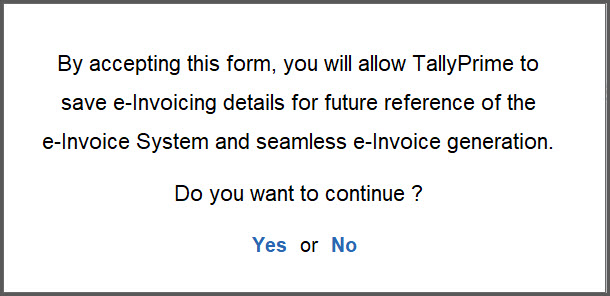
Send the CSR Form after saving: Yes.
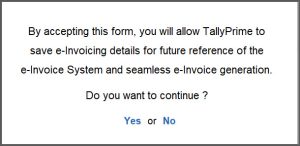
- Press Y or select Yes to continue.
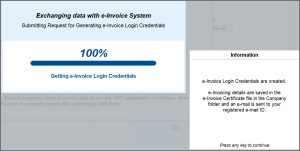
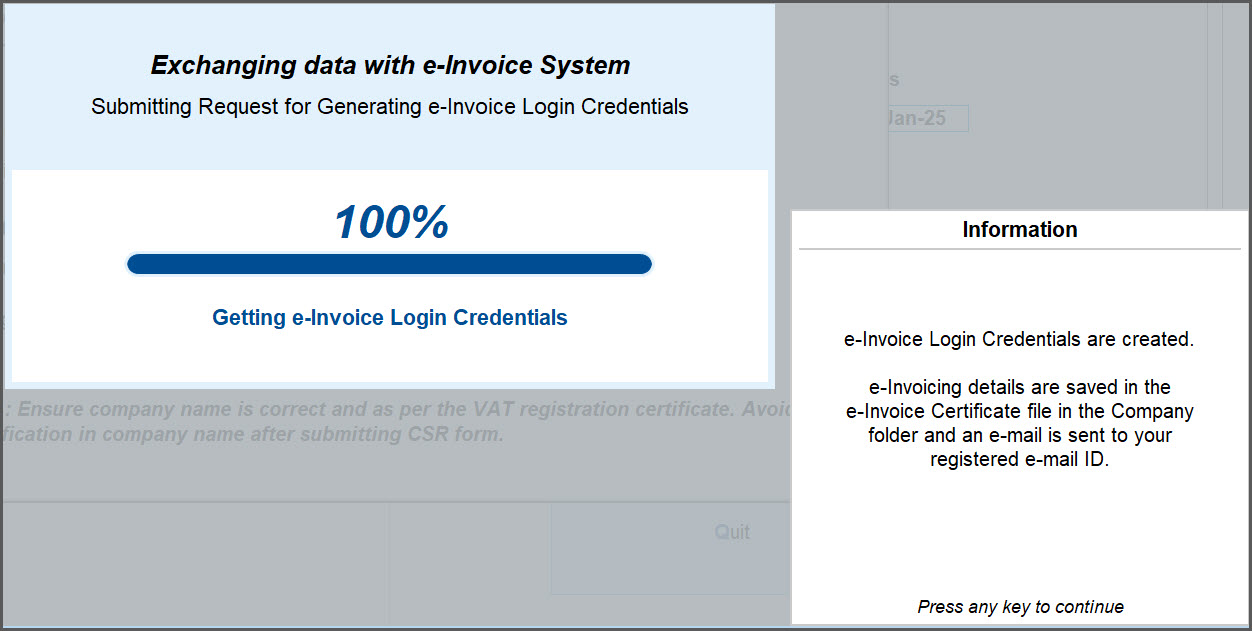
Once the e-Invoice Login credentials are generated, you will receive an e-mail on your e-mail ID that is mentioned in the company creation/alteration screen. You will also receive an e-Invoice Certificate, which gets stored in your Company folder.
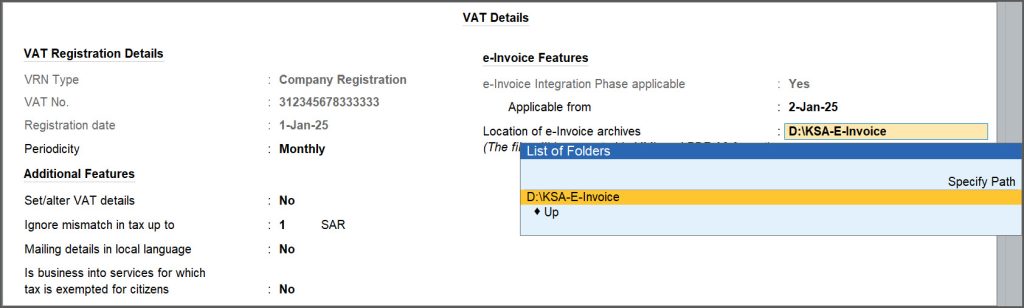
- In the VAT Details screen, in Location of e-Invoice archives, specify the path where you want to automatically save the A3-size PDF after successfully generating the e-Invoice.
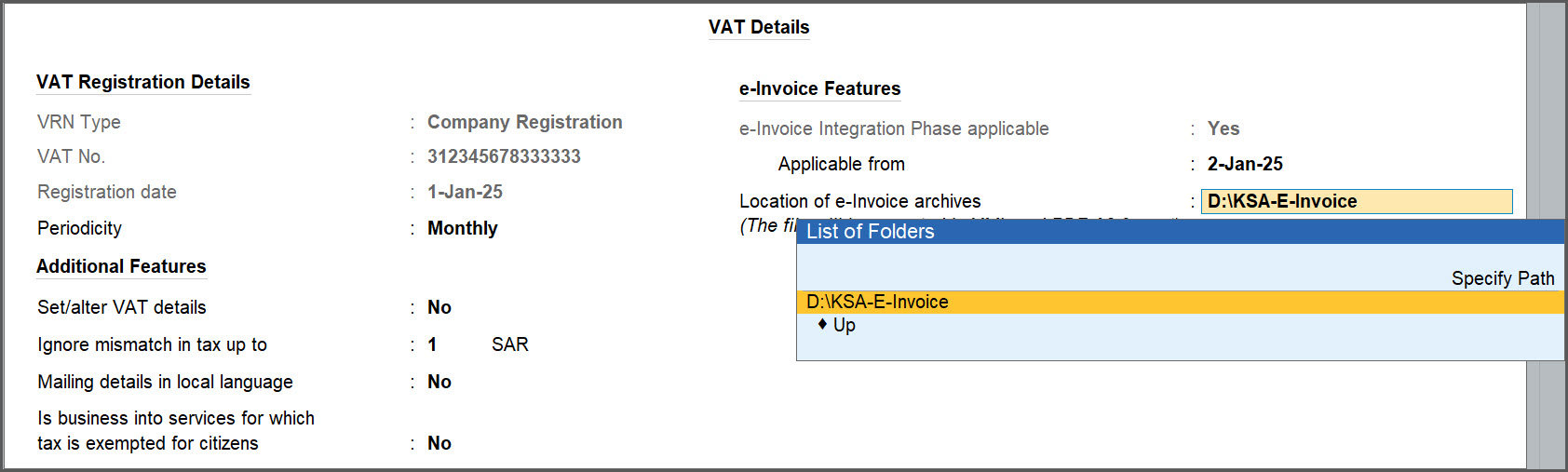
Following ZATCA registration, fields such as VRN Type, VAT No., Registration Date, and e-Invoice Integration Phase applicability cannot be edited. These mandatory details are registered with ZATCA during onboarding, and modifying them will go against the ZATCA regulations.
If you must update anything, you have to revoke your login credentials and generate new login credentials.
Revoke e-Invoice Login Credentials
- Press F11 (Company Features) > set Enable Value Added Tax (VAT) to Yes and press Enter.
- In the VAT Details screen, press Ctrl+I (More Details) > e-Invoice Integration Phase (History) and press Enter.
- Press Ctrl+R (Revoke Credentials).
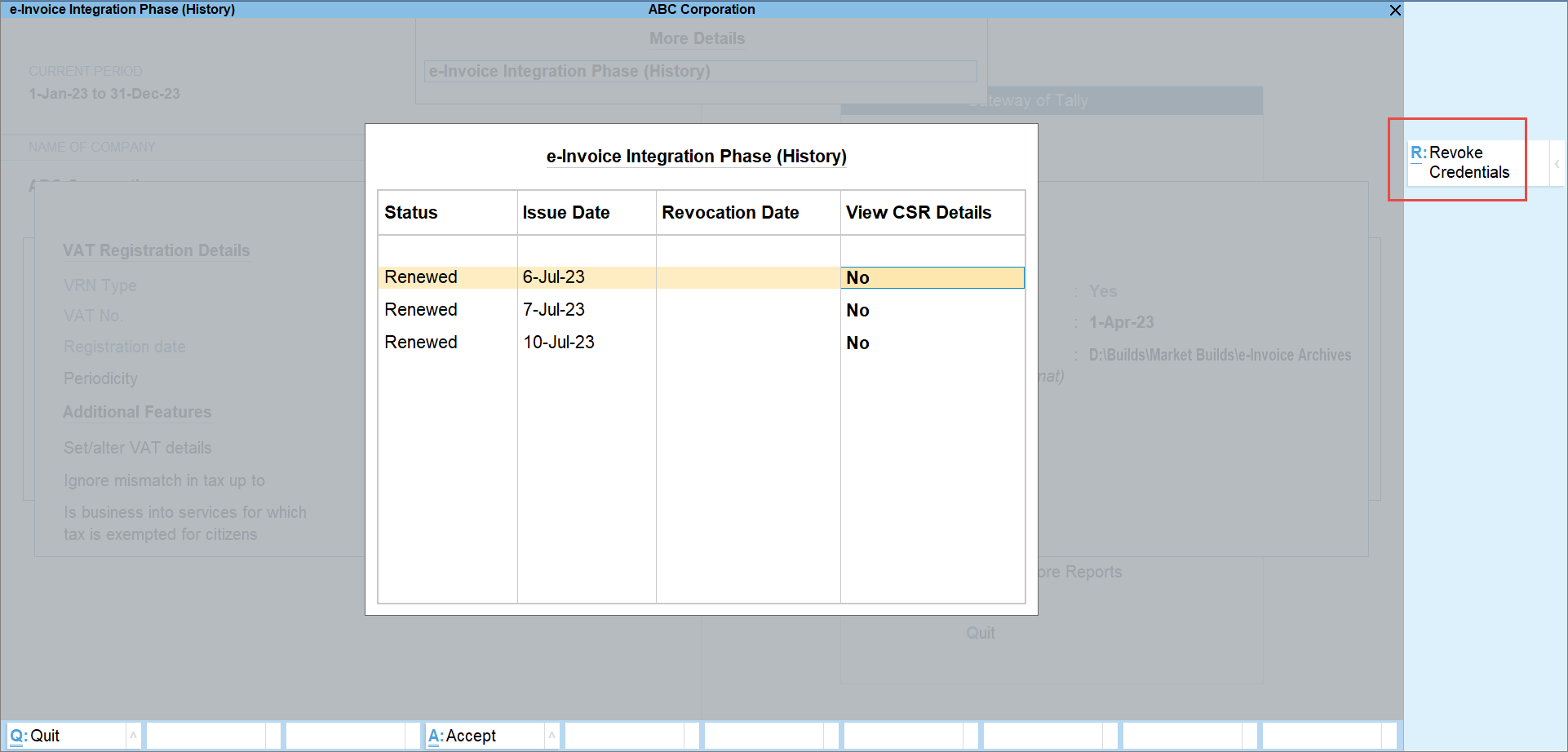
- Press Y or select Yes to continue.
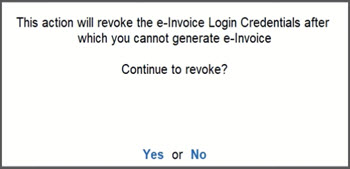
The e-Invoice Login Credentials get revoked.
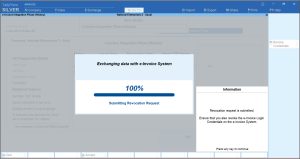
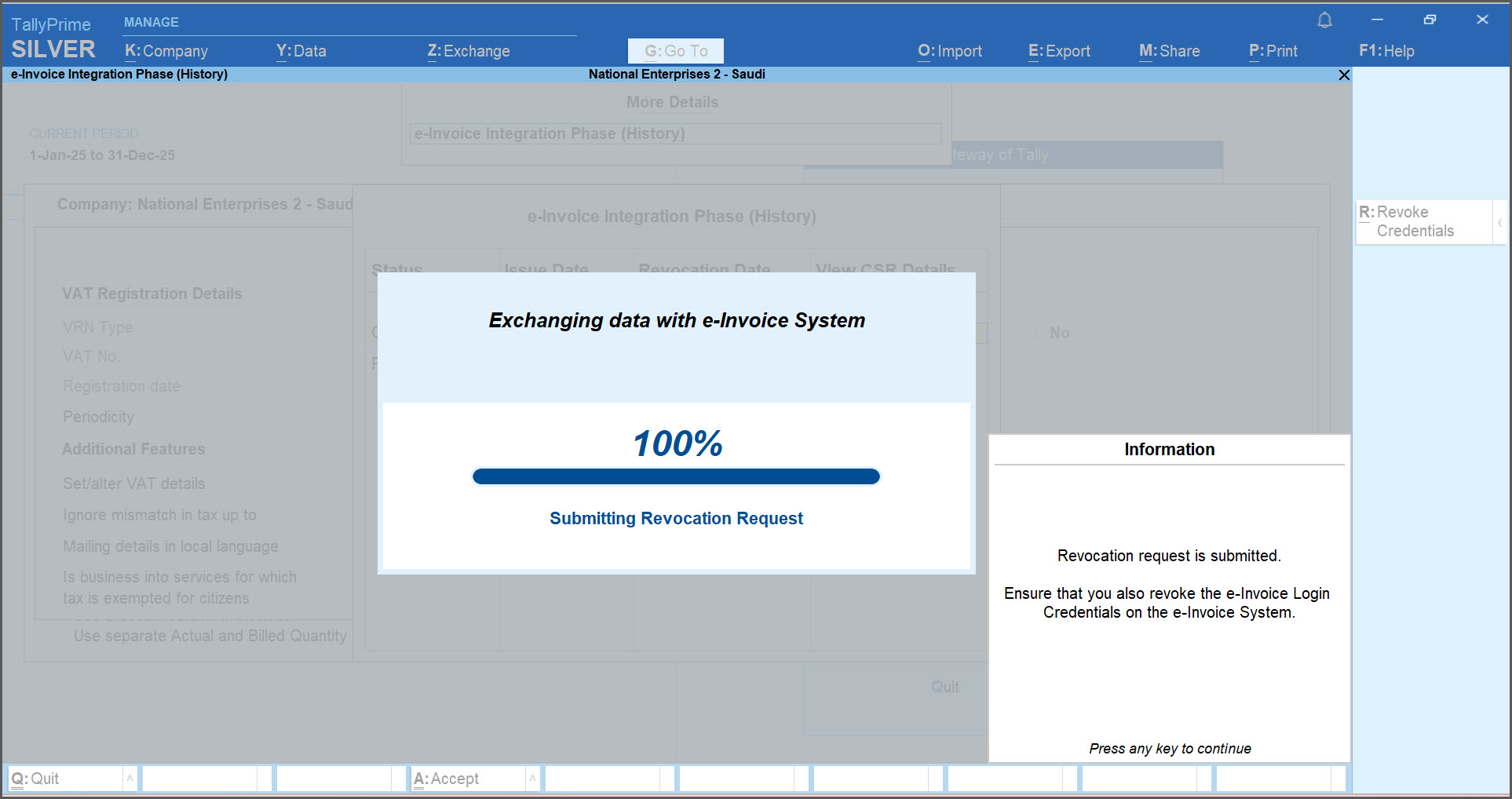
After revoking the e-Invoice Login Credentials in TallyPrime or on the e-Invoice System or both, then you will not be able to generate e-Invoices. For generating e-invoices using the same Company Name and VAT No., you need to generate e-invoice login credentials again for your company.
Questions & Answers
- When should I revoke my e-Invoice login credentials?
You may need to revoke your e-Invoice login credentials in the following scenarios:- You want to generate new e-Invoice login credentials for another e-Invoicing solution or software.
- You want to renew the details such as TIN, Invoice Type, or any other field in the CSR form.
- You might have accidentally revoked your e-Invoice login credentials from the e-Invoice system.
In such cases, you need to revoke the e-Invoice login credentials in TallyPrime. Similarly, if you revoke your e-Invoice login credentials in TallyPrime, then you will also need to revoke it on the e-Invoice System.