
View Sales Materialised Report in Tally e-Billing
The report displays all Sales and Sales Return vouchers recorded for the selected period, along with details such as Bill No., Customer Name and PAN, Total Sales Amount, Taxable Amount, and Tax Amount. It also shows the CBMS synchronisation status, whether the bill is active, whether the voucher has been printed, and other relevant details. You can view the report in Nepali or English, and print or export it in PDF or Excel format.

Ensure that:
- You have recorded Sales and Sales Return vouchers.
- From Gateway > click IRD Reports > then click Materialised Reports > and then click Sales Materialised View.
The report opens in Nepali by default.
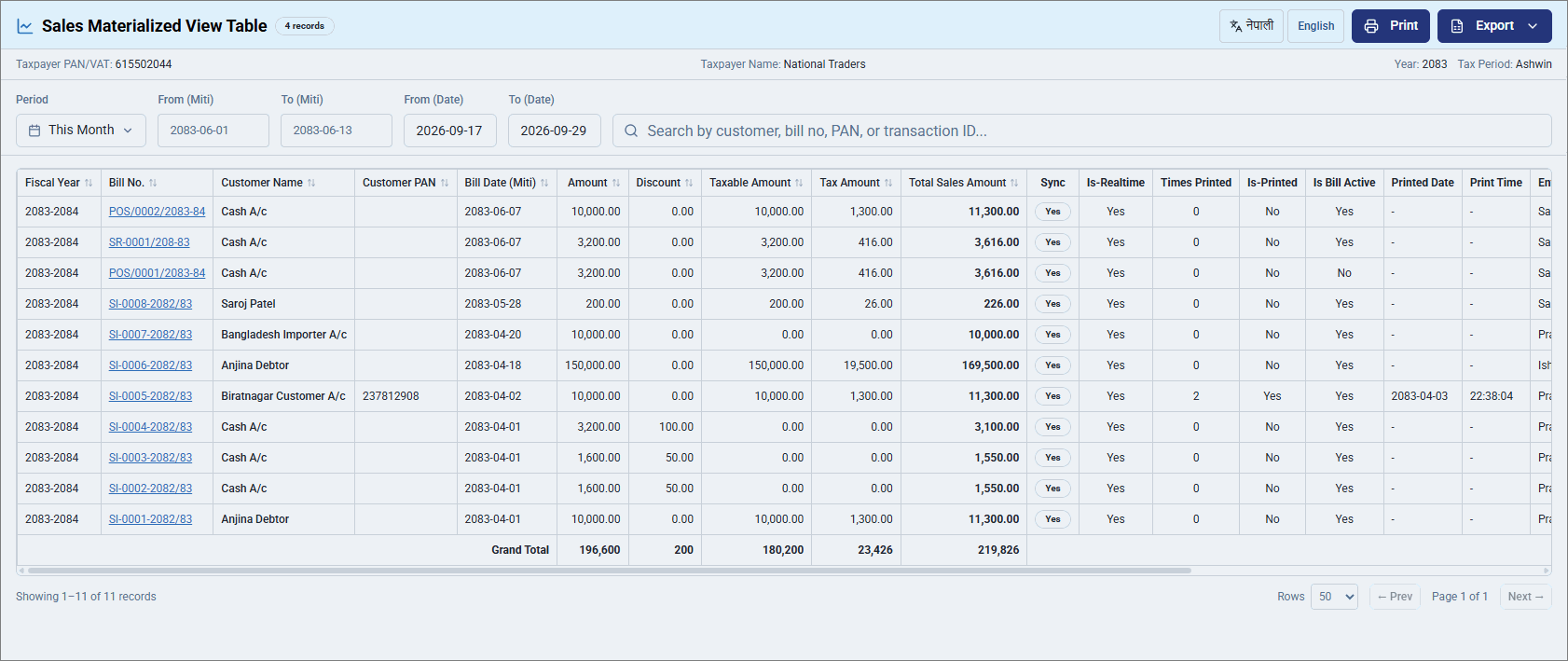
- Click English to change the display language of the report.
- Select the required Period.
- Drill down from the BillNo. to view the voucher details.
- To export the report, click Export and select Excel or PDF.
- Click Print to print the report.
Is this information useful?
YesNo


