
Set Up Sales and Purchase Accounts in Tally e-Billing
Create sales and purchase accounts and define the applicable taxation details, VAT rates, and nature of transactions for your business. Let’s see how to create a sales account.
- From Gateway > click Chart of Accounts > click Accounting Masters > and then click Accounts.
- In the Account screen, click Create.
- In the Create Ledger screen, enter the Basic Details.
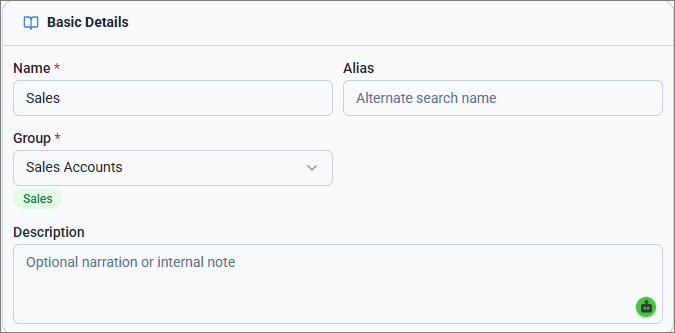
- Enter the Name of the sales account and Alias, if any.
- For Group, select Sales Accounts.
- Enter Description, if any.
- Enter the Taxation details.
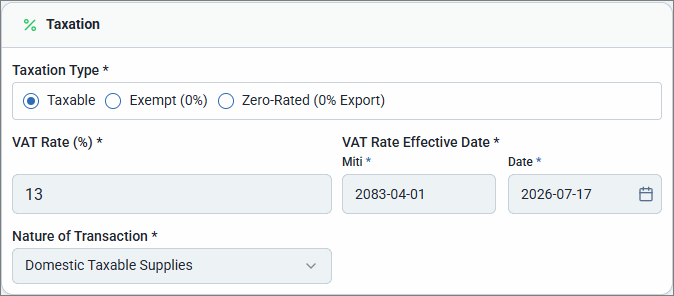
- Select the required Taxation Type, such as Taxable, Exempt, and Zero-Rated.
- Enter the VAT Rate (%), if you have selected Taxation Type as Taxable.
- Select the VAT Rate Effective Date.
- Select the Nature of Transaction, such as Domestic Taxable Supplies, Exports, Zero-Rated, or Exempt.
- Click Save.
Similarly, you can create purchase account under Purchase Accounts.
Is this information useful?
YesNo


