
Use Your Preferred Template in TallyPrime
In TallyPrime, you can take a look at all the templates, and select your preferred template that suits your business.
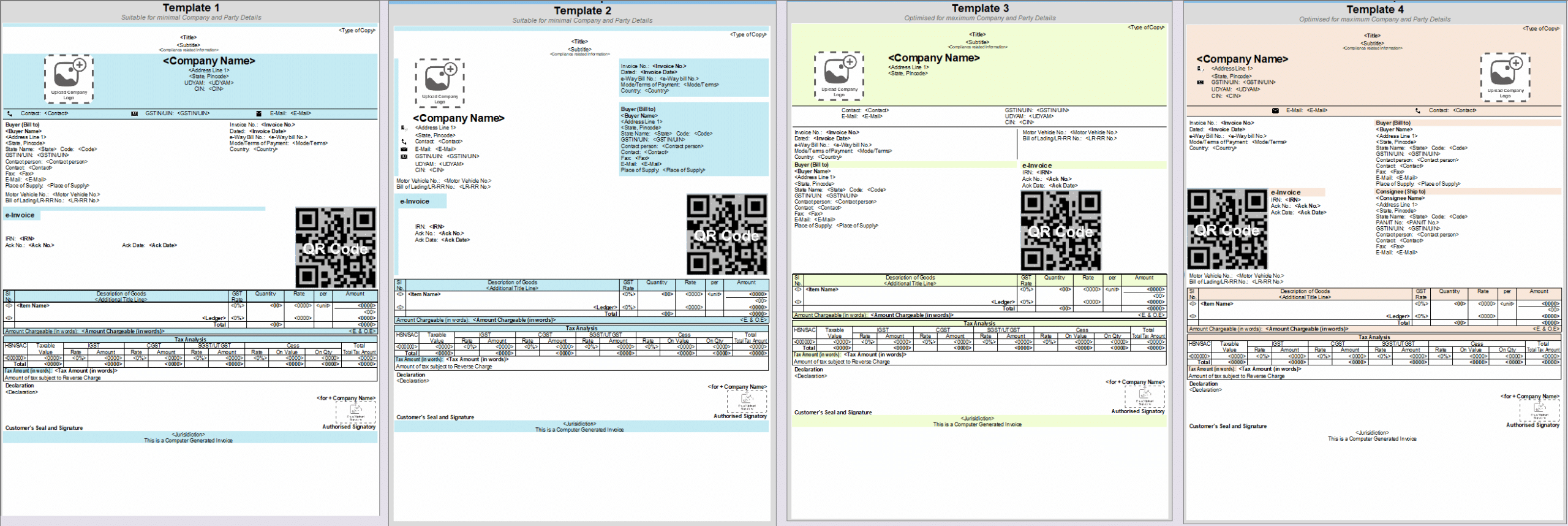
Template 1 – Template 4: These templates are designed to focus on presentation and allow you to change the look and feel of your documents while keeping all the information and layout consistent and intact. You can also configure the fields in these templates as per your requirement.
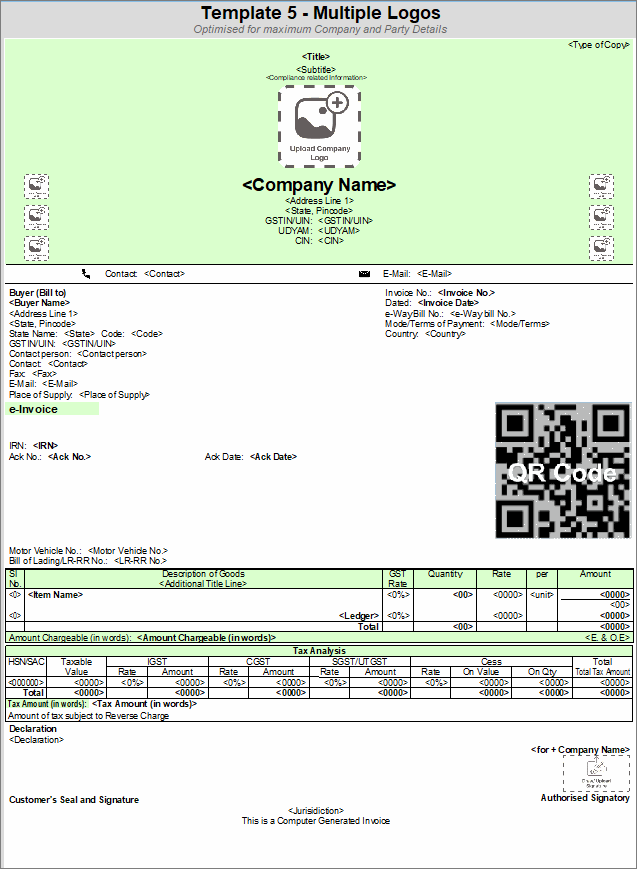
Template 5 (Multi-Logo): This template allows you to add multiple logos for your business. If your organization is operating a portfolio of brands, divisions, or business units under one umbrella, then this template is designed for you. It will accommodate multiple logos for consistent and professional invoicing.
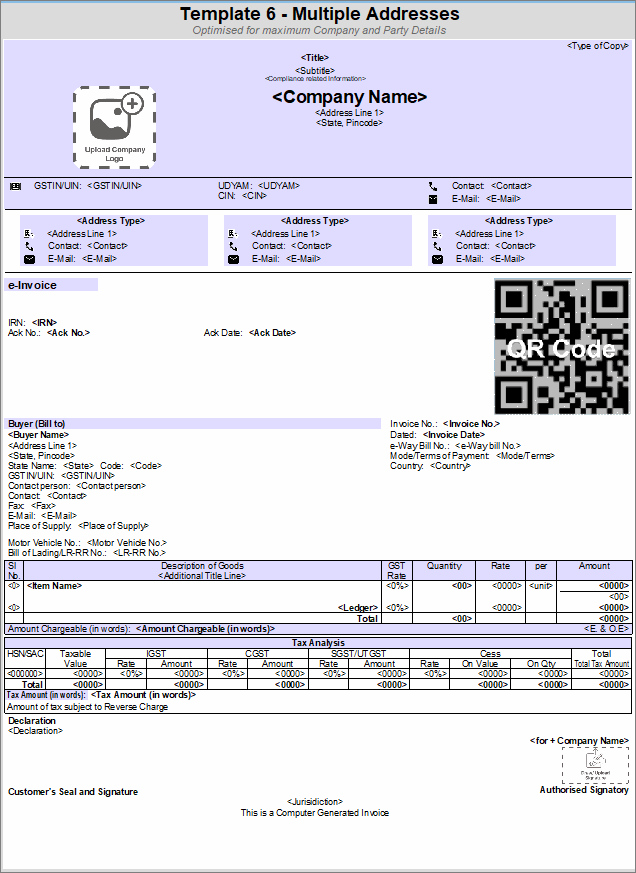
Template 6 (Multi-Address): This template allows you to add multiple addresses, if any. If you want to print service centre, corporate office, or branch addresses, this template supports configurable address details within a clean and unified layout.
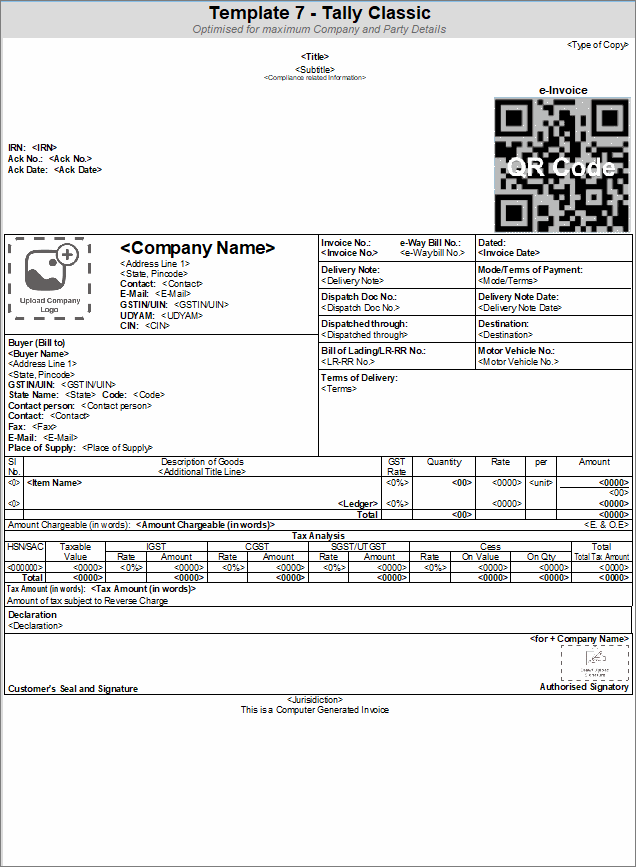
Template 7 (Tally Classic): You can use this template, which is similar to the Tally Classic format and customise, as per your business needs.
GCC Templates: These bilingual templates will be available for you, if you have created Companies with GCC Countries.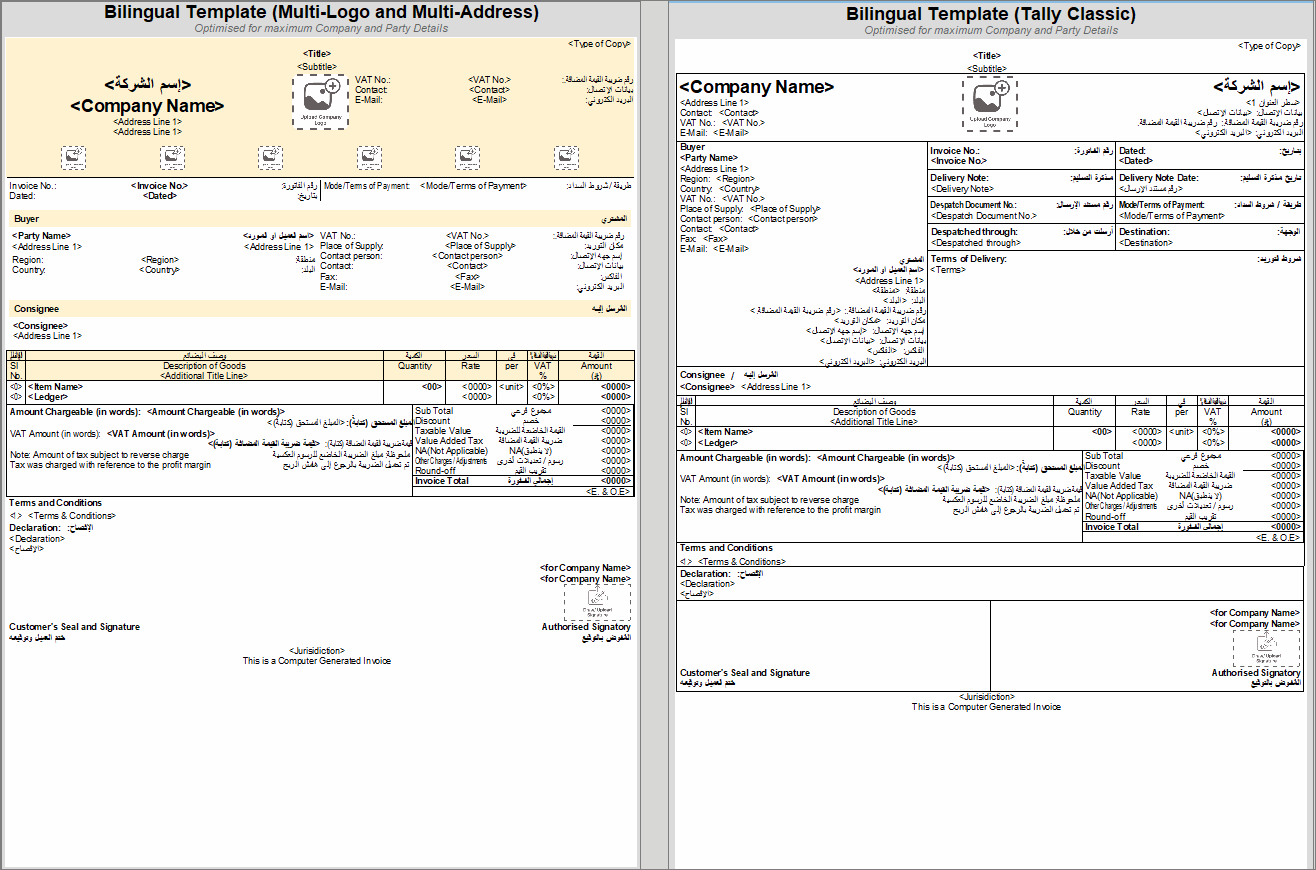
Now, let’s assume you want to print a Sales invoice with the selected predefined template.
- Open the invoice, press Ctrl+P (Current).
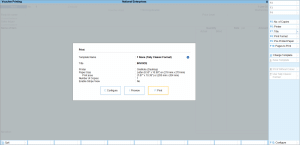
- Press Ctrl+H (Change Template).
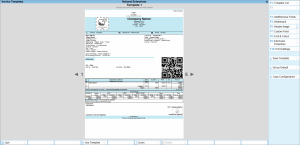
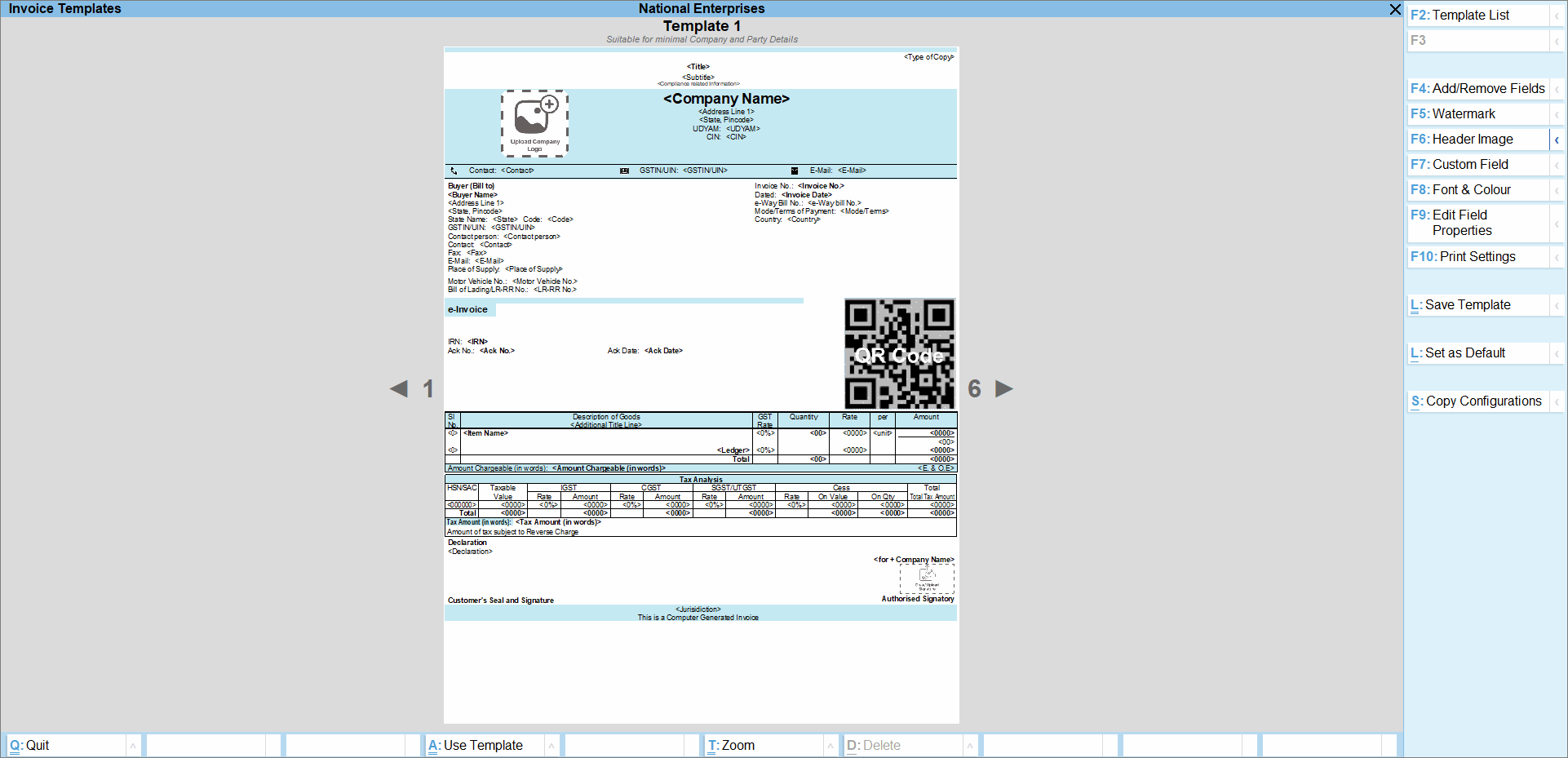
- Invoice Template screen, you can press left and right arrow to navigate through the templates.
Alternatively, you can press F2 (Template List) to see the list of predefined and saved templates and quickly navigate to the preferred template.
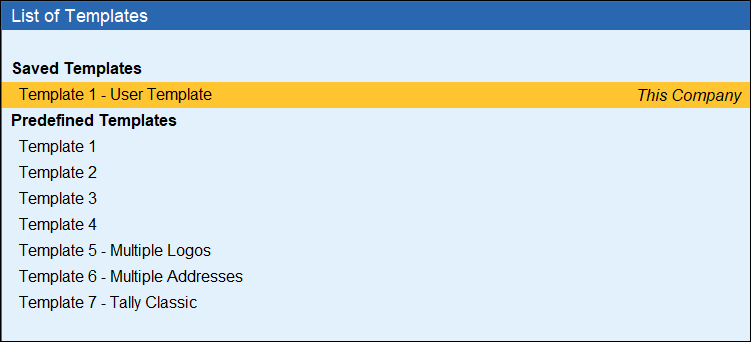
Alternatively, press Alt+P (Print) > Invoice Templates > Create/Modify Templates > select Voucher Type > spress the left and right navigation arrows to view the templates.
The Invoice Template option appears greyed out in a voucher entry form or report, as it is available only from the Gateway of Tally screen in TallyPrime.
-
Press Ctrl+A to use the template.
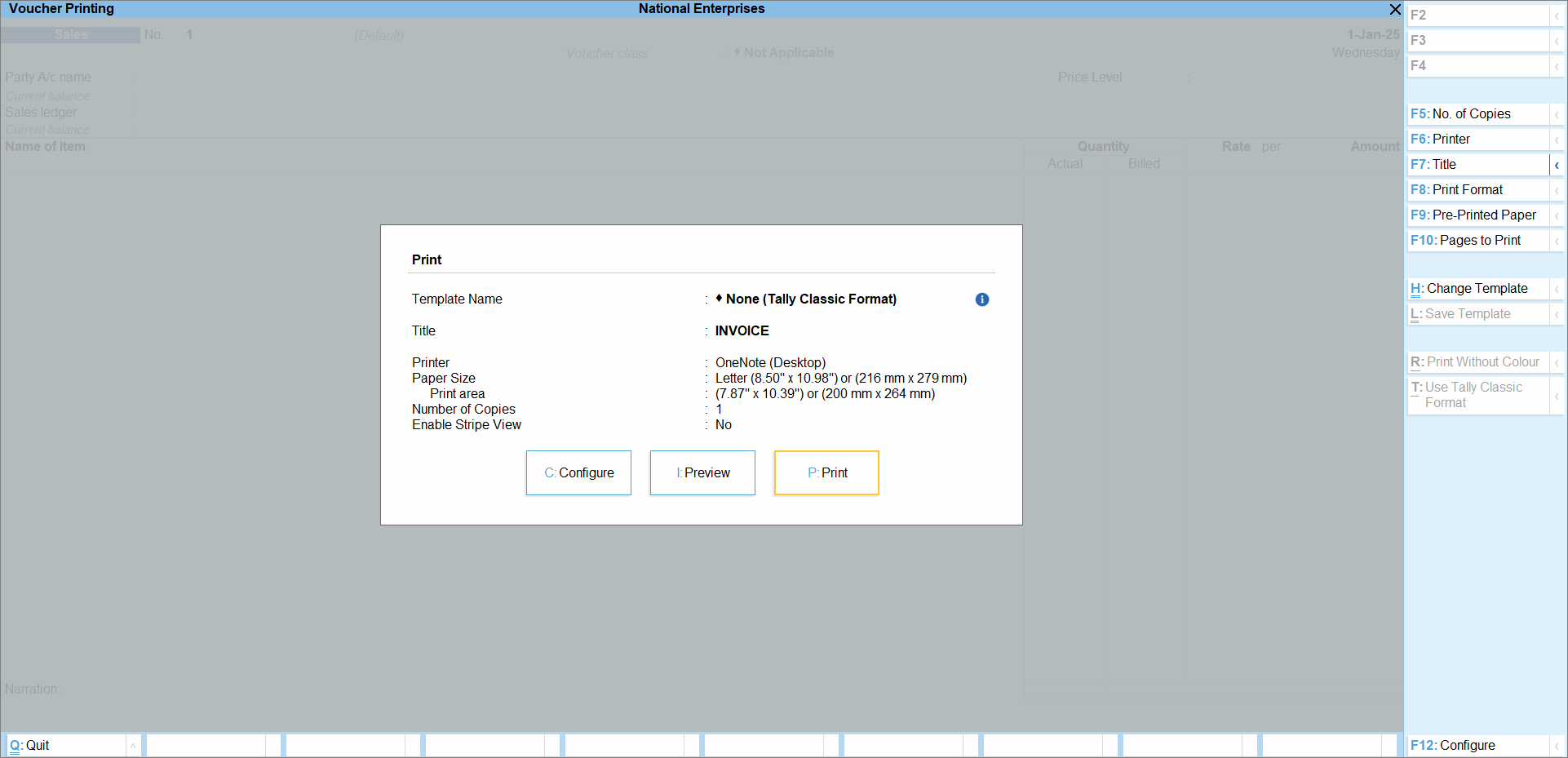
- On the Voucher Printing screen, press C to configure, if needed, press I to preview the invoice with the selected template, and press P to print the invoice.
Press Ctrl+L to save the template with the updated configurations that you have made from the Voucher Printing screen.
Press Alt+R (Print with Colour/Print Without Colour) to print the template either with or without colour. When you choose to print without colour, it would remove the themes, backgrounds, and field-level colour settings in the template.
Press Alt+T to switch to the Tally Classic format when you want to print an invoice without applying any template.
With these flexible template options in TallyPrime, you can effortlessly customise and use the most suitable invoice format, ensuring every document reflects your business identity with clarity.


