Create, Alter, and Delete Stock Items in TallyPrime
Stock items are the basic masters to manage your inventory in TallyPrime. In TallyPrime, you can:
- Create Stock Items: These represent goods and materials in your business.
In TallyPrime, you can create stock items with all the details such as Unit and Stock Group. - Alter Stock Items: Update stock items to change details such as Name, Rate, and Quantity.
- Delete Stock Items: When you do not deal with a stock item anymore, you can delete them.

- Ensure that you have created the unit of measurement for stock items.
Create Stock Items
If your business falls under a tax regime, you can set up your stock items with required tax applicability and tax details.
- Press Alt+G (Go To) > Create Master > type or select Stock Item and press Enter.
- Name: Enter the Name of the stock item.
- Select the language in which you want to enter the name.
- Press F12 (Configure) > set Provide language aliases for Name as Yes.
- In the Stock Item Creation screen, select the language from the List of Languages.
For example, Hindi. - Name & alias: Enter the name and alias in the selected language.
If you want to enter the details in another language, then refer to Change Data Entry Language.
- Under: Select Primary or an existing Stock Group.
- Use stock categories, if needed.
- Press F12 (Configure) and enable Use Stock Category for Stock Items.
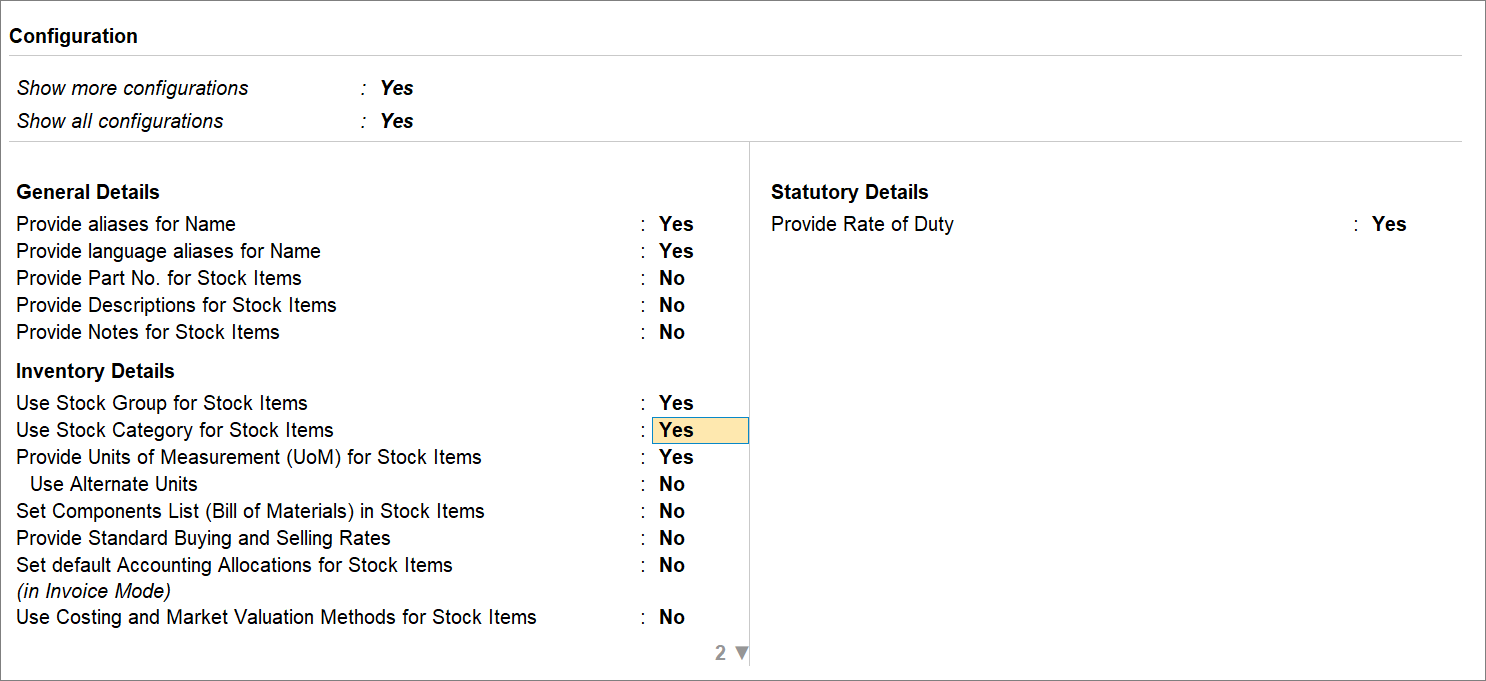
- Category: Select the relevant category from the List of Categories.
- Press F12 (Configure) and enable Use Stock Category for Stock Items.
- Units: Select the unit of measurement, applicable to the stock item.
You can also provide alternate units, if applicable in your business.
- Opening Balance: Specify the Quantity and Rate.
The Value gets calculated.
You can also change the Value. As a result, TallyPrime automatically refreshes the Rate field.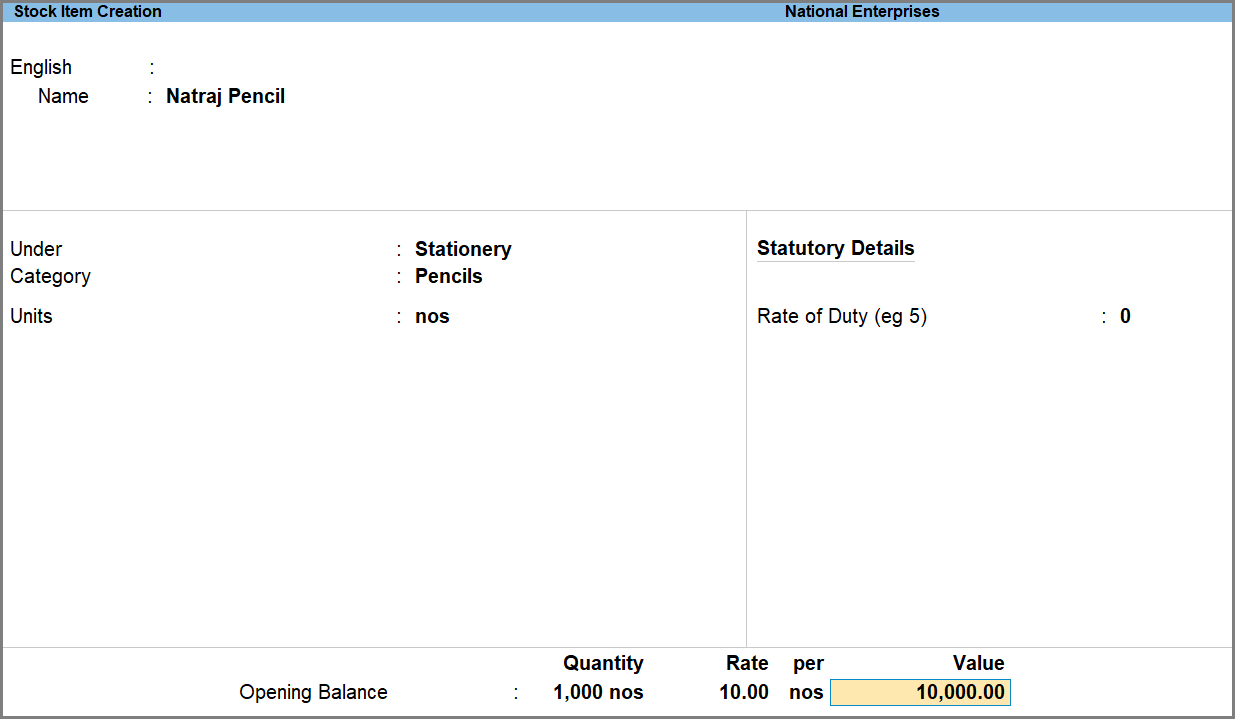
- Press Ctrl+A to save.
Alter Stock Items
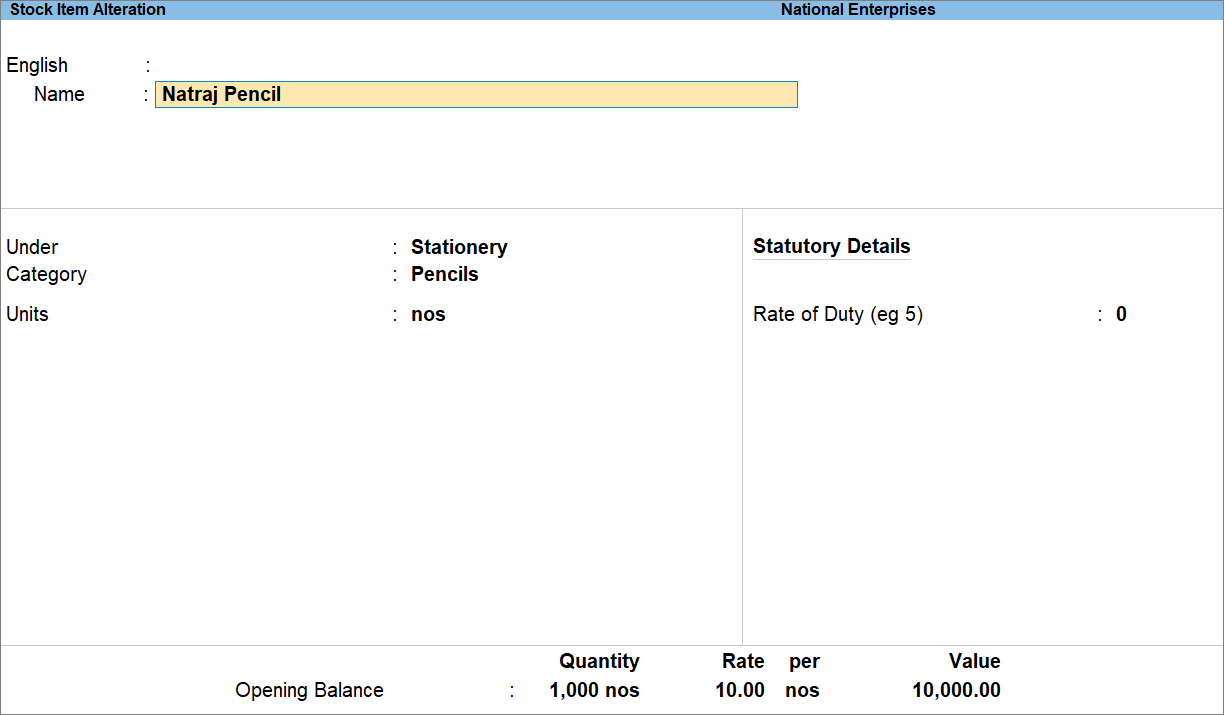
- Press Alt+G (Go To) > Alter Master > type or select Stock Items, and press Enter.
- In the Stock Item Alteration screen, you can then make the required changes.
Delete Stock Items
Ensure that the stock item:
- Has not been used in any transaction.
- Is not a part of an opening balance or closing stock.
- Is not linked to a bill of materials (BoM).
To delete the stock item, in the Stock Item Alteration screen:
- Press Alt+D (Delete).
Is this information useful?
YesNo