
Track Your Inventory Using Stock Summary Report
Stock Summary in TallyPrime shows real-time stock-in-hand. The report gets updated automatically with every inventory transaction. In TallyPrime, you can:
- View Stock Summary: Get stock details like quantity, rate, opening/closing stock, and stock value.
- Know Saleable Stock: Verify available inventory and pending sales orders before confirming customer order quantities.
- Know Stock Availability in a Godown: Plan restoration of stock items, if the quantity is less in a specific godown.
- View Monthly Stock Summary: Get the details of stock items including in each month.
- View Stock Summary for:
- Stock Groups: Understand availability of inventory within a specific stock group.
- Stock Categories: Understand availability of inventory within a specific stock category.

- Ensure that you have created stock items.
View Stock Item Details in Stock Summary
- Press Alt+G (Go To) > type or select Stock Summary and press Enter.
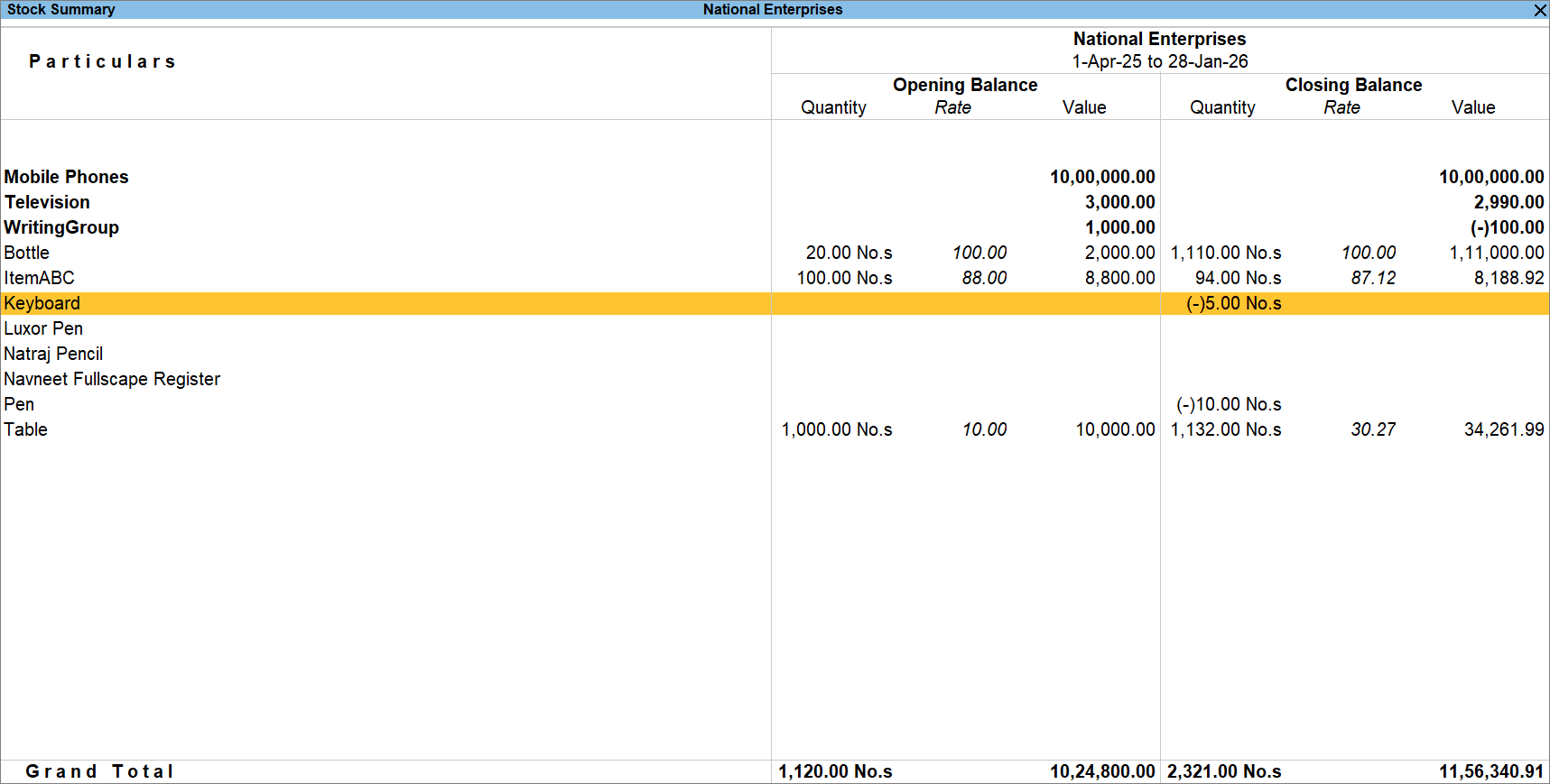
By default, you can view Stock Summary for all the Groups and Stock Items in TallyPrime. You also get to know if a stock item has negative quantity, represented by a (-) sign. - To view the report for a group, press F4 (Stock Group).
- To view the report Stock Item-wise, press F5 (Stock Item-wise).
- To view the Opening Balance, press F12 (Configure) and set Show Opening Balance as Yes.
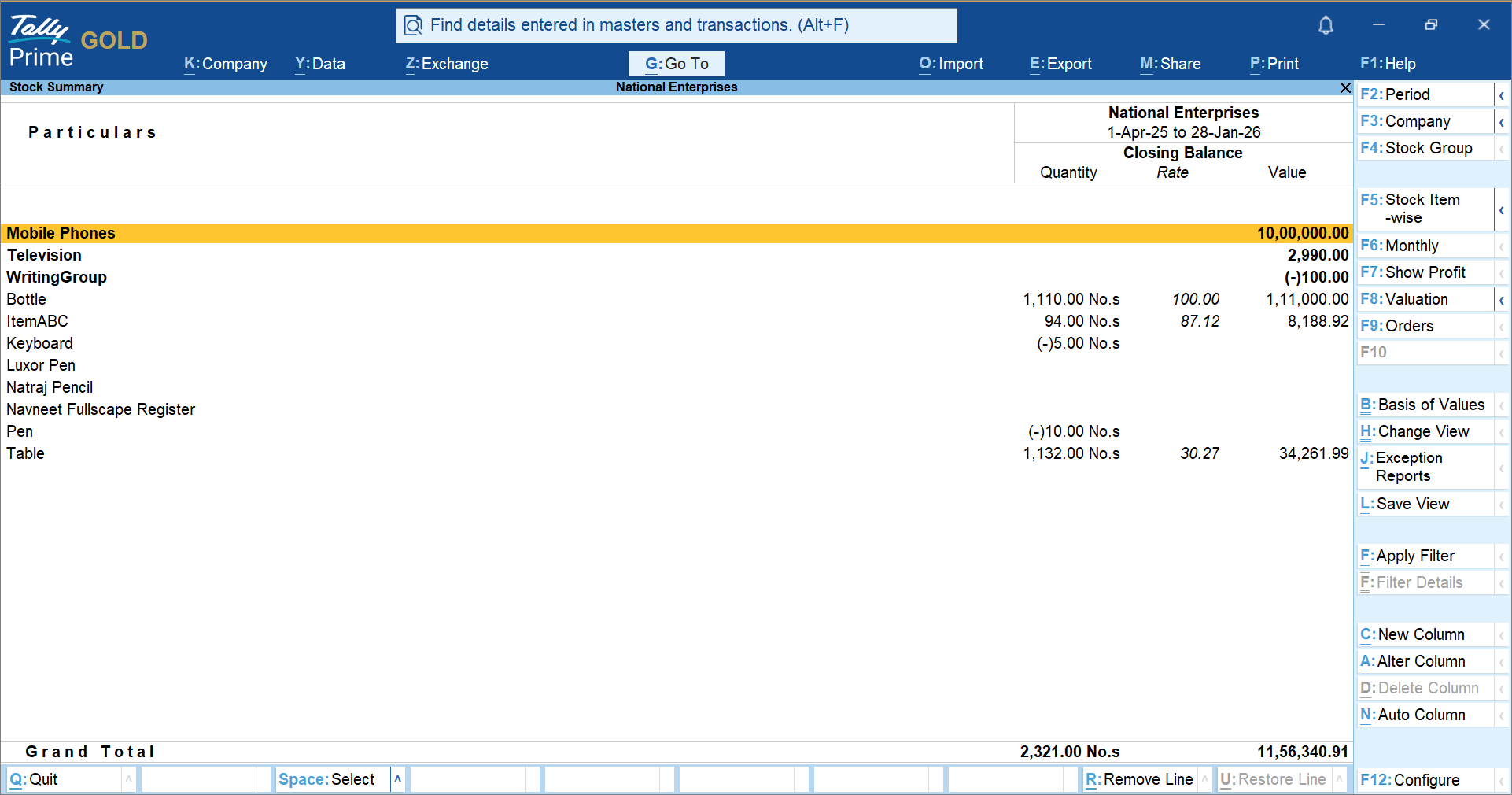
- To analyse profitability of stock items, press F7 (Show Profit).
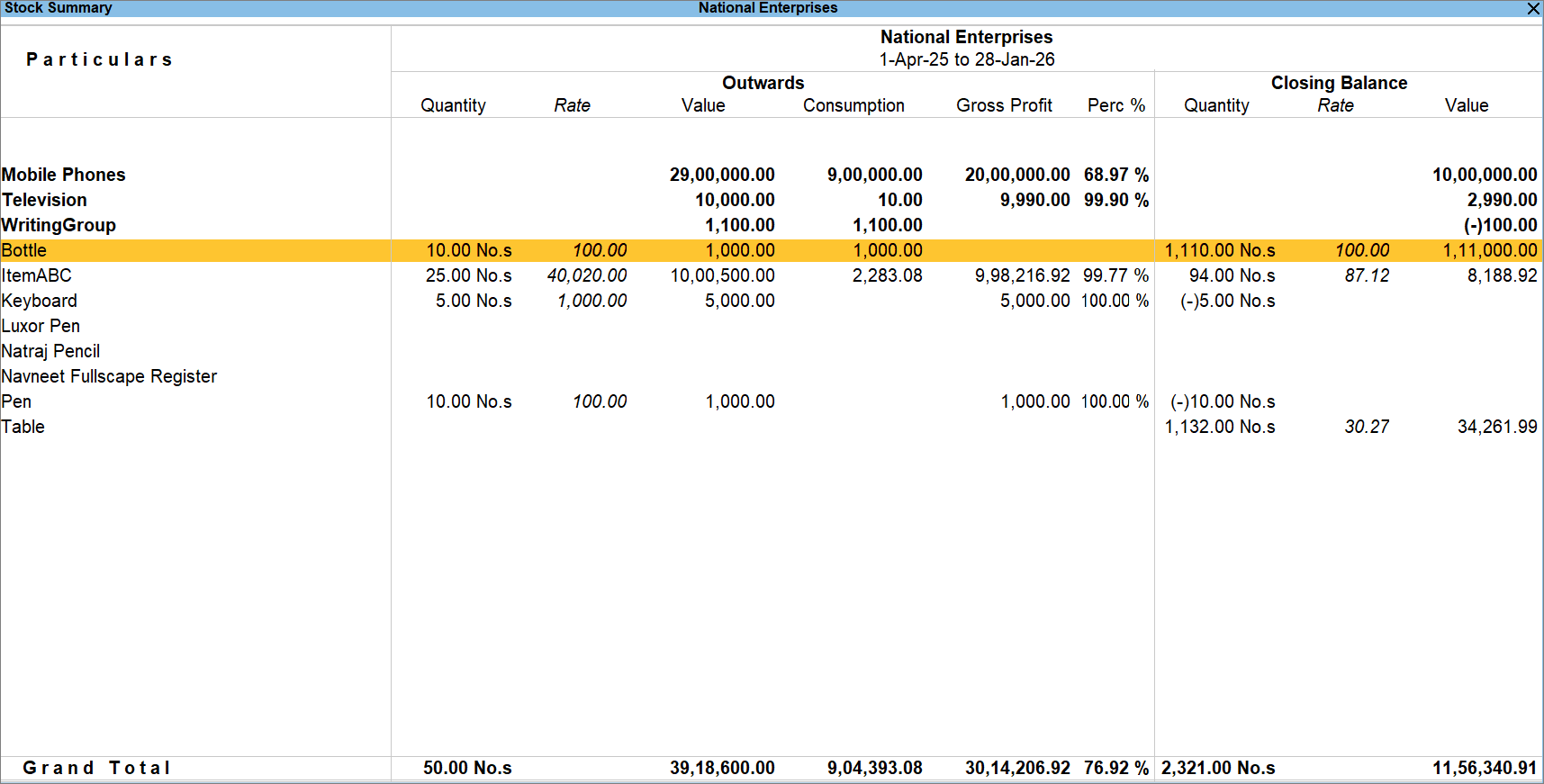
You can view profit earned from outward stock and consumptions without manual calculation, helping reconcile closing stock values. Comparing Value of a stock item and Gross Profit helps you determine if a stock item is profitable. - To assess stock values, press Alt+N (Auto Column) and select Stock Valuation Methods.
Check Stock In Hand/Saleable Stock
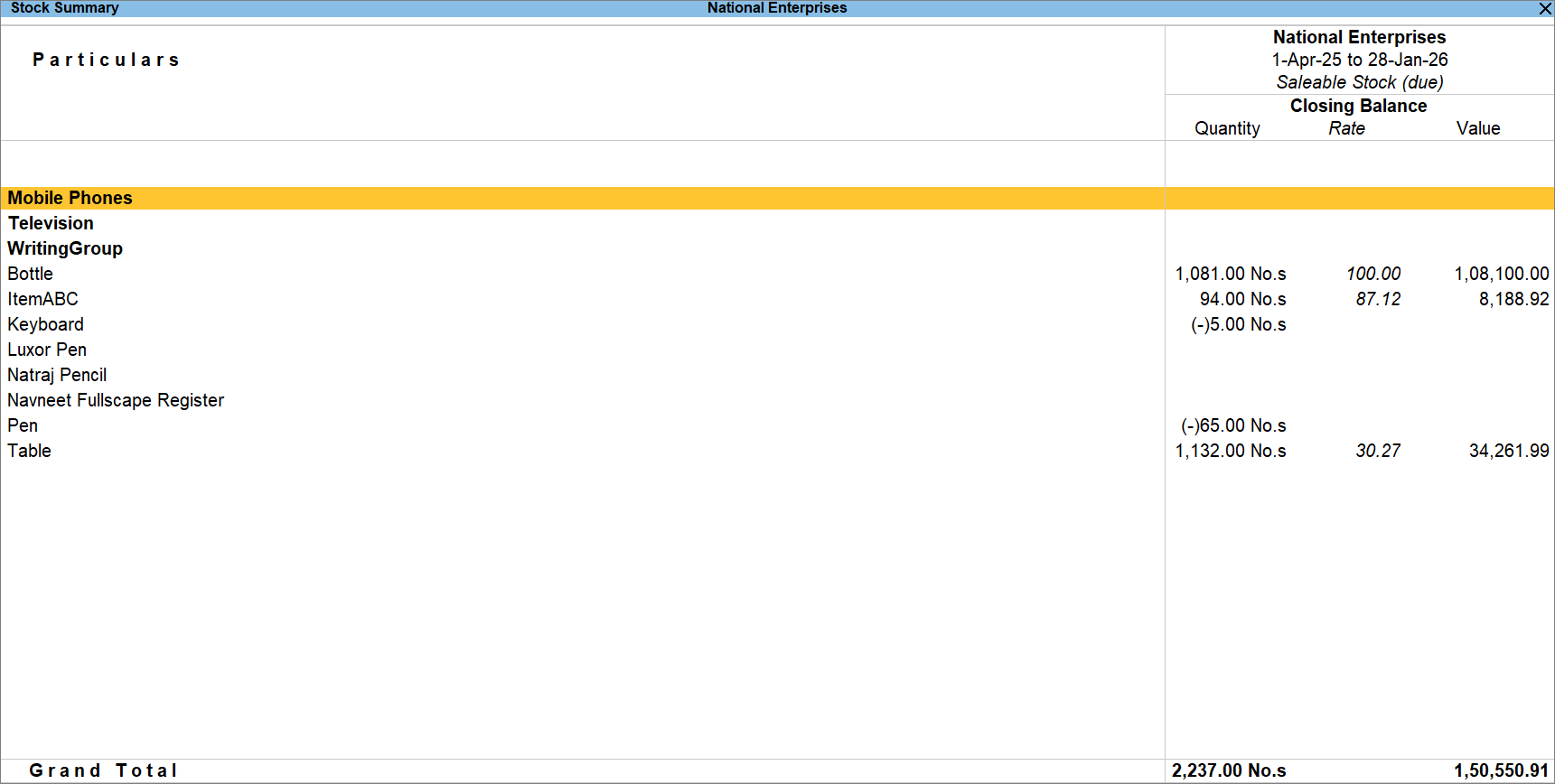
- In the Stock Summary report, press F9 (Orders) > select Saleable Stock.
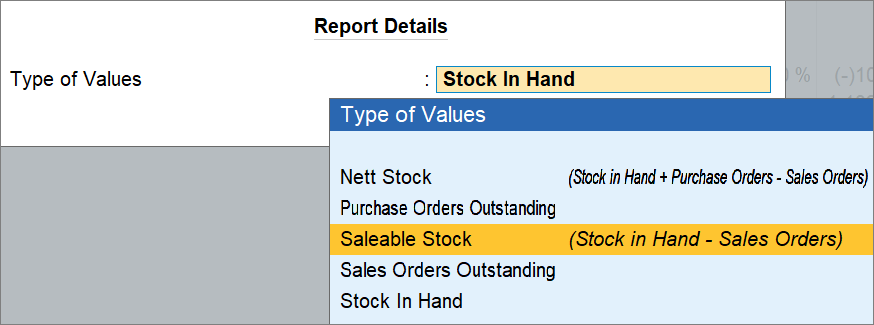
You can also view Sales or Purchase Orders Outstanding, Nett Stock, or Stock In Hand, as needed. - To view orders that are due, set use due orders only? as Yes.

You can view the saleable stock available with you.
View Stock Summary for a Godown Type
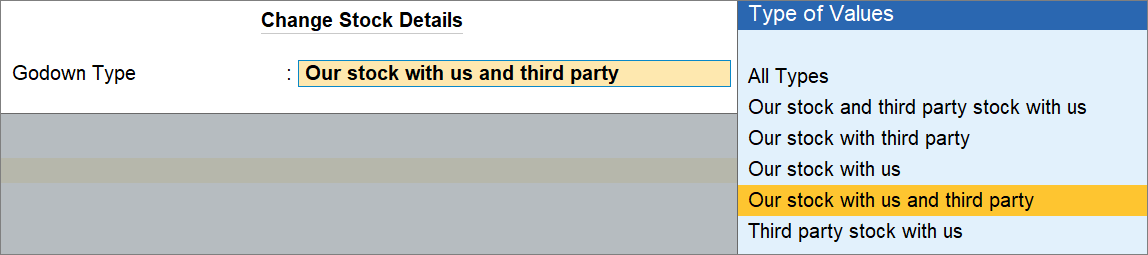
If you are maintaining godowns for stock items, then you can view Stock Summary for a specific godown type, based on the location of stock that belongs to you and the third party.
- In the Stock Summary report, press Ctrl+F8 (Godown Types) and select an option as needed.
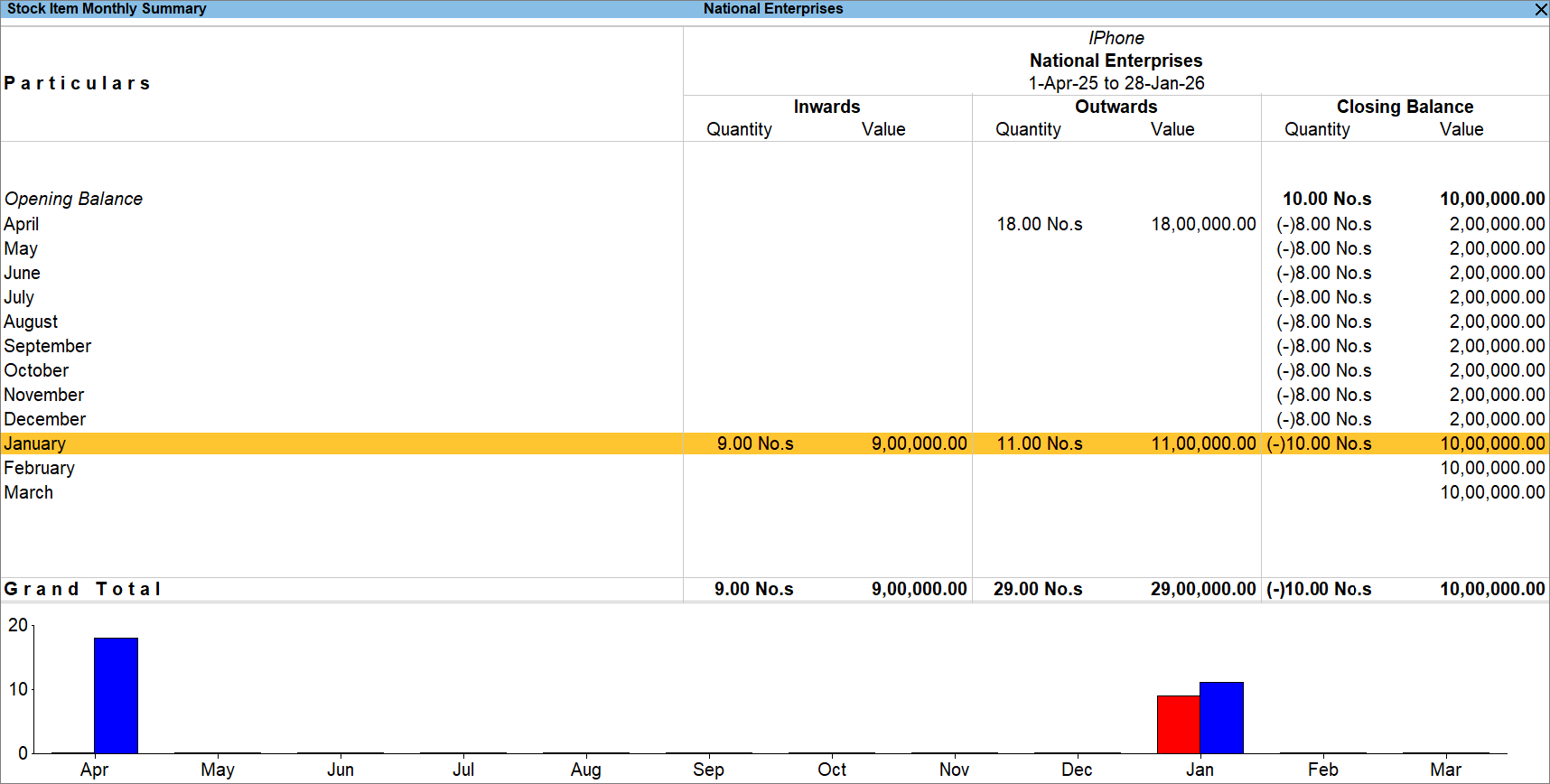
View Stock Item Details through Monthly Summary
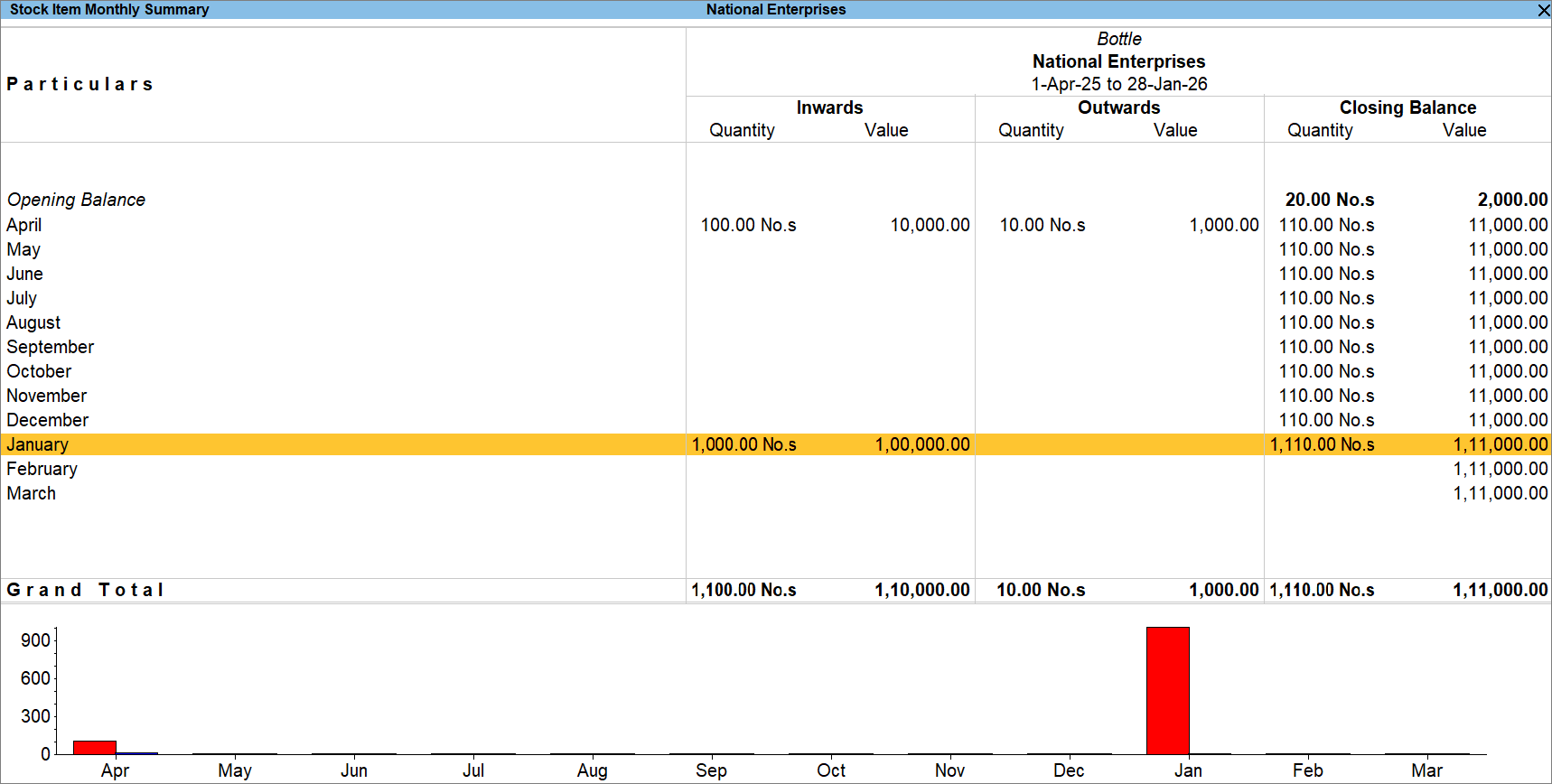
- To view Monthly Summary, drill down from the Stock Summary report.
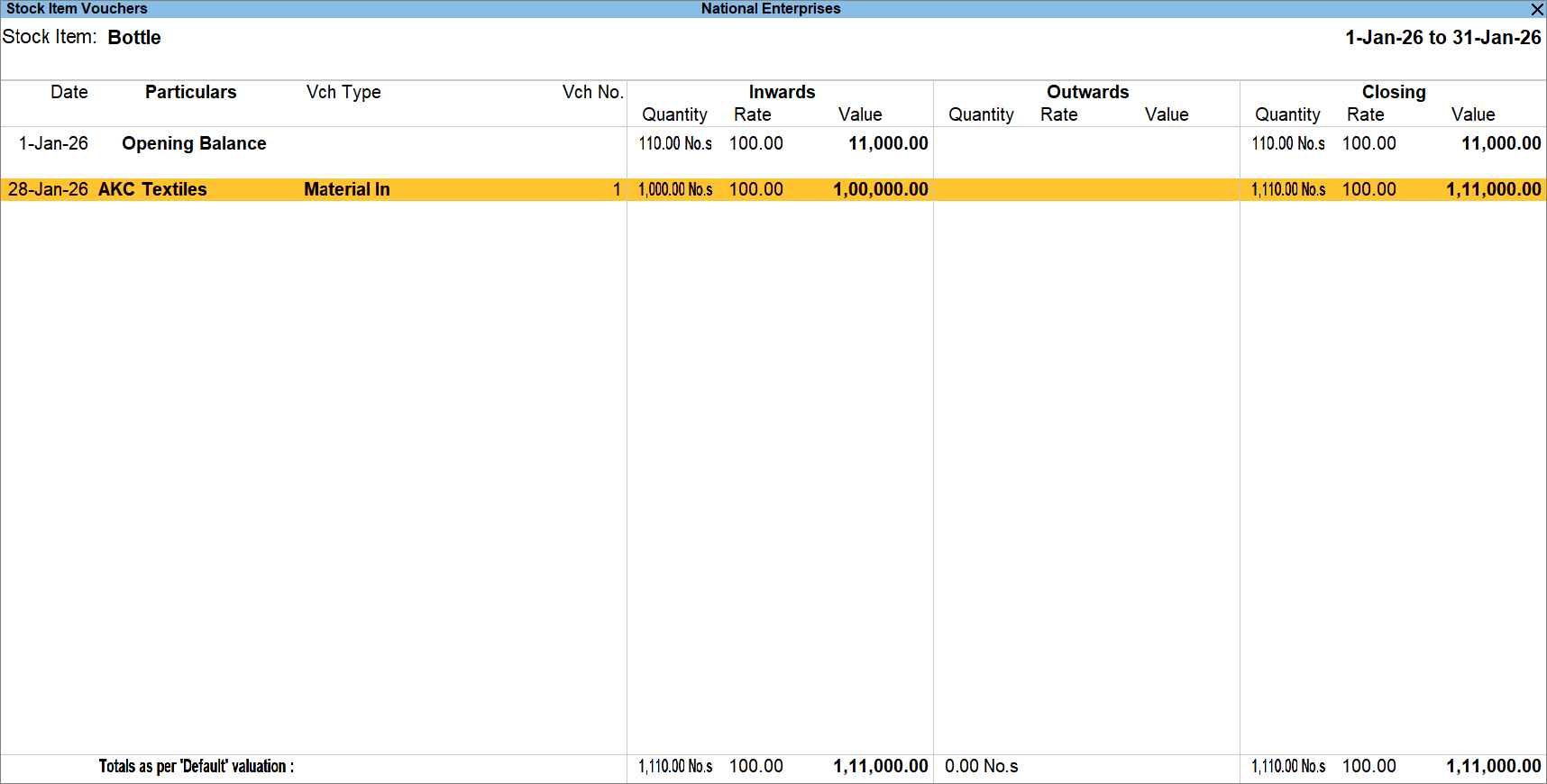
- To view Stock Item Vouchers, drill down from the Stock Item Monthly Summary.
- To alter a specific Stock Item, press Alt+S (Stock Alter).
View Stock Group Summary
- Press Alt+G (Go To) > type or select Stock Group Summary and press Enter.
- Select the Stock Group from the List of Stock Groups and press Enter.
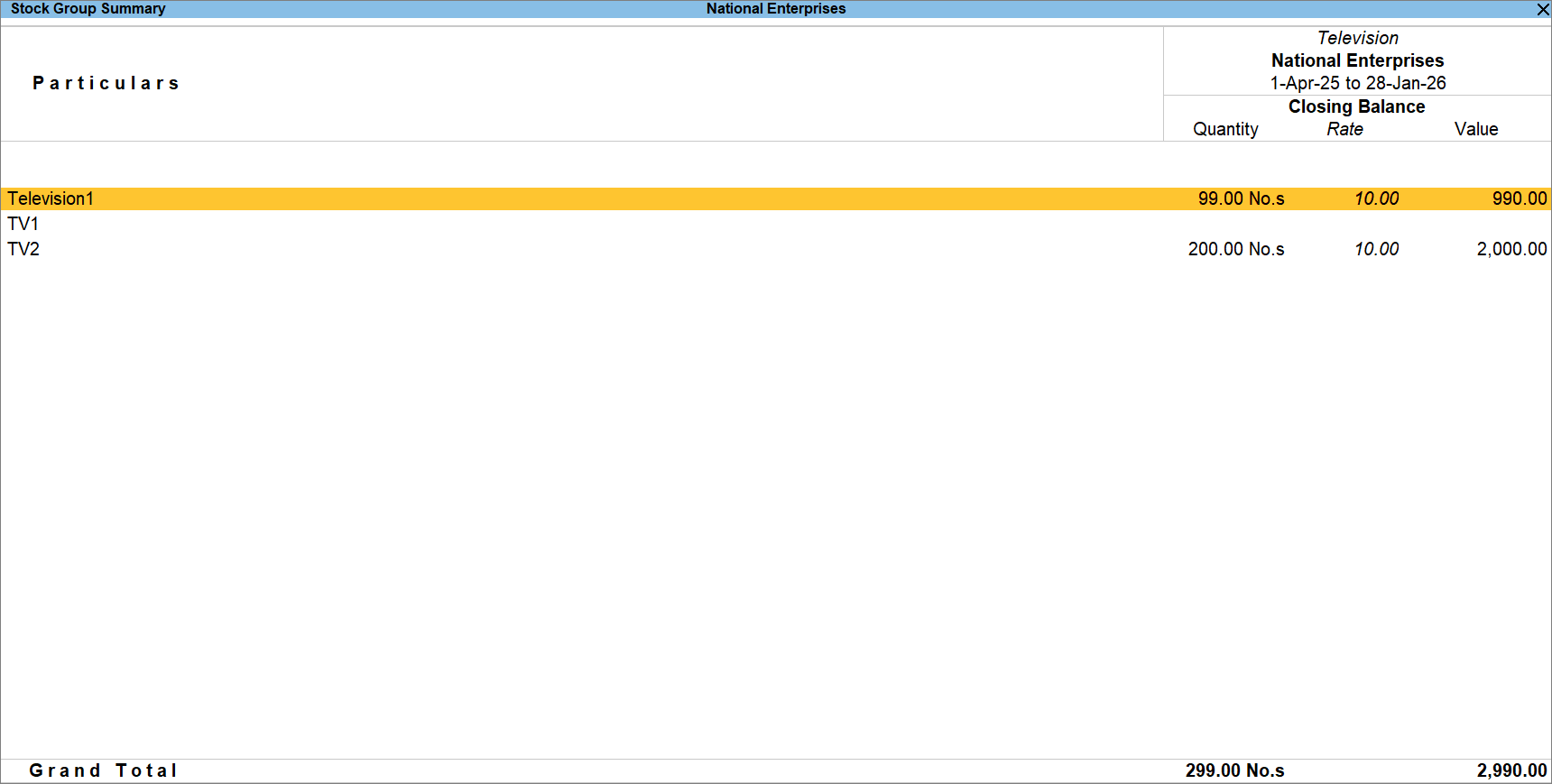
- Drill-down from Stock Group Summary to view the Stock Group Monthly Summary and then Stock Group Vouchers.
- To analyse profitability for stock items in the category, press F7 (Show Profits).
View Stock Category Summary
- Press Alt+G (Go To) > type or select Stock Category Summary and press Enter.
- Select the Stock Category from the List of Stock Categories.
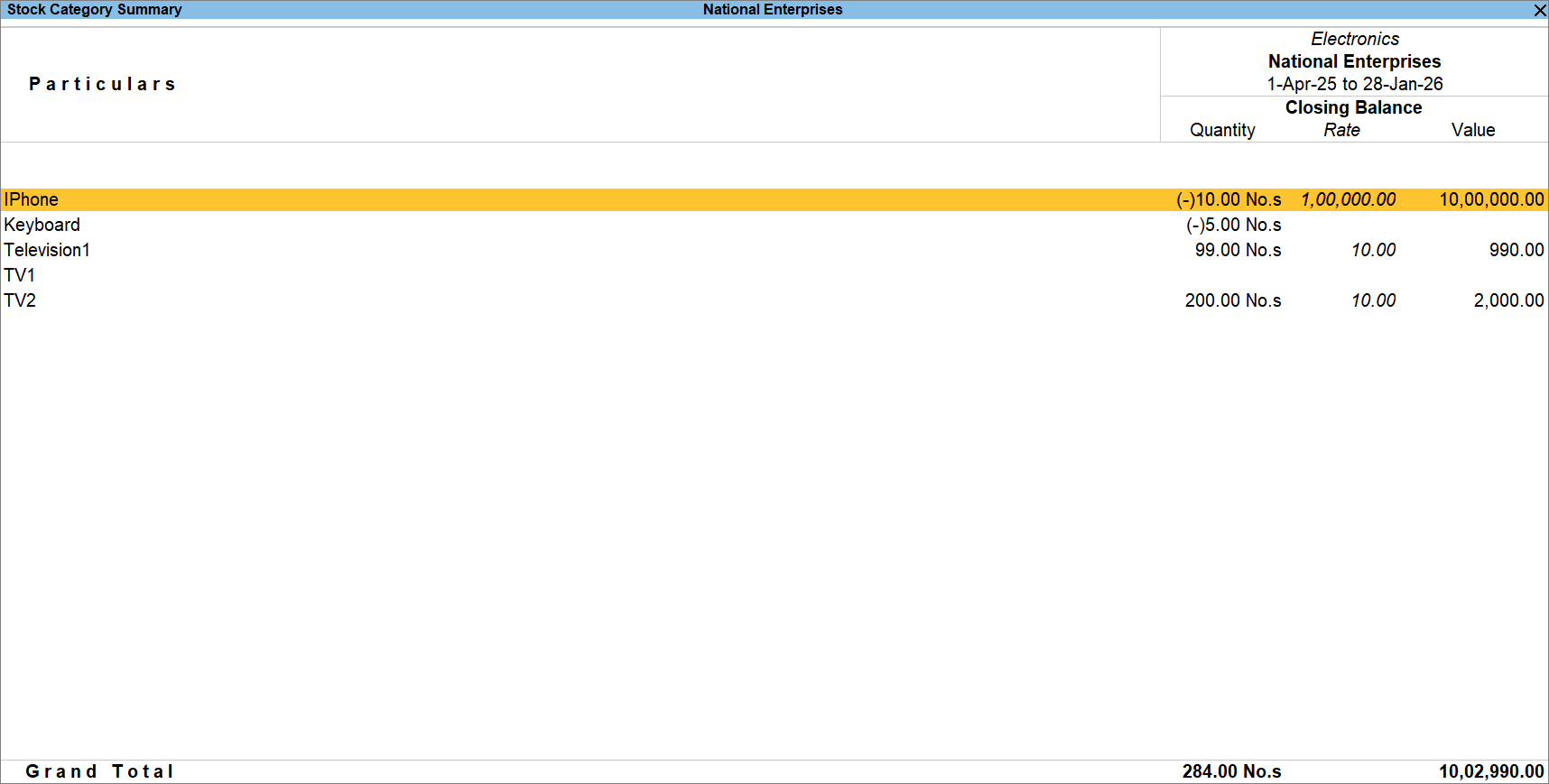
- To view Stock Item Monthly Summary, drill-down from Stock Category Summary.
Questions & Answers
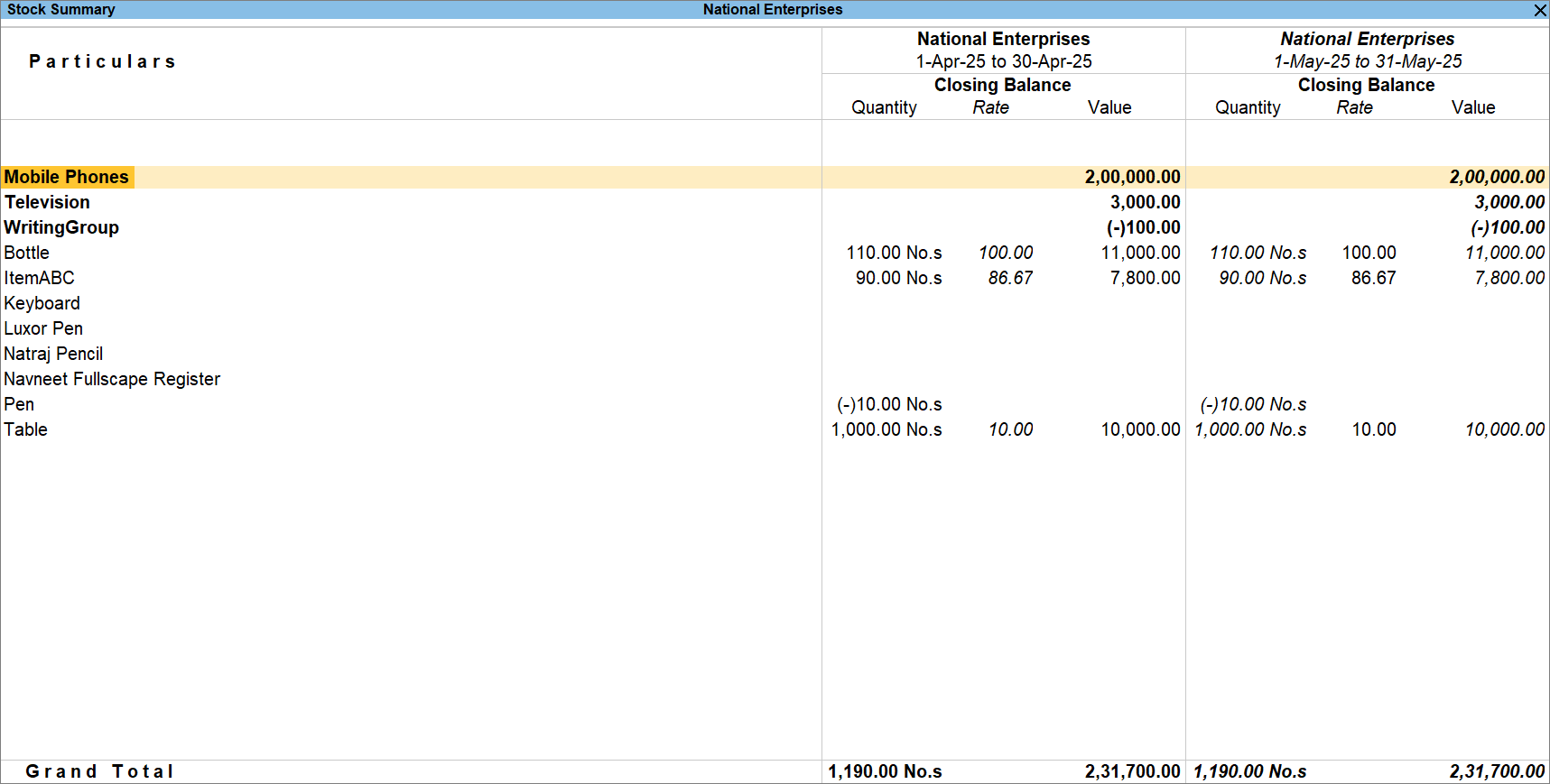
- How can I compare data of different periods in the Stock Summary report?
You can add columns and compare data for specific periods.- In the Stock Summary report, press Alt+C (New Column).
- Select the period to draw a comparison of your stock items with respect to Quantity, Rate and Value.
- Why is available stock lower than stock-in-hand?
The available stock is lower than the stock-in-hand, because pending sales orders may already have a part of the inventory that needs to be delivered to a buyer.
To find the difference, compare Stock-in-Hand, Saleable Stock, and Sales Orders Outstanding.
- How do I identify stock items that are causing losses to my business?
In the Stock Summary report, press F7 (Show Profit) and compare stock value vs. gross profit. High inventory value with low profit indicates losses.
Is this information useful?
YesNo


