
Use Stock Item Cost Analysis Report in TallyPrime
When you enable cost tracking for stock items, you would want to know the profitability of the stock item. In TallyPrime, you can:
- View the Stock Item Cost Analysis report: Know the cost, revenue, balance at cost, and profit & loss across various transactions in which the stock item is used.
- View the Item Cost Track Breakup: Along with profitability, you get to know Item Movement Summary, which contains the details of Item Movement Inward/Outwards, such as Order Placed/Received, Material Received/Delivered, Materials Billed, and Materials Manufactured.
- Close Cost Tracking for stock items: Choose to close cost track if you no longer wish to track the costs of an item. Once you close cost tracking, the cost tracking number will no longer be available under the list of cost tracking numbers while recording transactions.

Ensure that:
- You have created stock items.
- You have created ledgers for expenses, as needed.
- You have enabled Cost tracking for the stock item.
- You have configured the ledger for cost-tracking.
Analyse Stock Item/Group Cost
- Press Alt+G (Go To) > type or select Stock Item Cost Analysis and press Enter.
- Select the Stock Item from the List of Stock Items.
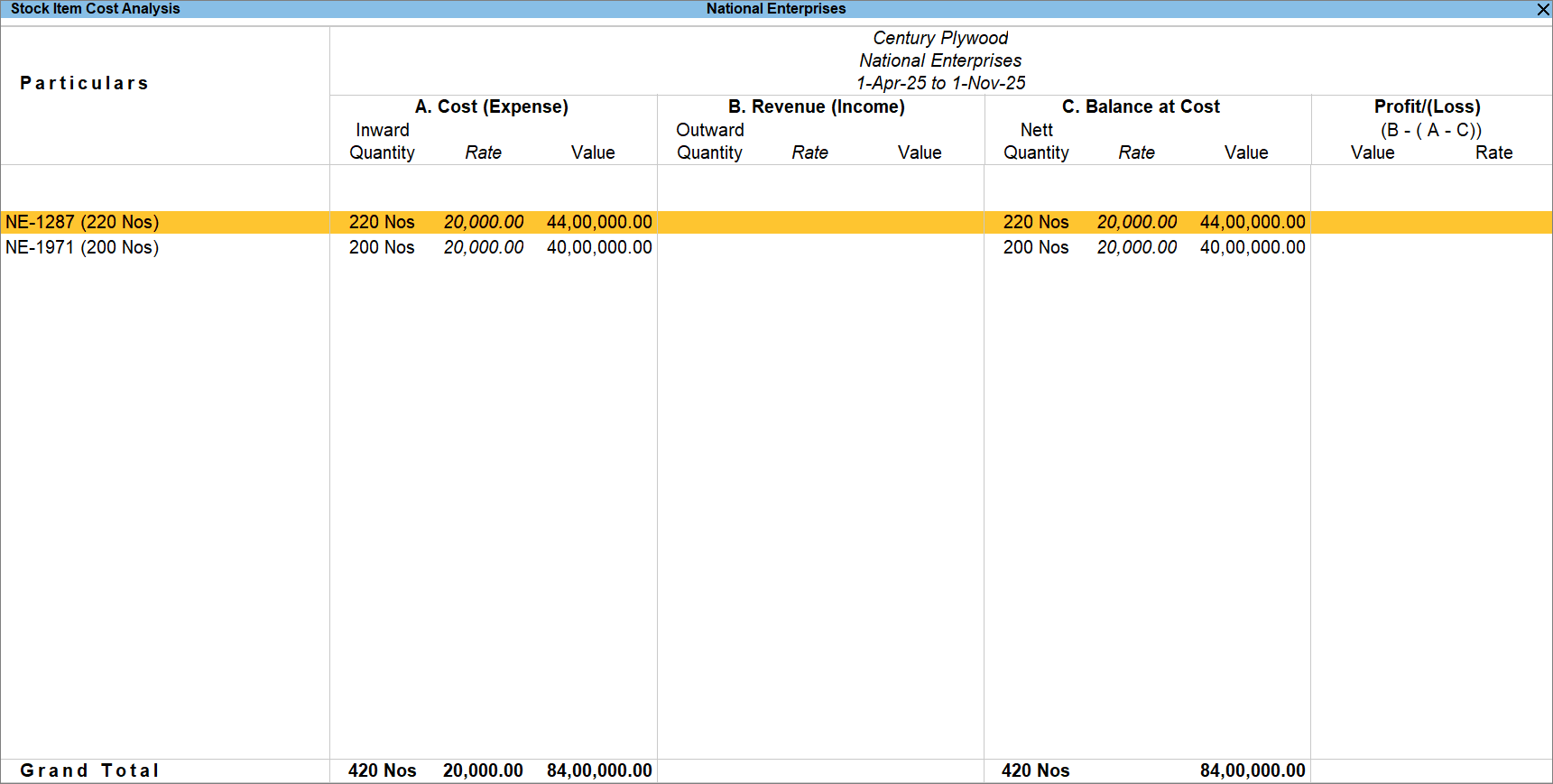
- View items for which cost tracking is closed or open, as needed.

Similarly, you can view the Stock Group Cost Analysis report.
- Press Alt+G (Go To) > type or select Stock Group Cost Analysis and press Enter.
- Select the Stock Group from the List of Stock Groups.
View Item Cost Track Breakup
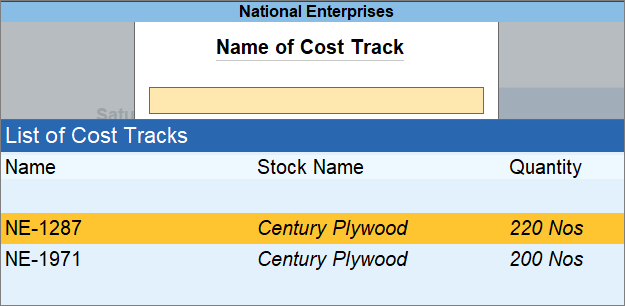
- Press Alt+G (Go To) > type Cost Track Breakup and press Enter.
- Select the Cost Track from the List of Cost Tracks.
You can view the Item Cost Track Breakup report with the Tracking Details, Cost (Expense), Revenue (Income), Nett Profit, and Item Movement (Inwards and Outwards).
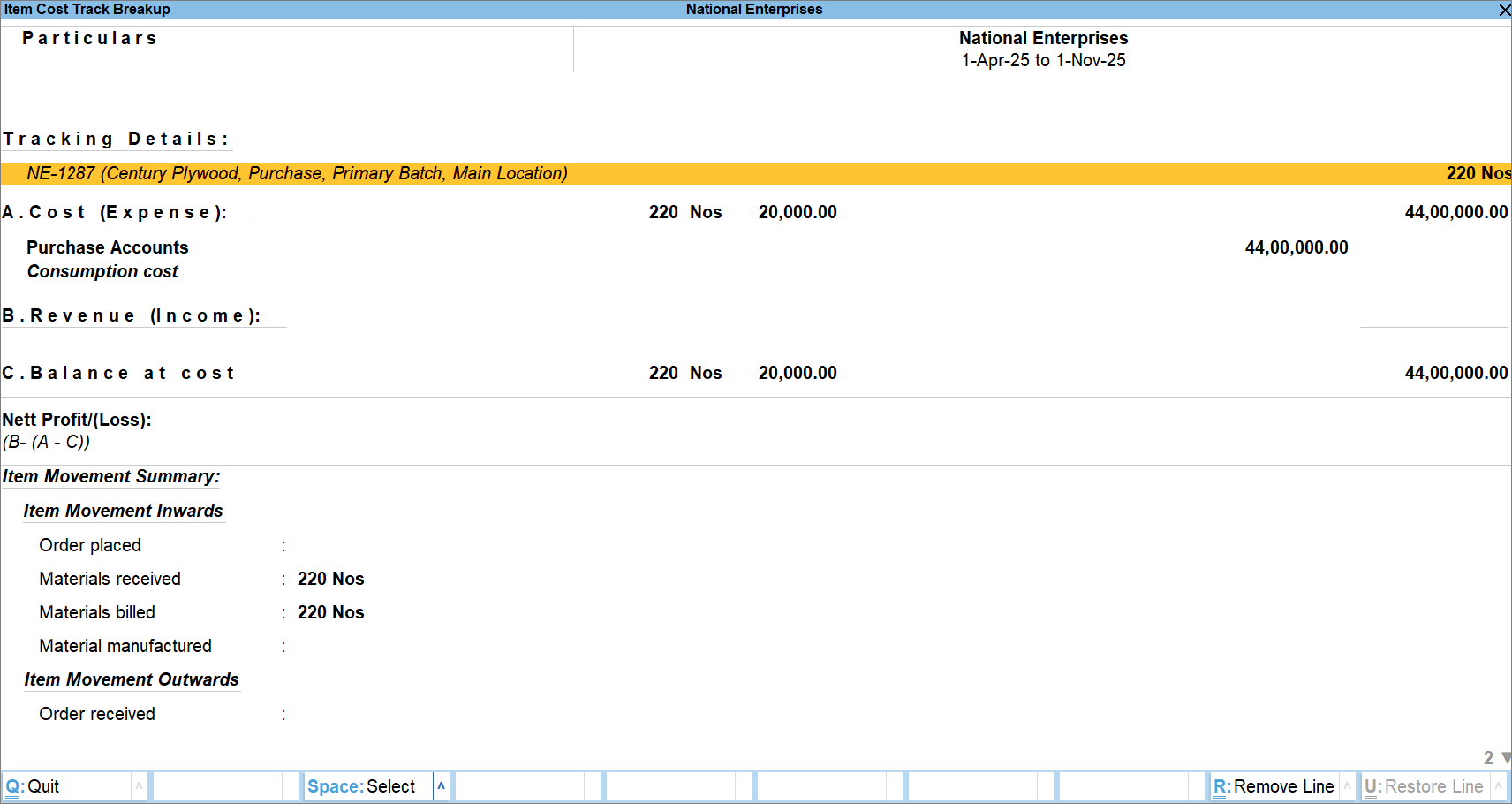
- To view the report Ledger-wise, press F5 (Ledger).
Close Cost Tracking for a Stock Item
- In the Stock Item Cost Analysis report, press Alt+S (Close Cost Track).
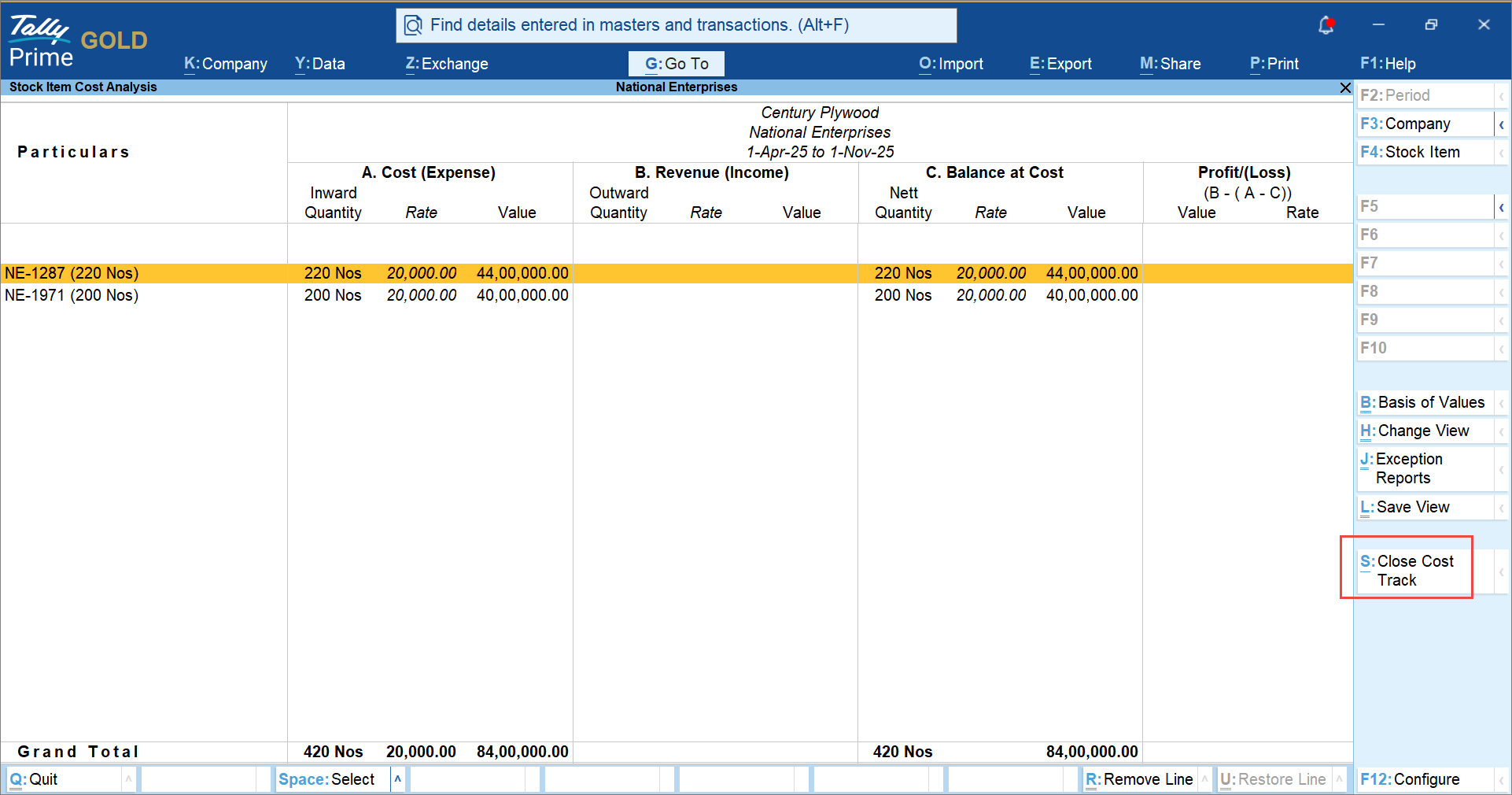
- In the Cost Track Closure Details screen, press Spacebar and select the required rows.
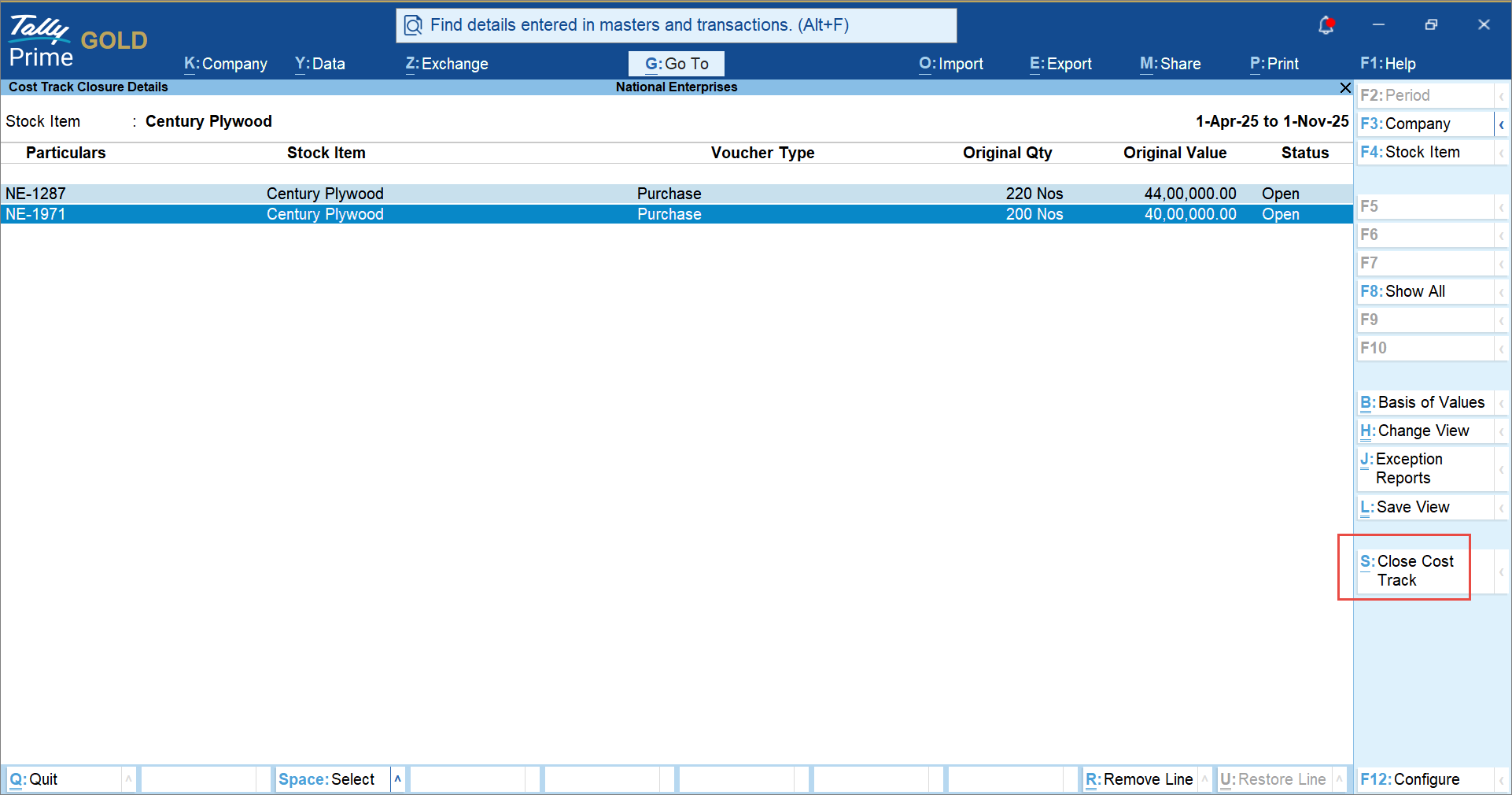
- To view all the items irrespective of status, press F8 (Show All).
- Press Alt+S (Close Cost Track) to close the selected tracks.
Questions & Answers
- How can I analyse the expenses and revenue for a specific cost track of a stock item?
Use Cost Track Break-up to select a specific Cost Track and view its Tracking Details, Cost, Revenue, Nett Profit, and Item Movement. To analyse the expense or revenue further, press F5 to switch to the Ledger view and analyse the details Group-wise or Ledger-wise.
- How can I identify open and closed cost tracks before closing cost tracking?
Use Stock Item Cost Analysis and select Type of Cost Track to view Open Tracks and Close Tracks separately. For open tracks, use Cost Track Break-up to review the Item Movement, Cost, and Revenue, and identify tracks that still have inward or outward activity.
Is this information useful?
YesNo


