
Configure for Print in Tally e-Billing
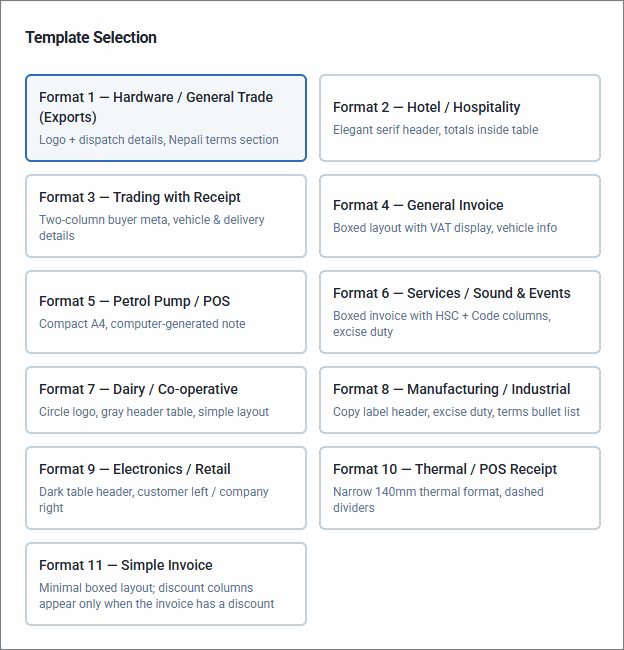
In Tally e-Billing, you can customise the invoice print format to suit your business requirements. Choose from 11 pre-designed templates and customise the information displayed on the invoice by modifying labels and headers, selecting the required fields, and adding Declaration Text, Terms & Conditions, and other relevant details. You can also specify the number of copies to print.
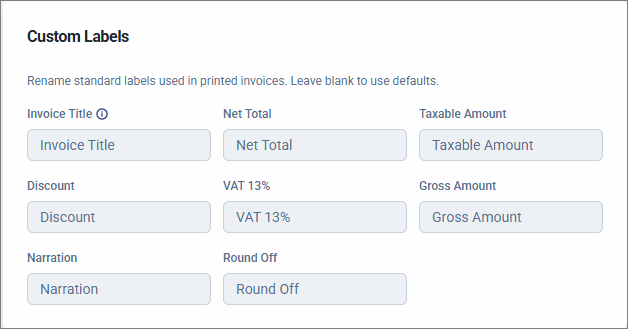
You can also specify a custom Invoice Title to override the default title. The Invoice Title is based on whether the items in the invoice are taxable or tax-exempt. If the invoice contains only tax-exempt items, it is titled Invoice. If it contains taxable items or both taxable and tax-exempt items, it is titled Tax Invoice.
- From Gateway > click Configuration.
- Under Statutory Settings, click Print Configuration.
- In the Print Configuration screen, select the template as required for your business.
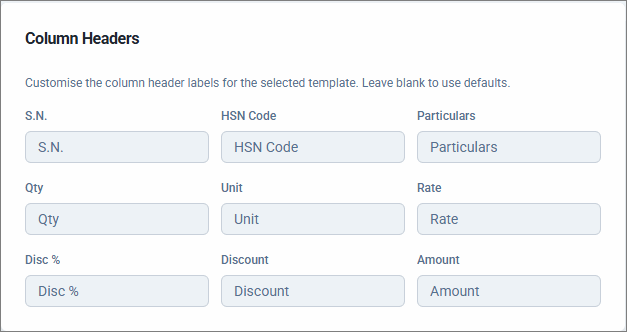
- Customise the Column Headers as required.
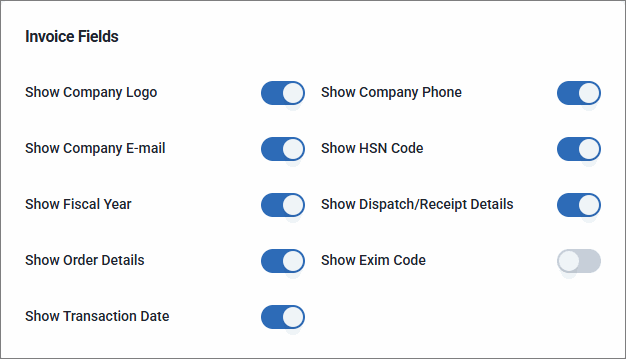
- Enable or disable Invoice Fields to include or exclude the fields from printing in the invoice.
- Set the Print Behaviour.
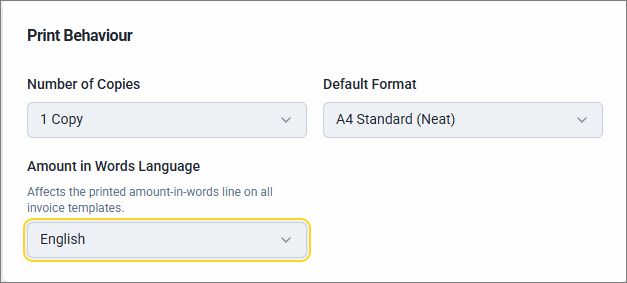
- Select the Number of Copies you want to print.
- Set the Default Format as required.
- Select the Amount in Words Language as English or Nepali.
- Enter the Header/Footer Text.
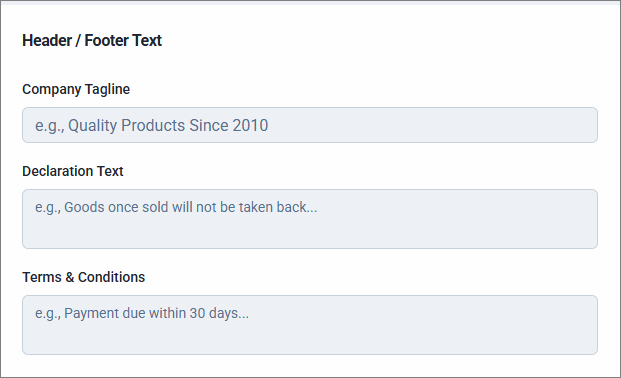
- Enter the Company Tagline you want to print on the invoice.
- Enter the Declaration Text, if any.
- Enter the Terms & Conditions, if any.
- Set the required values for the Custom Labels.
- Click Save.
Is this information useful?
YesNo


