
Generate Sales e-Invoice for Integration Phase in TallyPrime (KSA)
Once you setup your Company and masters as per the ZATCA regulations, you are all set to generate e-Invoices online using TallyPrime for single or multiple vouchers. In TallyPrime, you can record B2B transactions (sales to VAT-registered businesses such as wholesalers or distributors) and B2C transactions (retail sales to unregistered customers), and view the e-Invoice Overview report to know the clearance status of B2B e-Invoices and the reporting status of B2C e-Invoices.

Ensure that you have:
- Configured the VAT details for your Company.
- Created the party ledger with the required VAT details.
- Created the stock items with the required VAT details.
- Created the required tax ledger for VAT applicability.

- In the sales voucher, select the VAT ledger.
To view the tax analysis, press Alt+A (Tax Analysis).
Press Alt+F5 (Detailed) to view the detailed breakdown of the tax. - Specify the e-Invoice details, for e-Invoice Integration phase.
- Show e-Invoice details: Yes.
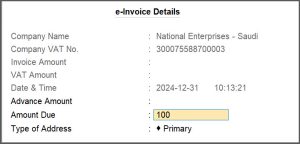
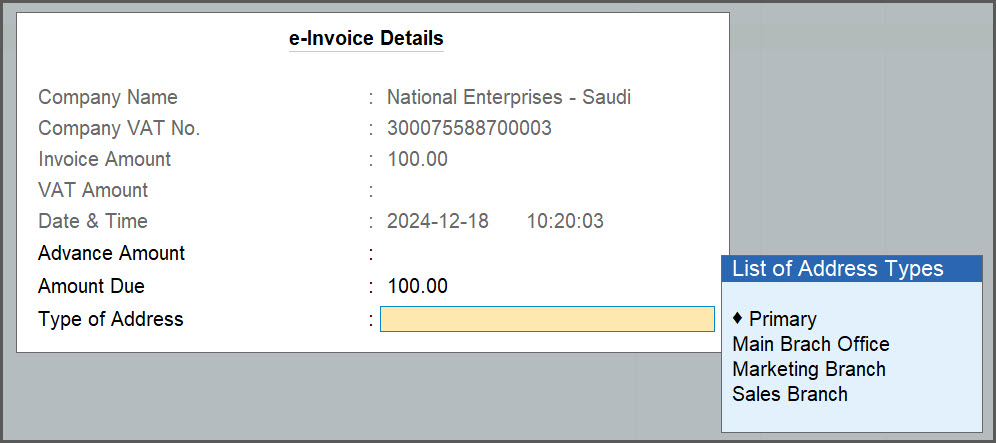
- In the e-Invoice Details screen, specify the Advance Amount, if you had received an advance from your customer.
The Amount Due gets calculated.
- In Type of Address field, select the relevant address, if you have enabled multiple addresses.
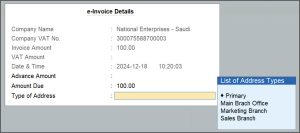
The Company Mailing Name of selected addresses in TallyPrime should exactly match with the Company Name specified in the e-Invoice certificate, which is saved in the company data folder.
- Press Ctrl+A to save.
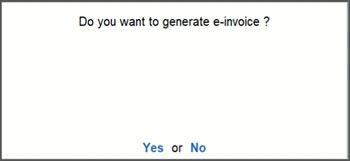
- Press Y or select Yes to generate e-Invoice.
In the invoice, the QR code appears along with all the e-Invoice details.
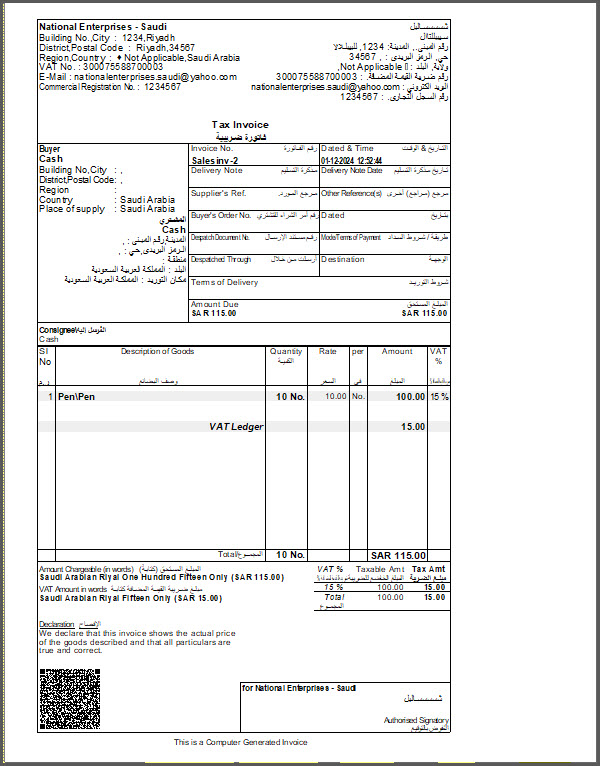
After generating the e-invoice, you can check the PDF A3 format file embedded with XML in the archived location of e-Invoices.
Also after recording B2B transactions and B2C transactions, you can view the e-Invoice Overview report to know the clearance status of B2B e-Invoices and the reporting status of B2C e-Invoices.


