
Set Up Stock Items for e-Invoicing in TallyPrime (KSA)

- Create a new stock item or open a stock item in alteration mode.
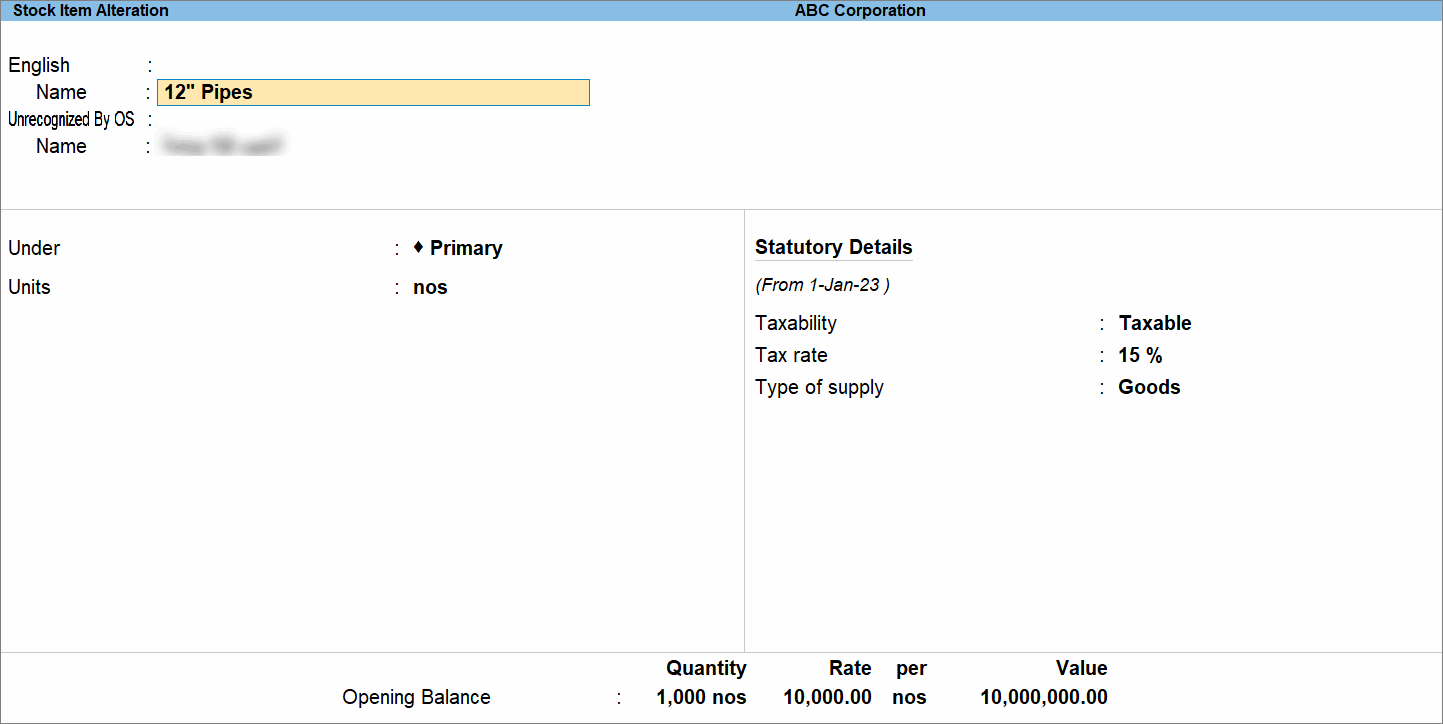
- Press F12 (Configure) > enable Provide language aliases or Name and enter the name of the stock item in Arabic.
- Update the Statutory Details, if required.
- Taxability is set to Taxable by default, as defined at the company level. Change the Taxability to Not Vatable, Exempt, or Zero Rated, as required.
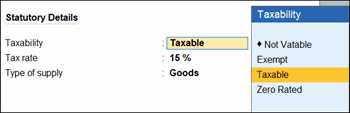
- If you have set Taxability as Not Vatable, Exempt, or Zero Rated, update the Reason for tax exemption/zero rate.
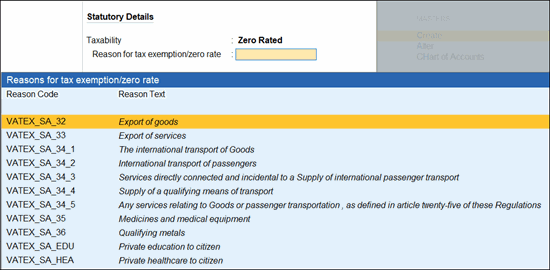
-
Ensure that Tax rate is updated as per the Taxability.
-
15%, if you have set Taxability as Taxable.
-
0%, if you have set Taxability as Not Vatable, Exempt, or Zero Rated.
-
-
Type of Supply: Goods or Services, as needed.
- Taxability is set to Taxable by default, as defined at the company level. Change the Taxability to Not Vatable, Exempt, or Zero Rated, as required.
-
Update other details, such as Quantity, Rate, and Opening Balance, as required.
-
Press Ctrl+A to save.
You can manage large volumes of master details, such as Stock Items and Ledgers in Excel and import import them into TallyPrime for sending to the KSA e-invoicing system.
Question & Answer
How can I review previously configured VAT rates for a stock item?
If VAT rates have been modified earlier, press Alt+W (Details) in the stock item to view the history of VAT rate details.
Is this information useful?
YesNo


