
Specify Reorder Level for Stock Items in TallyPrime
With the facility to specify reorder level in TallyPrime, you can:
- Set reorder levels for stock items: Determine when and how much stock to reorder. You can define simple or advanced reorder levels based on your business requirements and view the Reorder Status to identify stock items that need replenishment.
- Use Reorder Status report: Know the Reorder Status of stock items, stock groups, and stock categories, as needed. A Reorder Status report provides you with an actual stock position that helps you make a decision on purchase or reorder of stock items, as needed.

-
Ensure that you have created stock items.
Specify Simple Reorder Level and Minimum Reorder Quantity
- Press Alt+G (Go To) > Alter Master > type or select Reorder Level (Stock Item) and press Enter.
If you have created stock groups or stock categories, you can select Reorder Level (Stock Group) or Reorder Level (Stock Category).
The stock items created under the stock group/category will appear. - Select the stock item.
By default, the Set Reorder Item screen appears for Simple Reorder. - Specify the reorder quantity and minimum order quantity.
- Reorder Quantity: Enter the minimum amount of the stock item you want to keep in hand.
- Minimum Order Quantity: Enter the minimum quantity you want to order.
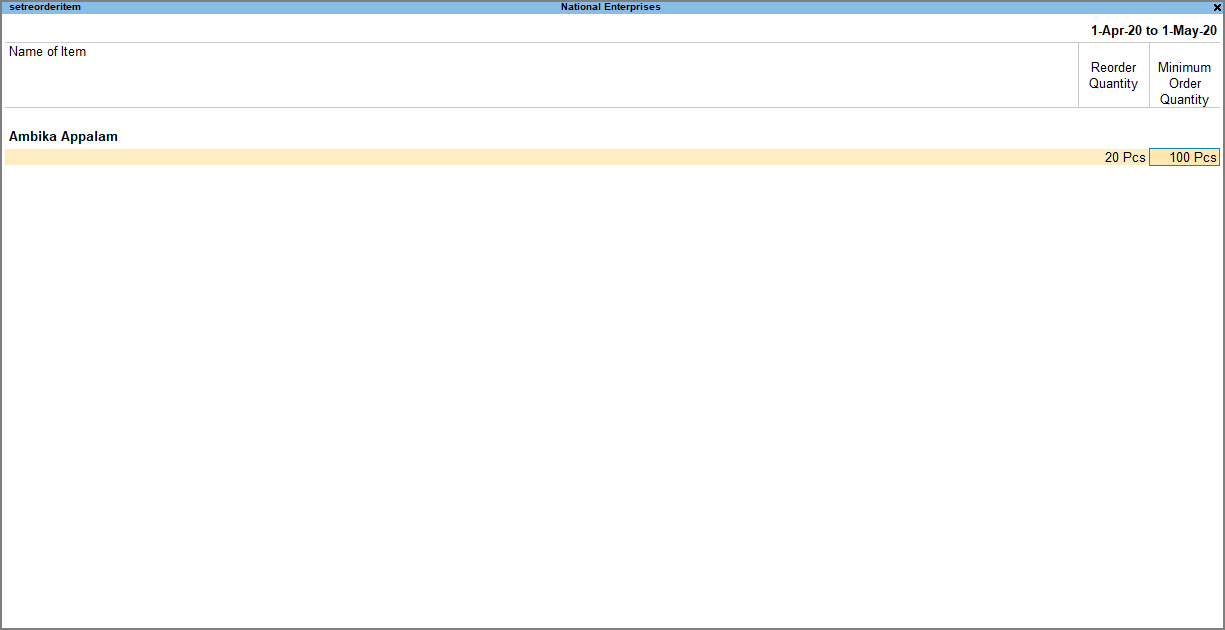
- Press Ctrl+A to save.
If your available stock falls below the specified reorder quantity, then it will be visible in the Reorder Status report to assist you in placing an order as required.
Specify Advance Reorder Level and Advance Minimum Reorder Quantity
- In the Set Reorder Item screen, configure the stock item reorder for advance reorder.
- Press Alt+S (Adv Reorder).
- Press Alt+V (Adv Min Qty).
- Specify the Reorder Quantity with advanced parameters.
- Reorder Quantity: Enter the minimum amount of the stock item you want to keep in hand.
- Period: Select the consumption for various periods – Days, Weeks, Months, or Years.
This is the total consumption for the selected period.
Enter 0 (zero), if you do not want to calculate the reorder level based on the consumption in the past. - Criteria: Select the criteria.
- Higher: If you want to reorder quantity, when the consumption is higher than that in the specified period.
- Lower: If you want to reorder quantity, when the consumption is lower than that in the specified period.
- Specify the Minimum Order Quantity.
- Minimum Order Quantity: Enter the minimum quantity of the stock item you want to order.
- Period: Select the consumption for various periods – Days, Weeks, Months, or Years.
This is the total consumption for the selected period.
Enter 0 (zero), if you do not want to calculate the reorder level based on the consumption in the past. - Criteria: Select the criteria.
- Higher: If you want to reorder the minimum quantity, when the consumption is higher than that in the specified period.
- Lower: If you want to reorder the minimum quantity, when the consumption is lower than that in the specified period.
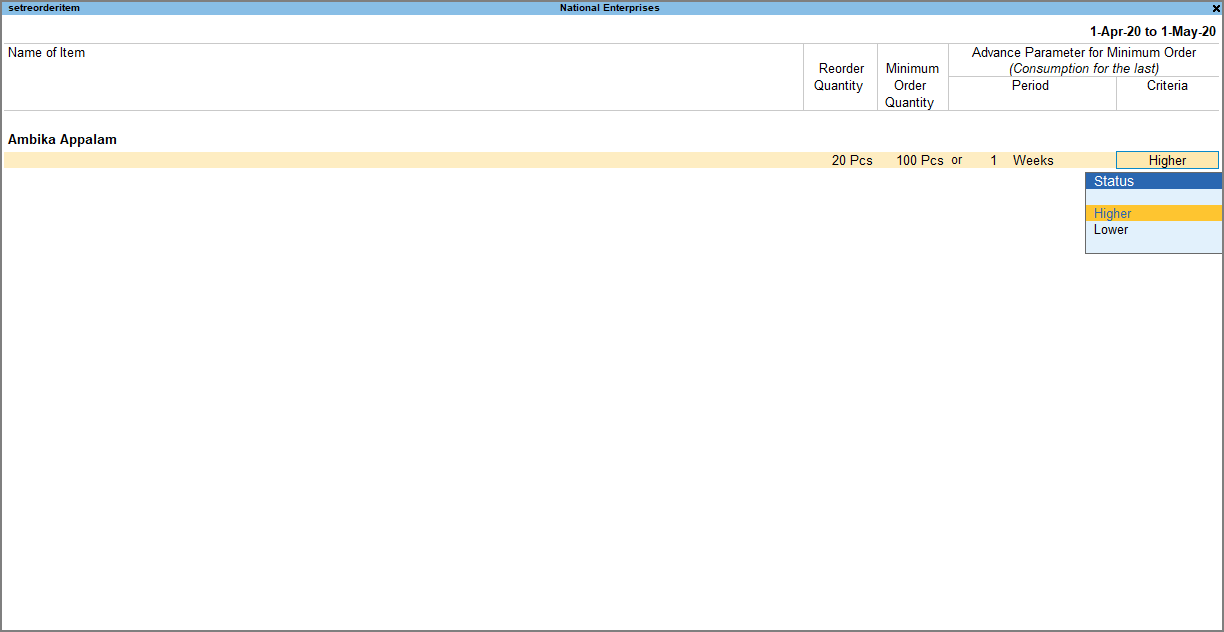
- Press Ctrl+A to save.
If your available stock falls below the specified reorder quantity configured with the advanced parameters specified by you, then it will be visible in the Reorder Status report to assist you in placing an order as required.
Check Reorder Status of Stock Items/Stock Groups/Stock Categories
- Press Alt+G (Go To) > type Reorder Status > select the Stock Group or Stock Category.
By default, all the stock items of the selected stock group or stock category appear. - To select a different stock group, press F4 (Stock Group).
- To view only those stock items which need to be reordered, press F8 (Reorder Only).
Alternatively, press Ctrl+B (Basis of Values) > Reorder Only.
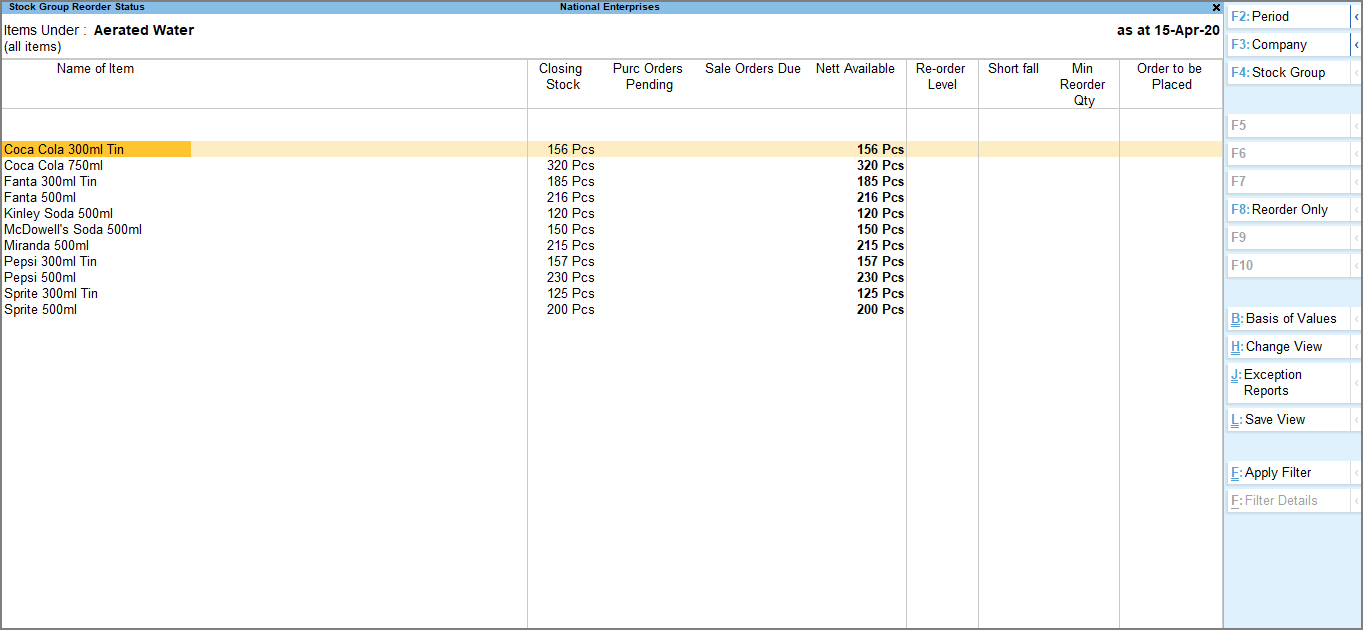
- To view negative stock, press Ctrl+J (Exception Reports) and select Negative Stock Items.
The Reorder Status report contains the following details:
- Re-order Level: Displayed based on the factor specified for the Reorder Quantity and Minimum Order Quantity.
- Shortfall: Displayed when the quantity in the Re-order Level column is more than the Nett Available column; the difference appears as Shortfall.
If the shortfall is equal to or greater than the minimum order quantity, then you should ideally place a purchase order. - Min Order Qty: It is the minimum quantity of the stock item you want to order.
- Order to be Placed: This depends on the shortfall and the minimum order quantity.
- When the Shortfall is more than the Min Order Quantity, the quantity displayed in the Shortfall column appears under Order to be Placed.
- When the Shortfall is less than the Min Order Quantity, the quantity displayed in the Min Order Quantity appears under Order to be Placed.
Questions & Answers
- I want to ensure that my pending Sales Orders are considered before I reorder an item. How can I do this?
Specify a Reorder Level for the Stock Item. In the Reorder Status report, you can view Nett Available quantity. The Nett Available quantity is calculated, based on the stock available along with pending Purchase Orders and Sales Orders. If the Nett Available quantity falls below the Reorder Level, the item is identified for reordering in the Reorder Status report.
- I manage a large number of Stock Items under different Stock Groups and Categories. How can I set and review reorder requirements without checking every item individually?
You can specify Reorder Levels at the Stock Group or Stock Category level and review the requirements in the Reorder Status report. TallyPrime identifies the Stock Items that have fallen below their applicable Reorder Levels, allowing you to review replenishment requirements group-wise or category-wise.
Is this information useful?
YesNo


