
Print Invoices and Reports in TallyPrime
In TallyPrime, you can print different documents, like your invoices, financial reports, payment reminder letters, dashboard tiles and more.
Note: The procedures and configurations discussed for printing also apply to exporting and sharing these documents, as all three actions use the same settings and workflow.
Before you begin | Prerequisite
- Ensure that your printing configurations are properly set in TallyPrime and for your printer before printing invoices and reports.
Print an Invoice
- Record an invoice, say a sales invoice, and press Ctrl+P (Current).
- Press C (Configure) to configure, as needed.
- Press I (Preview) to verify, if needed, and press P (Print) to print the invoice.
Note: If the voucher is marked as optional, then it will get printed as a Proforma Invoice.
Print a Report
You can print any report in TallyPrime, for example the Day Book.
- Press Alt+G (Go To) > type or select Day Book > press Enter.
Alternatively, Gateway of Tally > Day Book. - Press C (Configure) to configure, as needed.
- Press I (Preview) to verify, if needed, and press P (Print) to print the invoice.
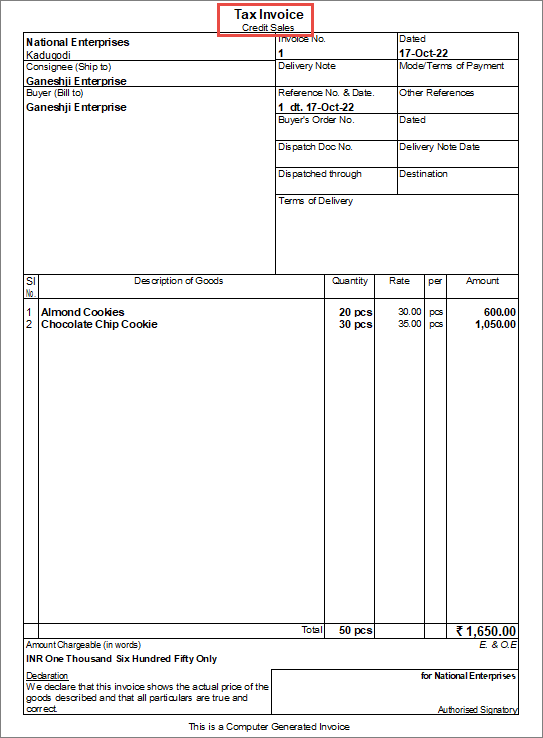
Print Dashboard tiles
- To print a specific tile in Dashboard, press Ctrl+P (Current).
To print all the tiles, press Alt+P (Print) > All Tiles and press Enter. - Configure, as needed, and print the tile.
Print Multi-Account Reports
In TallyPrime, you can print multiple vouchers and the primary Books of Accounts, like the Cash and Bank Books, Account Ledgers, Sales and Purchase Registers and so on, without having to select the accounts one at a time and printing them.
Before you begin | Prerequisite
- Ensure that you have configured the Multi-Account reports, as per your business needs.
Let’s see how to print All Ledger Account.
- Press Alt+P (Print) > Others.
- In the list of Multi Account Reports, select All Ledger Accounts > Enter.
- Configure the report.
- In the Print sub-screen, press C (Configure).
For example, change the report period, if needed.
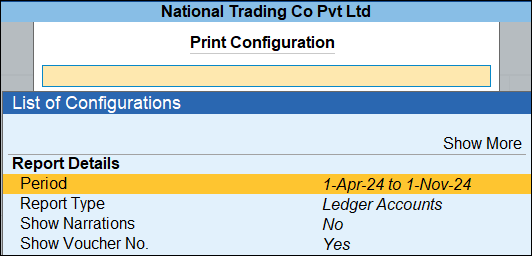
- Set the other options, as needed.
You can select Show More and press Enter, to view all the options provided for the selected report.
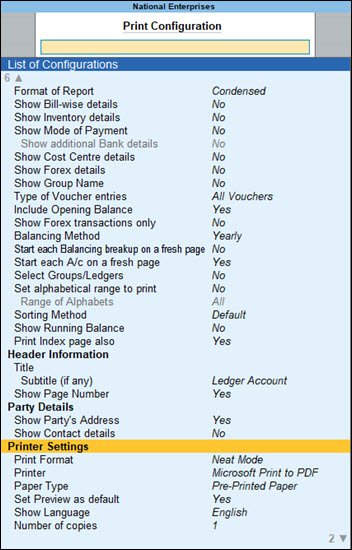
- Press Ctrl+A to save the configurations.
- In the Print sub-screen, press C (Configure).
- Press I to preview the report, if needed, and press P to print.
Similarly, you can print other Multi-Account reports in TallyPrime, such as Payslips, Reminder Letters, and so on.
Questions & Answers
Will I be able to enable Stripe View feature for viewing and printing my documents, if I have disabled color in TallyPrime?
Stripe View is supported even if you have disabled colour in TallyPrime. You will be able to view your reports and vouchers in alternate stripes of lighter and darker shades of grey. To know more, refer to the Enable Stripe View section in the Get Familiar with TallyPrime and TallyPrime Edit Log Features topic.
How can I save paper while printing an invoice in TallyPrime?
- From the invoice, press Alt+P (Print) > Current > Configure.
- Type Optimize Printing to Save Paper and press Enter.
- Enable Choose details to show second page onwards and disable the details which you do not require to print on every page.
- Save the configurations and print your invoice.
How do I print invoices in Arabic?
- Press Alt+P (Print) > Current > Configure > type or select Show Language and press Enter.
- Select Arabic from the List of Language.
Once you have set this to Arabic, you can print your invoices in Arabic language.
For any further queries, refer to the Printing section in the TallyPrime – General.


