Sales Register in TallyPrime
The Sales Register in TallyPrime provides a month-wise view of sales transactions. You can drill down to view the sales vouchers for a period and configure the report to analyse sales using different views and details.
- Press Alt+G (Go To) > type or select Sales Register.
The report displays a month-wise view of sales transactions.
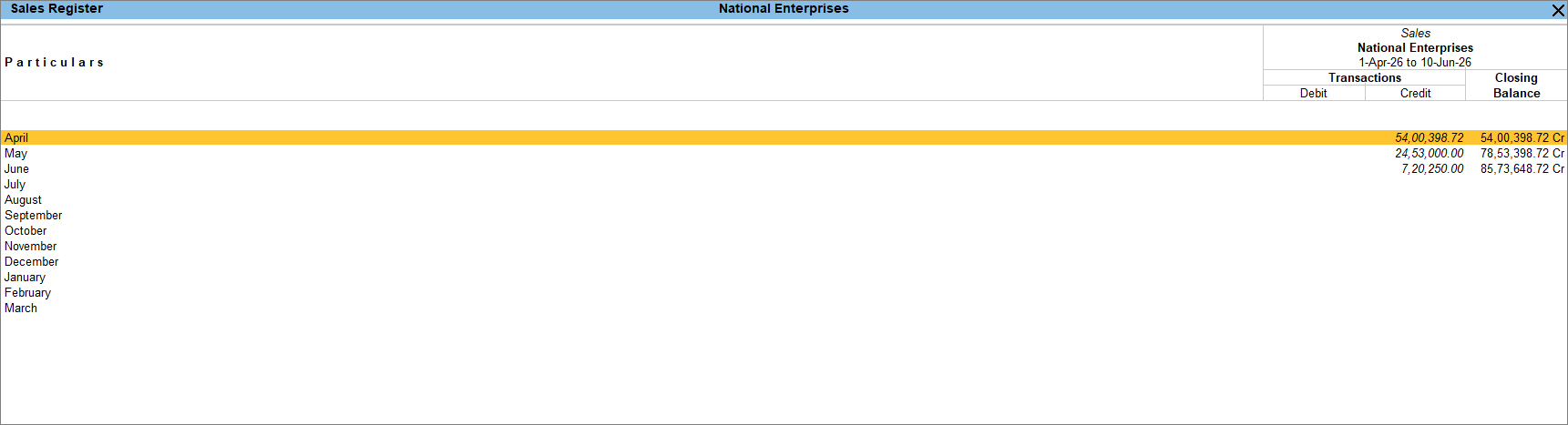
- Drill down from the sales register to view the sales vouchers recorded for that month.
View columnar sales register
You can generate a columnar Sales Register to analyse sales based on party details and ledger accounts. For example, you can display the party’s address, GSTIN, PAN, port code, and other details in separate columns.
In the Sales Register:
- Select the required month and press Enter.
- In the Voucher Register screen, press F8 (Columnar).
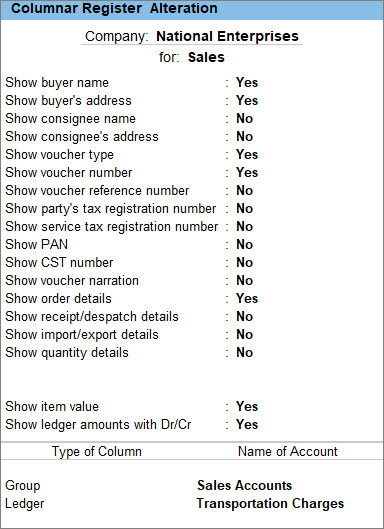
- In the Columnar Register Alteration screen, configure the details to be displayed. For example, set Show buyer name and Show order details to Yes.
- Select the required Type of Column and Name of Account.
- All items (automatic columns): Displays each ledger account in a separate column.
- All items (in one column): Displays all ledger accounts in a single column.
- Group: Displays ledger accounts belonging to a selected group in one column. For example, you can select Sales Accounts.
- Ledger: Displays a specific ledger account, in a separate column.
For example, you can select Group as Sales Accounts and Ledger as Transportation Charges to view their respective values in separate columns.
View sales register extract
The Sales Register extract provides a breakdown of the sales vouchers and ledgers used to record them for a selected period. It also groups the details and displays the totals for each group.
In the Sales Register:
- Select the required month and press Enter.
- In the Voucher Register screen, press Alt+F8 (Extract) to view the extract of sales vouchers.
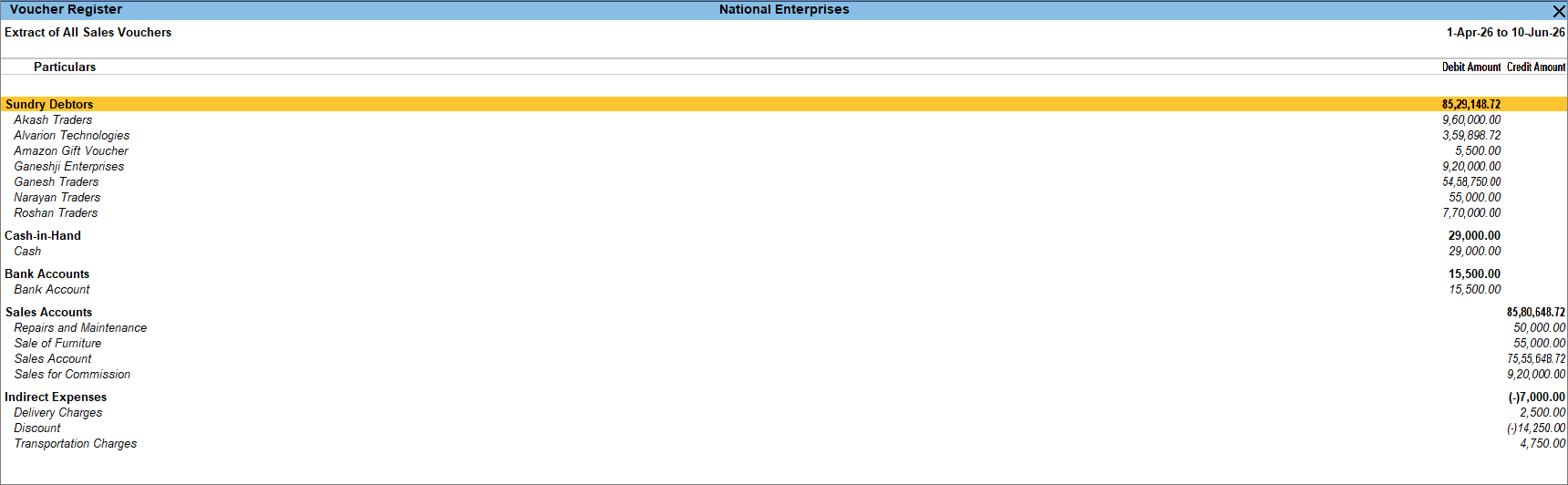
- Press Alt+F5 (Detailed) to view an expanded report.
- To view an inventory-wise extract, press F12 (Configure) and set Show Inventory-Wise Extract to Yes.
View sales register with profitability
You can view the profitability of each sales invoice in the Sales Register. TallyPrime calculates the gross profit as the difference between the Transaction Value and the Cost of the sale.
In the Sales Register:
- Select the required month and press Enter.
- In the Voucher Register screen, press F7 (Show Profit) to view the profitability.

The report now displays each invoice with:- Transaction Value: Invoice value including taxes
- Gross Revenue: Actual sale value minus taxes
- Cost: Book cost of the product
- Gross Profit: Amount of profit or loss on the sale
Questions & Answers
- Can I compare sales for different periods in the Sales Register?
Yes. You can compare sales for different periods by adding a new column to the Sales Register.
In the Sales Register:- Press Alt+C (New Column) and press Enter.
- Fill in the Column Details as required and press Enter.
Similarly, you can compare sales with other transactions or with different companies.
- Why does the Gross Profit in the Sales Register differ from the Stock Summary?
The Gross Profit may differ because the Sales Register and Stock Summary can use different methods to calculate the cost of stock. To match the transaction-level Gross Profit with the Stock Summary:
In the Sales Register:- Press F12 (Configure) and enable Show Cost based on Stock Valuation.
The Gross Profit may still differ in certain cases, such as when batches or godowns are enabled, discounts or additional costs are involved, or the actual and billed quantities are different.
- Press F12 (Configure) and enable Show Cost based on Stock Valuation.
- Why does the Sales Register value differ from the Profit & Loss A/c?
The Sales Register displays the complete sales value, including tax, whereas the Profit & Loss A/c displays the sales value without tax. Therefore, the values in the two reports may differ.