Review Uploaded PDF Bank Statement in TallyPrime
You can review uploaded bank statements, verify transactions that need attention, and manage statements before importing them into TallyPrime. You can also view upload history, assign bank ledgers, delete statements, and check the available upload balance.
Set Bank Ledger to an Uploaded Statement
If you upload bank statements from your mobile, you can assign a bank ledger to the statement or change an already assigned bank ledger.
- In the Review Bank Statements screen, press F9 (Set Bank Ledger).
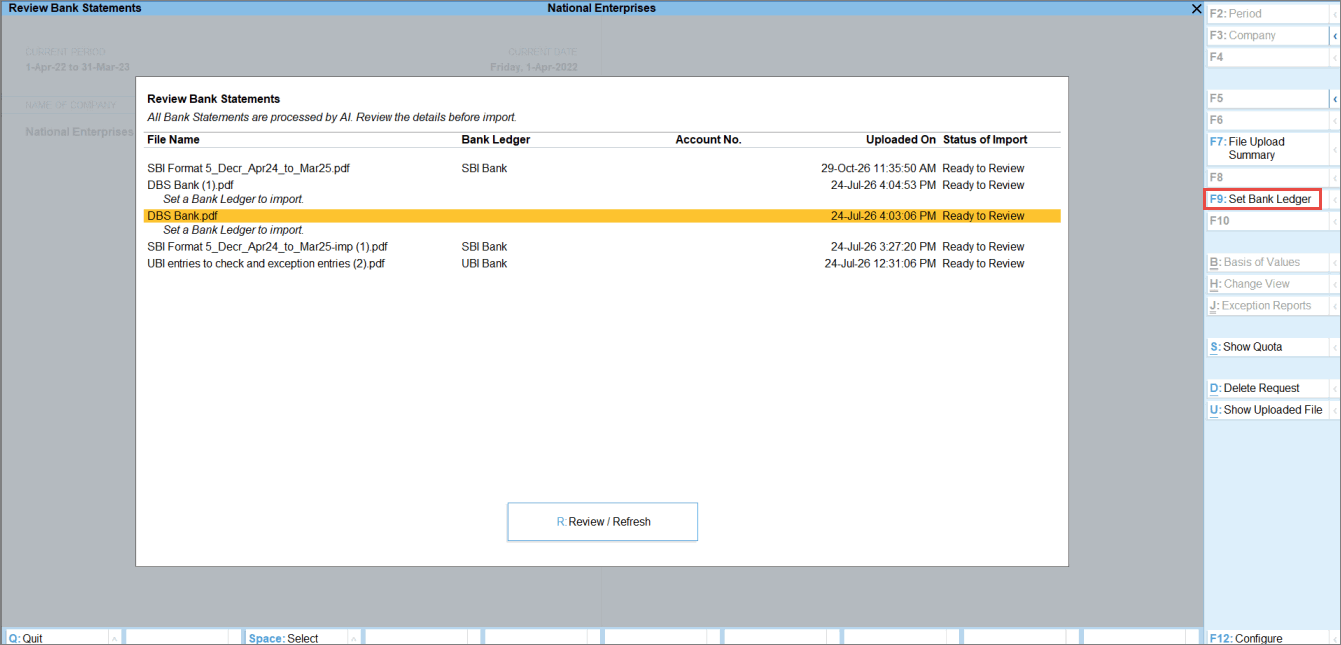
- Select the bank name from the List of Bank Ledgers.
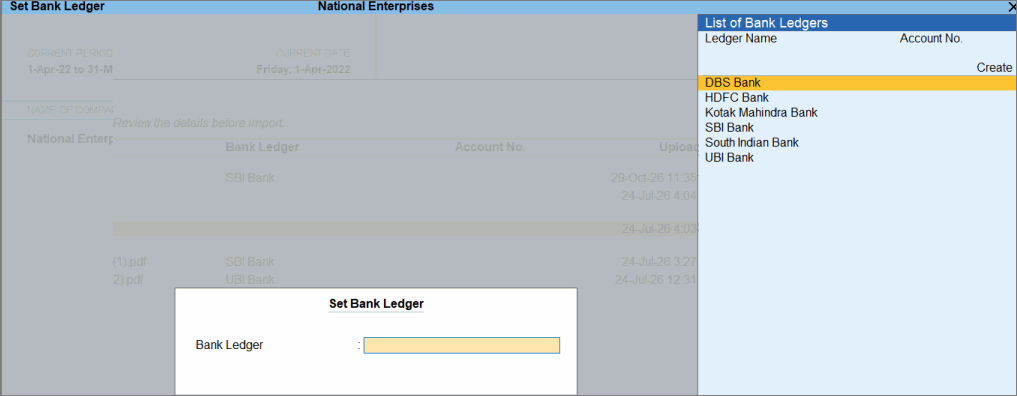
- Press Ctrl+A to save.
Show Uploaded Bank Statements
You can view the uploaded bank statement at any time before importing it into TallyPrime, regardless of its upload status.
- In the Review Bank Statements screen, select a statement and press Alt+U (Show Uploaded File).
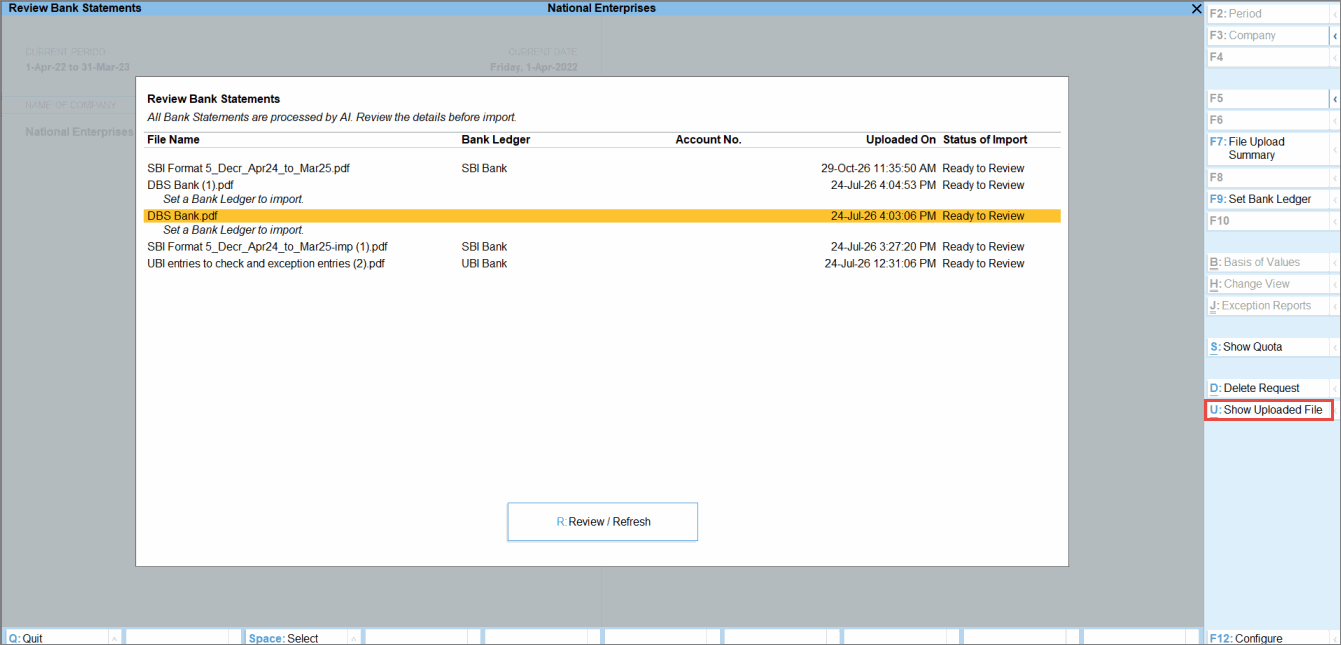
It opens the uploaded bank statement.
View Summary of Uploaded Files
You can view a consolidated history of all bank statement files uploaded in the last 7 days, regardless of whether they were uploaded from a mobile device or the local system.
- In the Review Bank Statements screen, press F7 (File Upload Summary).
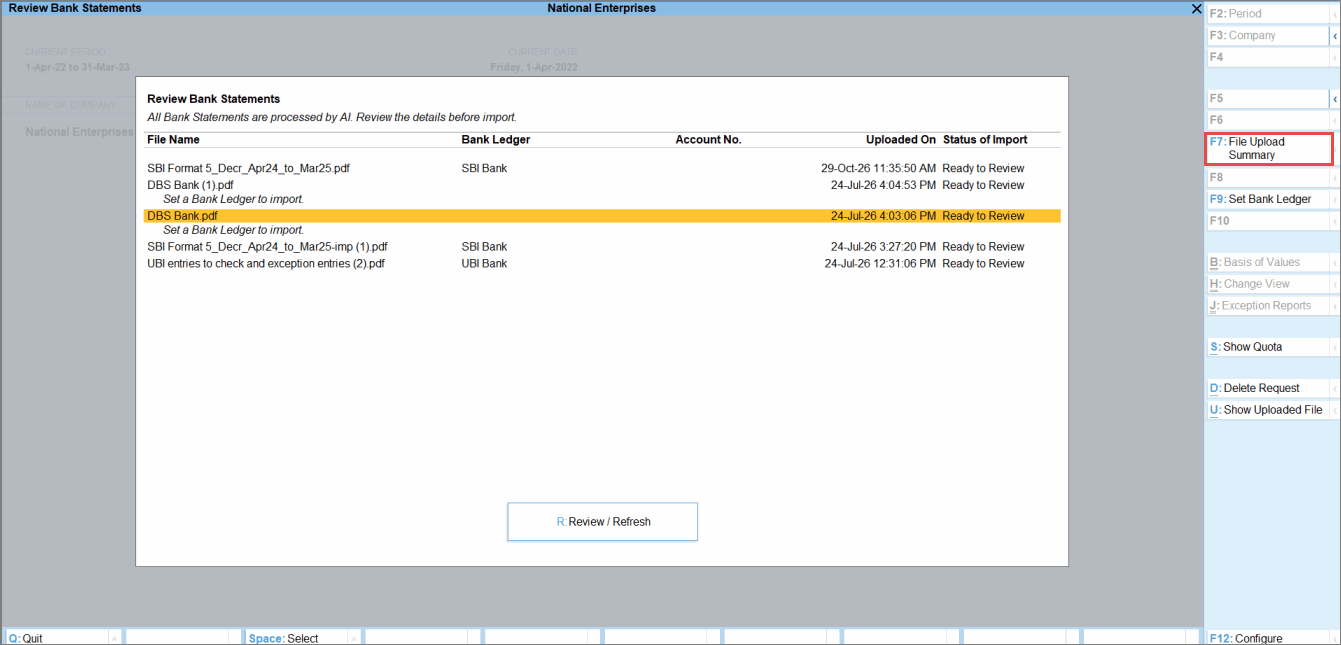
In the Summary of Uploaded Files screen, you can view the File Name, Source, Status, and Uploaded By.
Delete Bank Statements
You can delete a statement, regardless of its status, when you have uploaded:
- A PDF statement and the status is Failed, as it could not be processed.
- A PDF statement with an amount mismatch observed on the Bank Statement Preview screen.
- Any PDF other than Bank Statement.
To delete a statement,
- In the Review Bank Statements screen, select the statement and press Alt+D (Delete Request).
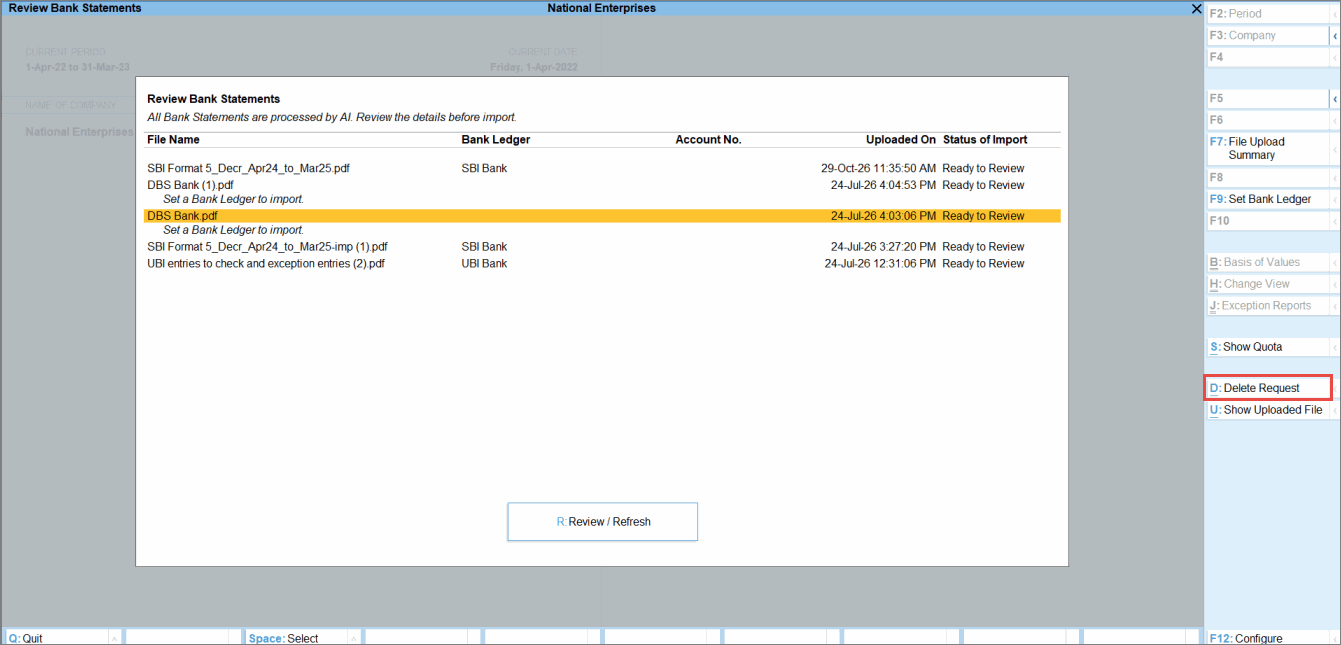
- Press Y to delete.
Manage Bank Statement Upload Balance
If you want to view the remaining balance for uploading bank statements, then
- In the Review Bank Statements screen, press Alt+S (Show Quota).
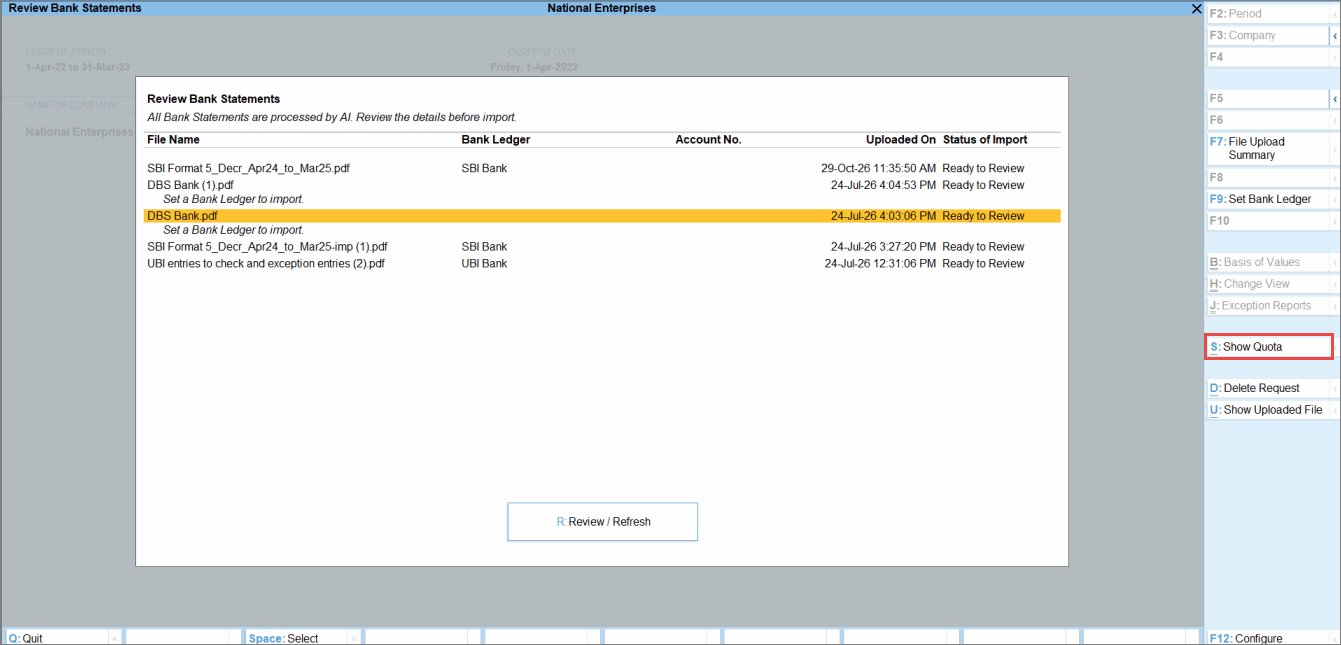
It redirects you to the Docs by Ira Details in the Customer Portal under Control Centre > TallyIra Services > Docs by Ira. - Click View Usage History to view the balance used for uploading bank statements.
- To add more pages, click Add Pages.
Export Bank Statements to Excel
In the Bank Statement Summary, any entries that require correction are listed under Note. You can export the uploaded bank statement in Excel, make necessary correction and upload it again in TallyPrime.
- In the Bank Statement Preview screen, press F9 (Export to Excel).
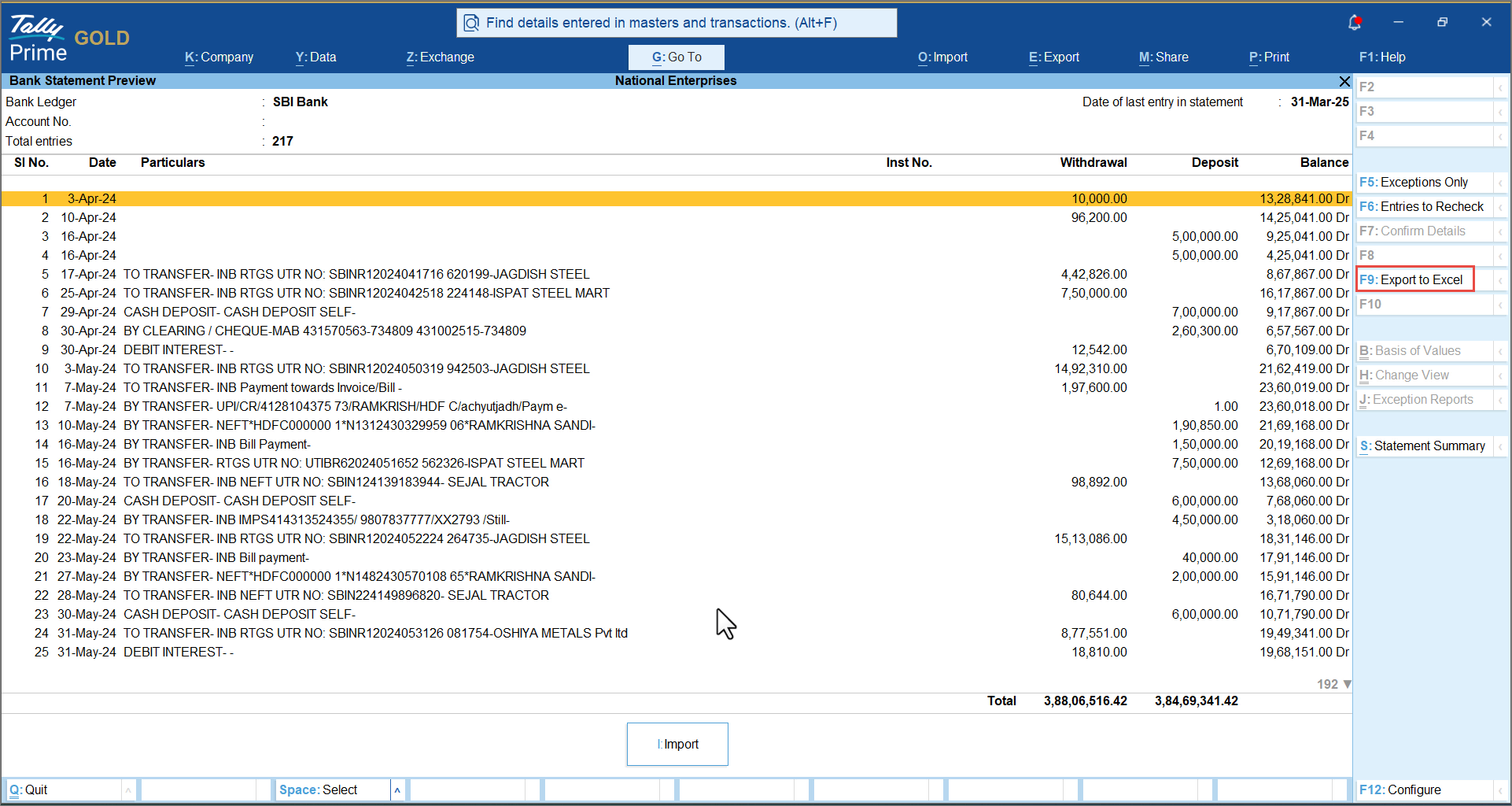
- Press Esc to exit the preview without importing the statement.
- In the Review Bank Statements report, delete the uploaded PDF statement.
- Open the exported Excel file and make the required corrections:
- Correct the date, narration, amount, or running balance.
- Add any missing transactions as new rows in the appropriate date order.
- Delete the rows for transactions you do not want to import.
- Verify that the running balance carries forward correctly from one transaction to the next.
- Save the Excel file.
- In TallyPrime, go to Alt+O (Import) > Bank Statement and import the corrected file in Excel format.
View Entries with Exceptions
You can view the list of transactions that do not have a date or amount as part of the exceptions. Transactions missing either of these details cannot be imported into TallyPrime.
- In the Bank Statement Preview screen, press F5 (Exceptions Only).
You can see the count under Entries with Exceptions.
View Entries to Recheck
You can view the list of transactions marked in red for review before import, helping prevent errors during reconciliation.
- In the Bank Statement Preview screen, press F6 (Entries to Recheck).
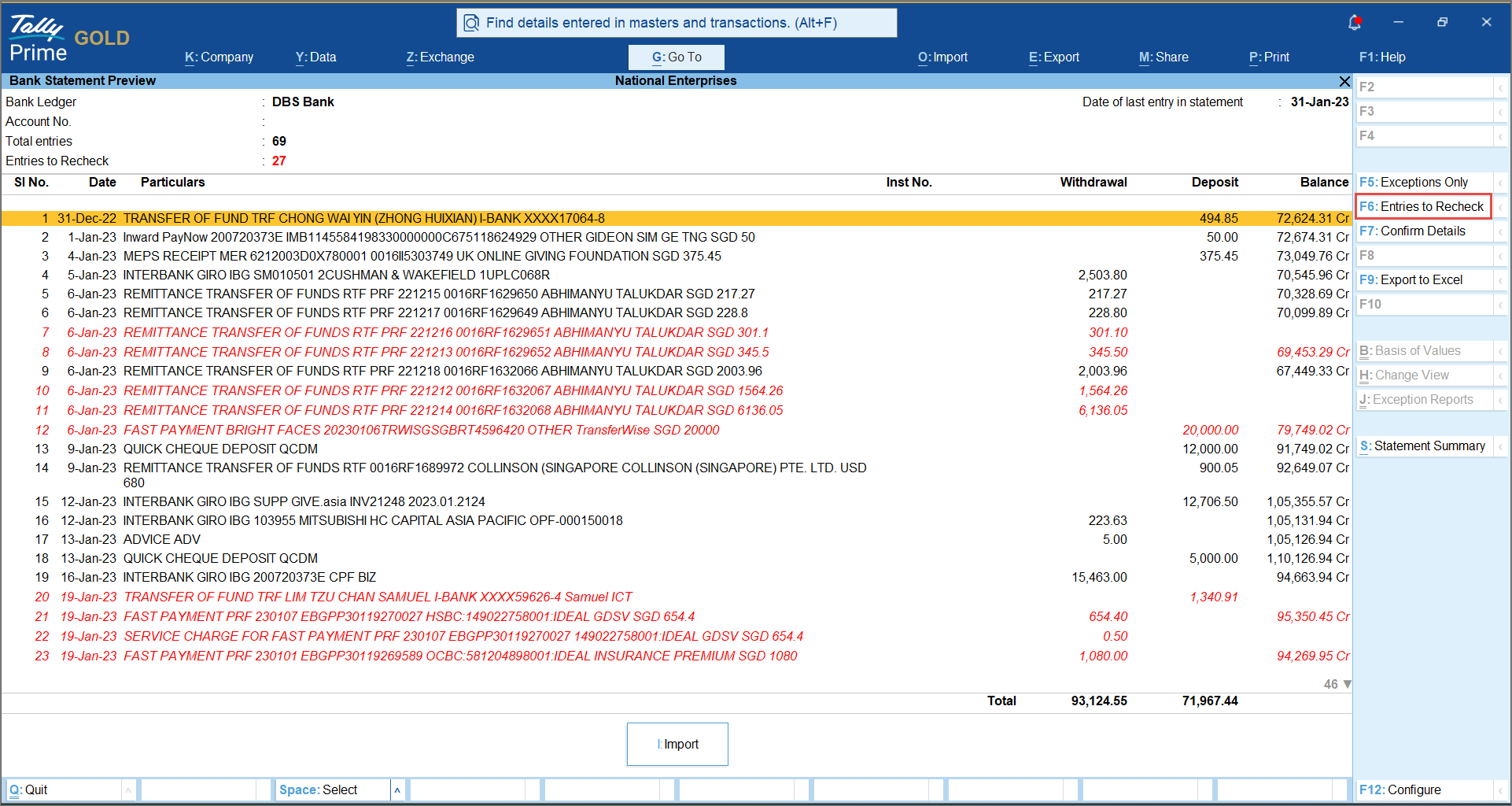
You can see the count under Entries to Recheck. - If all the transactions are correct, then select them and press F7 (Confirm Details).
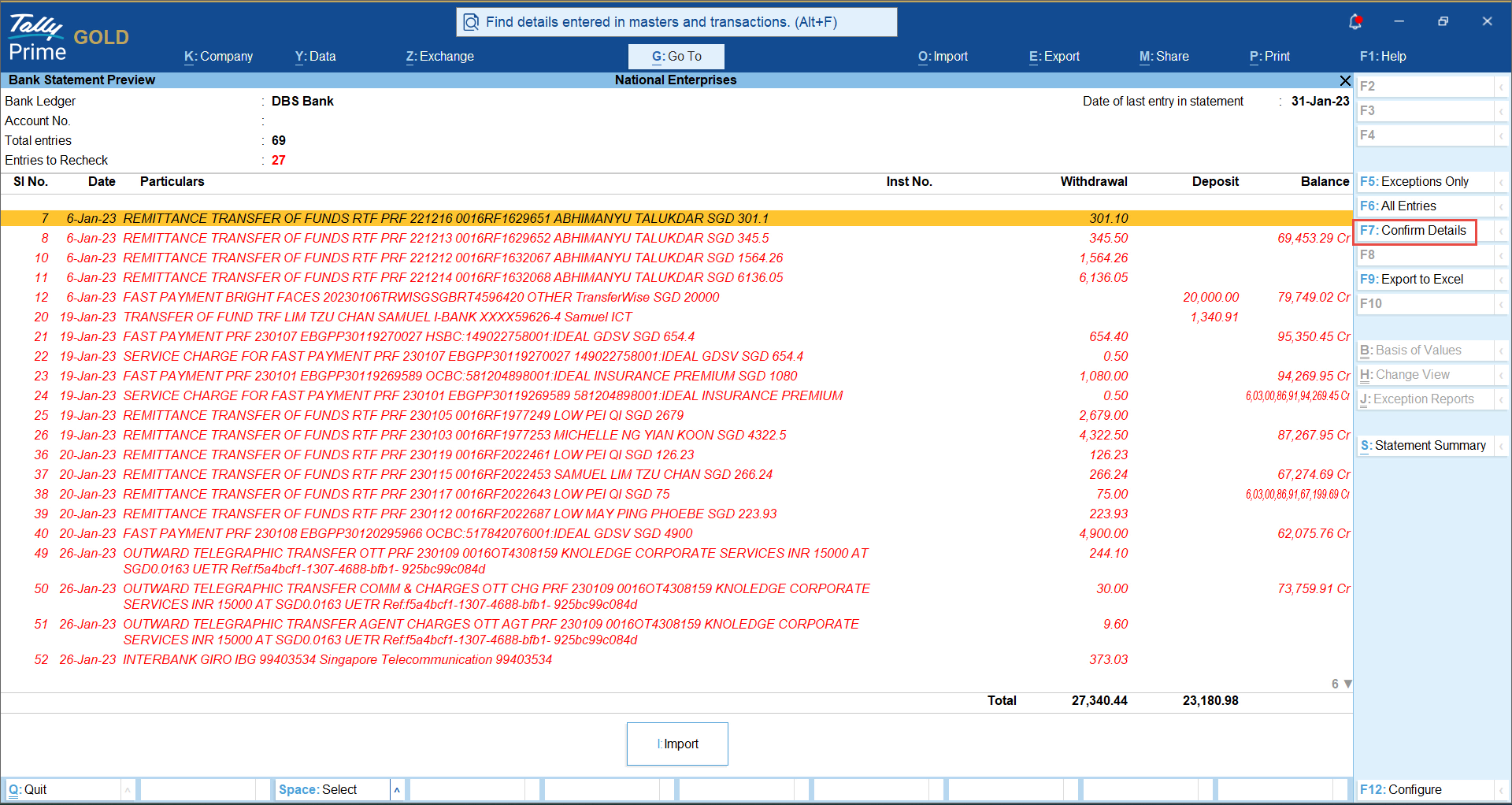
You can then continue to import the bank statement.
Questions & Answers
- How can I disable the default Bank Statement Summary view?
If you do not want the Bank Statement Summary to open automatically before the Bank Statement Preview report,- In the Bank Statement Preview screen, press F12 (Configure).
- Disable Show Summary before opening the Preview report.
- To view the summary later, press Alt+S (Statement Summary) in the Bank Statement Preview screen.