
Create Vouchers Using Docs by Ira in TallyPrime
Docs by Ira enables you to import your transaction documents in the PDF and images format. Thereafter, you can create vouchers on the go.

To use Docs by Ira for voucher creation, you need the following:
- Your license serial number, along with your e‑mail address and mobile number, must be registered for Docs by Ira. This can be done either by you or by your Tally Partner.
- Transaction documents in either PDF or image format.
You can also import a ZIP folder.
Refer to the entire checklist for Importing/Sending Transaction Documents for Voucher Creation. - You should have agreed to the terms and conditions and provided consent in TallyPrime.
- You are logged in to Docs by Ira using your Tally.NET ID and password.
Import Transaction Documents (PDF & Images) in TallyPrime

At a time, you can import files of the same voucher type.
- In TallyPrime, initiate the import.
- Press Alt+O (Import) > Transactions (PDF & Images) under Docs by Ira.
Alternatively, press Alt+O (Import) > All Docs by Ira options > Transactions (PDF & Images).
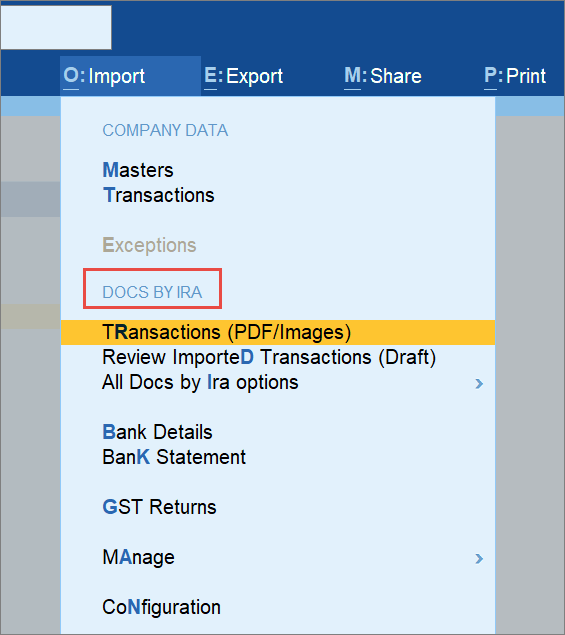
- In the Import Transactions screen, select Docs by Ira.
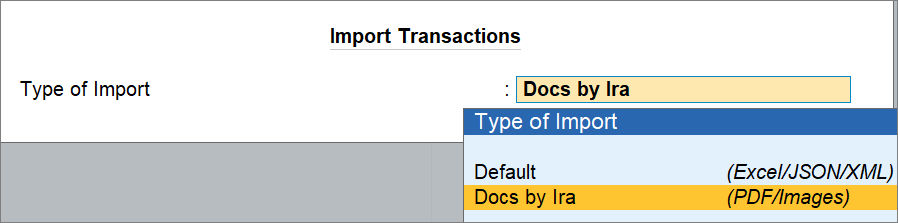
- In the Import Transactions screen, specify the necessary details.
- Voucher Type: Select Voucher Type, based on the type of transaction you want to create.
You might be importing Sales Invoices provided by your suppliers.
However, you want to create purchase vouchers out of those invoices. In such a case, select the Purchase as the Voucher Type.
The following voucher types are supported.- Sales
- Purchase
- Credit Note
- Debit Note
- Delivery Note
- Receipt Note
- Sales Order
- Purchase Order
- Journal Voucher
- Import as: Select the voucher mode as Accounting Invoice, As Voucher, or Item Item, as needed.
If you are importing a journal voucher, then you can choose to import the voucher:- With Inventory: When importing vouchers containing stock items.
- Without Inventory (Accounting Only): When importing vouchers containing only ledgers.
- Treat each Item as a Ledger: When importing vouchers containing stock items, but in this case, Docs by Ira will treat stock items and ledgers. When you create vouchers, the ledgers will get created for stock items.
- File Path: Specify/select the File Path.
- File to Import: Select a file or All Files from the folder.
- Backup Company Data before Import: Yes.
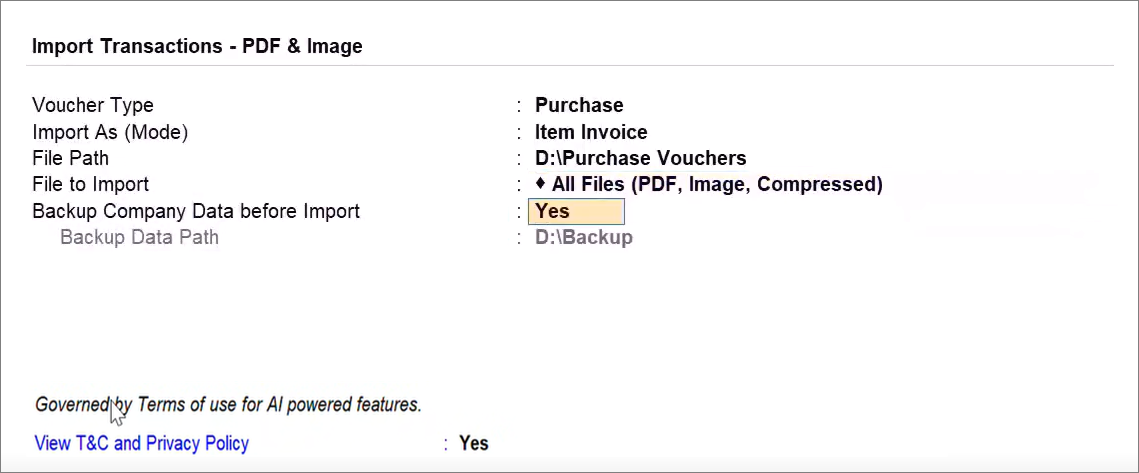
Taking a backup is recommended. - Backup Data Path: Specify/select the folder path.
- Voucher Type: Select Voucher Type, based on the type of transaction you want to create.
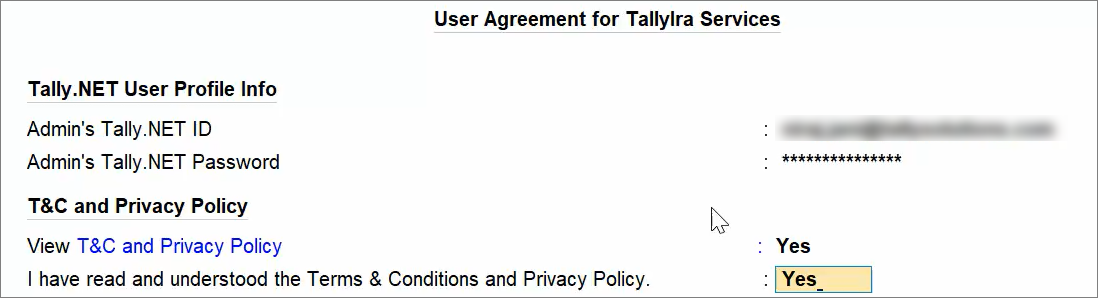
- In case of the first-time import, you need to accept the terms and conditions.
- Admin’s Tally.NET ID: Enter the Tally.NET ID of the license administrator.
- Admin’s Tally.NET password: Enter the password.
- View T&C and Privacy Policy: Yes.
- Accept the terms and conditions by setting the option to Yes.
The transactions start getting imported.
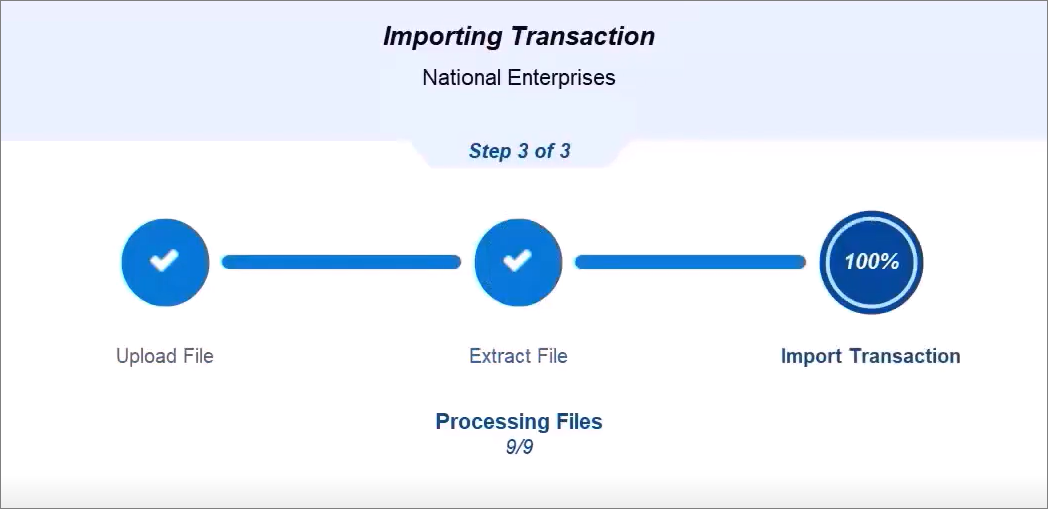
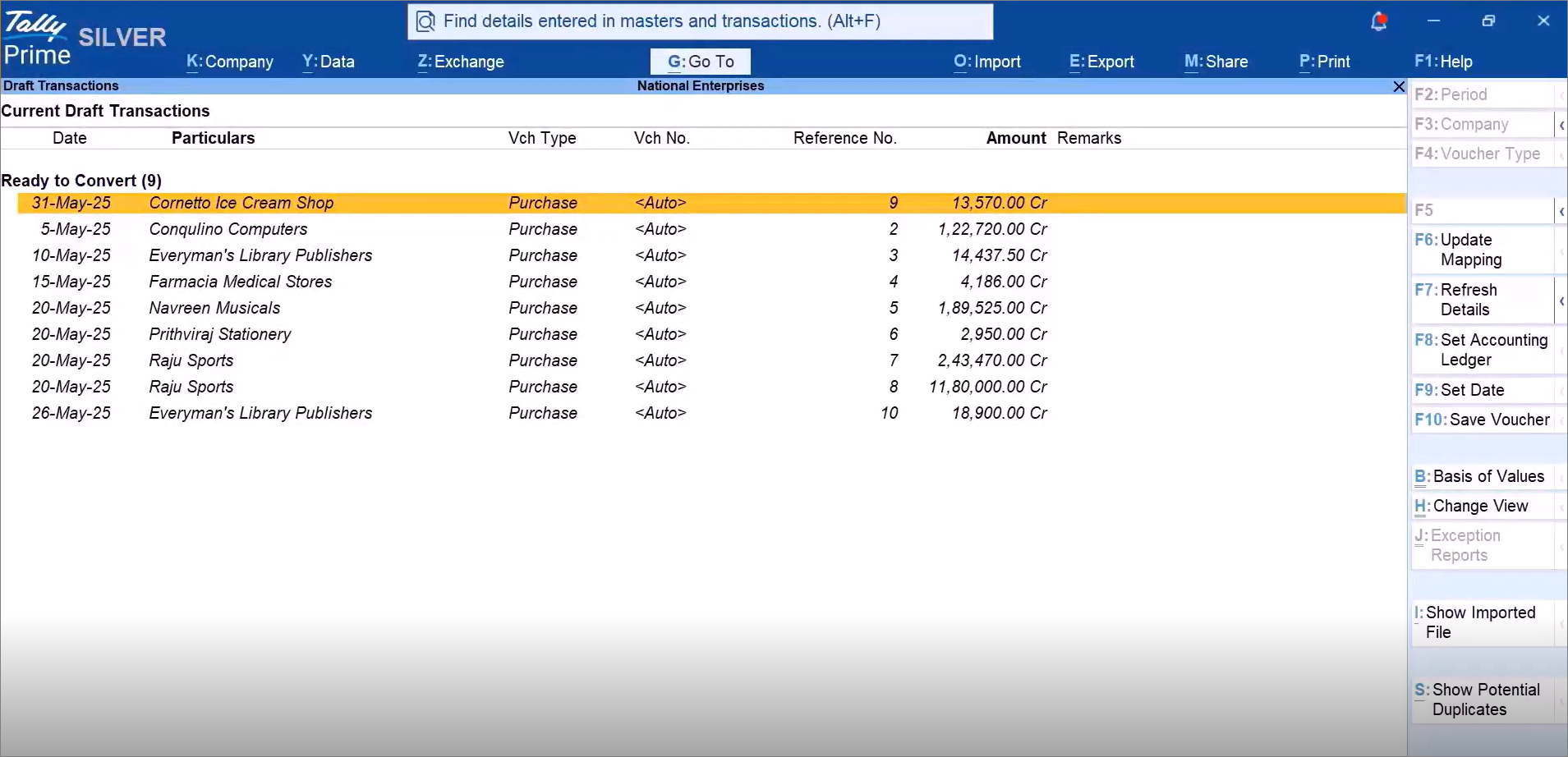
Once the files get imported, the Draft Transactions report appears.
- Under Ready to Convert, select all the transactions and press F10 (Save Vouchers).
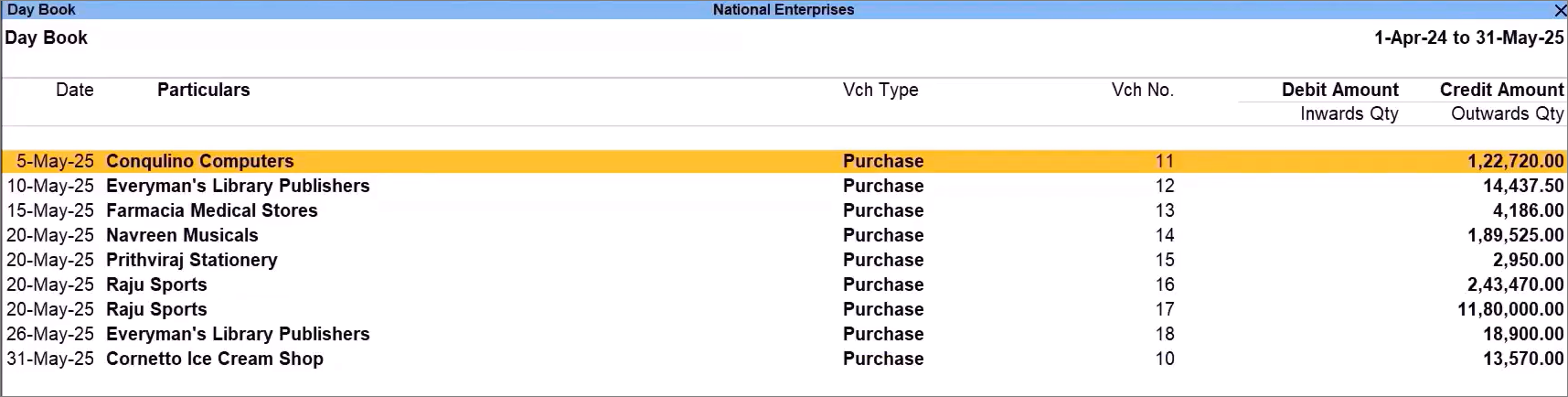
 The vouchers get created.
Open Day Book to view the vouchers.
Create a Voucher Using Autofill
While creating a voucher, you can import a transaction document. The voucher gets filled with the extracted values.
- In the Voucher Creation screen, press Ctrl+F (Autofill).
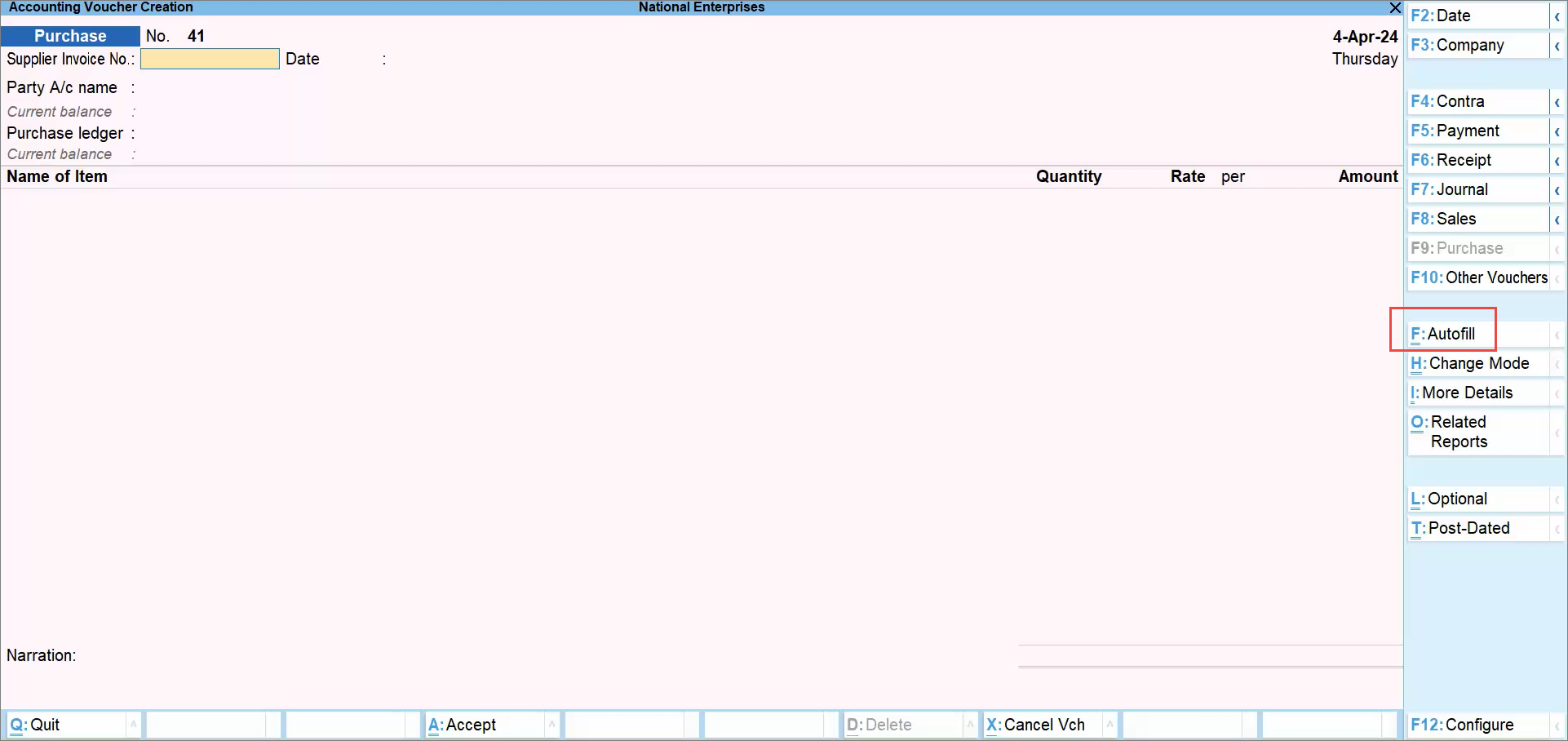
- In the Autofill screen, select the transaction document you want to import.
- Type of Activity: Docs by Ira.
- File Path: Specify/select the file path.
- File Name: Select the file.
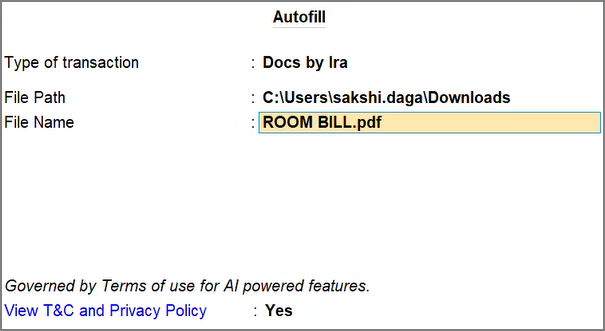
The values in the voucher get auto‑filled.
- Press Ctrl+A to save the voucher.
Questions & Answers
- I have a handwritten document. Can I create a PDF or image and import for voucher creation?
No, at present, you cannot import a handwritten document. It has to be a PDF or an image of a digitally created document.
- There are some transactions that require action. How can I resolve them?
The Draft Transactions report has all the facilities to help you resolve the exceptions in the transaction documents and create vouchers from them.
Is this information useful?
YesNo


