Upload and Import PDF Bank Statements in TallyPrime
Bank statements help you track your bank transactions against the entries recorded in your books. In TallyPrime, you can use them to create vouchers, reconcile bank transactions, and identify entries that need attention.
You can bring bank statements into TallyPrime in either of the following ways:
- Get Statement using Connected Banking.
- Download and import Bank Statements in Excel or PDF format.

Ensure that:
- You have enabled Docs by Ira plug-in.
- You have logged in to Docs by Ira.
- Your mobile number is added in TallyPrime under Security.
If you are not an admin, the admin must add your number and give you access to TallyIra. - You have saved a Bank statement in PDF on your desktop or mobile.
Upload PDF Bank Statements from your Computer
- In TallyPrime, press Alt+O (Import) > All Docs by Ira options > select Bank Statement (PDF).
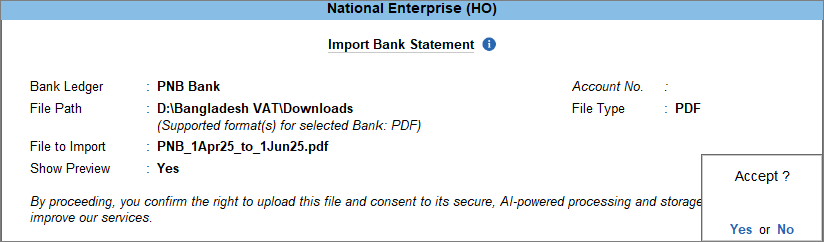
- In the Import Bank Statement screen, specify the import details.
- Select Bank Ledger.
- Specify File Path.
- By default, the File Type is selected as PDF.
- Select the File to Import.
- Press Ctrl+A to upload the bank statement.
- If the bank statement is password-protected, enter the password when prompted.
The password is used only to process the statement in TallyPrime and is kept secure. - In case you are importing bank statement for the first time, you need to accept the Terms & Conditions and Privacy Policy.
If you are already using Docs by Ira and have provided your consent, you do not need to provide it again.
Once the statement is uploaded successfully, it will open the Review Bank Statements report.
Send PDF Bank Statements from TallyIra App to TallyPrime
If your bank statements are stored on your mobile, you can upload them to TallyPrime using the TallyIra app.
Ensure that you have:
Upload PDF Bank Statements from Mobile with TallyIra App
- In the TallyIra App, select the company.
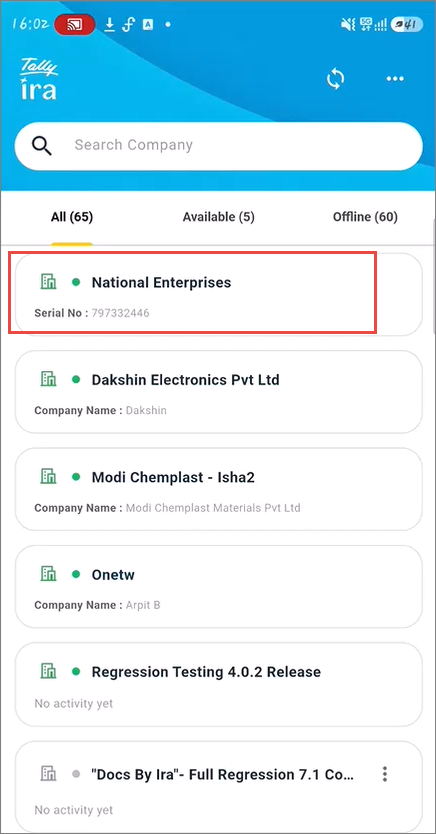
- Select Bank Statement as the Document Type.
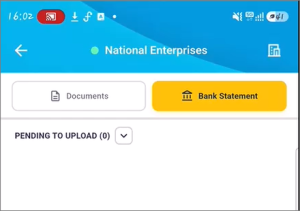
- Upload the bank statement.
- Tap the upload icon.
- Tap the bank statement you want to upload and tap Select.
If the bank statement is password-protected, you will be prompted to enter the password after uploading it. The password is used only to process the statement in TallyPrime and is kept secure.
- Tap Done.
- Send the documents to TallyPrime.
- Select the files.
- Tap Send to TallyPrime.
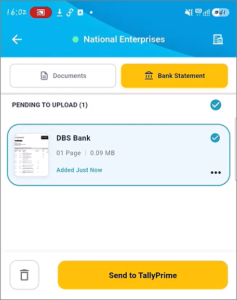
- Tap Ok.
- In TallyPrime, in the Import Bank Statement screen, press Alt+S (Review Bank Statements) to view all the statements uploaded to TallyPrime.
Upload PDF Bank Statements from Mobile Folder
- Select the file on your mobile.
- Tap Share icon.
- Select TallyIra.
- Select the company.
If the bank statement is password-protected, you will be prompted to enter the password after uploading it. The password is used only to process the statement in TallyPrime and is kept secure.
- Select the Document Type as Bank Statement.
- Tap Send to TallyPrime, and then tap OK to send the statement immediately.
To send the statement later, tap Save. The statement will be saved in the TallyIra mobile application.
After uploading, you can view your bank statements in the Review Bank Statements report and manage them before importing. You can assign bank ledgers, show uploaded files, and upload summary, delete statements, and check your available upload balance.
Import PDF Bank Statements
- In the Review Bank Statements screen, select the statement and press R (Review/Refresh).
- Once refreshed, the status changes from Yet to Process to Processing, displaying the percentage of the file processed.
- Once processing is complete, the status changes to Ready to Review.
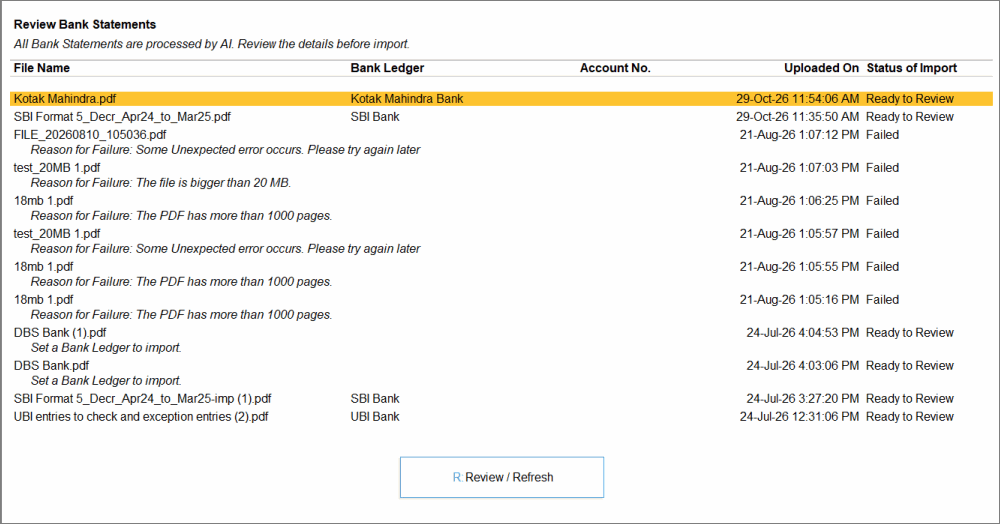
- When the status of the bank statement changes to Ready to Review, select the statement and press Enter.
- Validate the Bank Statement Summary.
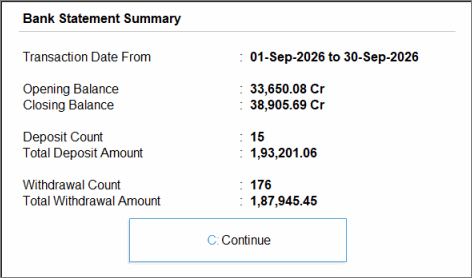
- In the Bank Statement Summary screen, verify the displayed details against your bank statement.
- To view the uploaded bank statement, press Alt+U (Show Uploaded File).
- Once validated and the details are correct, press C (Continue) to open the Bank Statement Preview report.
- In the Bank Statement Preview screen, press I (Import).
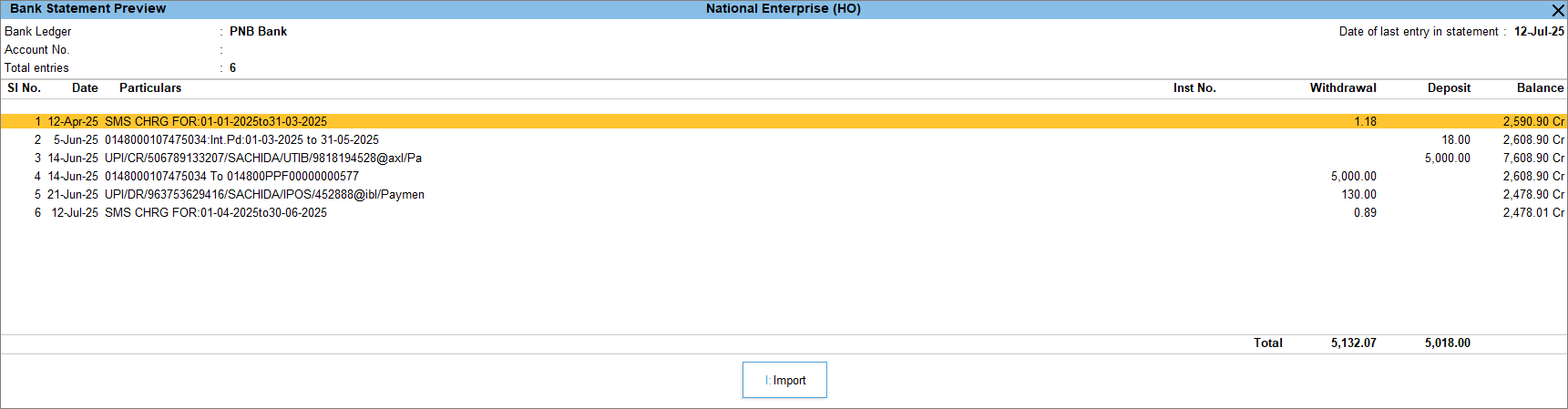
You can also review transactions with exceptions or those that require verification, and export the statement to Excel to make corrections before importing it.
Once imported, you can see the Summary of Imported Statement displaying the count of entries imported.
Questions & Answers
- Why do I see Notes in the Bank Statement Summary?
Notes highlight entries that may require correction before importing the bank statement. Depending on the issue, you can make corrections in TallyPrime or export the statement to Excel.- In Tally: If the date or narration needs to be corrected, you can make the changes while creating the voucher.
- In Excel: If a transaction is missing or an incorrect amount has been extracted, export the bank statement to Excel, make the necessary corrections, and import the corrected statement.
- Can I see the Review Bank Statement later?
Yes, you can see the Review Bank Statement later.
- Press Alt+O (Import) > Bank Statement.
- In the Import Bank Statement report, press Alt+S (Review Bank Statement).
- How can I find out why a bank statement upload failed?
If the bank statement status is Failed, you can view the reason displayed just below the bank statement in the Review Bank Statements report.