
Generate e-Invoice for Advance Receipt in TallyPrime (KSA)
When you receive an advance amount from your customer against a specific sales order, you will need to generate an e-Invoice, as per KSA compliance regulation.

- Ensure that you have enabled the Maintain balances bill-by-bill option in the party ledger.

In a Receipt voucher:
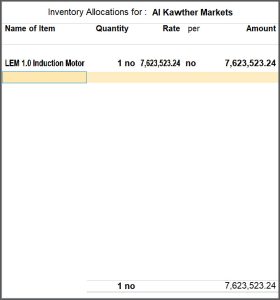
- In the Inventory Allocations for screen, select one item and enter the details, such as Quantity, Rate, and Amount.
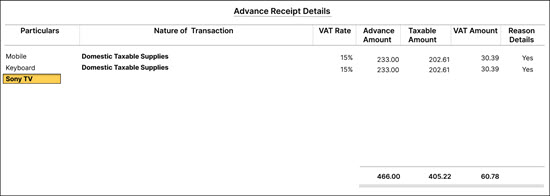
- In the Advanced Receipt Details screen, give advance receipt details such as Nature of Transaction, VAT Rate, Advance Amount, Taxable Amount, and so on.
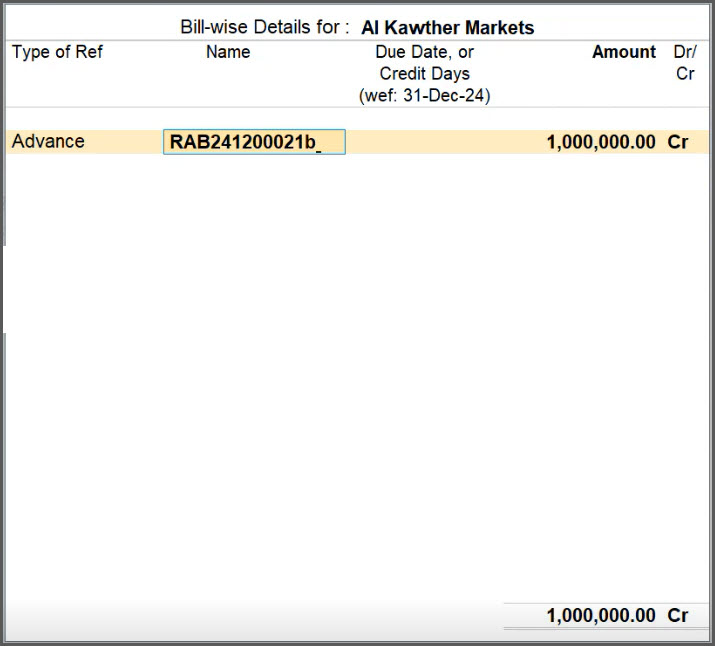
- In the Bill-wise Details for screen, update the reference details, and add prefix or suffix, if needed.
- Under Type of Ref, select Advance.
- If you want to add multiple stock items in the advance receipt, then you should add any prefix or suffix, to make it unique.
Say you added ‘a’, in the Reference name at the end. You can add any other alphabet, number, or any special character of your preference as prefix or suffix in the Reference name.

- Select the same party again, and in the Inventory Allocations for screen, select another item and enter the details, such as Quantity, Rate, and Amount.
- In the Advanced Receipt Details screen, give advance receipt details such as Nature of Transaction, VAT Rate, Advance Amount, Taxable Amount, and so on.
- In the Bill-wise Details for screen:
- Under Type of Ref, select Advance.
- Add any suffix, say ‘b’, in the Reference name at the end as it should be unique.
You can add any other alphabet, number, or any special character of your preference as prefix or suffix in the Reference name.

- In the Advanced Receipt Details screen, give advance receipt details such as Nature of Transaction, VAT Rate, Advance Amount, Taxable Amount, and so on.
- Set Show e-Invoice details: Yes and specify the Integration or Generation phase e-Invoice details in the e-Invoice Details screen, as needed.
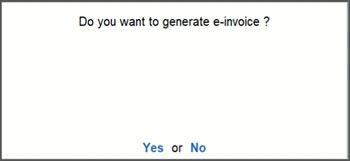
- Press Y or select Yes to generate e-Invoice.


After generating the e-invoice, you can check the PDF A3 format file embedded with XML in the archived location of e-Invoices.
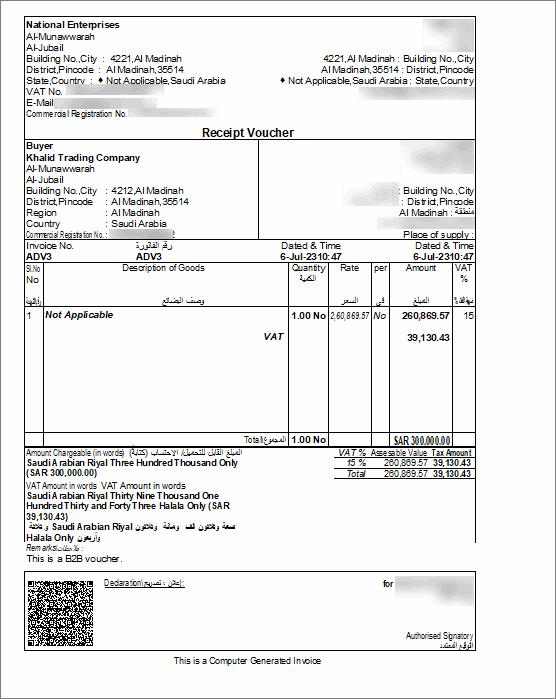
You can settle the advance receipts against the sales bills by selecting the sales bill reference (as Agst Ref) in the sales invoice.
Is this information useful?
YesNo


