
Track Stock Item Details Batch-wise in TallyPrime | Batch Summary
Since you maintain batches for stock items, you can track stock movement and view transaction details for each batch. In TallyPrime, you can:
- Use Batch Summary to view the inward and outward quantities for a specific batch of a stock item.
- View Batch Summary with Manufacturing Details to review manufacturing details and identify expired batches.
- View stock items within a specific manufacturing date range or expiry date range.
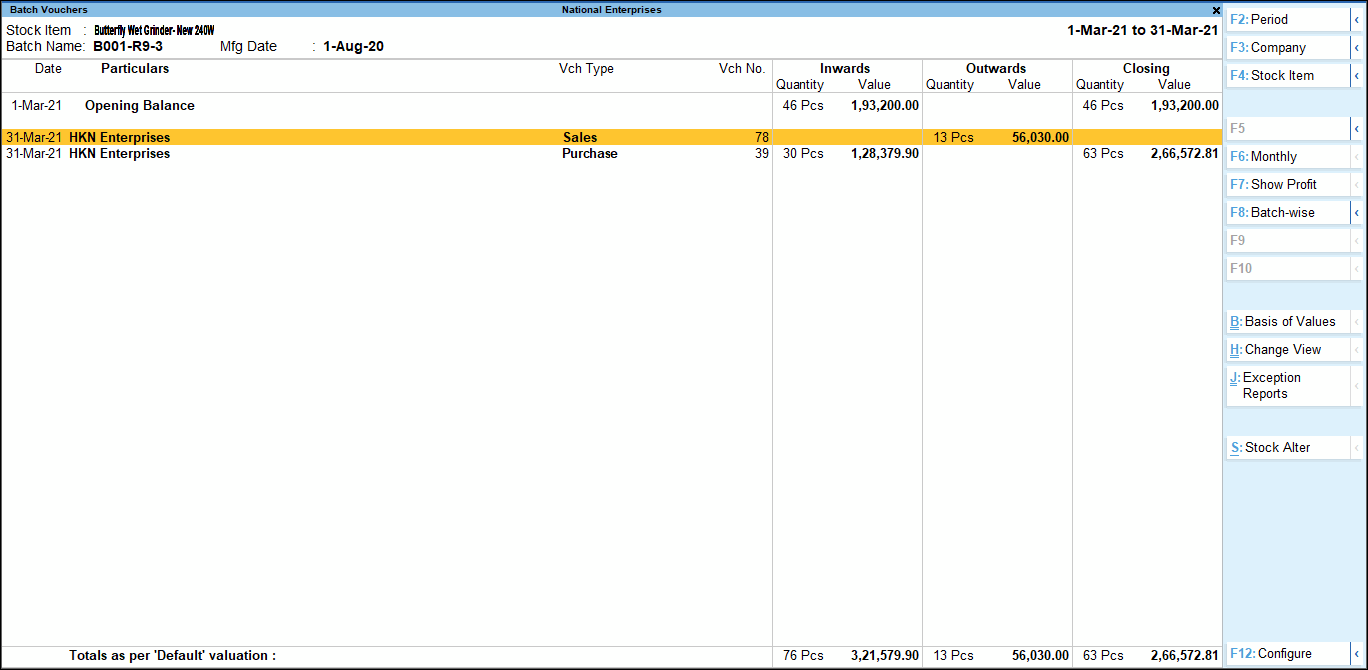
- View Batch Vouchers to review the transactions recorded for stock items belonging to a specific batch.

Ensure that:
- You have enabled batches for the Company.
- You have created stock items and enabled batches for them.
View Batch Summary
- Press Alt+G (Go To) > type or select Batch Summary and press Enter.
- Name of Item: Select an item from the List of Items.
- To view profits corresponding to all entries, press F7 (Show Profit).
- View expired batches only.
- Press Ctrl+B (Basis of Values).
- Press Enter on Expired Batches only.
- View stock item belonging to specific manufacturing date range.
- Press Ctrl+B (Basis of Values).
- Enable Show Batch Manufacture Details.
- In the Report Details screen, enter the From and To dates.
You will be able to view the Manufacturing dates of the batches based on the date range mentioned in these fields.
- View stock item belonging to specific expiry date range.
- Press Ctrl+B (Basis of Values).
- Show Batch Expiry Details From, To:
- Press Ctrl+B (Basis of Values).
- Press Enter on the Show Batch Expiry Details From, To.
- Enter the From and To dates.
You will be able to view the Expiry dates of the batches based on the date range mentioned in these fields.
- To view the Item Batch Monthly Summary, select the required batch, and press Enter.
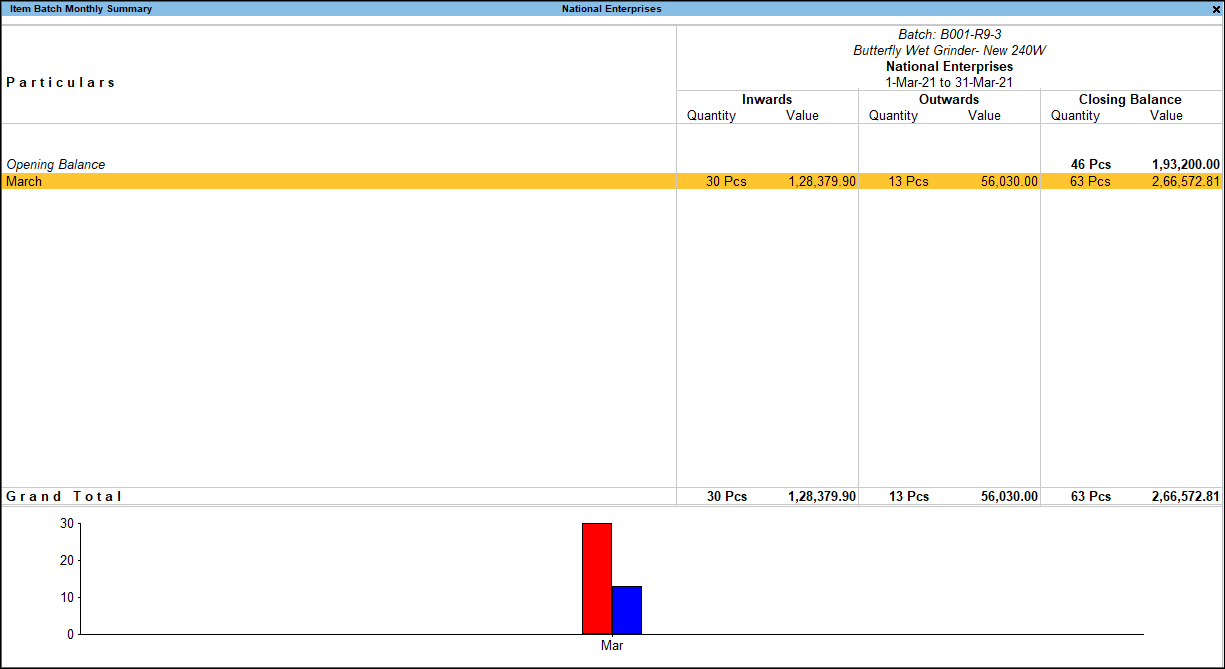
- Drill down further to view the Batch Vouchers report.
View Batch Summary with Manufacturing and Expiry Details
You may want to know the manufacturing date, expiry date, and the number of days remaining until a specific batch expires.
- Press F12 (Configure).
- Show Manufacturing Date: Yes.
- Show Expiry Date of Batches: Yes.
- Show Number of days for Expiry: Yes to view the number of days until expiry for each batch of a selected stock item.
- Show Stock Items with Zero Quantity or Balance: Yes to view stock items that are over.
View Batch Vouchers
Batch Vouchers provides a list of all vouchers for a stock item belonging to the same batch for a specific period.
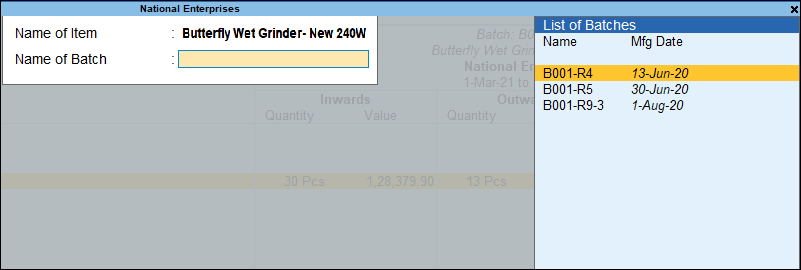
- Press Alt+G (Go To) > type or select Batch Voucher and press Enter.
- Name of Item: Select from the List of Items.
- Name of Batch: Select from the List of Batches.
- To view Batch Summary, press F8 (Batch-wise).
- To alter the stock item, select the row and press Alt+S (Stock Alter).
The Stock Item Alteration screen will appear, where you can make changes to the Stock Item master.
Questions & Answers
- How do I view all batches across items in one report?
Use the Batch Summary report, which provides:- A list of all batches
- Stock item mapping
- Quantity, rate, and value per batch
- How do I identify remaining stock in a specific batch?
You can identify the remaining stock by:- Opening the Batch Summary report and checking the closing quantity.
Alternatively, drill down from Stock Item > Batch details.
- Opening the Batch Summary report and checking the closing quantity.
Is this information useful?
YesNo


