
Create and Alter Units of Measurement in TallyPrime
In TallyPrime, you can maintain stock items with units. You can create simple unit, compound unit, and also use alternate unit for stock items.
You can also alter units, as needed.
Create Simple Unit
- Press Alt+G (Go To) > Create Master > Units and press Enter.
- Symbol: Enter the symbol, such as pcs and kg.
- Type: Simple.
- Formal name: Enter the full name of the unit, such as Pieces and Kilogram.
- Number of decimal places: Specify the number of places required based on your business needs.
You can set decimal places for units based on how you sell items.
For example, selling sugar in kilograms may require 1 decimal place for 0.5 kg or 2 decimal places for 0.52 kg to avoid confusion.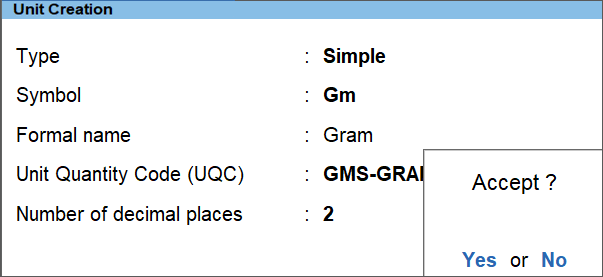
- Press Ctrl+A to save the unit.
Create Compound Unit
- Press Alt+G (Go To) > Create Master > Units and press Enter.
- Type: Compound.
- First Unit: Enter the unit, such as Kg.
- Conversion: Enter the number, based on conversion factor between the compound and the second unit.
Compound units can be created up to any level.
For example, milligram < gram < kilogram < quintal < tonne.
However, the relationship between the units should be convertible and specified in TallyPrime. - Second unit: Enter the simple unit created in TallyPrime, based on which you specified the conversion factor.
For example, Gm.
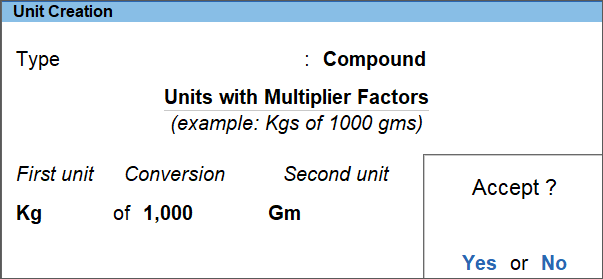
- Press Ctrl+A to save to save the unit.
Use Alternate Units for Stock Items
While creating or altering a stock item, you can use alternate units for it.
While creating or altering a stock item:
- Press F12 (Configure) and set Use Alternate Units as Yes.
- In the Stock Item Creation/Alteration screen, enter the details for Alternate units in the Stock Item Creation screen:
- Units: Select any simple or compound unit, as required.
- Alternate units: Enter the alternate unit that you want to use for the stock item.
- where: Provide the conversion factor between the simple or compound unit and the alternate unit.
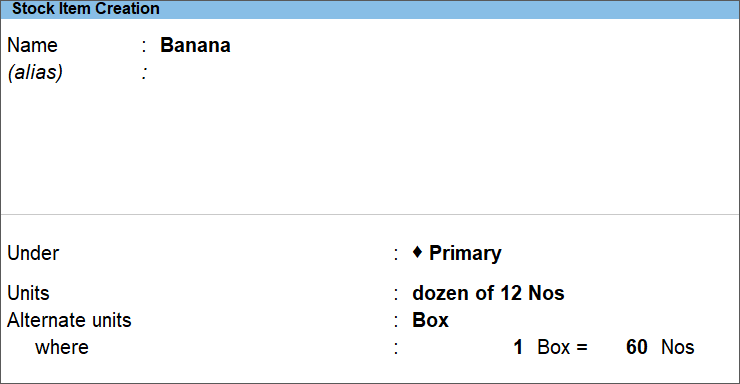
- Press Ctrl+A to save to save the Stock Item.
The alternate unit gets saved for the stock item that you can use in transactions.
Alter Unit
While you might want to alter a unit, but as a best practice, to maintain consistency in your company data, it is recommended not to alter units frequently.
- Press Alt+G (Go To) > Alter Master > type or select Unit and press Enter.
- In the Unit Alteration screen, make the necessary changes, as per your requirement.

- Press Ctrl+A to save.
Similarly, you can alter a compound unit, if there are no transaction recorded using it.
Questions & Answers
- How many decimal places are allowed in units?
You can use up to four decimal places.
If calculations exceed this, TallyPrime automatically rounds the value.
- I am not able to alter the alternate unit. How do I proceed?
Once you have set the alternate unit, you cannot alter it.
Is this information useful?
YesNo


