
Record TDS on Purchase in TallyPrime
You can record TDS on purchases, including software purchases, expenses with inventory, and reversals of expenses with TDS.

Ensure that:
- You have enabled TDS in TallyPrime.
- You have created the requited TDS masters.
Record TDS on Software Purchases
You can record TDS on taxable or non-taxable software purchases by configuring the Nature of Payment and applying the applicable TDS rate.
Configure Nature of Payment for taxable software purchases
While creating the TDS Nature of Payment,
- Enter 194J in Section and 94J in Payment Code.
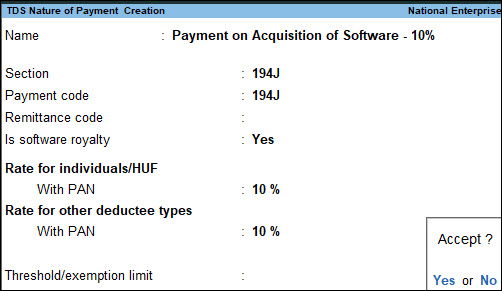
- Set Is software royalty to Yes.
- Enter the Rate of tax.
- Enter the Threshold/exemption limit, if applicable.
- Press Ctrl+A to save the Nature of Payment.
Record a taxable software purchase
In the Purchase voucher:
- Press Ctrl+H (Change Mode) and select the required voucher mode.
- Press F12 (Configure) and set Modify tax details for TDS to Yes.
- Enter the Supplier Invoice No. and Date.
- In Party A/c name, select the supplier ledger.
- Under Particulars, select the purchase ledger and enter the amount.
- On the Expense Allocation screen, select the Nature of Payment configured for the taxable software purchase and press Enter.
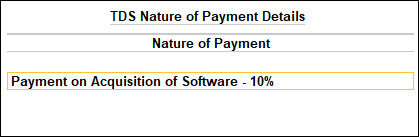
- Select the TDS tax ledger.
The TDS amount is calculated automatically based on the configured rate.
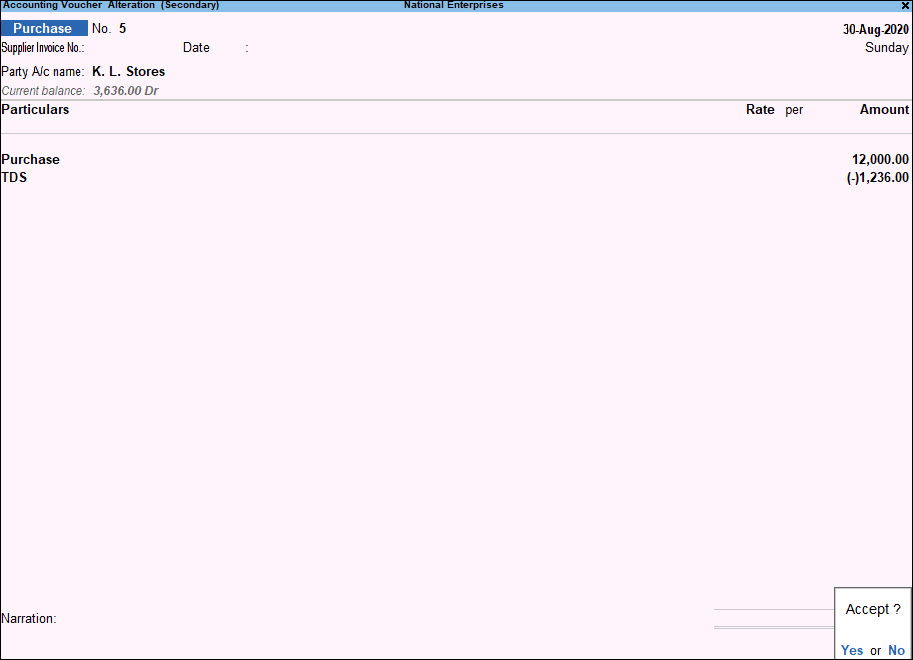
- Press Ctrl+A to save the voucher.
The purchase ledger and TDS ledger can be created without selecting a Nature of Payment in the master. You can select the Nature of Payment while recording the transaction.
Configure Nature of Payment for zero-rated software purchases
While creating the Nature of Payment for zero-rated software purchase, enter the Rate of tax as 0%, and enter the Threshold/exemption limit, if applicable.
Record zero-rated software purchase
While recording the TDS purchase transaction for zero-rated software purchase, select the Nature of Payment configured with the Rate of tax as 0%.
The values from taxable and zero-rated/exempt software transactions are updated in Form 26Q.
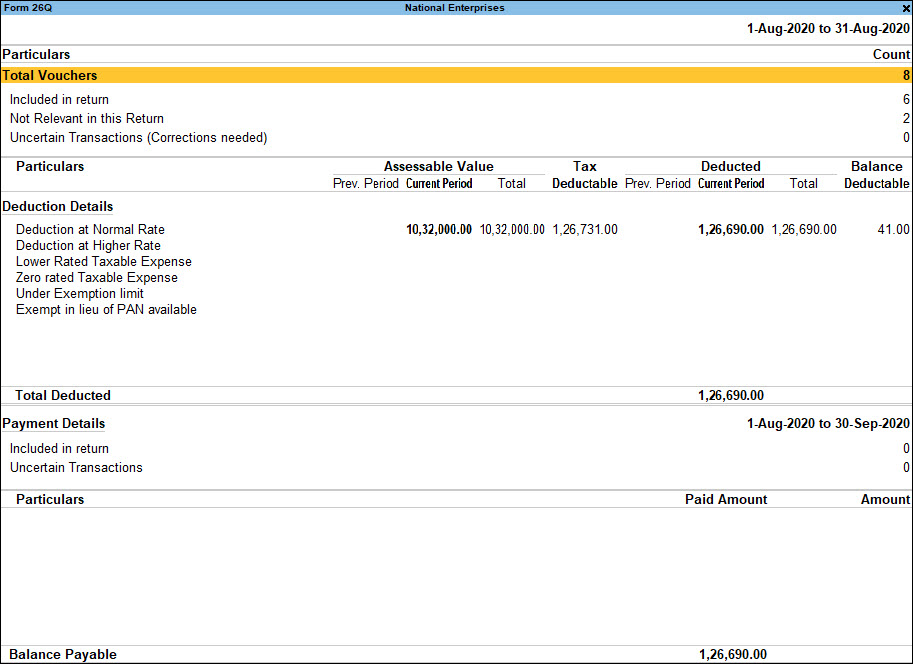
In the return file, the value from the exempt transaction is flagged with the initial S, indicating software purchase.
Record TDS on Expenses with Inventory
You can record expenses towards inventory along with the applicable TDS.
In the Purchase voucher:
- Press Ctrl+H (Change Mode) and select Item Invoice.
- Enter the Supplier Invoice No. and Date.
- In Party A/c name, select the supplier ledger
- Select the Purchase ledger.
- Select the stock item and enter the Quantity and Rate.
The amount is calculated automatically. - Select the TDS ledger.
The TDS amount appears automatically. - In Bill-wise Details, enter the required details, and press Ctrl+A to save.
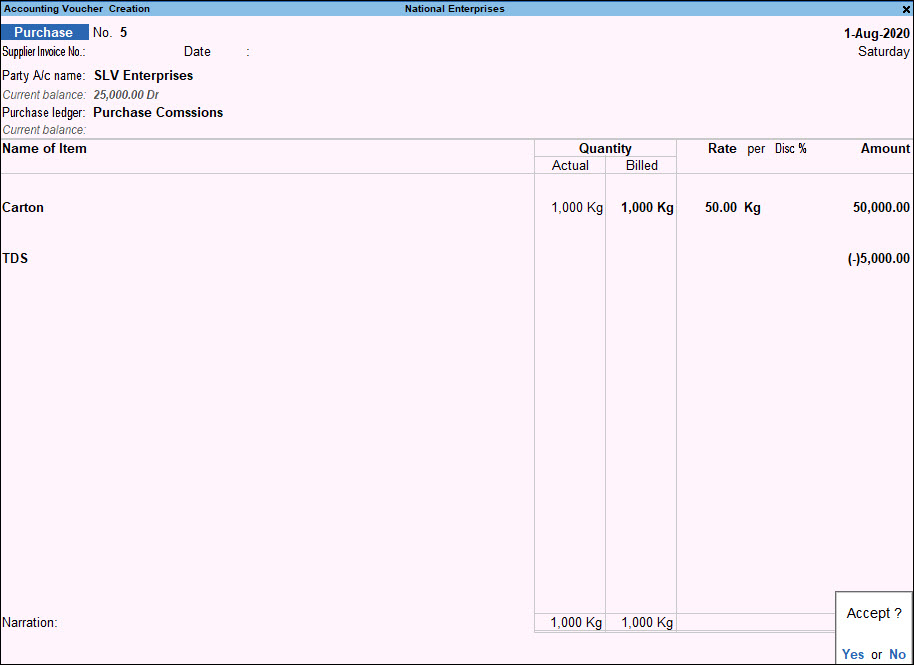
- Press Ctrl+A to save the voucher.
Reverse Expenses with TDS
You can reverse expenses with applicable TDS using a Purchase voucher or Debit Note.
Record the Reversal Using a Purchase Voucher
In the Purchase voucher:
- Enter the Supplier Invoice No. and Date.
- In Party A/c name, select the supplier ledger
- Under Particulars, select the expense ledger and enter the amount.
- Select the TDS ledger.
The TDS amount appears automatically.
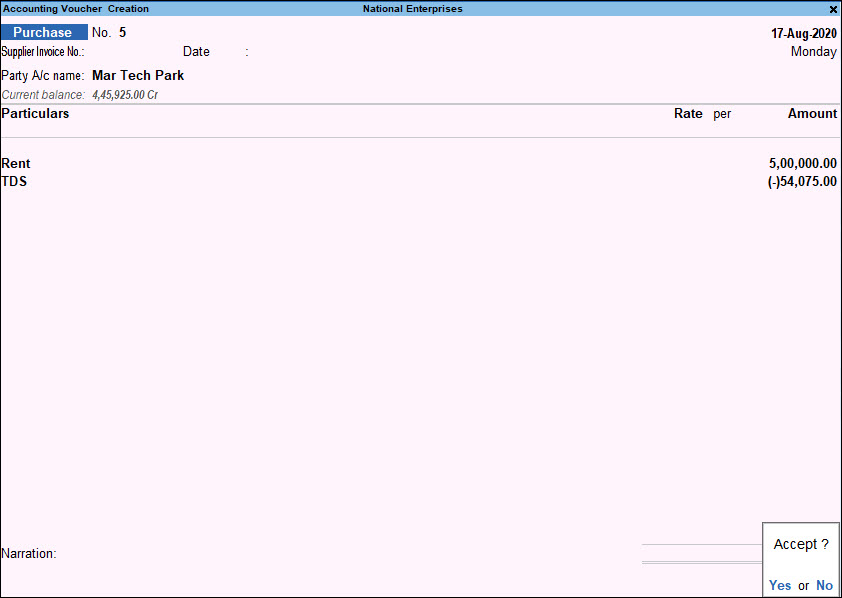
- In Bill-wise Details, enter the required details.
- Press Ctrl+A to save the voucher.
Record the Reversal Using a Debit Note
In the Debit Note:
- Enter the Original Invoice No. and Original Invoice Dt.
- In Party A/c name, select the supplier ledger
- Select the expense ledger and enter the amount.
- Select the TDS ledger.
- Enter the required details in the TDS Nature of Payment Details screen.
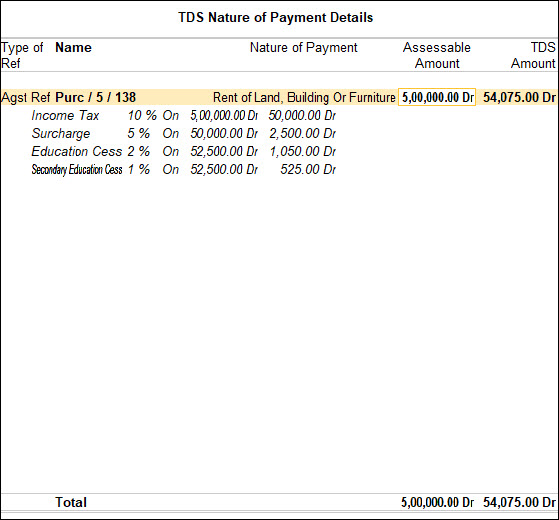
- Enter the required details in the Bill-wise Details screen and press Ctrl+A to save.
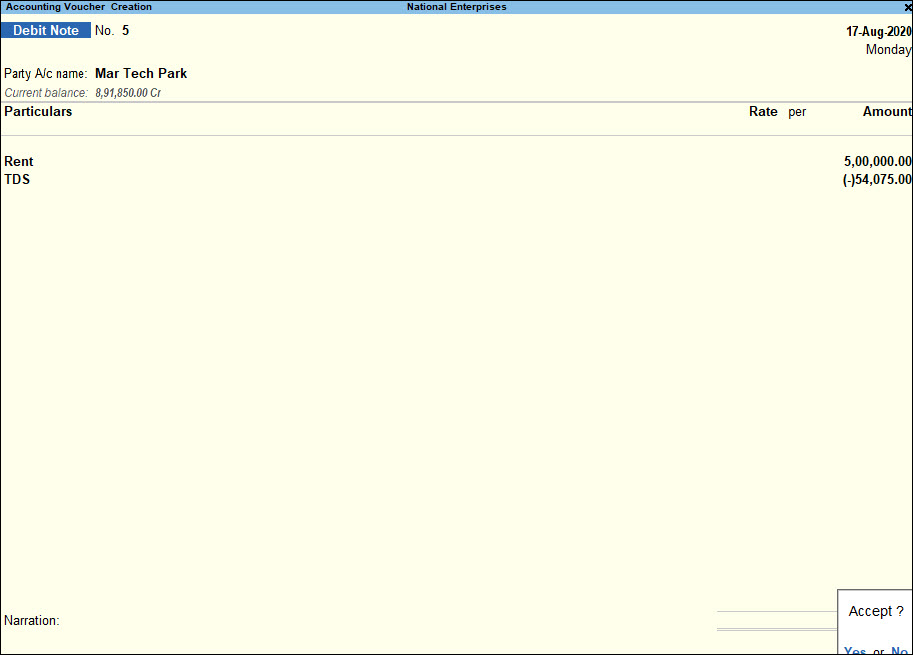
- Accept the screen and press Ctrl+A to save the voucher.
Questions and Answers
- Why is TDS not getting calculated on a purchase?
If the TDS is not getting calculated, ensure that the TDS masters used in the transaction and the applicable Nature of Payment are configured correctly. To learn more, refer to How to Create TDS Masters in TallyPrime.


