
Create TDS Masters in TallyPrime
Create the TDS masters required to configure and record TDS transactions in TallyPrime. You can create and configure the Nature of Payment; TDS, expense, party, and fixed asset ledgers, and stock item masters based on the type of transaction and TDS requirement.

Ensure that:
- You have enabled TDS in TallyPrime.
Create TDS Nature of Payment
For payments attracting TDS, the relevant nature of payment is defined by the department with associated tax rate, section, payment code, and threshold limit. Once you have created the TDS Nature of Payment, you can use it while recording transactions so that the deductions are as per the NOP.
To refer to the TDS Nature of Payment as per the Income Tax Act 2025, click here.
- Press Alt+G (Go To) > Create Master > TDS Nature of Payments > and press Enter.
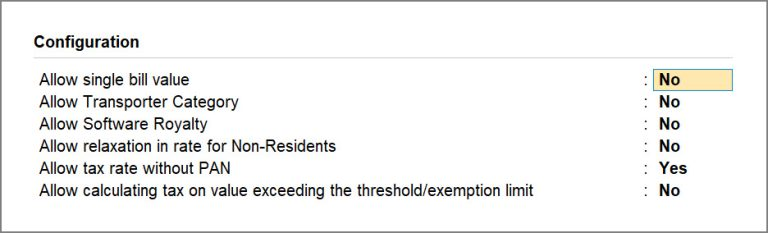
- Press F12 (Configure).
- Set Allow transporter category to Yes, to capture the value of transaction recorded with party having PAN, under Exempt in lieu of PAN available in Form 26Q.
- Set Allow tax rate without PAN to Yes, to enter the tax rates for Individuals/HUF for each nature of payment.
- Press Enter to save.
- Press Alt+H (Helper) to view the list of Nature of Payment.
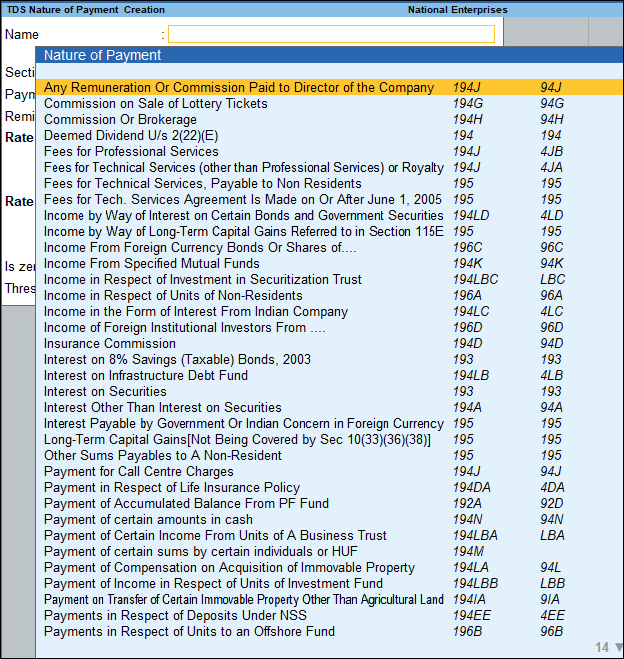
- Under Name, select the required Nature of Payment.
The Section and Payment code are displayed automatically.You can enter the name as required but ensure that the section code and payment code are selected correctly.
- Enter the Rate for individuals/HUF for With PAN and Without PAN.
The same rate appears for other deductee types. - Enter the Threshold/exemption limit as applicable.
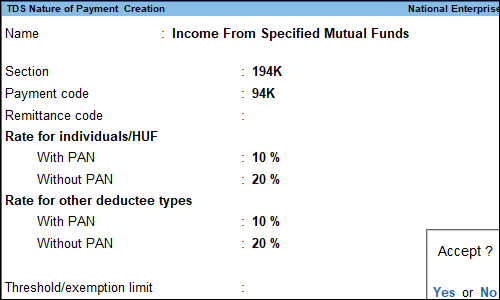
- Press Ctrl+A to save.
To view the history of Rate and Exemption Limit Details provided for different dates, press Ctrl+I (More Details) > type or select TDS Details (History)> and press Enter.
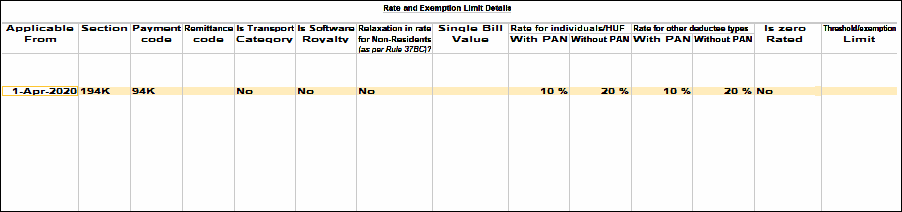
The details will appear with the breakup of rate With PAN and Without PAN.
Create TDS Ledger
You can create a TDS ledger for recording tax amount in TDS related transactions.
- Pess Alt+G (Go To) > Create Master > Ledger > and press Enter.
- Enter the Name.
- Select Duties and Taxes as the group name in the Under field.
- Select TDS as the Type of duty/tax.
- Select a Nature of Payment from the List of Nature of Payments.
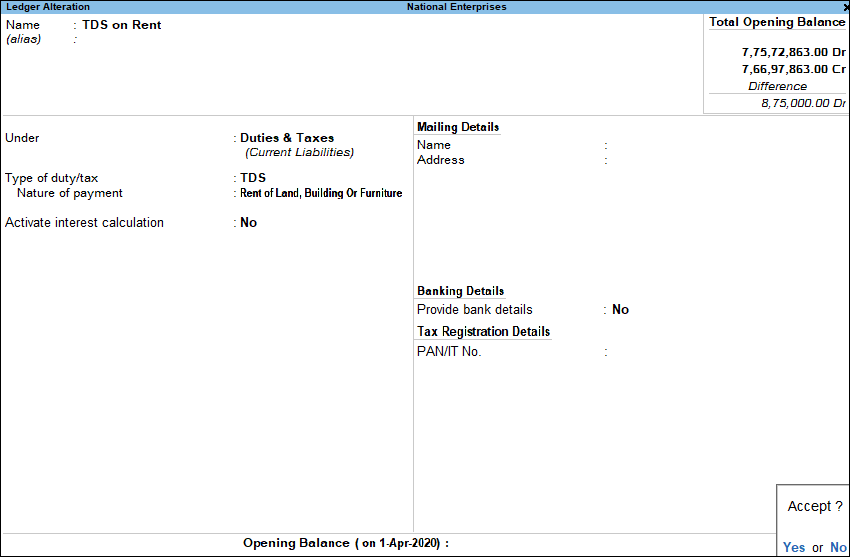
- Press Ctrl+A to save the ledger.
Create TDS Expenses Ledger
You can create an expense ledger for recording transactions that attract TDS, and configure the applicable TDS Nature of Payment in the ledger.
- Press Alt+G (Go To) > Create Master > Ledger > and press Enter.
- Enter the Name.
- Select Indirect Expenses as the group name in the Under field.
- Set Inventory values are affected to No.
- Enable the option Is TDS Applicable.
- Select the Nature of Payment from the List of Nature of Payments.
The NOPs created in the company will be listed here. If needed you can create one as well.
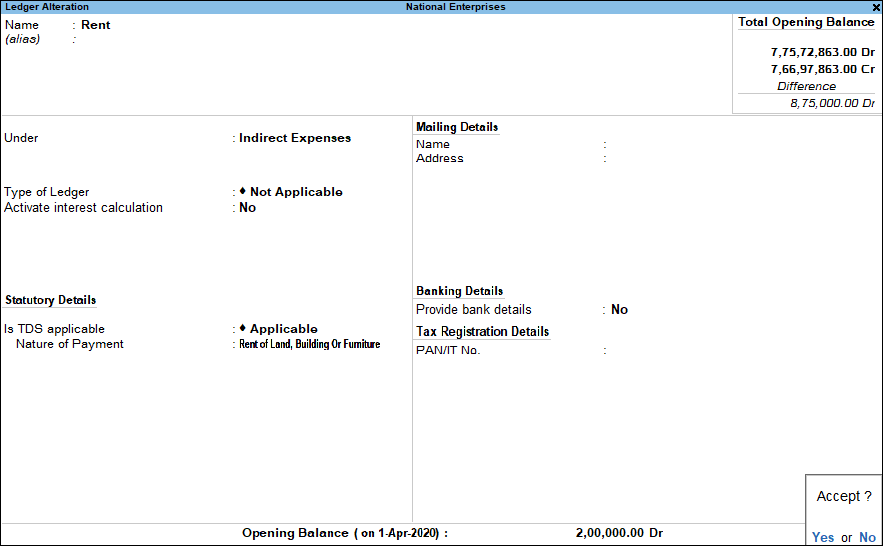
- Press Ctrl+A to save the ledger.
Create TDS Party Ledger
You can create a ledger for TDS deductible parties and configure the deductee type as required.
- Press Alt+G (Go To) > Create Master > Ledger > and press Enter.
- Press F12 (Configure) and set the option Allow advanced entries in TDS masters to Yes.
- Enter the Name and select Sundry Creditor in the Under field.
- Enable the option Maintain bill-by-bill, to track the TDS bills.
- Enable the option Is TDS Deductable, to allow TDS deduction for the ledger.
- Select a Deductee Type from the list.
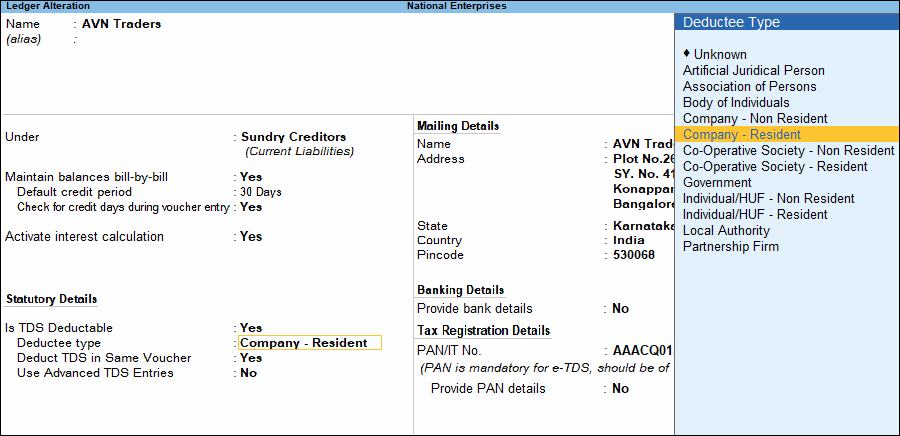
- Enable Deduct TDS in Same Voucher, if required, and select the TDS Nature of Payment.
- Set Use Advanced TDS Entries to Yes.
- You can set the ledger to ignore income tax and/or surcharge exemption limits.
- Enable the option Set/Alter Zero/Lower Deduction to Yes.
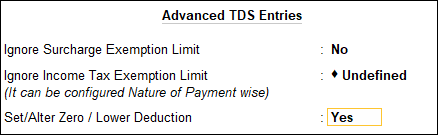
- If the Deductee type is a Resident, you can set the required Nature of Payment for Zero/Lower Rate.
Based on the selection made, the transactions recorded using these ledgers will appear in the relevant sections of Form 26Q.
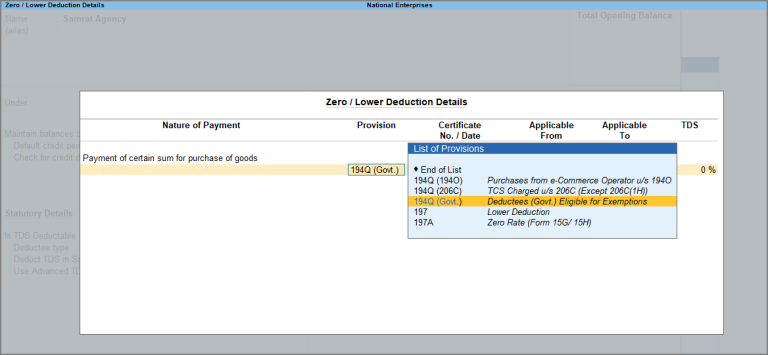
- If the Deductee type is a Non-Resident, you can set the required Nature of Payment for Zero/Lower Rate/DTAA.
Based on the selection made, the transactions recorded using these ledgers will appear in the relevant sections of Form 27Q.
- Enter the Mailing Details.
- Enable Provide Bank Details, to enter the bank details for the ledger.
- Enter the PAN/IT No. under Tax Information.
When the PAN is not available, enter one of the terms given below as the PAN/IT No., based on the corresponding reason:- PANAPPLIED – If the party has given a declaration stating that he/she has applied for PAN, but are yet to receive the same.
- PANINVALID – If the PAN format provided by the party is incorrect.
- PANNOTAVBL – If the party has not given any declaration or PAN number.
- Enable the option Provide PAN Details, if required, and enter the PAN Details.
- Enter the PAN Effective Date.
- Enter the Name on PAN.
- Press Ctrl+A to save to save the details.
- On the Ledger Creation screen, press Ctrl+A to save to save the ledger.
Create TDS Fixed Asset Ledger
You can create a fixed asset ledger for recording purchases of fixed assets and capital goods that attract TDS, and configure the applicable TDS Nature of Payment in the ledger.
- Press Alt+G (Go To) > Create Master > Ledger > and press Enter.
- Enter the Name.
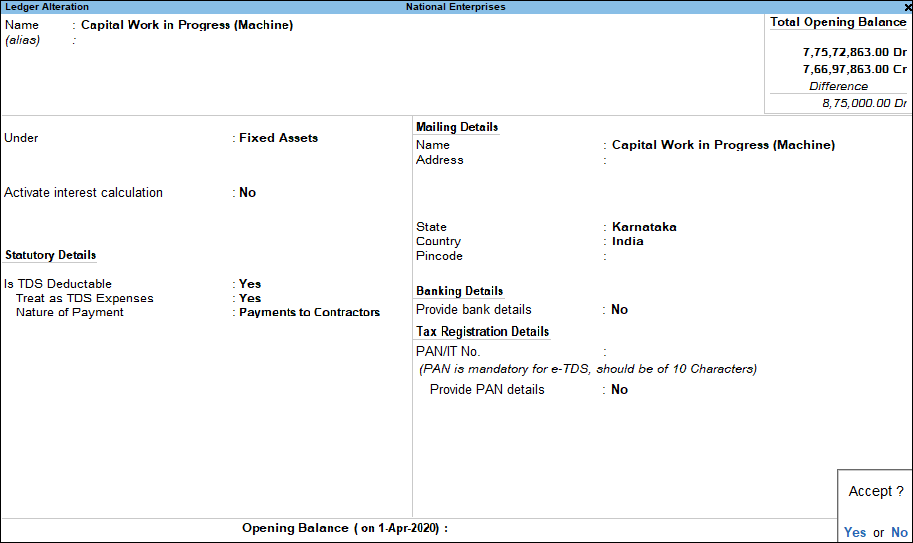
- Select Fixed Assets as the group name in the Under field.
- Set Inventory values are affected to No.
- Set Is TDS Deductable to Yes.
- Set Treat as TDS Expenses to Yes.
Once enabled, TallyPrime treats the TDS amount as part of the expense instead of reducing the expense amount by the TDS deducted. - Select the required Nature of Payment.
- Enter the Mailing Details and Tax Registration Details, as required.
- Press Ctrl+A to save the ledger.
Create TDS Stock Item
You can create a stock item that attract TDS and configure the applicable TDS Nature of Payment in the stock item. Ensure that you have enabled TDS for stock items while Enabling TDS in TallyPrime.
- Press Alt+G (Go To) > Create Master > Stock Item > and press Enter.
- Enter the Name.
- In the Under field, select a stock group from the List of Stock Groups
- In the Units field, select a unit of measurement.
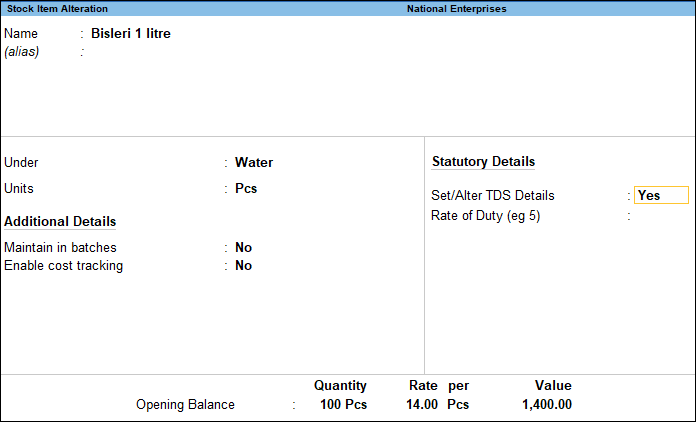
- Enable the option Set/Alter TDS details.
- In the Stock Item Creation screen, press F12 (Configure) > enable Set TDS Details.
- Select the Nature of Payment.
- Press Ctrl+A to save to save the details.
- Press Ctrl+A to save the stock item.
Questions and Answers
- Why is the required TDS Nature of Payment not appearing during transaction entry?
Check whether the required TDS Nature of Payment has been created and configured with the applicable section, payment code, rate, and threshold details.


