
Record Purchase of Metal Scrap and Deduct TDS
As per Notification No. 25/2024-CT by the GST department, TDS is applicable on the purchase of metal scrap classified under Chapters 72 to 81 of the Customs Tariff Act, 1975. If the taxable value of metal scrap purchased from a supplier exceeds ₹2,50,000, the buyer must deduct TDS at 2% on the taxable value.
In TallyPrime, you can comply with this requirement by:
-
Recording the purchase invoice for metal scrap
-
Deducting TDS using a Journal voucher

-
You must have a GST-TDS registration (GSTIN) required to deduct TDS for such supplies apart from the regular GSTIN
-
Ensure that the metal scrap stock item is configured with the HSN falling under Chapters 72 to 81 of the Customs Tariff Act.
Record Purchase of Metal Scrap
-
Open the purchase voucher in the Item Invoice mode to account for metal scrap.
Refer to the Local Purchase and Interstate Purchase sections-
Press Alt+G (Go To) > Create Voucher and press F9 (Purchase).
-
Press Ctrl+H (Change Mode) > Item Invoice and press Enter.
-
-
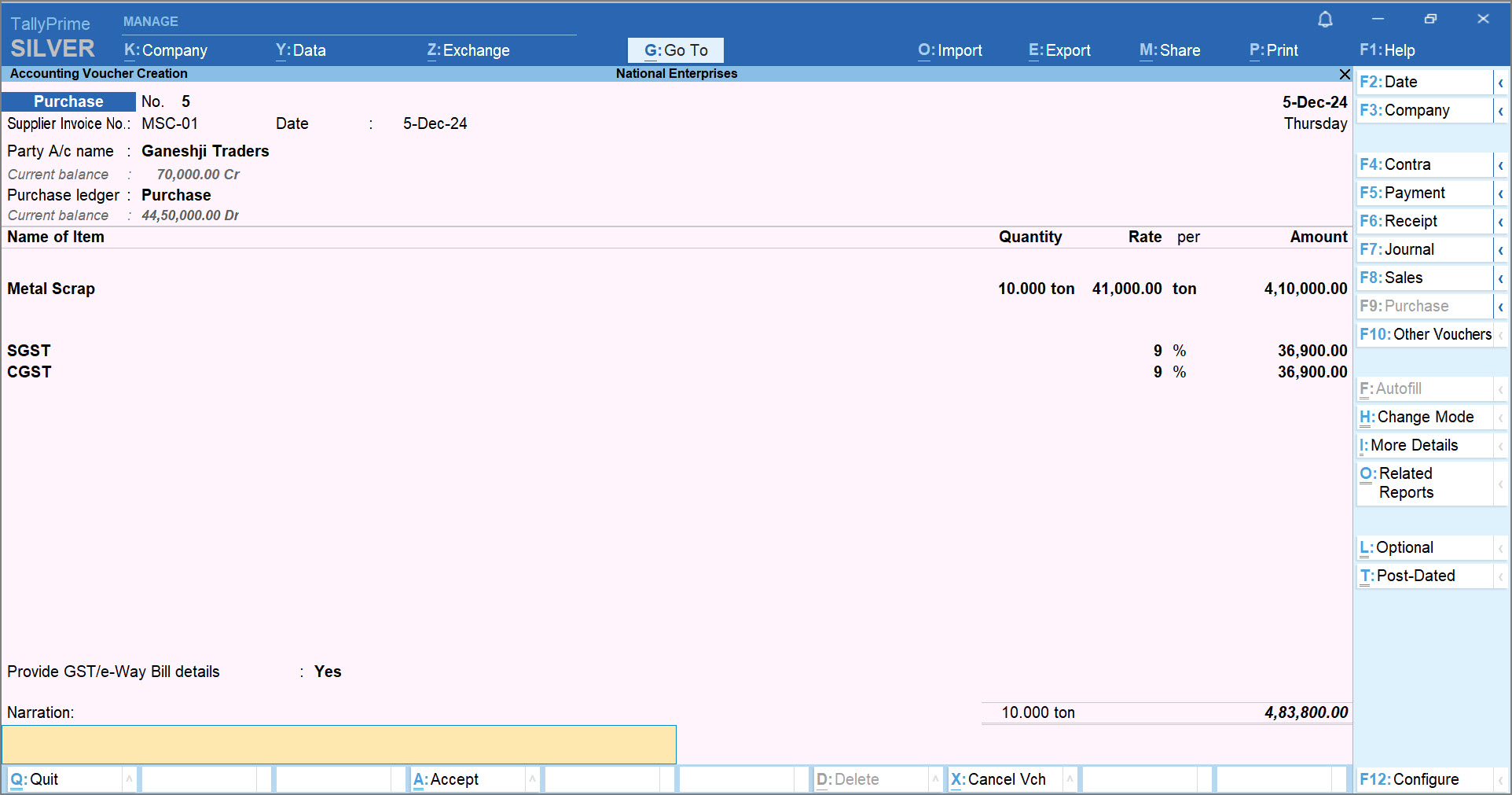
Provide the voucher details.
-
Select the metal scrap stock item configured with the HSN falling under Chapters 72 to 81 of the Customs Tariff Act from the List of Stock Items.
- Select the necessary tax ledgers – CGST and SGST for local purchase; IGST for interstate purchase.
-
Enter other necessary details, and press Ctrl+A to save.
Deduct TDS on Purchase of Metal Scrap
Once the purchase is recorded, you can deduct 2% TDS on the taxable value using a Journal voucher. If it is a single invoice, exceeding 2,50,000, deduct TDS on the total taxable value.
-
Press Alt+G (Go To) > Create Voucher > F7 (Journal).
-
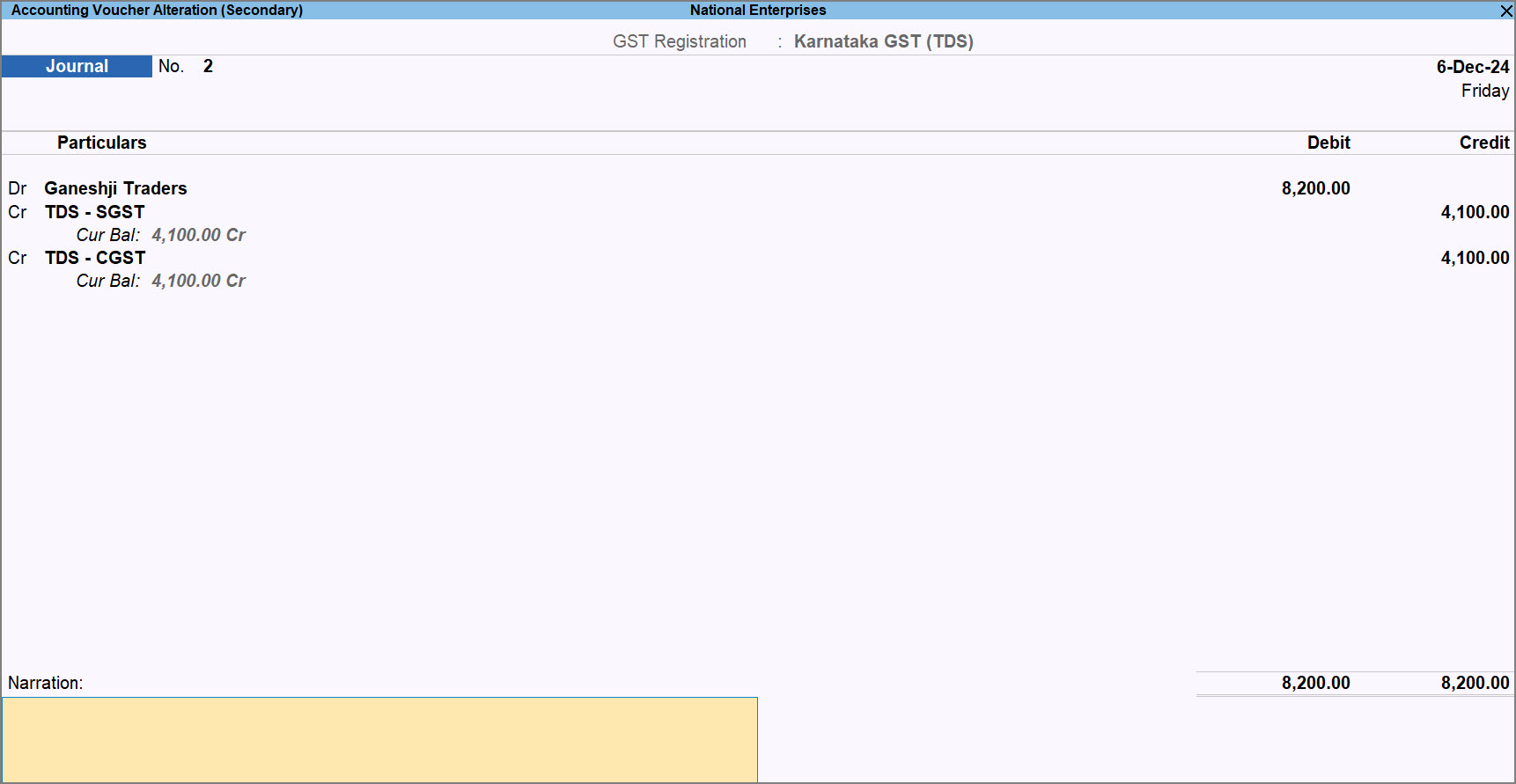
In Dr, select the party ledger, and specify the Debit amount (2% of the taxable amount of the purchase invoice).
-
In Cr, select the TDS ledgers for CGST and SGST and specify the Credit amount.
-
Enter other necessary details, and press Ctrl+A to save.
Questions & Answers
How can I identify invoices with value more than 2,50,000 on which TDS was deducted in TallyPrime for GSTR-7 filing?
- Press Alt+G (Go To) > Ledger Voucher > and select the supplier ledger.
- Press F8 (Columnar), and enable Show quality details and Show Party’s GSTIN/UIN.
- Apply Advanced Filter to view details of vouchers with invoice value more than 2,50,000.
-
Press Ctrl+F (Apply Filter) and press F7 (Advanced Filter).
Under List of Options, Voucher (Filter Rows) will be selected. -
Under List of Fields select Stock Item Name, and under List of Conditions select equal to, and select the metal scrap stock item.
-
Select and in the next row, and under List of Options select Voucher (Filter Rows).
-
Under List of Fields select Stock Value and under List of Conditions select greater than, and enter the stock value as 2,50,000.
-
The Ledger Vouchers report will display the vouchers containing the metal scrap stock item and stock value greater than 2,50,000.
Where can I see the taxable value for TDS deduction?
The taxable value appears under the Value column in the Ledger Vouchers report.
How do I enter the taxable value for TDS deduction in GSTR‑7?
-
Under GSTIN of deductee, enter the supplier’s GSTIN.
-
Under Amount paid to deductee on which tax is deducted, enter the taxable value.
-
Under Amount of tax deducted at source:
-
For interstate transactions: enter 2% under Integrated Tax.
-
For local transactions: enter 1% under Central Tax and 1% under State/UT Tax.
-


