
Register for e-Invoicing on the EmaraTax Portal
Whether you are registering an individual company or a group company, complete the registration on the EmaraTax portal. Once the registration is successful, the PEPPOL ID is generated, and you can start using UAE e-Invoicing services in TallyPrime.

- Enable VAT & e-Invoicing.
-
Install the latest release of TallyPrime.
-
Each member company in the group maintains its own company data in TallyPrime.
-
The Mailing Name specified in Company Creation/Alteration matches the company name registered on the EmaraTax portal.
-
The TRN entered in TallyPrime belongs to the TRN of the group company on the EmaraTax portal.
-
The TIN entered belongs to the member company.
-
The group company’s login credentials are readily available.
-
You have access to the group company’s registered e-mail address in EmaraTax, as well as your Tally.NET e-mail ID, since OTPs will be sent to both during the registration process.
Register Individual Company
- Press V (Open EmaraTax Portal).
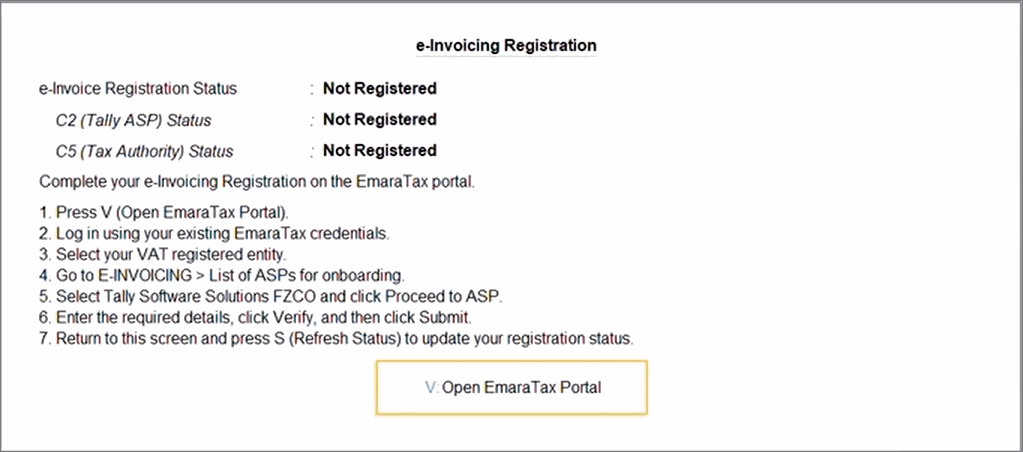
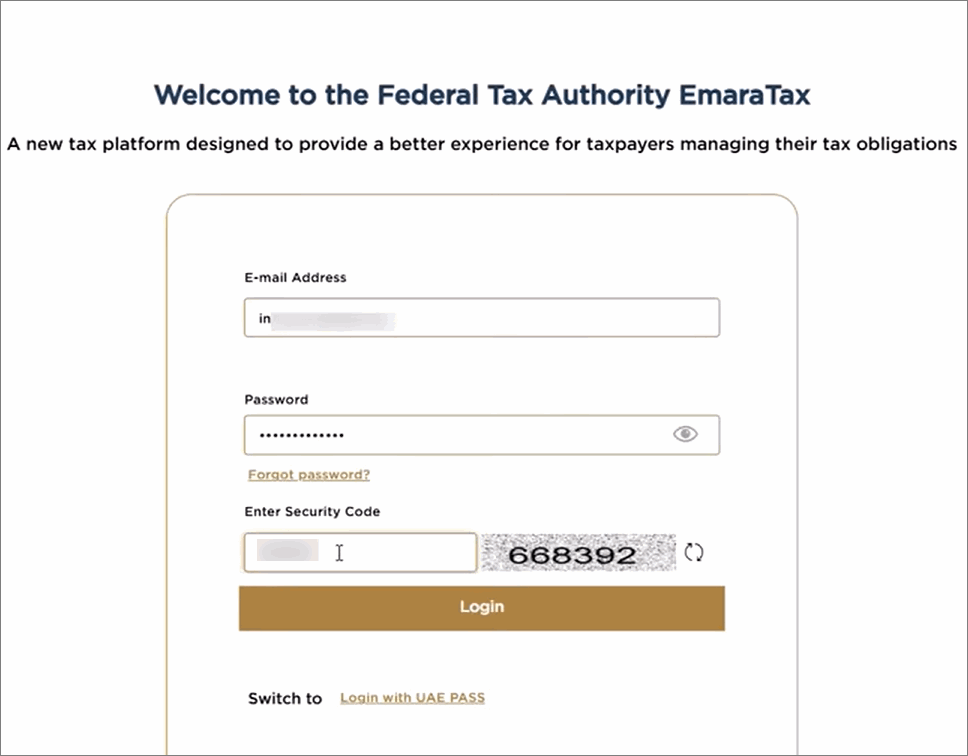
- Log in using your existing EmaraTax credentials.
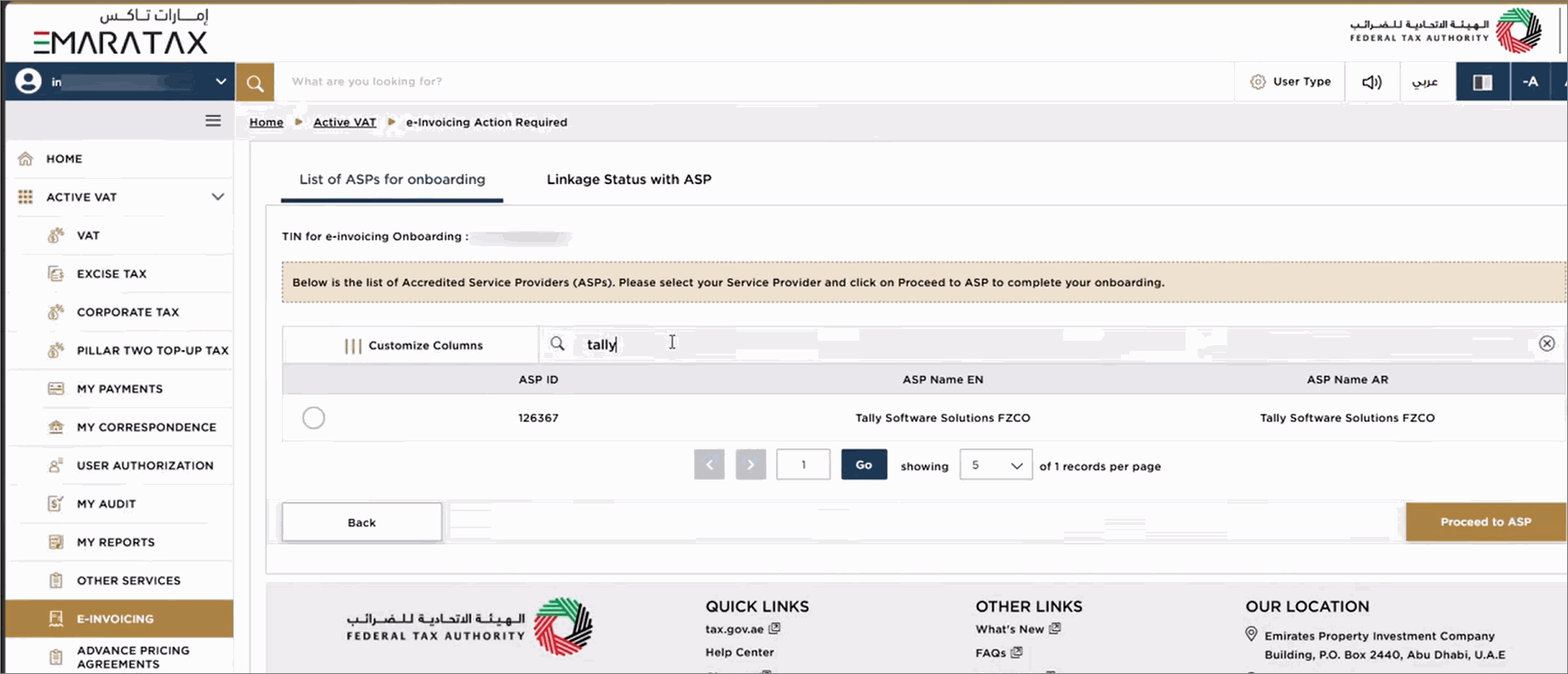
- Select the required VAT-registered entity and navigate to the E-INVOICING section.
- Read the instructions and guidelines, select the checkbox, and click Start.
- Under List of ASPs for Onboarding, select Tally Software Solutions FZCO, and click Proceed to ASP.
- In the Linking Request sub-form, enter the e-mail ID and TIN for e-Invoicing that you want to link to your Tally.NET ID.
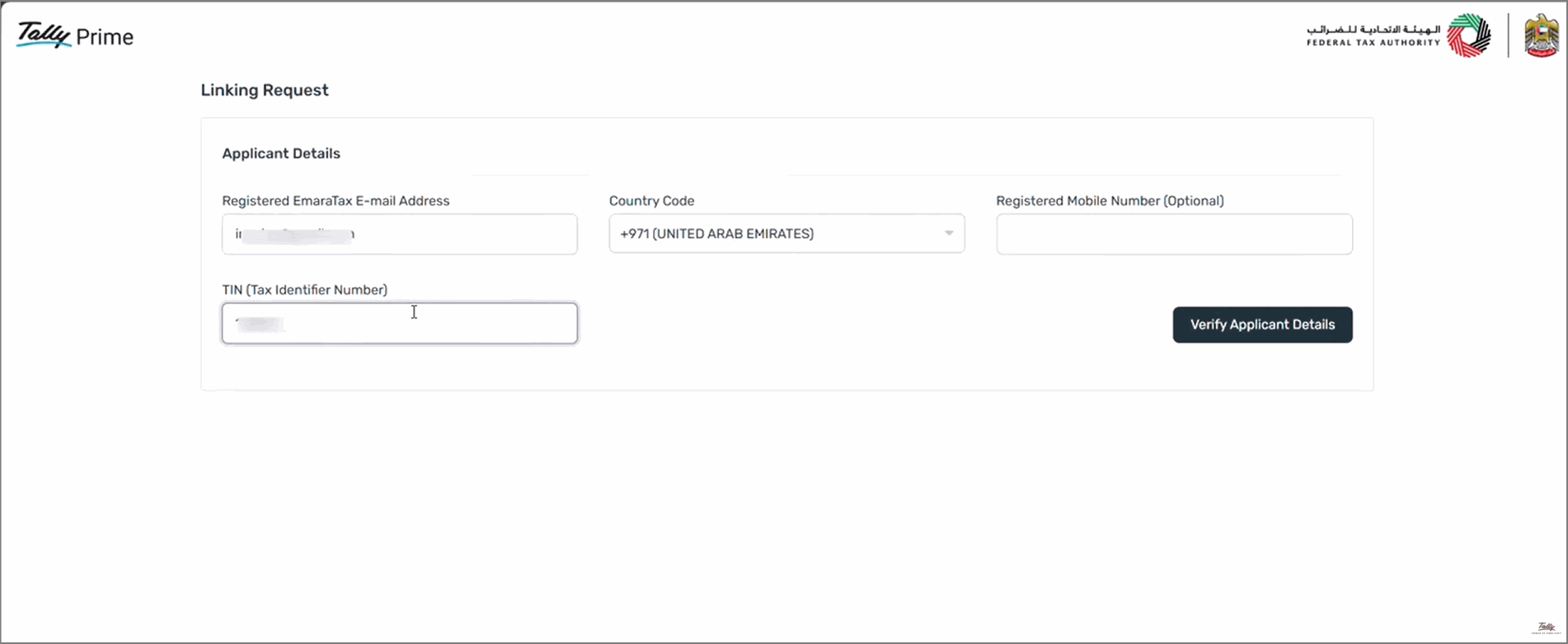
- Click Verify Applicant Details, review the Entity Details, and click Submit.
A message appears informing that the e-Invoicing Registration has been completed successfully. - Return to this screen in TallyPrime and press S (Refresh Status) to update your registration status.
A message appears informing that e-Invoicing Registration has been completed successfully and the PEPPOL ID is generated.
You can now proceed with setting up your company and masters, and recording transactions with e-Invoice details.
Register Group Company
- In TallyPrime, open the data of the member company for which you want to complete the registration.
- Press Alt+Z (Exchange) > All VAT Options > e-Invoice Login & Logout.
- Enter your Tally.NET ID and password.
- If you have forgotten your password, press Alt+R (Reset Password) to reset the password for your Tally.NET ID.
- Enter the OTP sent to your e-mail registered with EmaraTax.
- If you don’t receive the OTP, press Alt+R to resend.
- Set View T&C and Privacy Policy to Yes.
You will get redirected to the web page where you can read the T&C and Privacy Policy and then accept it. - In the e-Invoice Sign-up screen, verify and update the details, if required:
- e-mail: Enter the e-mail of individual company registered with EmaraTax.
- Company Name: By default, the mailing name entered in F11 (Company Features) is displayed. Modify it if the registered company name in EmaraTax is different.
- TRN: Ensure the group’s TRN is displayed.
- TIN: Ensure the member company’s TIN is displayed.
- Save the details.
- Enter the OTP received on the e-mail of individual company registered with EmaraTax.
- In the e-Invoicing Registration screen, press V (Open EmaraTax Portal).
- On the portal, link the member companies.
- Log in using the e-mail and password of individual company registered with EmaraTax.
- Select the member company for which you want to complete the registration from the Taxable Person list and click View.
- Navigate to the E-INVOICING section.
- Read the instructions and guidelines, select the checkbox, and click Start.
- Select Linkage Status with ASP and ensure that the member company is not already linked to another ASP.
- Under List of ASPs for Onboarding, select Tally Software Solutions FZCO, and click Proceed to ASP.
- In the Linking Request sub-form, enter the e-mail ID and TIN of the member company.
- Click Verify Applicant Details, review the Entity Details, and click Submit.
A message appears informing that the e-Invoicing Registration has been completed successfully.
- Return to TallyPrime and press S (Refresh Status) to update your registration status.
A message appears informing that e-Invoicing Registration has been completed successfully and the PEPPOL ID for the member company is generated.
If you are generating e-Invoices for all the member companies, complete the e-Invoicing Registration for each member company by following the same steps.
Reset e-Invoicing Registration Details
If you want to clear the existing e-Invoicing registration details and register again or log in with a different Tally.NET ID, you can reset the registration details.
- Press Alt+Z (Exchange) > All VAT Options > Reset e-Invoicing Registration Details.
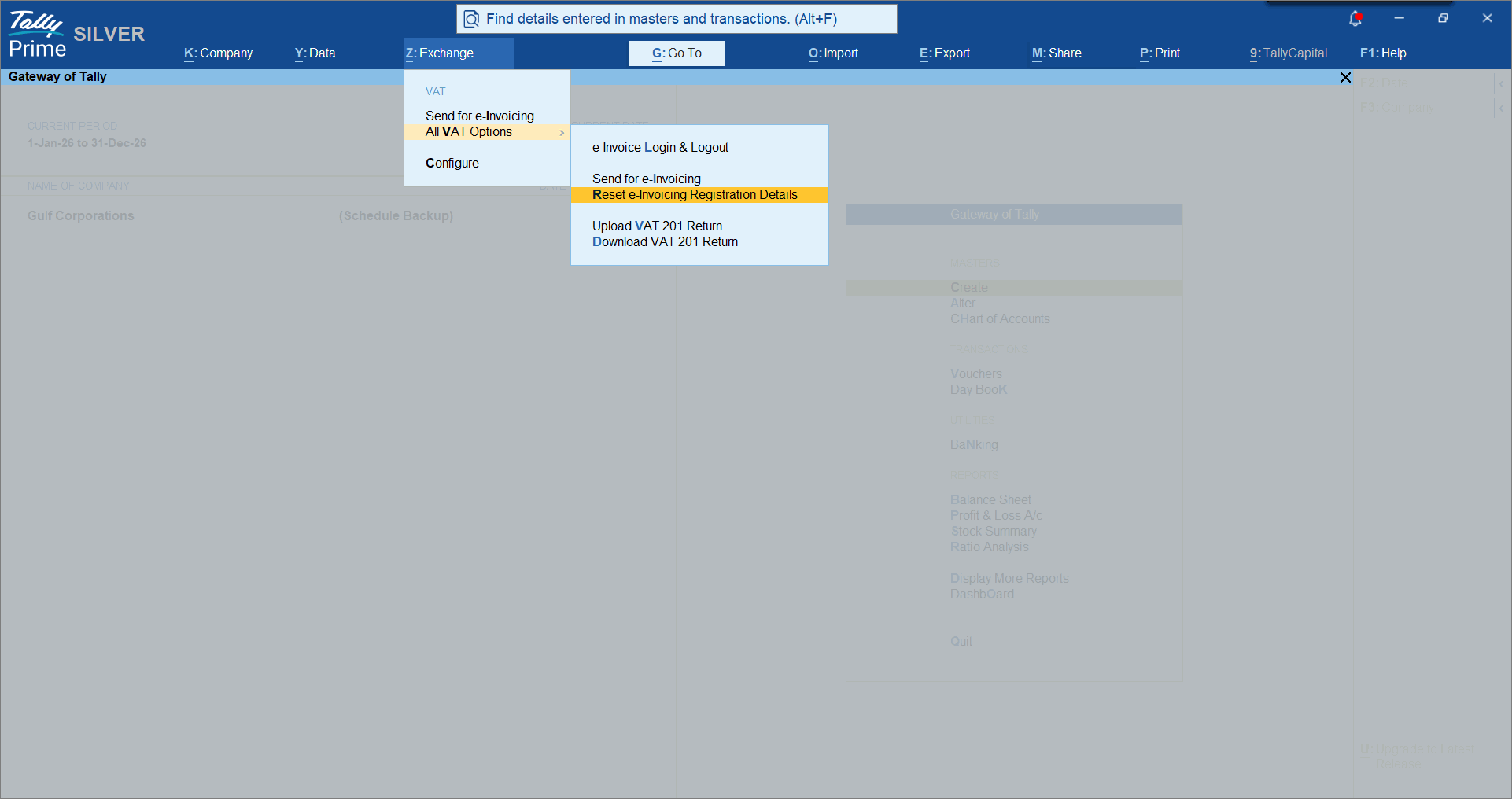
- Press Y to proceed.
Questions & Answers
- Why am I unable to complete the UAE e-Invoicing registration?
Ensure that the Company Name, E-mail ID, TRN, and TIN entered during registration are the same as those registered on the EmaraTax portal.
If any of these details are incorrect or do not match the information available on EmaraTax, the registration may not be completed successfully. In such cases, reset the UAE e-Invoicing registration and initiate the registration process again using the correct details. - Why am I unable to use UAE e-Invoicing after updating my company details on the EmaraTax portal?
If your Company Name, E-mail ID, TRN, or TIN has been updated on the EmaraTax portal after completing the registration in TallyPrime, the existing registration details in TallyPrime may no longer match those on EmaraTax.
To continue using UAE e-Invoicing, reset the UAE e-Invoicing registration in TallyPrime and register again using the updated details. - What should I do if the e-Invoicing registration status is Revoked, Not Registered, or Registration Failed?
If the e-Invoicing registration status is displayed as Revoked, Not Registered, or Registration Failed, it indicates that the registration process has not been completed successfully. You can do one of the following:- Press V (Open EmaraTax Portal) to complete the registration process on the EmaraTax portal.
- Press S (Refresh Status) to fetch and update the latest registration status in TallyPrime.
- The e-Invoicing registration details for my company have changed after registration. What should I do?
If the e-Invoicing registration details for your company are changed after registration, the existing registration may become invalid.
To continue using e-Invoicing, verify the updated details and complete the registration again:- Press F11 (Company Features) > VAT.
- Verify the e-Invoicing details.
- Complete the registration process again using the updated information.


