
Use Review Imported Transactions Report in TallyPrime
Apart from enabling you to create vouchers on the go, the Review Imported Transactions report also helps you resolve exceptions such as missing masters, master mismatch, and date mismatch with the current period.

- Ensure that you are logged in to Docs by Ira using your Tally.NET ID and password.
With the Review Imported Transactions report, you can:
- Identify the exceptions with the red indicators that appear alongside the individual transactions in the report.
- Verify the values by viewing the imported file.
- View number of files pending for import.
- View the File Import Summary to know the status of the files for which the import is in progress.
- Refresh the report details, if the imported files do not appear in the report as draft transactions.
- View potential duplicates, in case you have imported any transaction document more than once.
- Resolve exceptions in bulk.
- Update mapping right from the report.
- Change the transaction date, if it doesn’t match with the Current Period set in TallyPrime.
- Set accounting ledger.
- Drill down to the voucher and resolve exceptions.
- View mappings saved in TallyPrime in the Master Mapping Report.
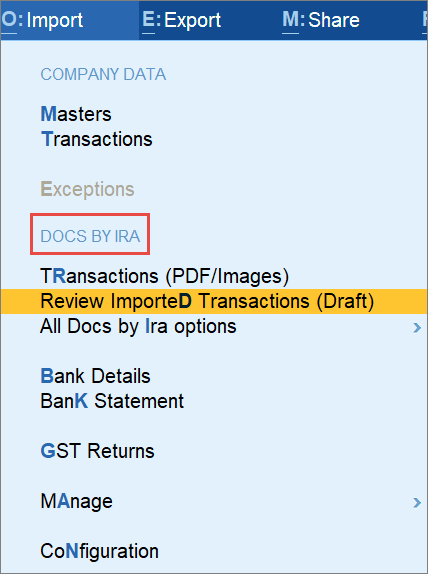
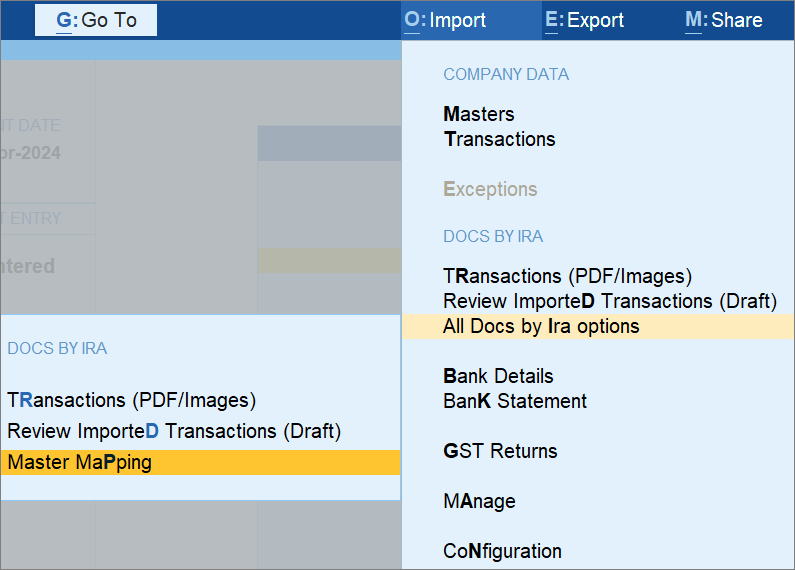
- Press Alt+O (Import) > Review Imported Transactions (Draft) under Docs by Ira.
Alternatively, press Alt+O (Import) > All Docs by Ira options > Review Imported Transactions (Draft).

The Review Imported Transactions report appears.
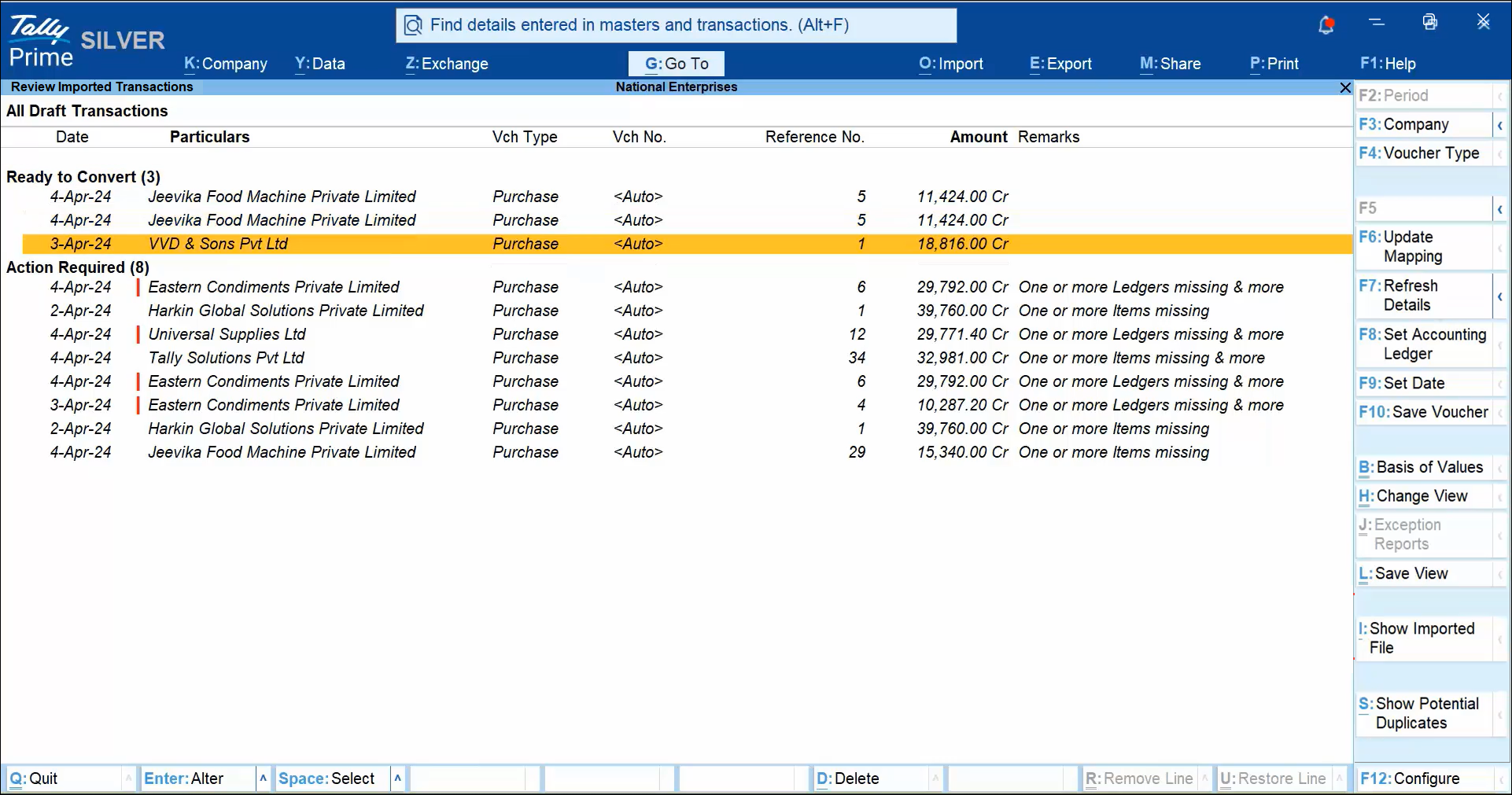
In the report, the red indicators show you the exceptions. You can see the details of exceptions in the Remarks column.
You can view this report with transactions that are either ready to convert or for which there are actions required.
- Press Ctrl+B (Basis of Value).
- Press Enter on Show Report for.
- In the Report Details screen, under Show Report for, select Action Required, Ready to Convert, or All, as needed.

Before you Begin | Prerequisites
Before you can use the Review Imported Transactions report, ensure that you have:
- Registered for the Docs by Ira on the Tally Solutions portal.
- Imported the relevant transaction documents into the TallyPrime.
Alternatively, you have sent the transaction documents from the TallyIra app to the TallyPrime.
Review Transactions by Viewing the Imported File
- In the Review Imported Transactions report, select the transaction.
- Press Alt+I (Show Imported File).
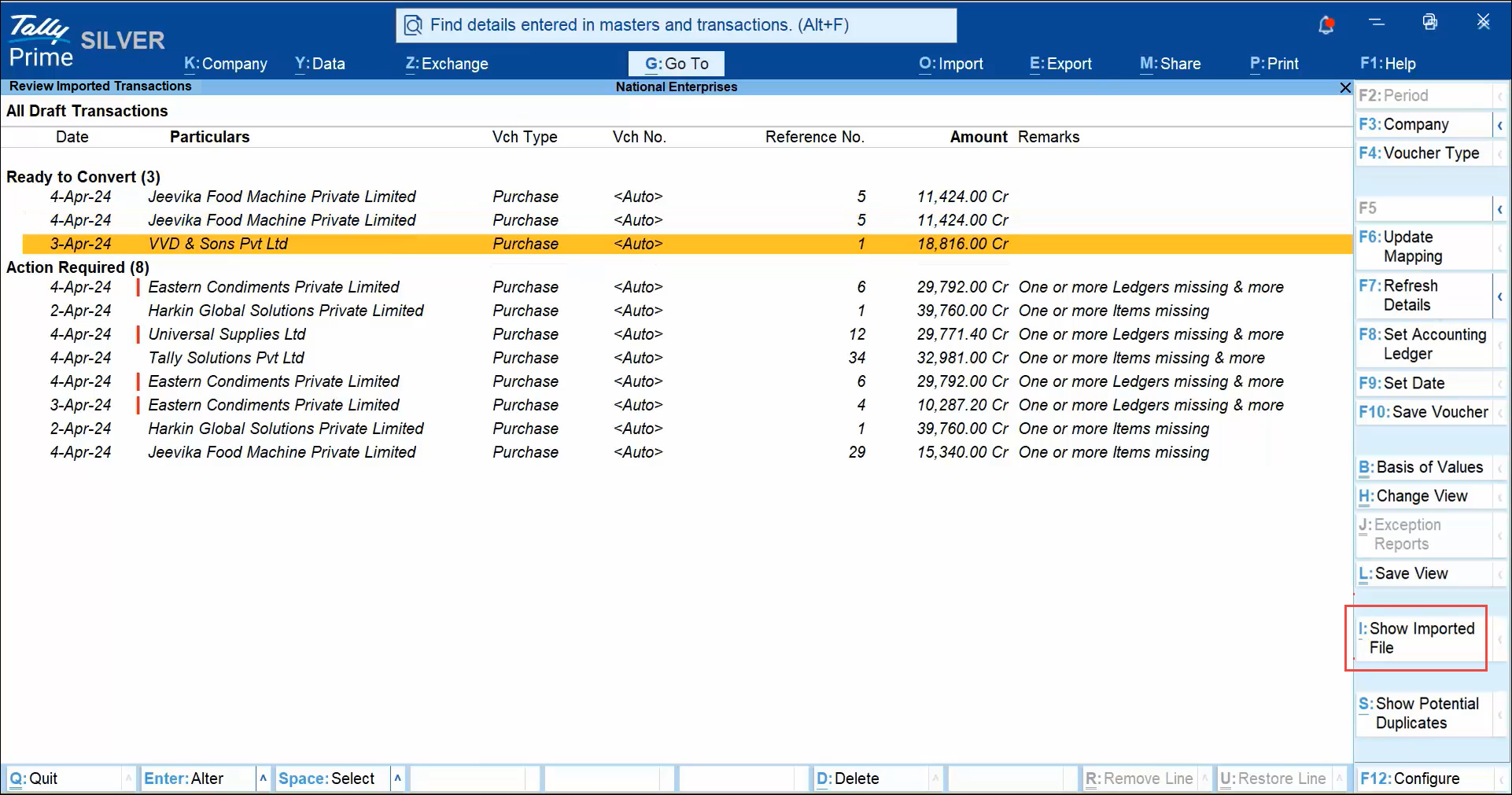
The imported file opens.The files are retained up to 7 days for you to refer and validate or until the transaction is converted from a Draft Transaction to a regular voucher in TallyPrime. Thereafter, the files are deleted.
View File Import Summary
Using the Review Imported Transactions report, you can view a summary of the files imported using the Docs by Ira. If there are files pending for import, you get to know on the top right corner of the Review Imported Transactions report. To know the status of import, you can navigate to the File Import Summary.
- From the Review Imported Transactions report, press Alt+F7 (File Import Summary).
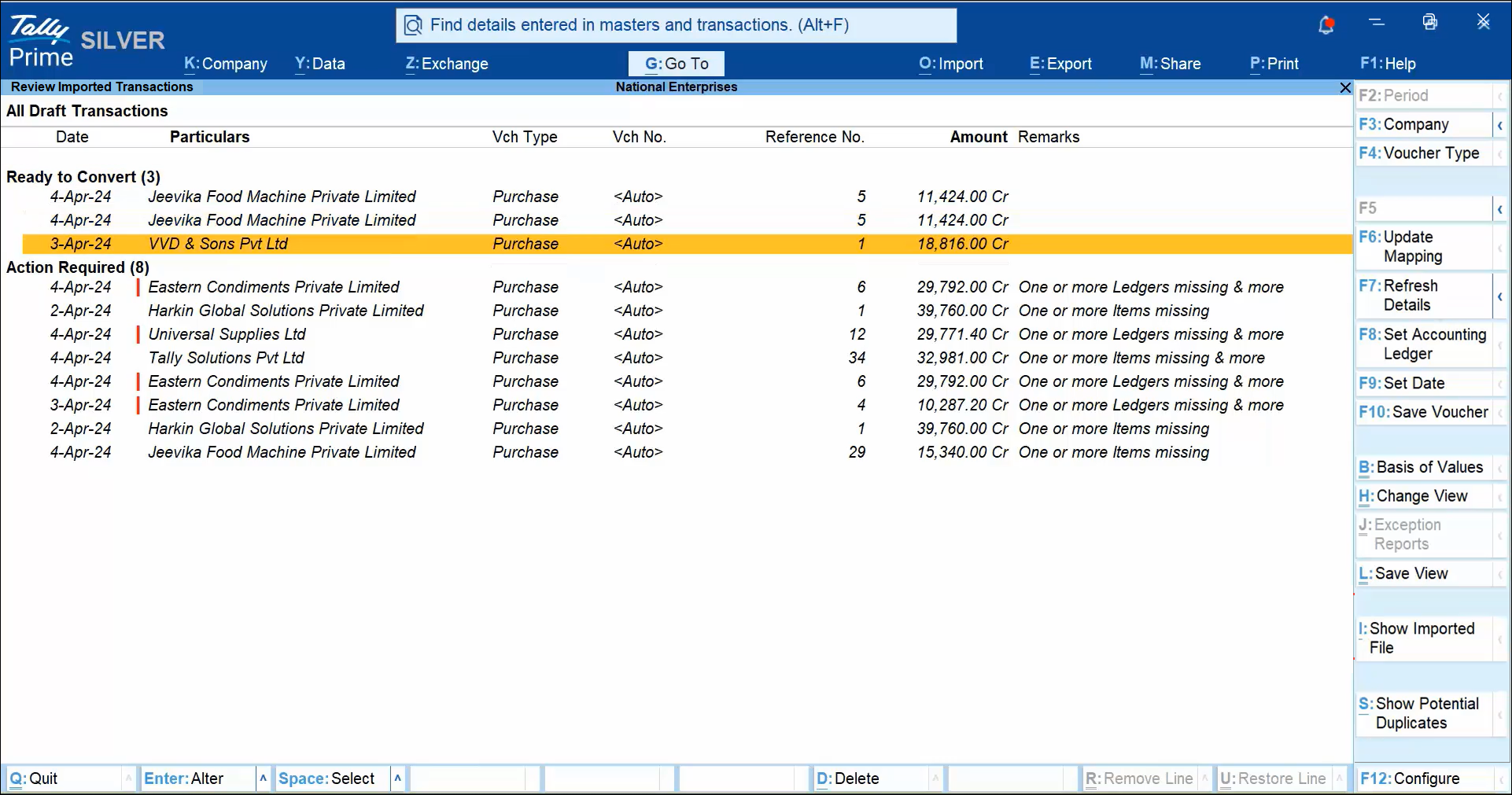
- If you have imported a folder, then press Shift+Enter on the folder.

The files inside the folder will get displayed along with the corresponding statuses. - Press Esc to go back to the Review Imported Transactions report.
If the draft transactions don’t appear, then wait for a while and then press F7 (Refresh Details).
View Files Based on the Status of Import
- Press F12 (Configure) and set the options:
- Show files with Status as Successful: Yes/No.
By default, this option is set as No. - Show files with Status as In Progress: Yes/No.
- Show files with Status as Failed: Yes/No.
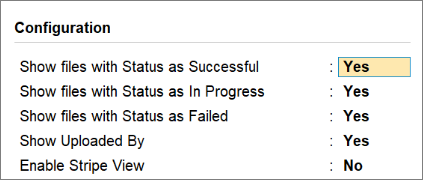
- Show files with Status as Successful: Yes/No.
- Press Ctrl+A to save the configurations.
The File Import Summary shows the information only once after the import. Once you view the files along with the statuses, the information gets removed for those files.
Identify Potential Duplicates
- From the Review Imported Transactions report, press Ctrl+S (Potential Duplicates).
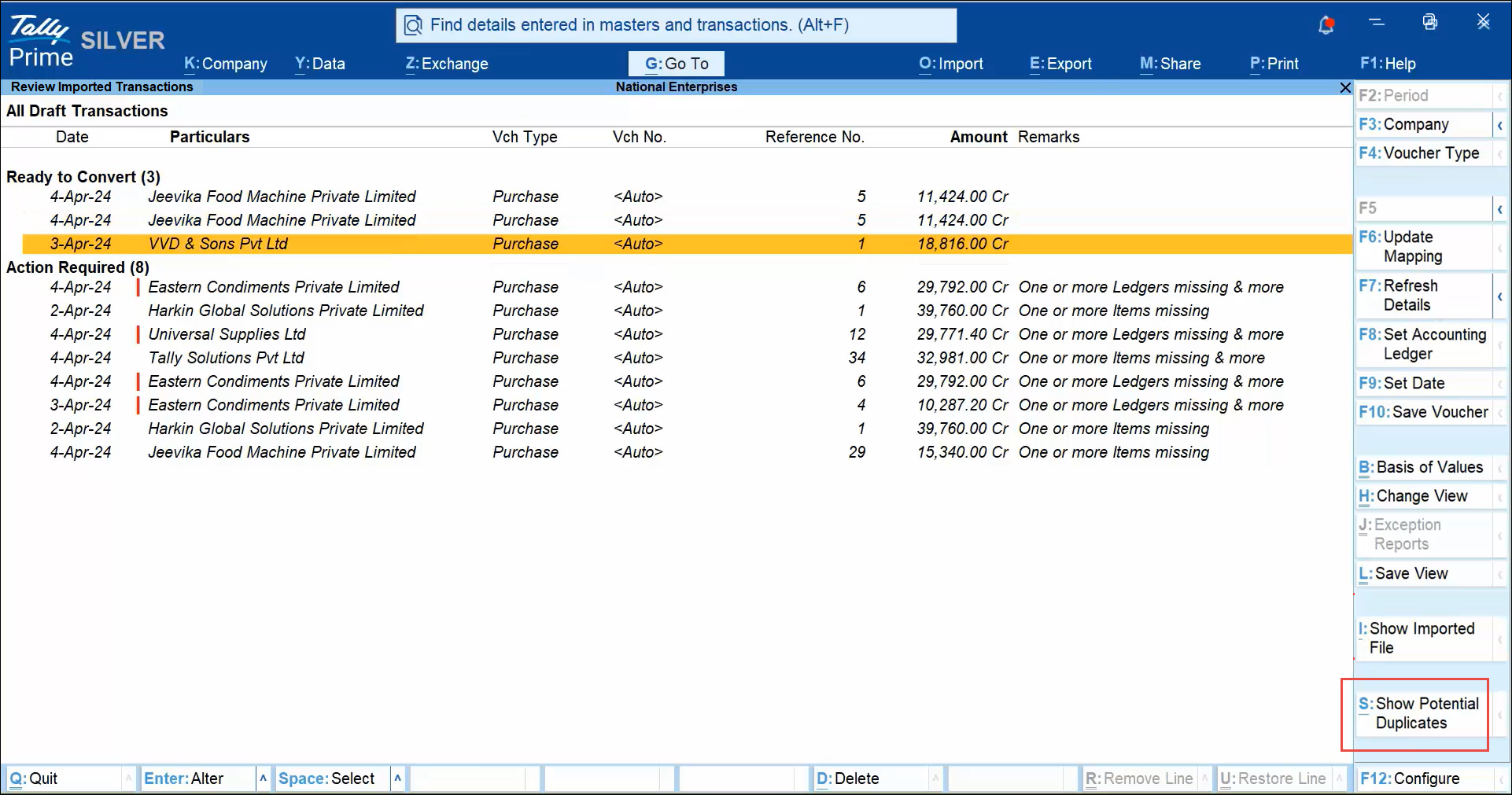
The duplicate vouchers are here with the remarks.
You can choose to delete these vouchers. - Select the vouchers and press Alt+D (Delete).
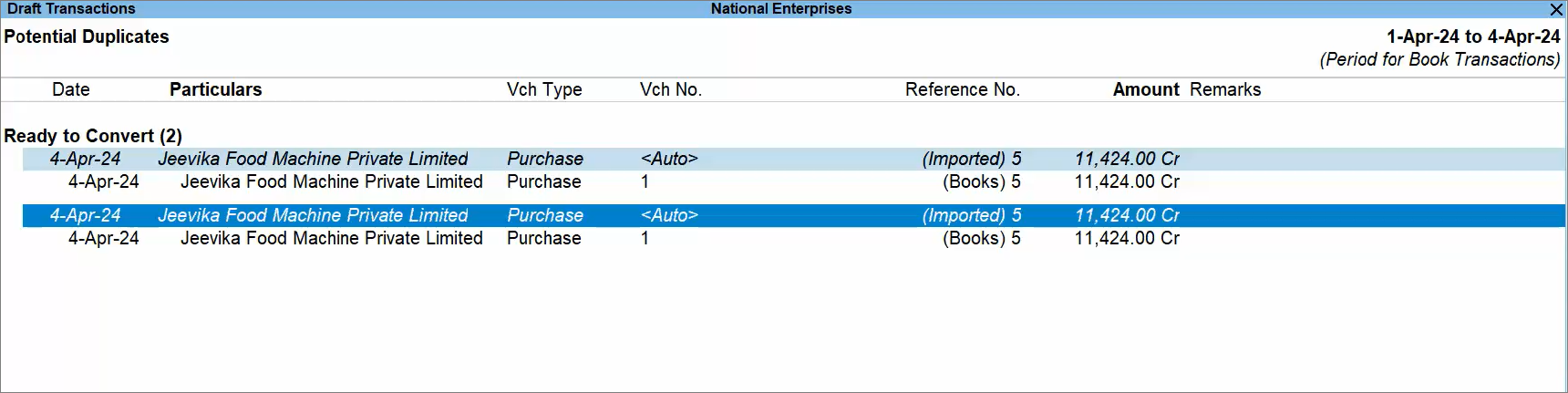
In the Potential Duplicates, you can identify such vouchers based on the Reference No., Amount, Party Name, and other details. You get to know if the voucher is in the books or available in the Pending Transactions report.
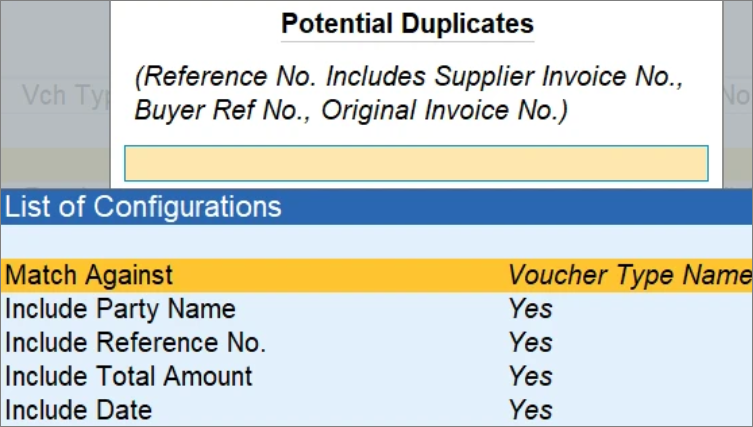
You can further configure this report to view the Potential Duplicates with specific values.
- Press Alt+S (Potential Duplicate Config.)
- Match Against: Voucher Type Name or Parent Voucher Type Name, as needed.
- Include values in the report, as needed.
You can choose to view the report with Party Name, Reference No., Total Amount, and Date, as needed.
You can also choose to include Optional and Post-dated Vouchers available in the books.
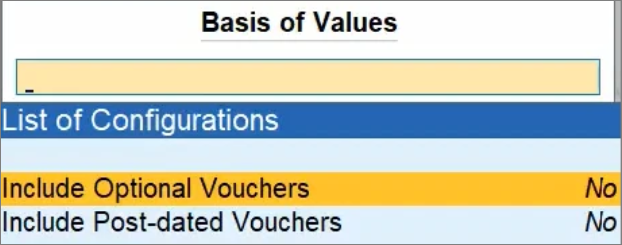
- Press Ctrl+B (Basis of Values).
- Include Optional Vouchers: Yes.
- Include Post-date Vouchers: Yes.
Resolve Exceptions in Bulk and Create Vouchers
In the Review Imported Transactions report, you can resolve exceptions right from the report without even drilling down to the individual transactions.
Map Masters in bulk to the extracted values
You can map the masters all at once.
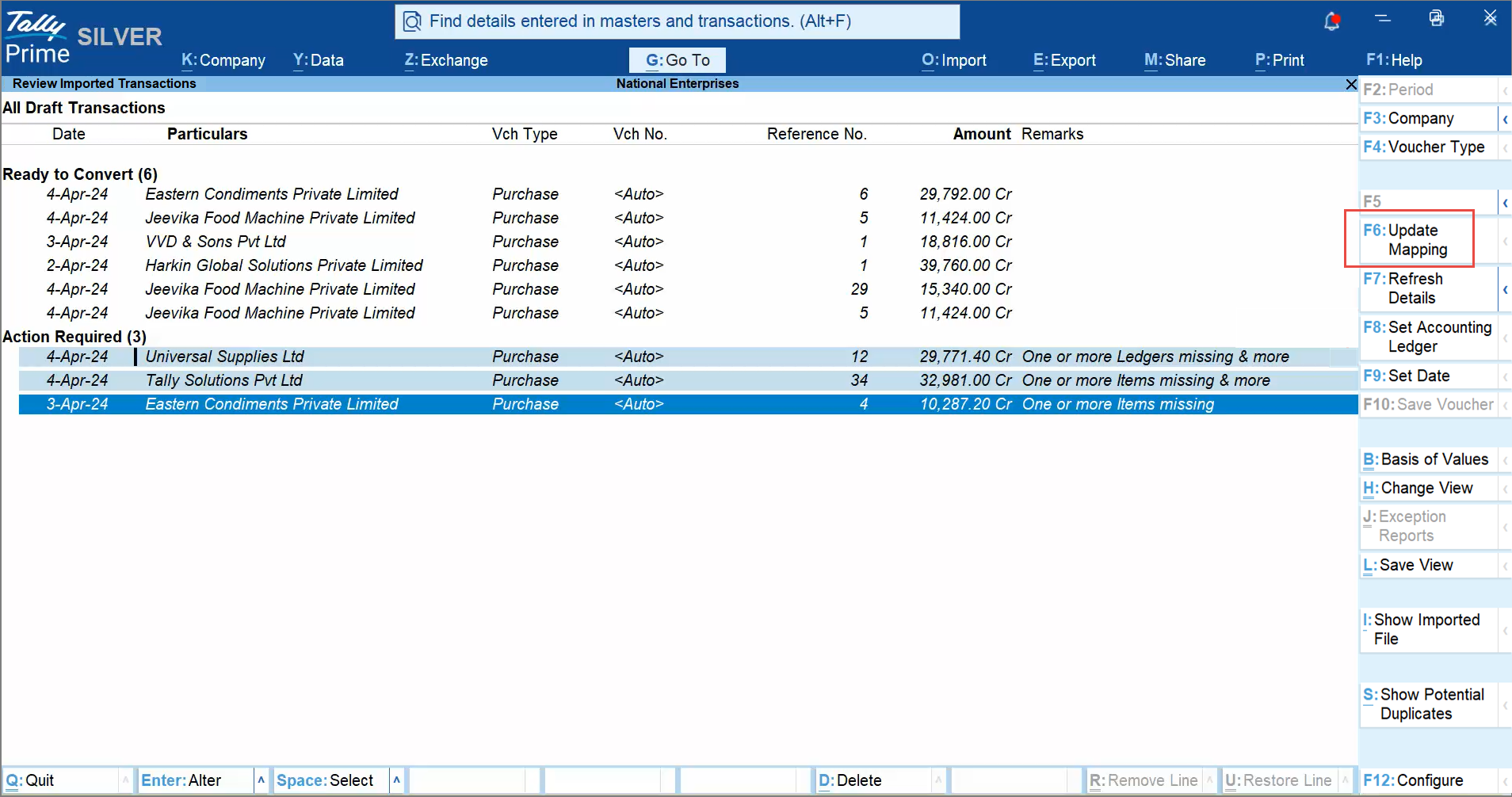
- In the Review Imported Transactions report, select all the transactions with missing masters.
- Press F6 (Update Mapping).
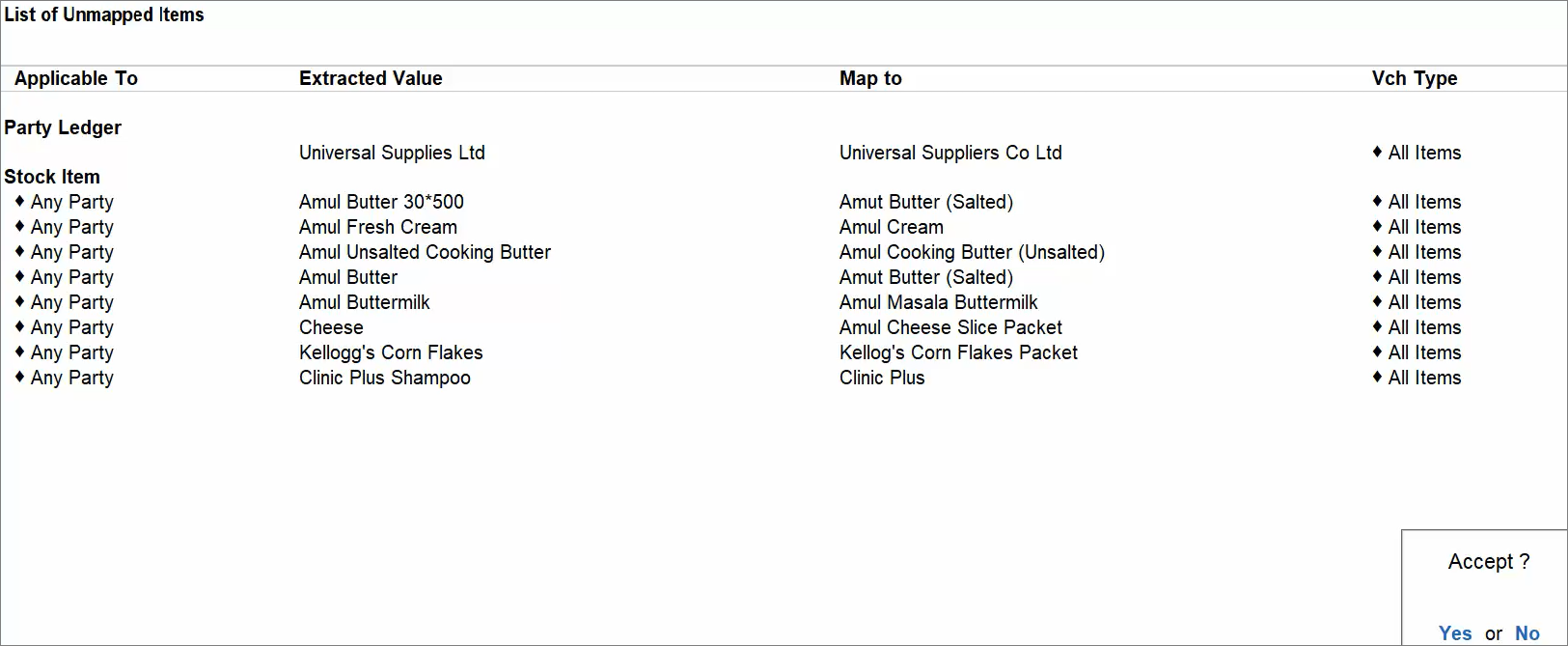
You can see the extracted value that you can map to the relevant masters available in the TallyPrime.
Map as many masters as you want to.
However, you can also create masters using the extracted value. - Once mapped, press Ctrl+A to save.
The vouchers are now in the Ready to Convert section.
All the mapped masters are saved for the future transactions. This means that whenever you import a transaction document value with the masters that are mapped to those available in the TallyPrime, you can readily save the vouchers.
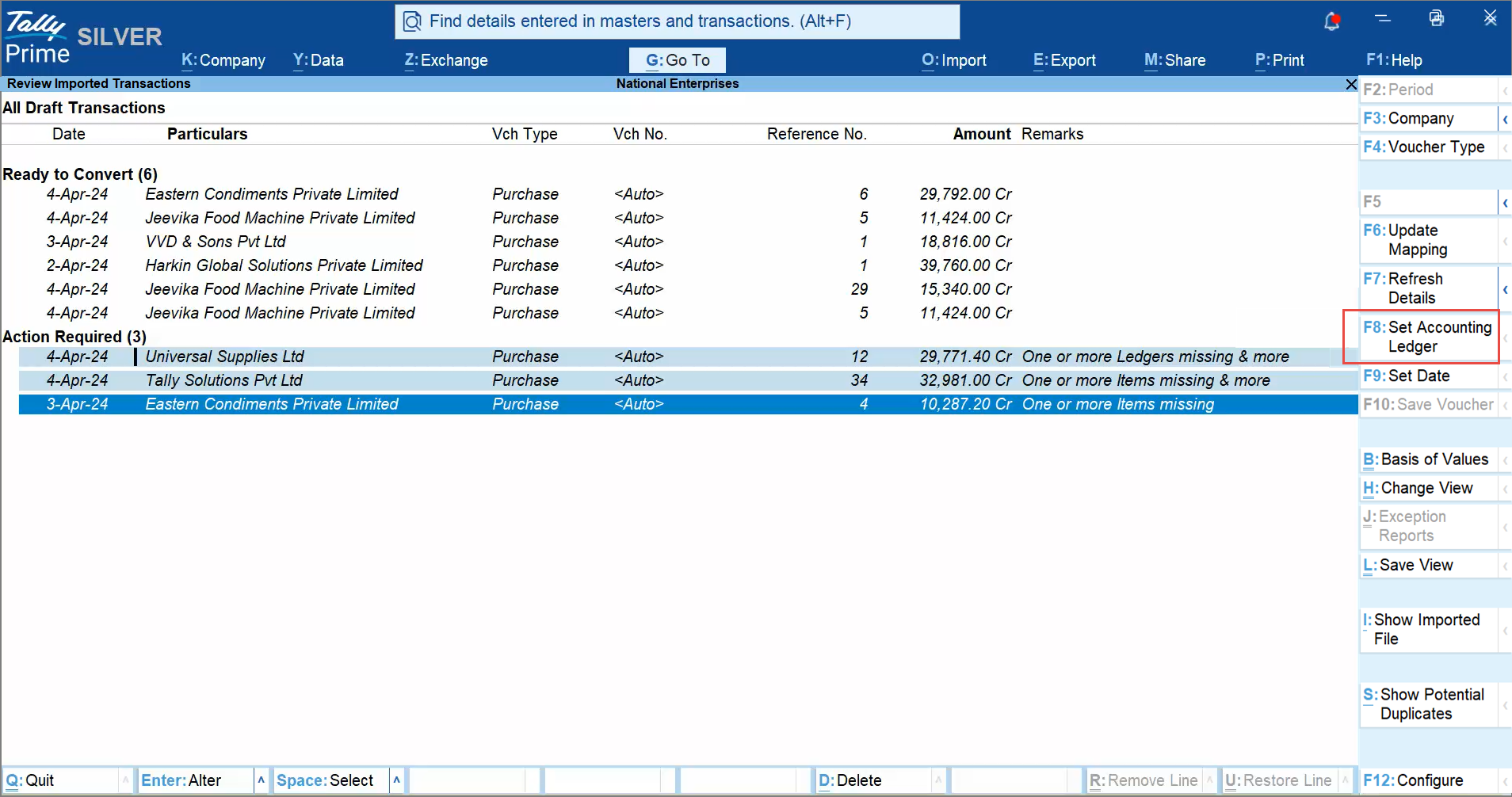
Change Date if not matching the Current Period
- In the Review Imported Transactions report, select the transaction.
You can select multiple transactions. - Press F9 (Set Date).
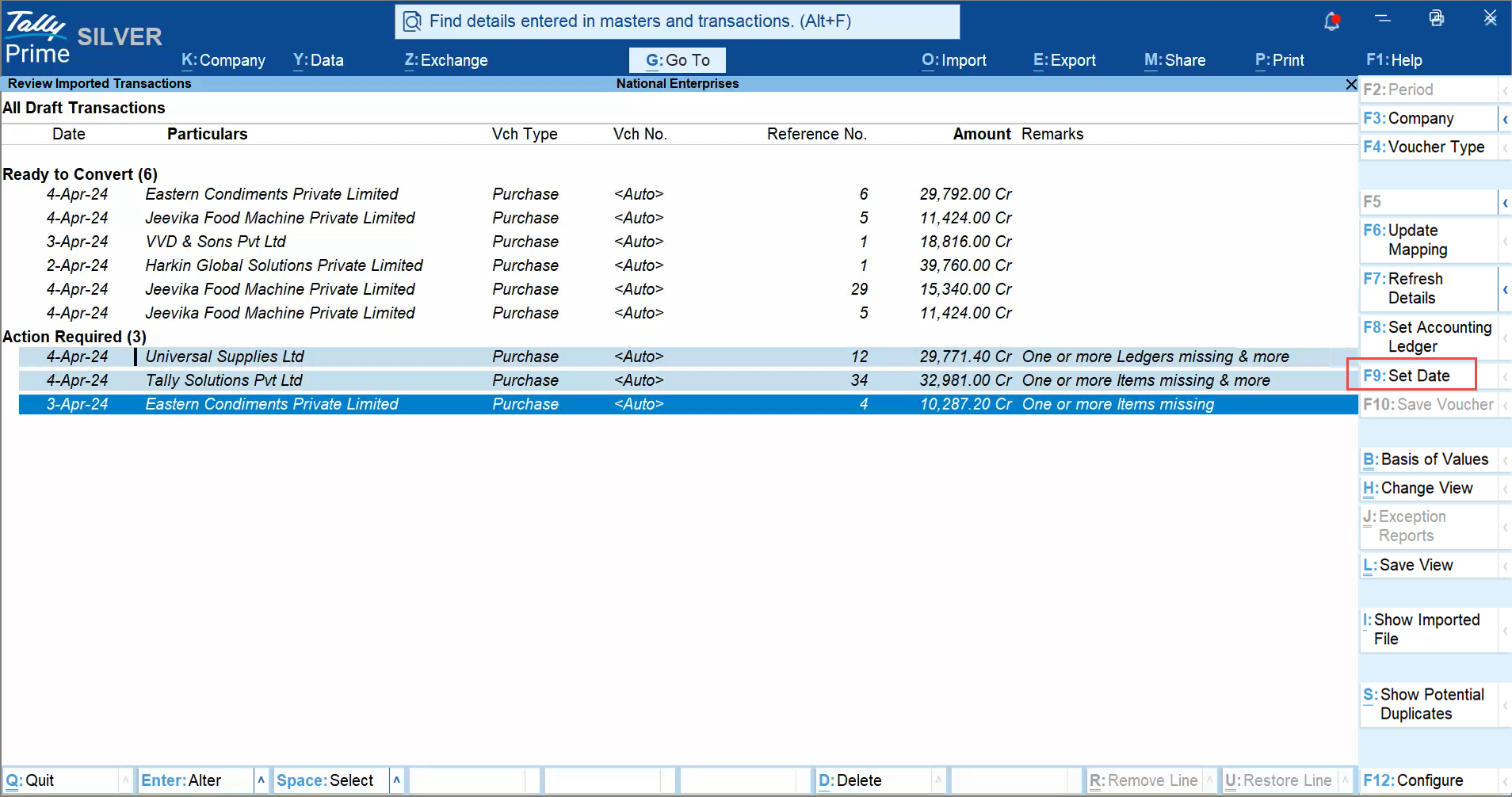
- Enter the date of the transaction and press Enter.
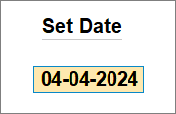
The transaction gets resolved and moves to the Ready to Convert section.
Set a Common Accounting Ledger
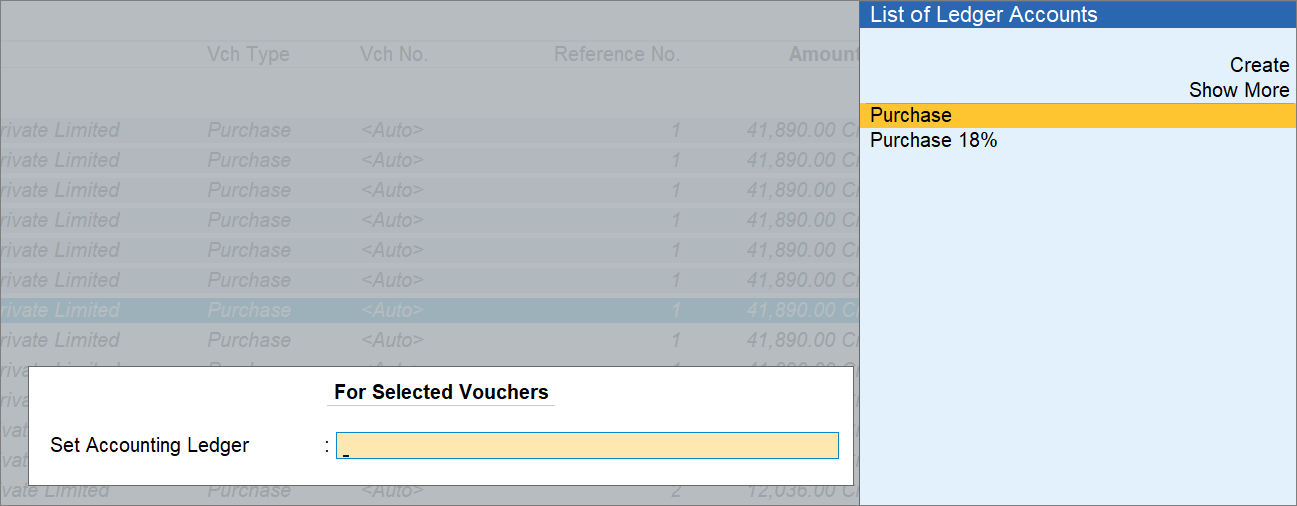
If you imported transactions for purchase vouchers belonging to the same purchase ledger, then you can assign that ledger to all of them at once.
- Select the transactions.
- Press F8 (Set Accounting Ledger).
- Select the relevant purchase ledger and press Enter.
Resolve Exceptions in Individual Transactions
From the Review Imported Transactions report, you can:
- Drill down to the voucher and resolve exceptions.
- Create masters simply by saving the voucher.
- Create masters from the extracted value.
- Map masters to those available in TallyPrime.
- View mappings saved in TallyPrime in the Master Mapping Report.
Create all masters by saving voucher
- In the Review Imported Transactions report, open the transaction.
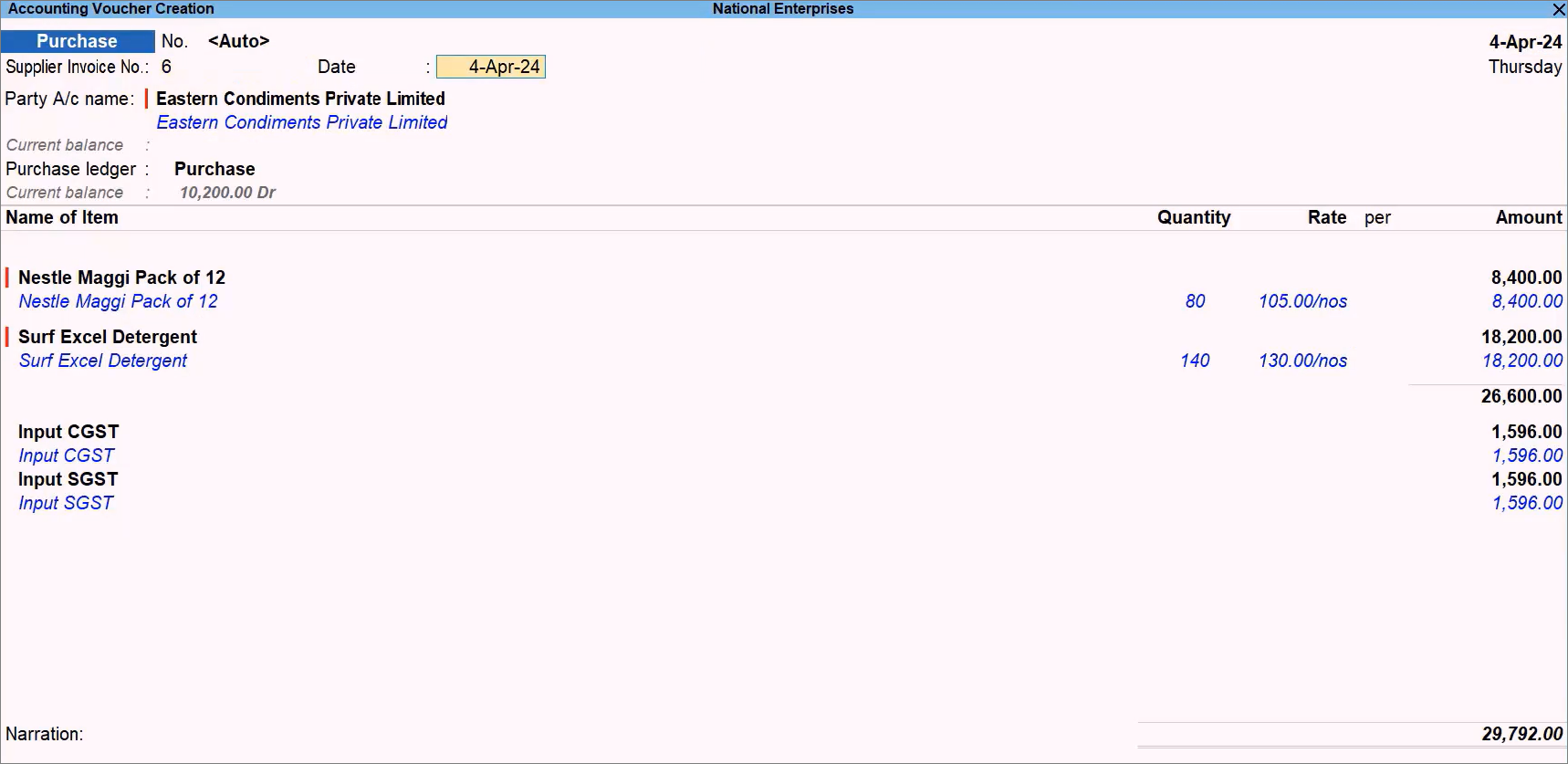
- Press Ctrl+A to save the voucher.
The masters get created along with the voucher.
Create master with the extracted value
- In the Review Imported Transactions report, open the transaction.
- When the cursor is on a missing master, select the extracted value and press Enter.
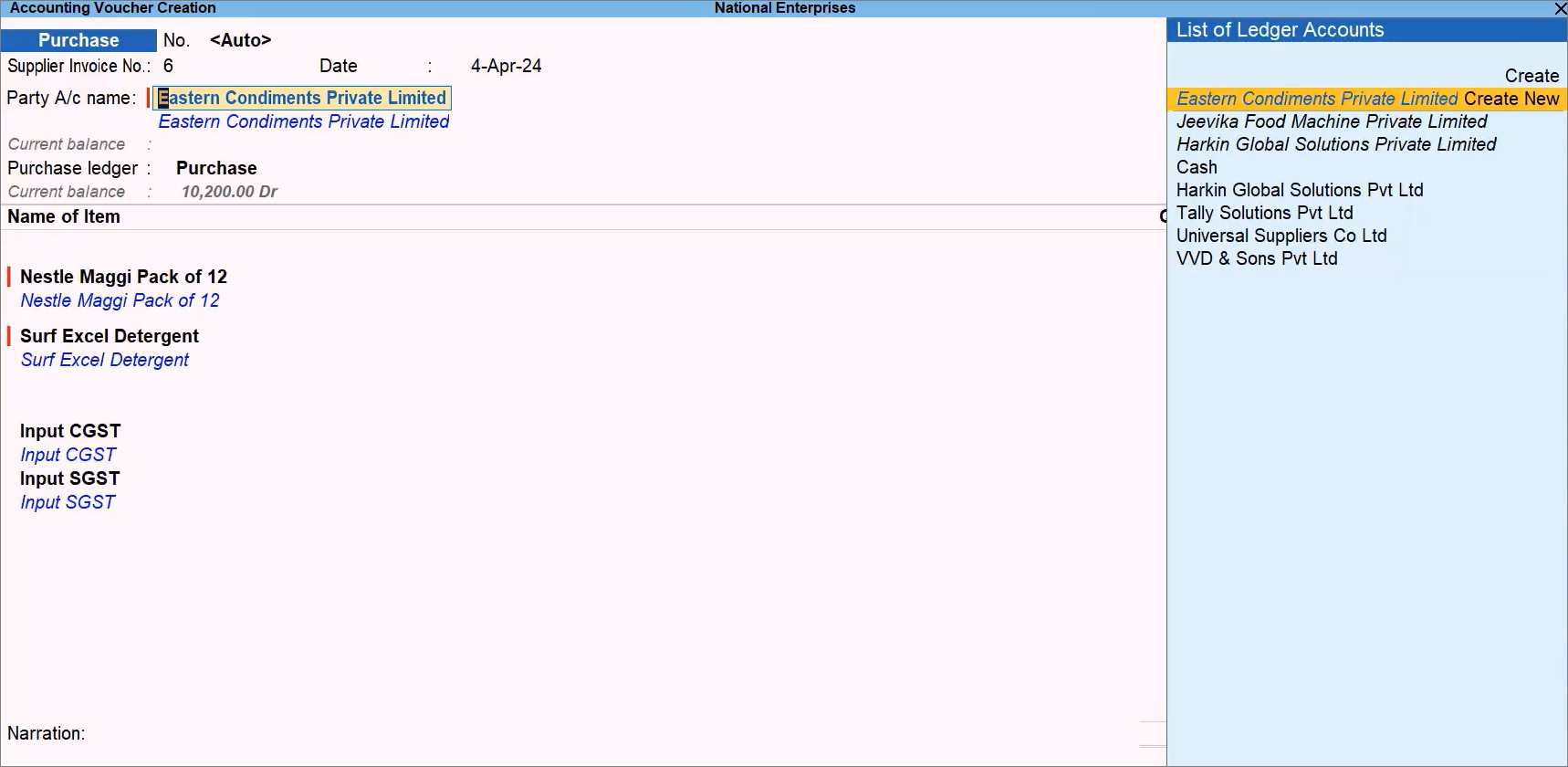
- Verify the values and press Ctrl+A to save the master.
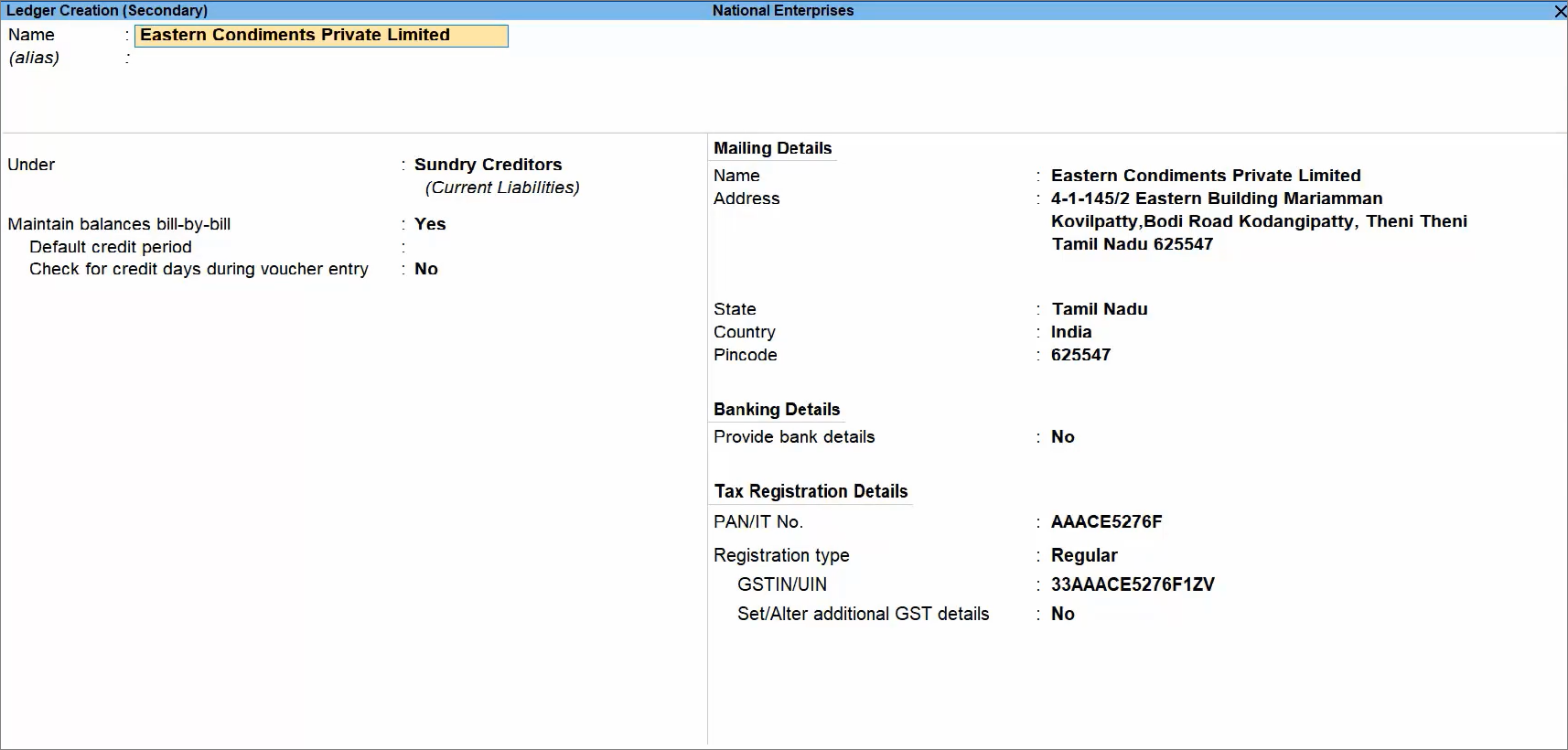
- Press Ctrl+A to save the voucher.
Map master value with master available in TallyPrime
In case the master is available in the TallyPrime with a different name, then you can map inside the voucher.
- In the Review Imported Transactions report, open the transaction.
- When the cursor is on a missing master, select the matching master available in TallyPrime.
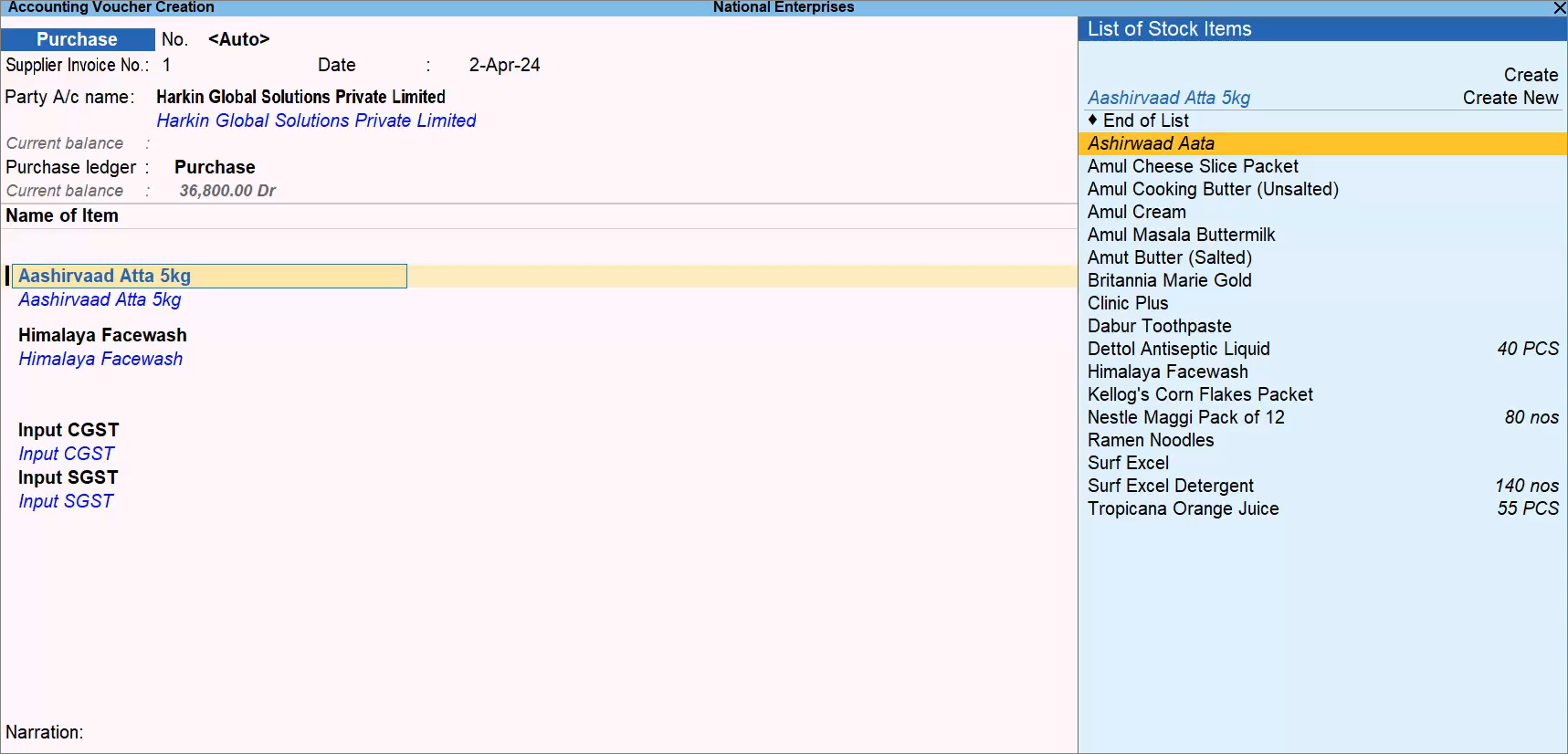
The AI‑powered smart search places the most likely match at the top, followed by other possible matches. Once you map a master, the mapping is saved for future transactions with the same extracted value. - Press Ctrl+A to save the voucher.
Use Master Mapping Report
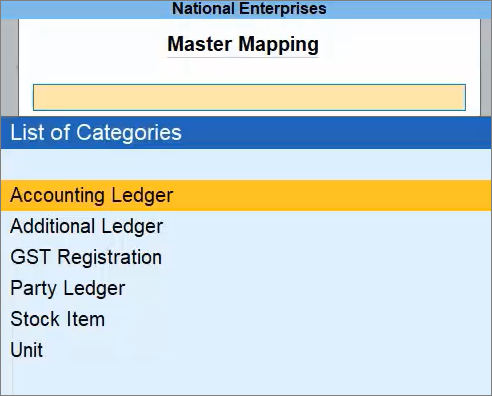
- Press Alt+O (Import) > Docs by Ira options > Master Mapping.
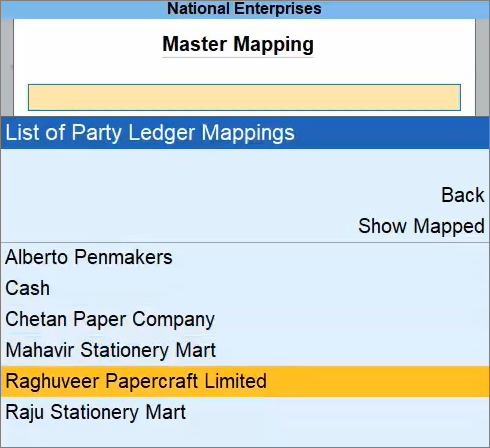
- From the List of Categories, select the master type, say, Party Ledger.
- Select the stock item for which you want to view Master Mapping.
Here are the extracted values mapped to the master. - Enter more values available in your PDF and images, if needed.
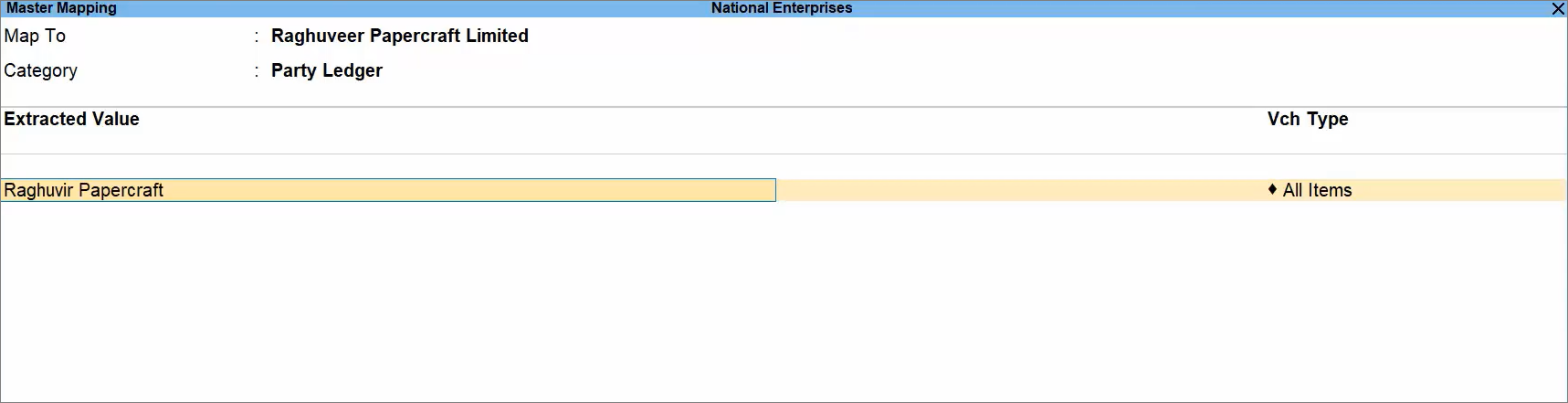
- Press Ctrl+A to save the mapping.
All the values get mapped to the master available in TallyPrime.
Possible Errors While Creating Vouchers and Resolutions
| Sl No. | Nature of Error | Description of Error | Resolution |
| 1 | Voucher Amount mismatch | The total amount in the voucher does not match the amount in the transaction imported as a PDF or image. | Check the entry in the imported file and revalidate the values. If the values are correct, then open the voucher and press Ctrl+A to save it. TallyPrime recalculates the values correctly and saves the voucher. |
| 2 | Voucher Date doesn’t belong to the Current Period of the Company | The imported document has a date earlier than the Current Period. |
You can set the voucher date in the date in the Review Imported Transactions report. Refer to the Change Date if not Matching with Current Period section in this topic. |
| 3 | Voucher Date missing | The date is either missing or not legible in the document. |
You can set the date of the voucher. Refer to Change Date of Draft Voucher. |
| 4 | One or more masters missing | There are a few masters missing in the imported transactions that you may want to add. | Either create master or create new master with extracted value. |
| 5 | Mismatch in the master values such as Party Ledger, Accounting Ledger, Additional Ledger, Stock Item, Unit, and GST Registration. | There are master values that do not match the masters in TallyPrime. |
The masters are available in TallyPrime but with different values. In such a case, you need to map the field values to that available in TallyPrime. Refer to the following sections in this topic:
|
Questions and Answers
- Do I have to map the masters all the time?
No, you just have to map the master only once. When you map the extracted value to the master available in TallyPrime, the mapping gets saved. In the future, when you import a transaction document with the mapped masters, the transaction can be saved.
- My files are taking time to import. What should I do?
You can wait, while on the other hand, you can continue to work. You can check the status of import in the File Import Summary at any point in time.


