
Use TallyIra App to Create Vouchers in TallyPrime
With TallyIra app, you can send transaction documents to TallyPrime and then create vouchers out of it.

To install and use TallyIra app to send transaction documents to TallyPrime and create vouchers, you need the following:
- Your license serial number, along with your e‑mail address and mobile number, must be registered for Docs by Ira. This can be done either by you or by your Tally Partner.
- Add your mobile number in TallyPrime under Security. If you are not an admin, the admin must add your number and give you access to TallyIra.
- You should have agreed to the terms and conditions and the privacy policy, and provided consent in TallyPrime.
The terms and conditions appear when you import vouchers from your computer into the TallyPrime for voucher creation using the Docs by Ira. - Transaction documents in either PDF or image format.
Refer to the entire checklist for importing/sending transaction documents for voucher creation. - You must logged in to Docs by Ira in TallyPrime.
Enable User Access to TallyIra App
As an admin, you need to enable the TallyIra app access for yourself and other users.
Enable TallyIra access for admin

After a successful registration for the Docs by Ira plug‑in, if you are an admin, then you can install the TallyIra mobile app right away.
- In TallyPrime, press Alt+K (Company) > Security.
- Mobile number for TallyIra Access: Enter your mobile number for TallyIra access.
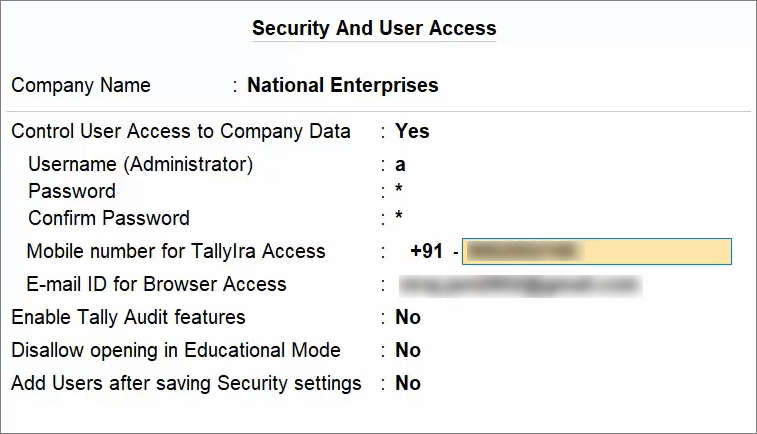
- Press Ctrl+A to save.
Enable TallyIra access for other users
- In TallyPrime, press Alt+K (Company) > Users and Passwords.
- Specify the details of the user.
- User Roles: Select the user role.
- Username: Enter the e‑mail address of the user.
- Update Access: Yes.
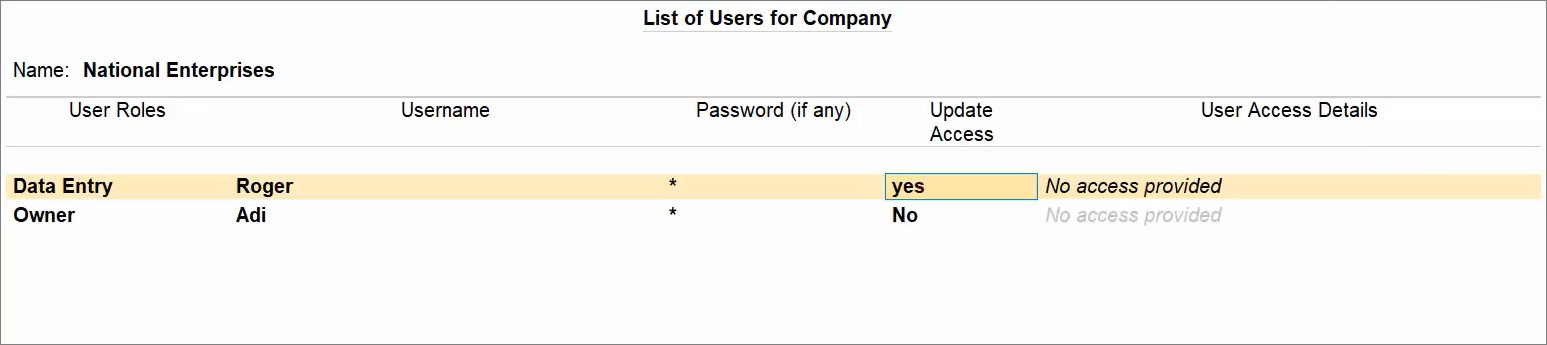
- Specify the details for TallyIra access.
- Allow TallyIra Access: Yes.
- Mobile number: Enter the mobile number of the user.
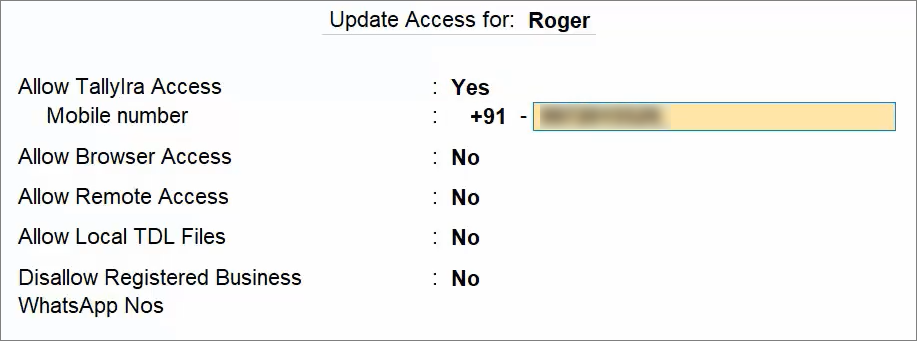
- Press Ctrl+A to save.
You can provide access to multiple users, if needed.
Once you have the access, you can install the TallyIra app.
Thereafter, you can send transaction documents from the TallyIra app to the TallyPrime for voucher creation.
Install TallyIra App
- Install the TallyIra app.
- Android Playstore.
- App Store.
- Once installed, open the app.

- Mobile number: Enter the mobile number entered by the admin while providing you access to the app.
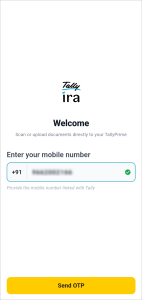
- Tap Send OTP.
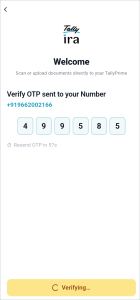
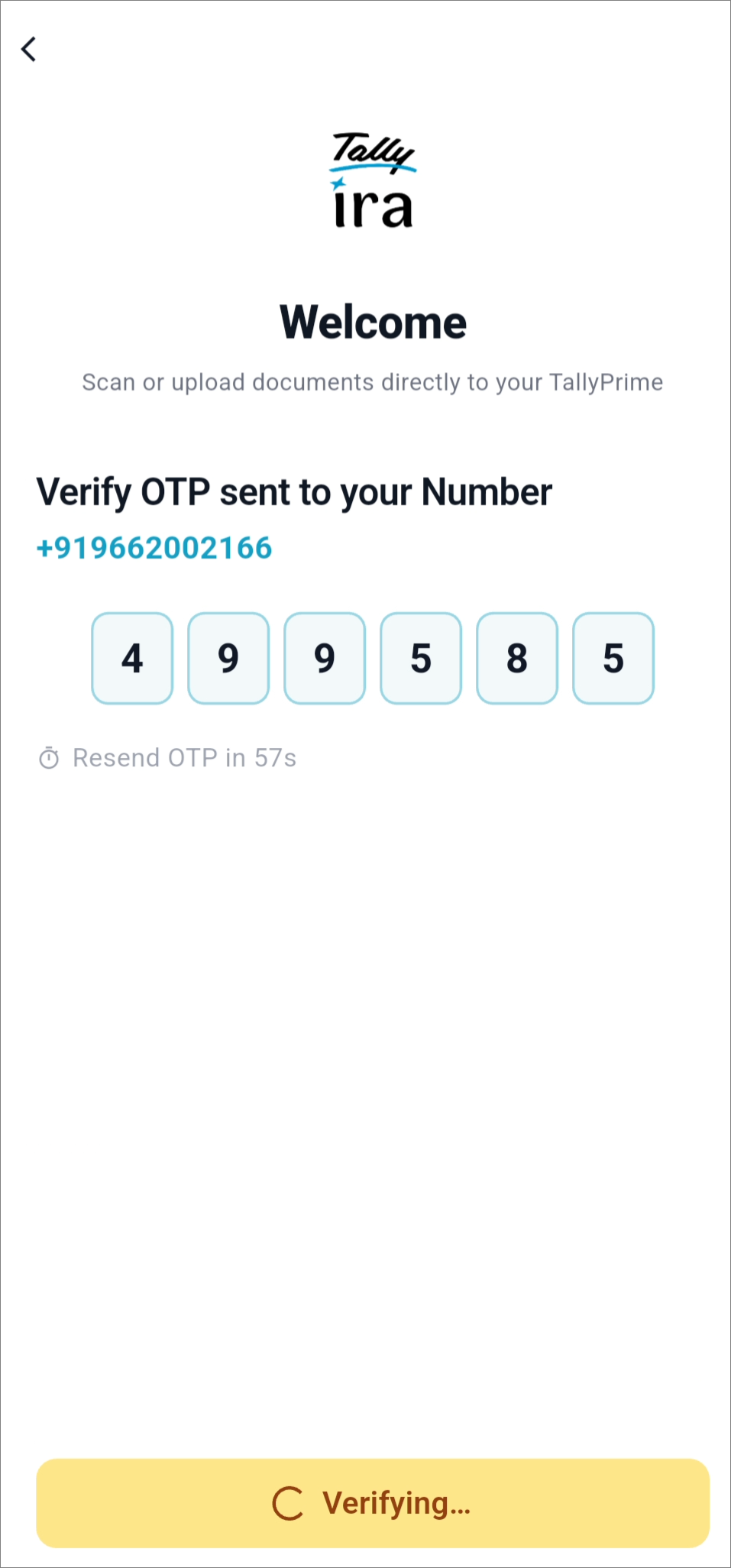
- Enter the OTP received on your mobile number.
You can also see the TallyPrime Company in the app.


Send Transaction Documents from TallyIra App to TallyPrime
To send transaction documents from TallyIra app to TallyPrime, you can do one of the following:
- Scan transactions documents in TallyIra
- Upload documents to TallyIra from a mobile folder or another app
- Upload documents to TallyIra from another app.
Scan transactions documents in TallyIra
- Select the Company.
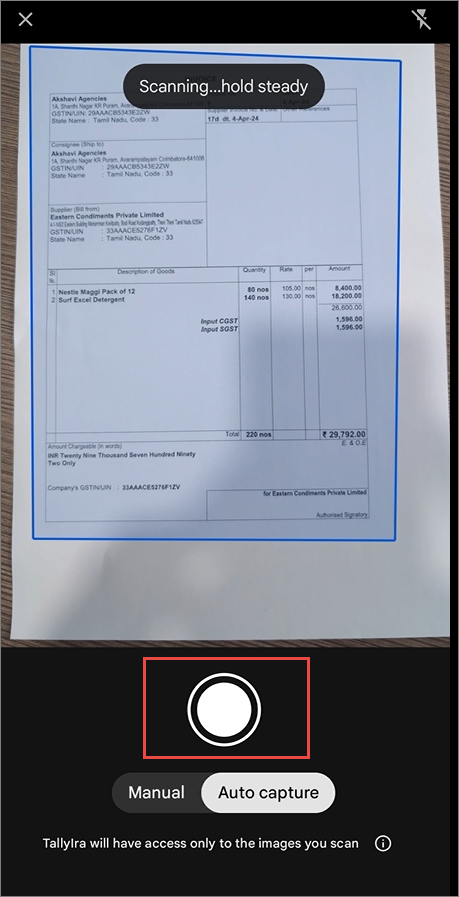
- Scan the transaction document.
- Tap the scan icon.
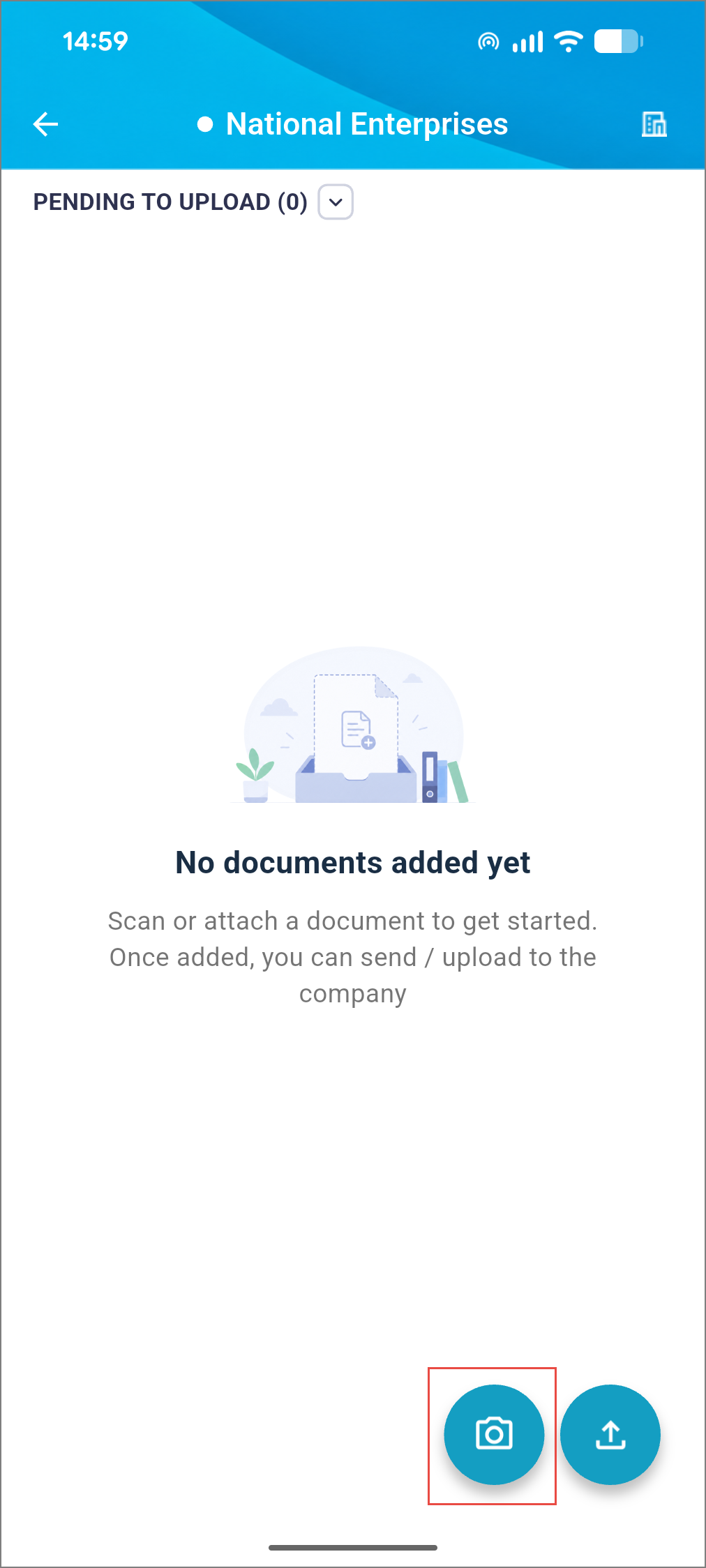
- Click the picture of the document.
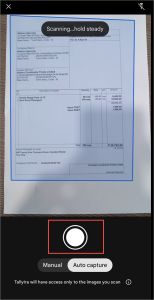
- You can add pages, if needed.
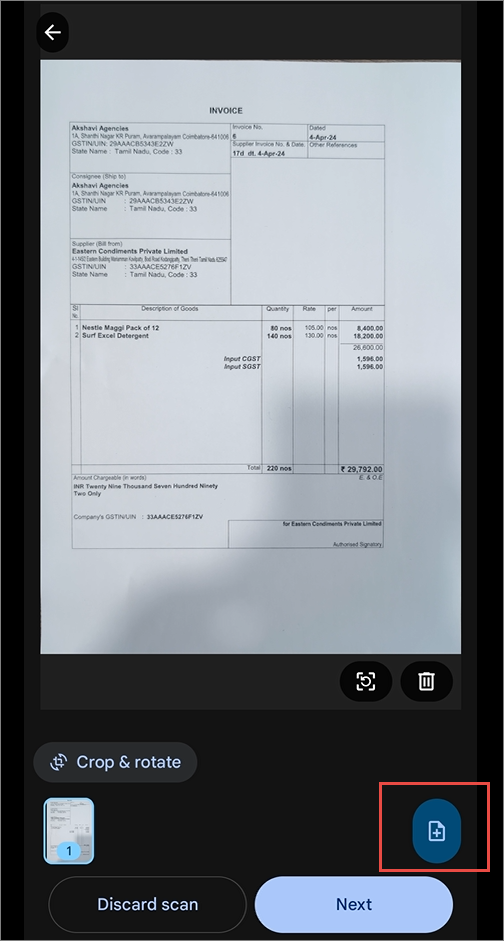
- Tap the scan icon.
- Send the documents to TallyPrime.
- Select the file.
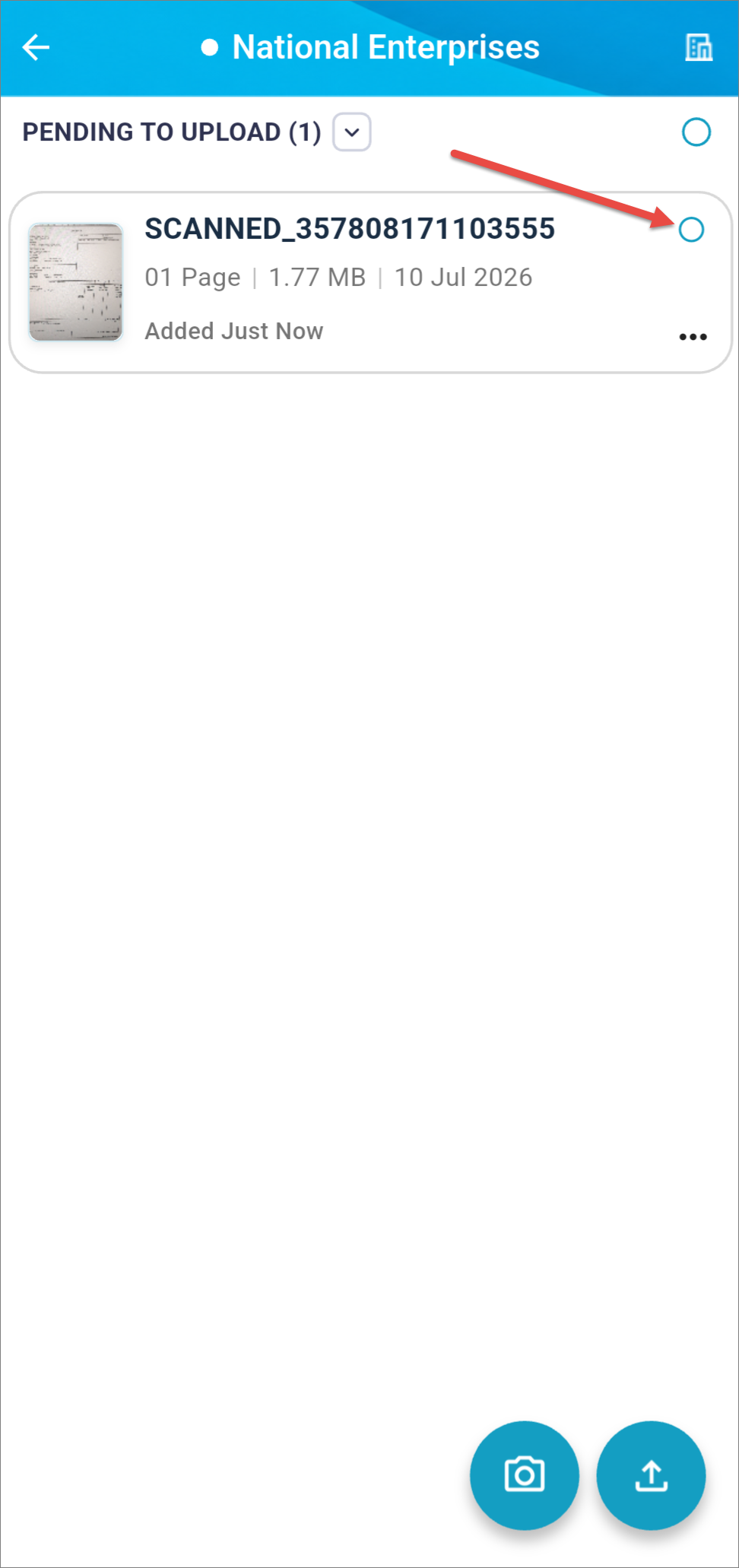
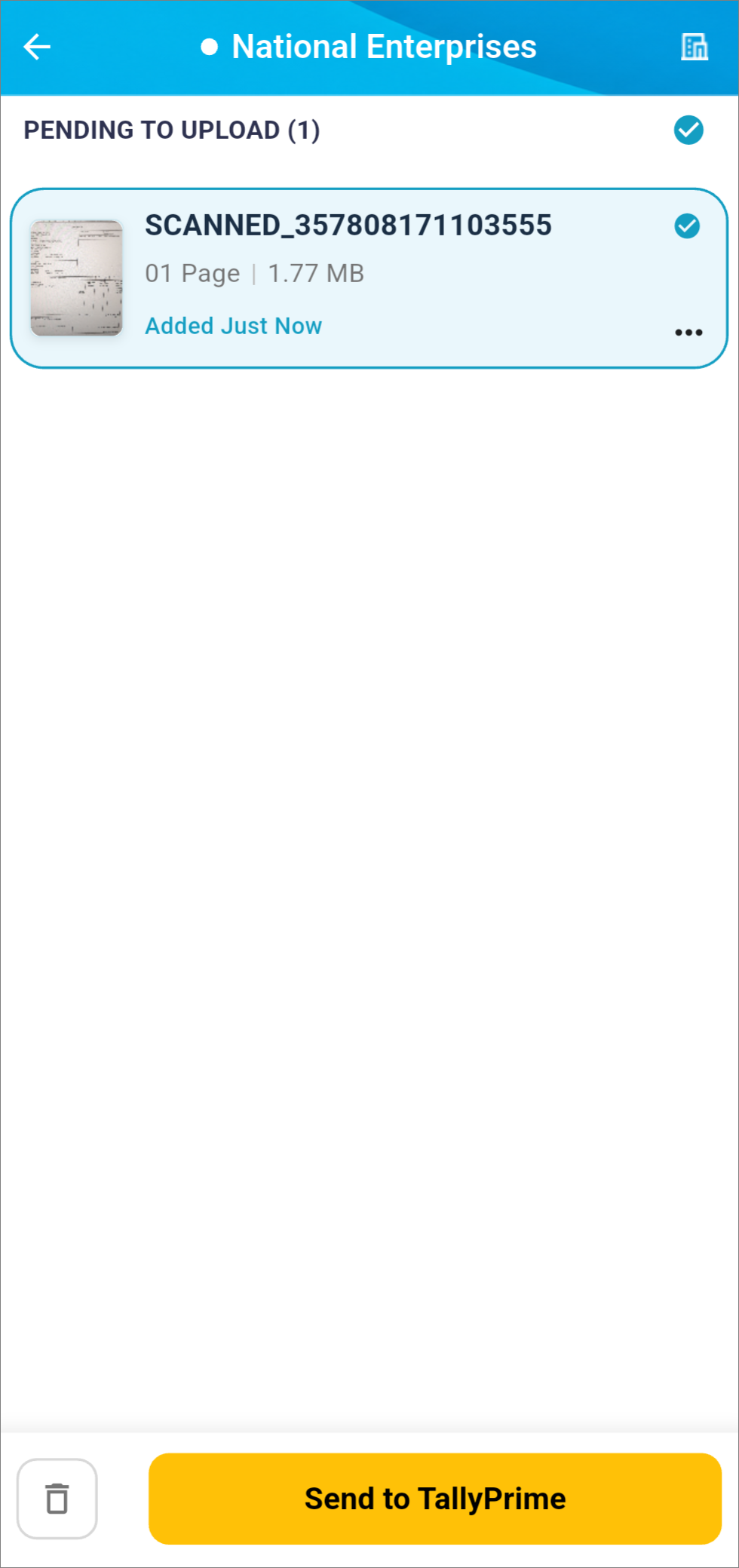
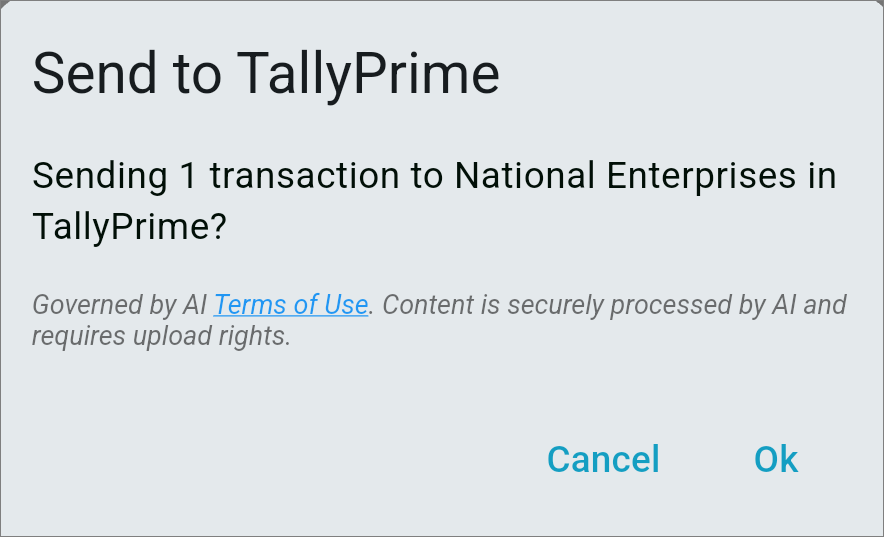
- Tap Send to TallyPrime.
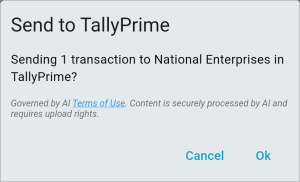
- Tap Ok.
- Select the file.
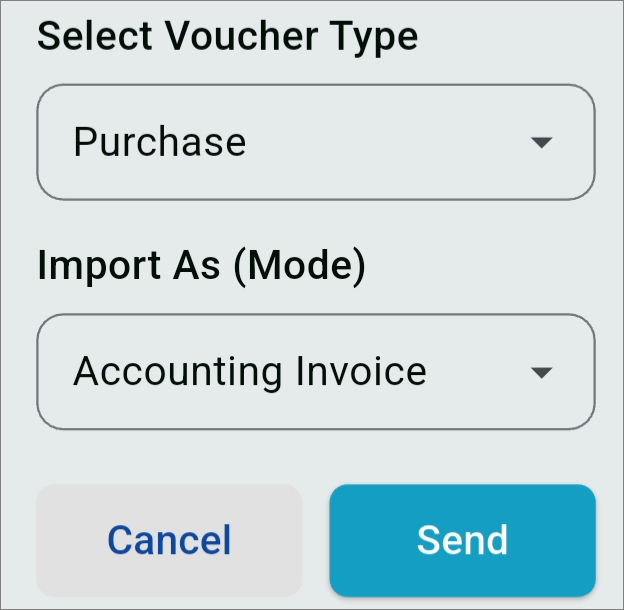
- Select the Voucher Type and Voucher Mode.
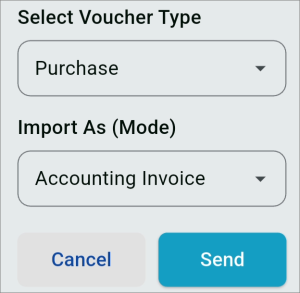
- Tap Send.
The files get successfully uploaded. - The files get successfully uploaded.
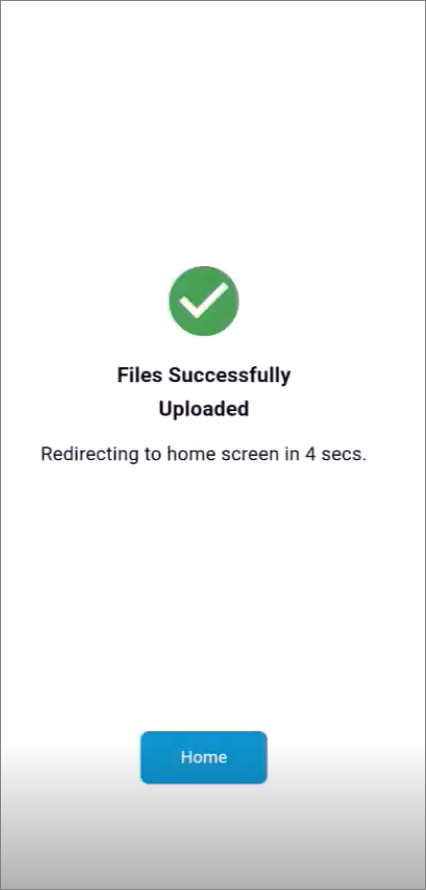
You can find them in the Draft Transactions report.
Upload documents to TallyIra from a mobile folder or another app
- Select the Company.
- Upload the files.
- Tap the upload icon.
- Tap a file.
- Tap Select.
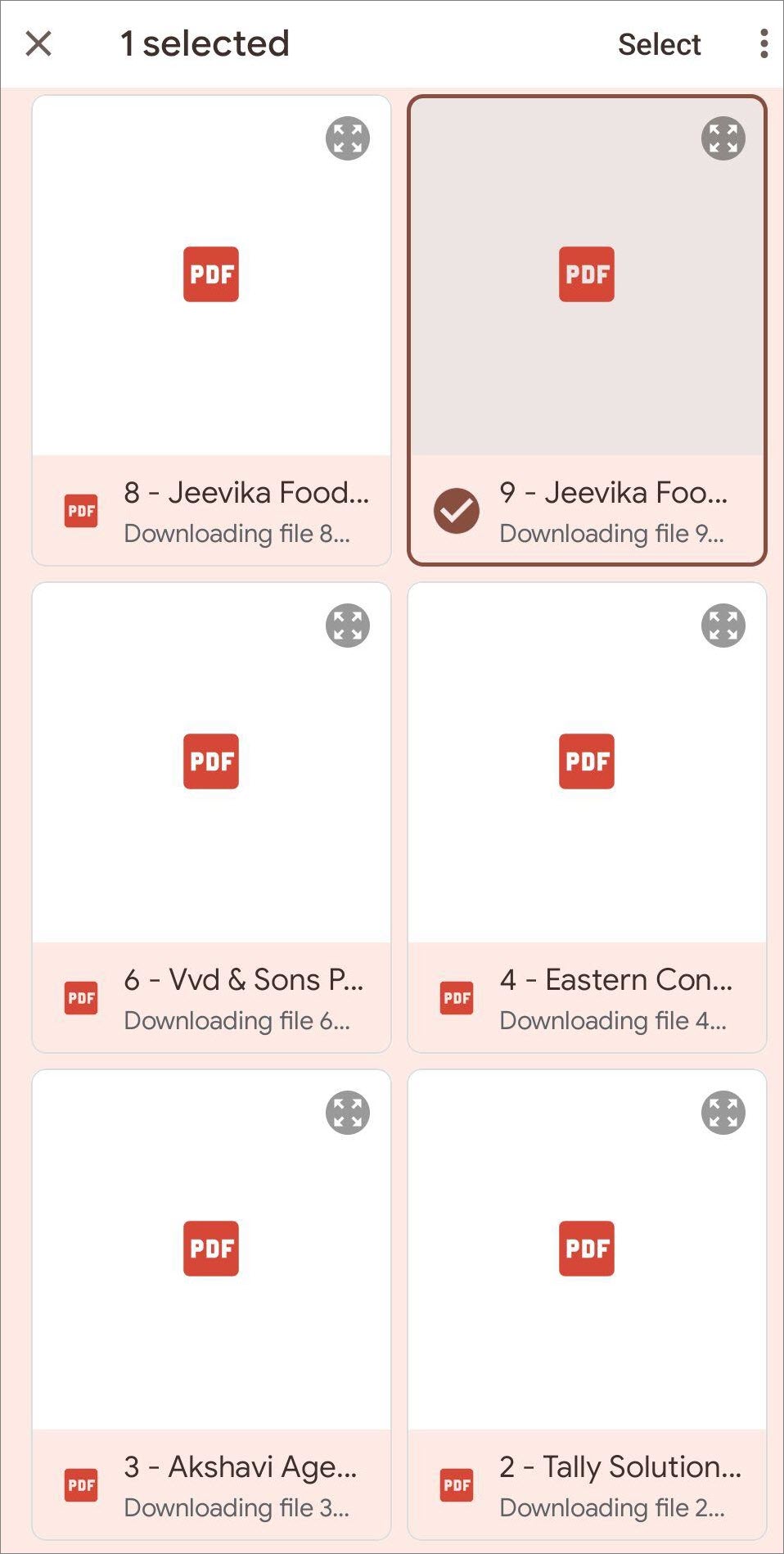
- Tap Done.
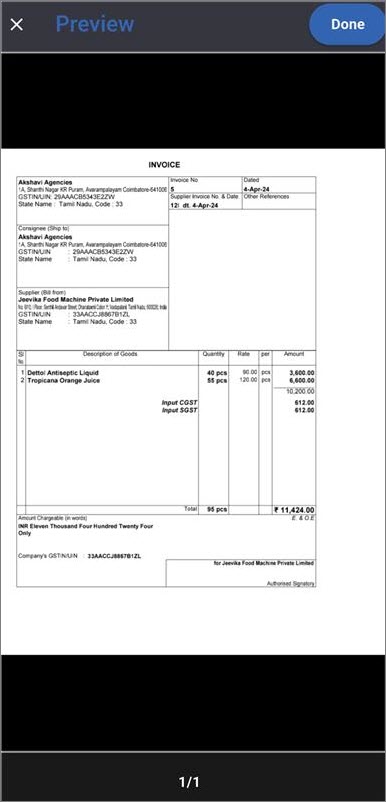
Similarly, you can choose more files from the folder to upload.
The files become a part of the Company in the TallyIra.If you have files on an app, for instance, on WhatsApp, then you can:
1. Open WhatsApp.
2. Long-press on the files to select them.
3. Tap the three dots.
4. Tap Share.
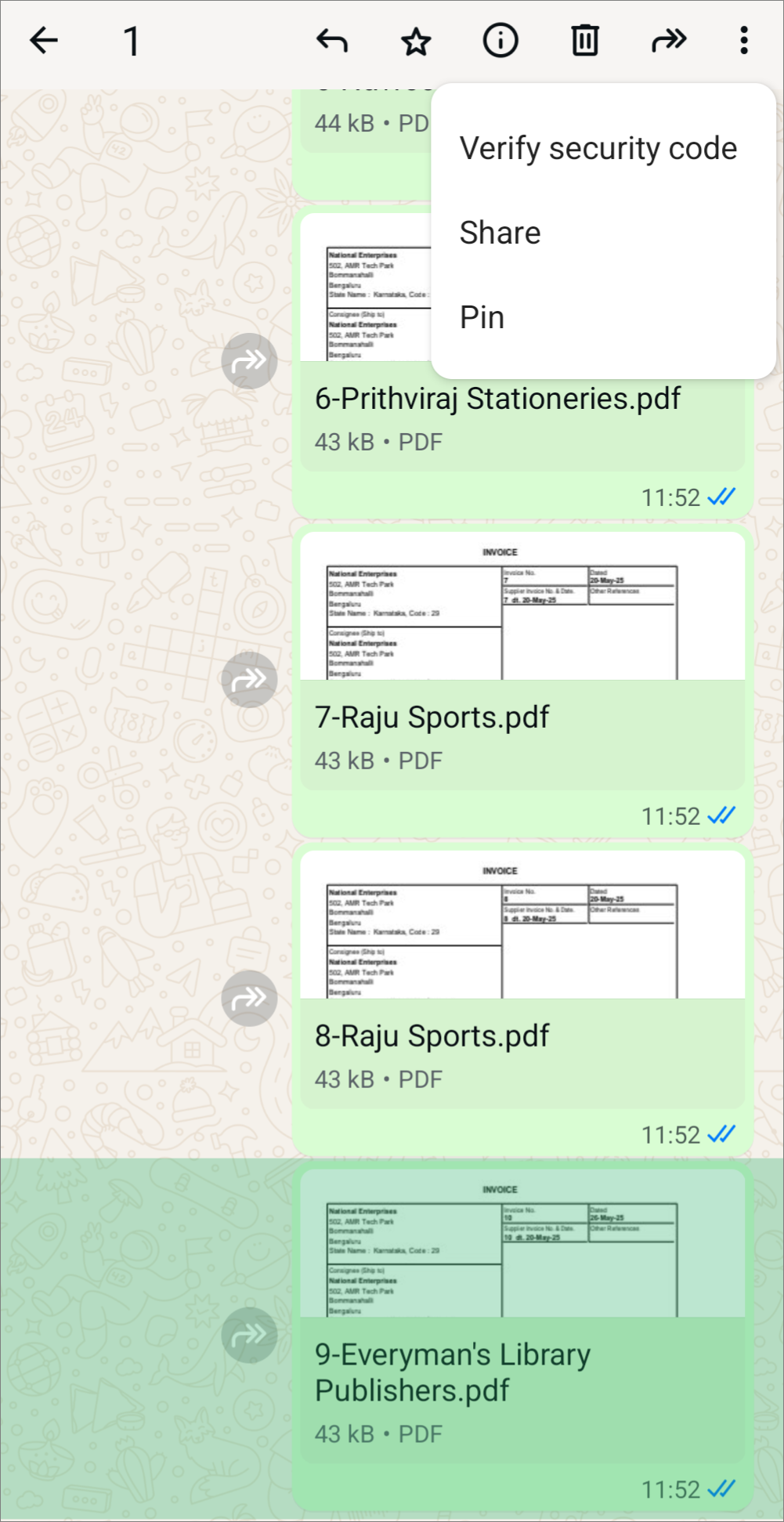
5. Select the TallyIra app.
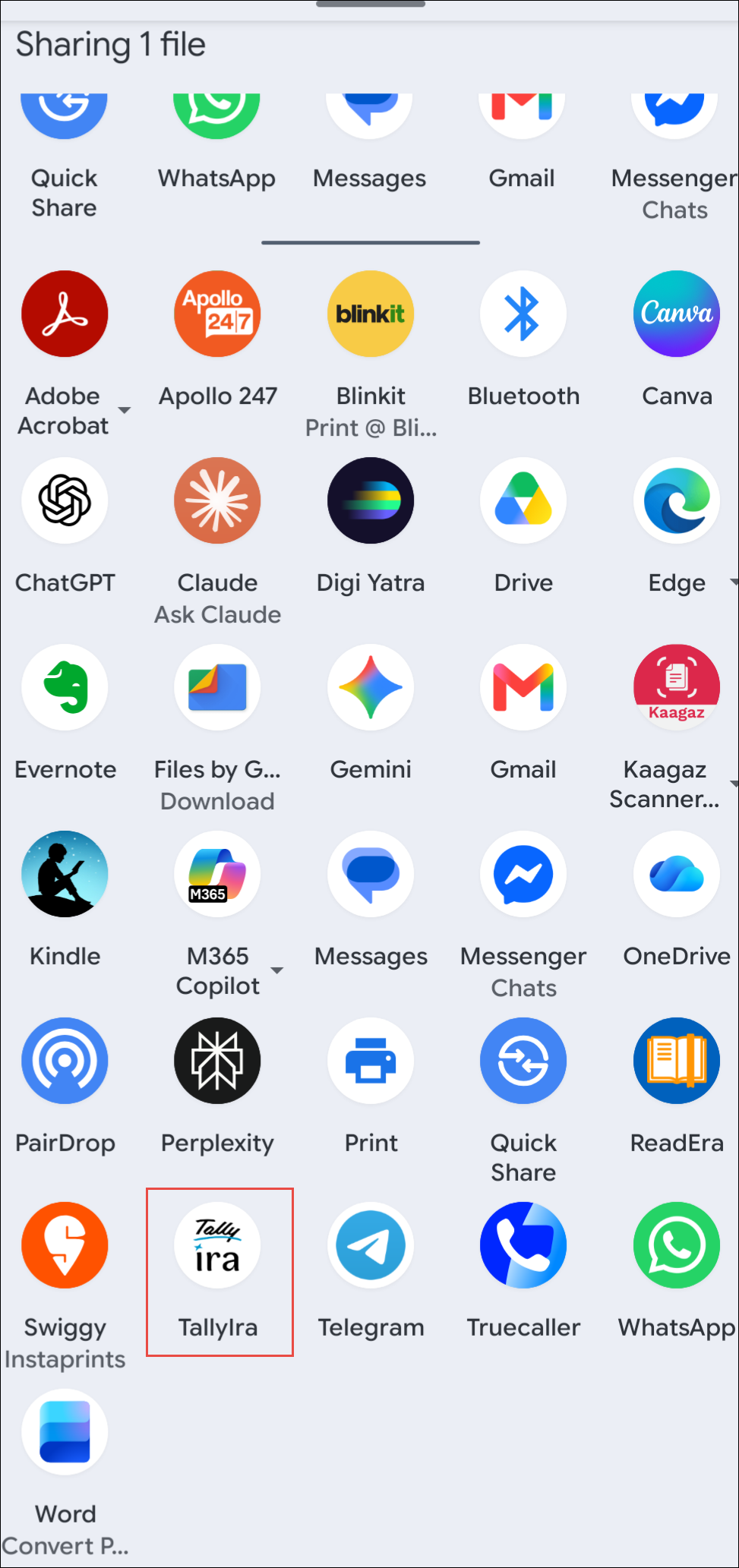
The files will become a part of the app under the relevant company opened in the app.
- Send the documents to TallyPrime.
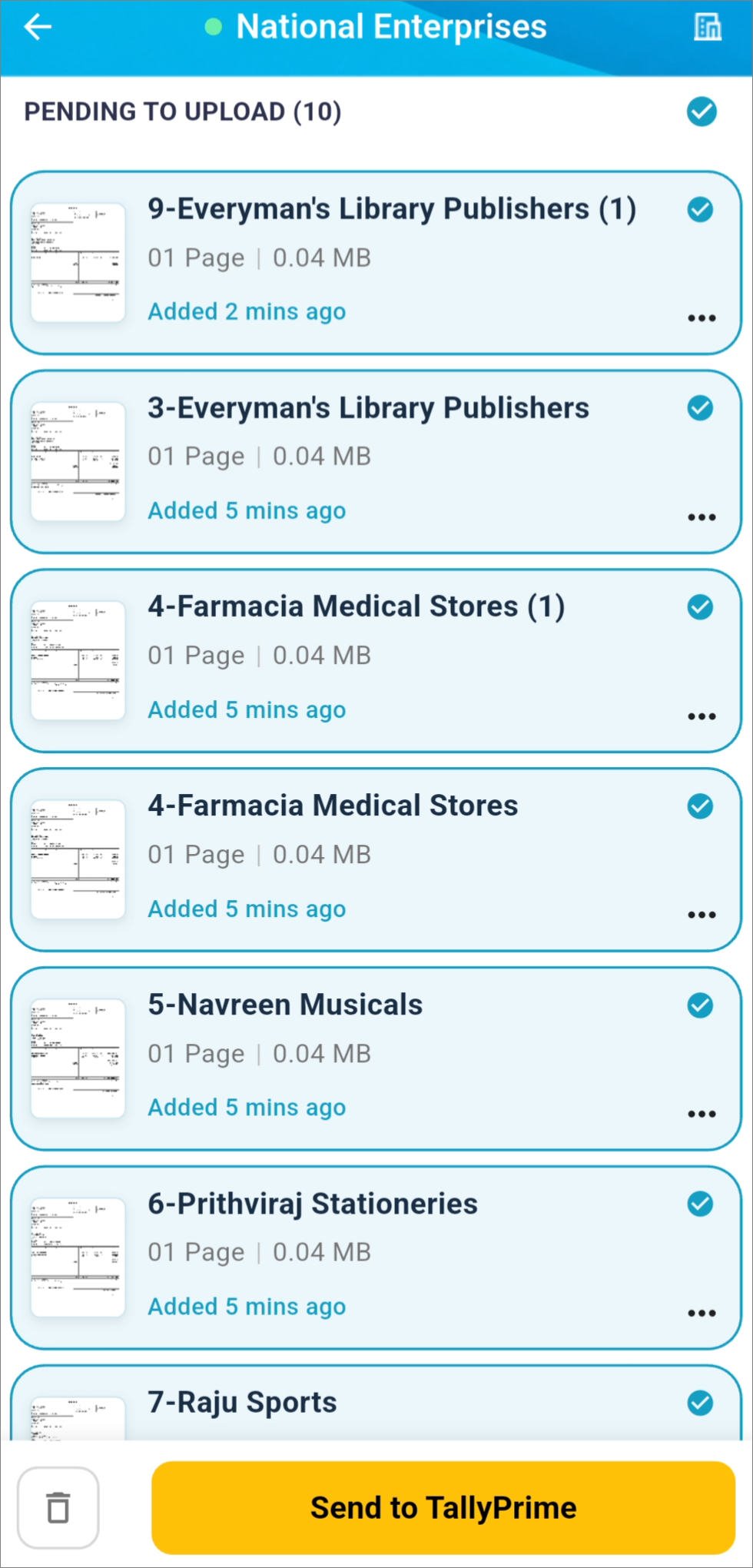
- Select the files.
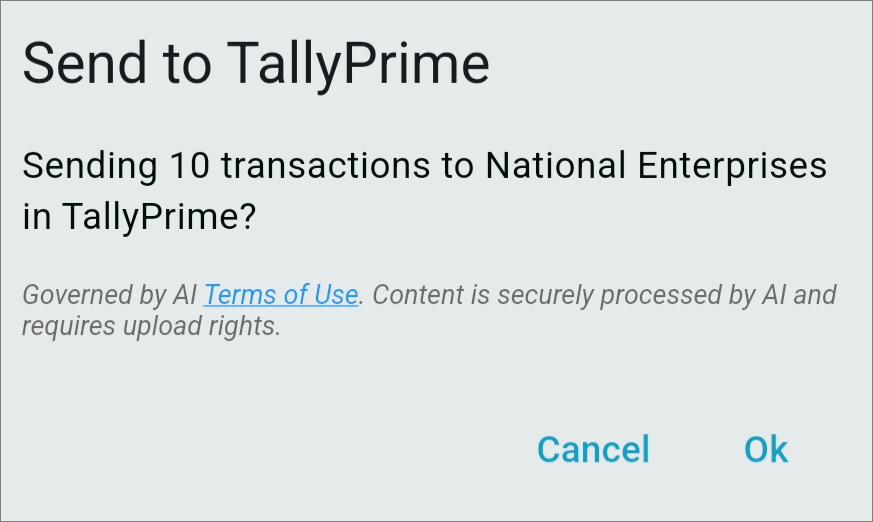
- Tap Send to TallyPrime.
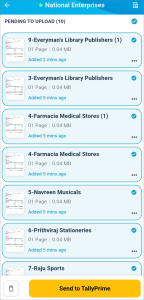
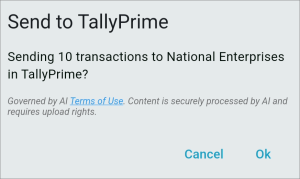
- Tap Ok.
- Select the Voucher Type and Voucher Mode.
- Tap Send.
The files get successfully uploaded.
You can find them in the Draft Transactions report.
Review Imported Transactions and Create Vouchers on the Go
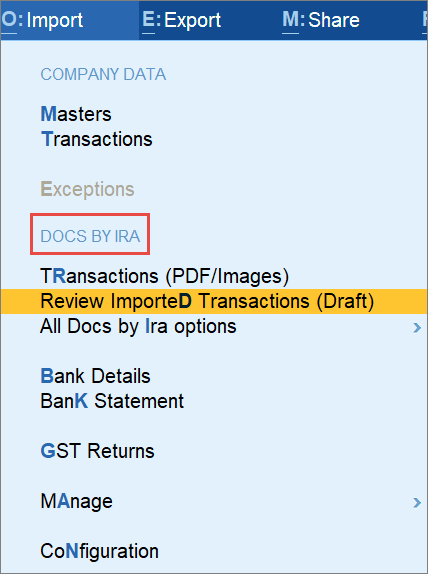
- In TallyPrime, press Alt+O (Import) > Review Imported Transactions (Draft) under Docs by Ira.
Alternatively, press Alt+O (Import) > All Docs by Ira options > Review Imported Transactions (Draft).
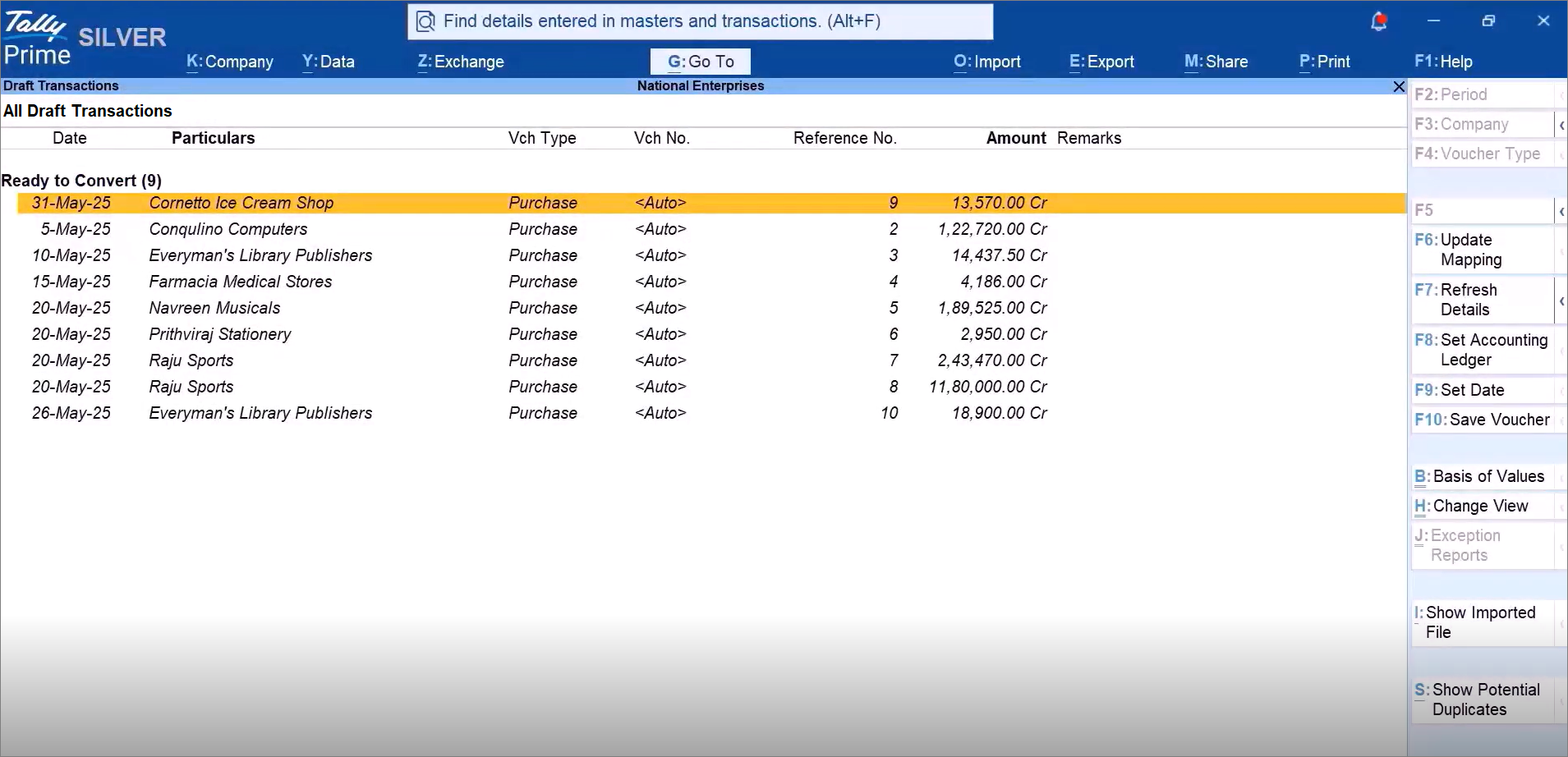
- Under Ready to Convert, select all the transactions and press F10 (Save Vouchers).
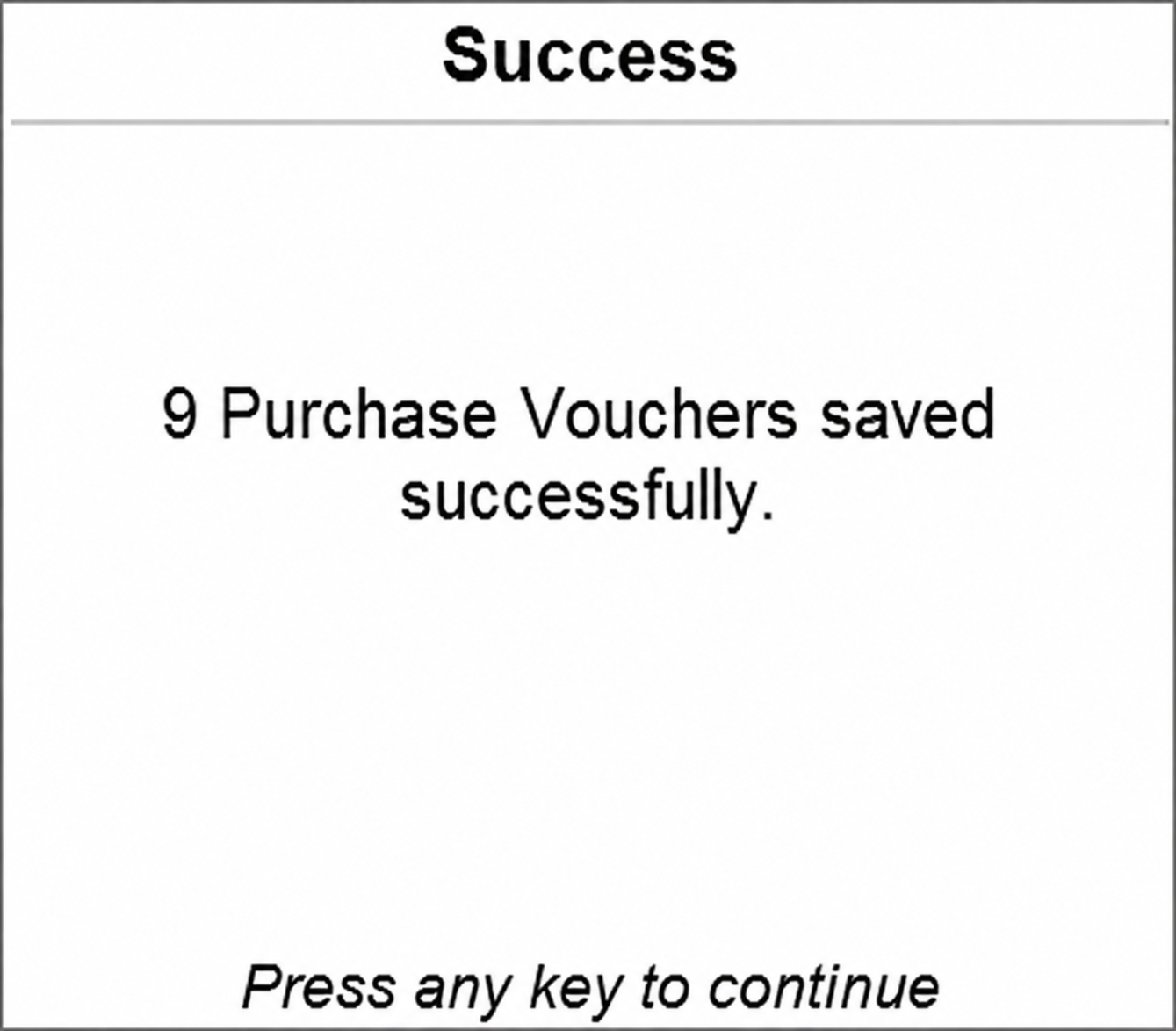
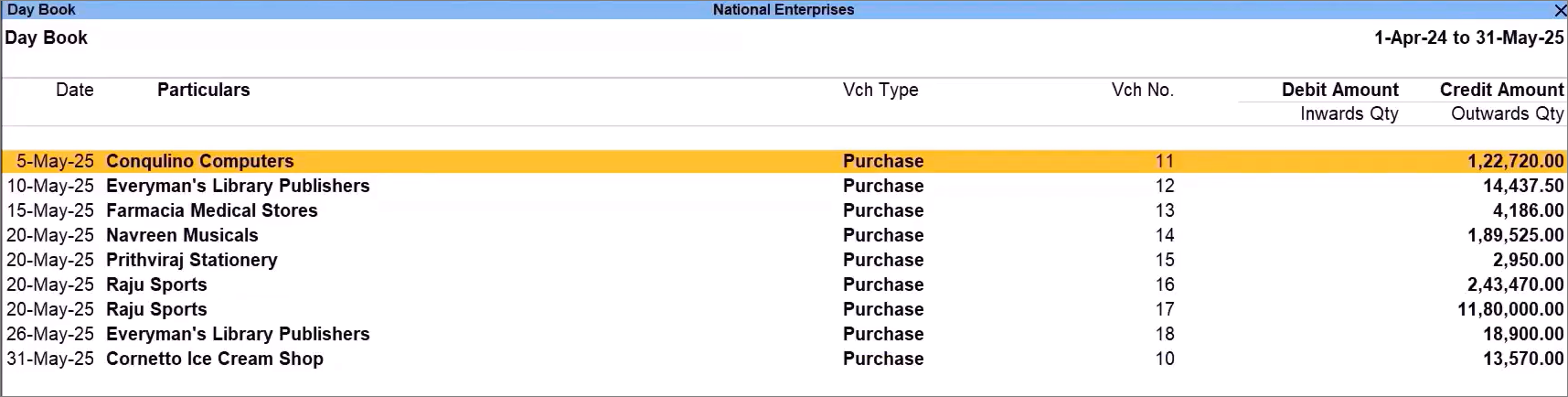
The vouchers get created.
Open Day Book to view the vouchers.
Questions & Answers
- I have an iPad or Android tablet. Can I install TallyIra app?
Yes, you can install the app on your iPad or Android tablet. You can then scan documents or upload files for sending to the TallyPrime and creating vouchers.
- Can I click a picture of a handwritten document and send it to TallyPrime for voucher creation?
No, at present, you can’t click a picture of a handwritten document and send it to the TallyPrime for voucher creation. Your transaction document should be digitally created or a scanned copy.
- I am unable to send documents from TallyIra to TallyPrime. It says that I have not yet agreed to the terms and conditions. How do I proceed?
Before you can send documents from the TallyIra app to TallyPrime, you must agree to the terms and conditions in TallyPrime. This prompt appears the first time you import transactions using Docs by Ira.
To learn more, refer to Import Transaction Documents in TallyPrime.


