
Record Supplies Through e-Commerce Operator
In your business, apart from regular sales, you can supply goods or services through an e-commerce operator. You might be selling goods through an online portal or e-commerce operator such as Amazon, Flipkart and others. In such cases, you are supplying the goods to such e-commerce operators although your buyer is an end user. Once you have supplied the goods to the e-commerce operator, they will deliver the same goods to the end user. You can record the supply of goods to such e-commerce operators in TallyPrime using the sales voucher.

- GST is enabled for the company.
- Party ledger is created and configured for registration type as e-Commerce Operator.
- Applicable tax ledgers – CGST & SGST for local sales; IGST for interstate sales – are created.

B2B Sales Through e-Commerce Operator
- In the sales voucher, under Party A/c name, select the party ledger for which the Registration type is set as e-Commerce Operator.
- Specify the buyer details.
- Under Buyer (Bill To), select the party ledger to whom you are doing the sale.
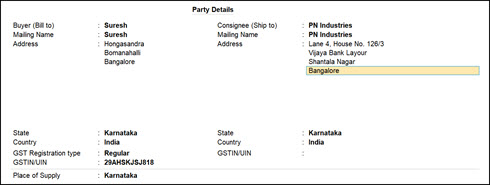
- Enter other required details and press Ctrl+A to save.
- Under Buyer (Bill To), select the party ledger to whom you are doing the sale.
- Select the tax ledgers, as applicable. CGST and SGST for local sales; IGST for interstate sales.
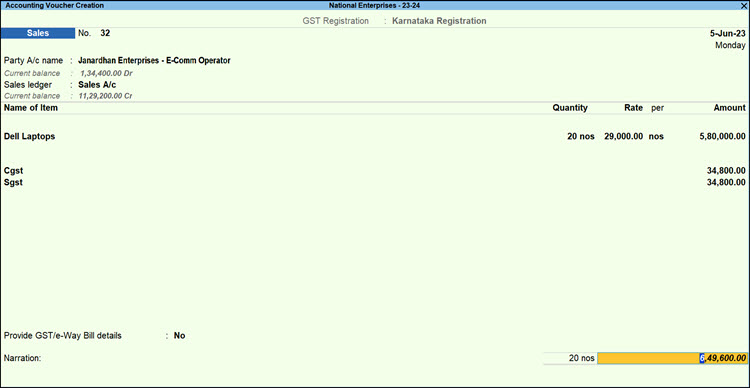
- Press Ctrl+A to save the sales voucher.
In GSTR-1 of TallyPrime, the sales invoice appears in the B2B Invoices – 4A, 4B, 4C, 6B, 6C.
In a similar way, you can record B2B transactions for interstate supplies in which the seller’s state and the place of supply are different. The invoices appear in the B2B Invoices – 4A, 4B, 4C, 6B, 6C.
B2C Sales Through e-Commerce Operator
- In the sales voucher, under Party A/c name, select the party ledger for which the Registration type is set as e-Commerce Operator.
- In the Party Details screen,
- Under Buyer (Bill To), select Cash or the buyer as needed.
- Ensure that the GST Registration Type is set as Unregistered/Consumer.
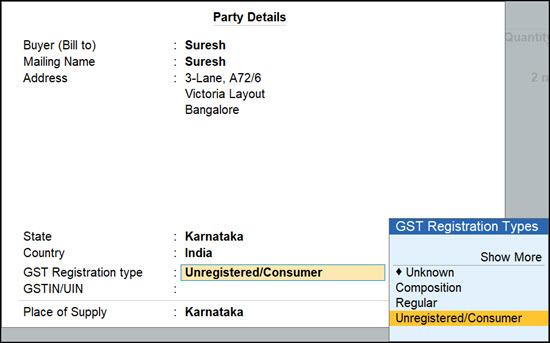
- Enter other required details, and press Ctrl+A to save.
- Select the tax ledgers, as applicable. CGST and SGST for local sales; IGST for interstate sales.
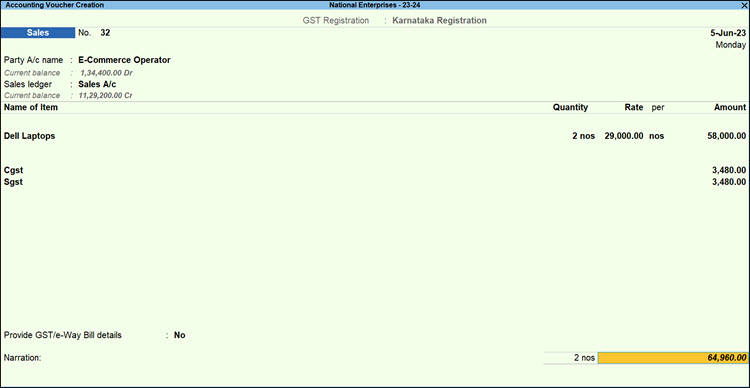
- Press Ctrl+A to save the sales voucher.
In the GSTR-1 report, the invoice appears under B2C (Small) Invoices for sale value less than 1 lakh or under B2C (Large) Invoices for sale value more than 1 lakh.


