
GSTR-1 Report in TallyPrime
For TallyPrime 3.0 & later
GSTR-1 is a Return that every regular dealer must file on the GST portal. It contains details of all outward supplies (sales transactions) for a month or quarter, based on turnover in the previous financial year.
You can use the GSTR-1 report in TallyPrime to prepare, verify, and upload your Return on the GST portal.
Record your GST transactions in TallyPrime as usual. The report automatically captures the relevant details, classifies them into the correct sections, and keeps them ready for export. Once verified, you can export the data and upload it to the portal.

- GST is enabled in your company.
- Your GST registrations (GSTINs) are created and selected correctly.
- All sales and related transactions are recorded with accurate GST details.
- Masters such as ledgers, stock items, and tax rates are configured properly.
View GST Details
The GSTR-1 report helps you:
- View GST data as per portal format.
- Compare it with your books.
- Identify and resolve errors.
The report includes the following sections:
- Header – Company Information
- Total Vouchers – Statistics of Your Transactions
- Return View – Mirror of the Portal
- Nature View – Mirror of Company Books
Header | View Company Information
The header section displays details such as GST Registration, Period, Status of Returns (Signed/Not Signed), and so on.

If you had created multiple registrations, the report displays the combined GST details and activities across registrations.
- Press F3 (Company/Tax Registration) and select the registration for which you want to view the report.
- Configure the report as needed, using F12 (Configure), Ctrl+B (Basis of Values) and more.
- To set the report as default view, press Ctrl+L (Save View). Next time you open the report, it displays the details with all the configurations as is.
Total Vouchers | View Statistics & Verify Details
This section shows transaction status and helps track actions required. It updates automatically based on your activities.
Total Vouchers
Overall count of vouchers.
- Drill down to view detailed statistics.
Included in Return
Vouchers included in GSTR-1.
- Drill down to view details and update GST status.
Ready for Export
Vouchers ready to be exported, including modified ones.
Not Exported
Vouchers not yet exported.
Modified in Books After Upload/Export
Exported vouchers that were later modified.
For TallyPrime 4.0 & earlier versions, click here
Ready for Upload
Vouchers ready to be uploaded, including modified ones.
Not Uploaded
Vouchers not yet uploaded.
Modified in Books After Upload
Uploaded vouchers that were later modified.
Marked for Deletion on Portal
Vouchers that have to be deleted from the portal, due to some unforeseen reasons. For example, you might have realised that you had selected the wrong party name and address details for one of your transactions. For such transactions, you have to delete the original entry on the portal and re-upload the transaction with revised details.
Once you update the party details, the older transaction will be moved to Marked for Deletion on Portal, while the revised transaction will appear under Not Exported. Thereby, once you export the transactions, the corrected details will be seamlessly reflected on the portal.
You can further drill down to view more details of the vouchers that were marked for deletion, and update the GST Status, if needed.
Mismatch with GST Data
Vouchers where there is some mismatch in GST details between your company books and the GST portal.
If you are importing GST data from the portal, then TallyPrime will automatically detect any mismatched transactions and save them in this section. However, if you have noticed any other mismatch on the portal, you also have the flexibility to manually mark such transactions as Mismatched, after which they will appear in this section.
No Action Required
Vouchers that have been both exported for filing and also reconciled. Therefore, no further action is needed from your end for these transactions.
Not Relevant for this Return
Vouchers that are not required to be filed in GSTR-1 in the selected period. This includes transactions of other registrations, returns, or return periods, and also includes non-GST transactions (such as payroll, inventory, and order vouchers) and transactions that were consciously excluded by you.
Uncertain Transactions (Corrections needed)
Vouchers with GST-related errors. You can drill down further from the section to view all such uncertain details and correct them. Even if you have hundreds of transactions, you can easily find and fix a particular error. Refer to the Resolve Uncertain Transactions section to know more.
Moved to other Return periods
Vouchers where the Effective Date is different from the current period.
Based on your business requirements or convenience, you might have updated the Effective Date for filing GSTR-1 for a few transactions. For example, one of your orders might be on hold, as you are waiting for a confirmation from your party. You are not sure if this has to be filed or cancelled, so you set the effective date for the upcoming month.
Amendments Marked for Future Returns
Vouchers that were modified after export and moved to a future period for filing GSTR-1.
Based on your business requirements, you might have updated some GST details in a few of your transactions, and also set the Effective Date for a future period. The Amendments Marked for Future Returns section will provide you with a full list of all such transactions.
Non-Accounting Transactions, Included in Return
If you have deleted or changed the voucher number or voucher type in a signed return, then such transactions will appear in the Non-Accounting Transactions, Included in Return section. These transactions are saved only for compliance reasons, and won’t appear in your company books.
Additional Pending Actions
The Additional Pending Actions section will automatically appear whenever there is a pending action or exception in areas such as HSN/Document Summary, advance adjustments, and reverse charge.
You can drill down to view the different categories of exceptions, along with the relevant period to which they belong. If you drill down further, you can find a list of all the exceptions in each category. For example, you can see all the transactions that are pending for export from the HSN Summary.
Return View | View GST Details in the Portal Format
This section mirrors the GST portal structure. Transactions are automatically placed in the correct sections.
You can hide sections with no values using F12 (Configure).
B2B Invoices – 4A, 4B, 4C, 6B, 6C
Displays taxable sales that were made to regular and composite dealers. If your tax invoice has exempt and nil-rated items along with taxable items, then the total invoice value will be captured here.
However, if you want to capture the values of only the taxable items as a B2B invoice, then, as per GST rules, you have to record separate invoices for the taxable items. Furthermore, you have to use separate invoices (bill of supply) for the sale of exempt or nil-rated items.
- Drill down to view the full list of B2B invoices that were recorded during this period, along with relevant details such as party name, GSTIN/UIN, tax amount, and so on.
B2C (Large) Invoices – 5A, 5B
Displays large sales (exceeding Rs 1 lakh) that were made to unregistered dealers and consumers.
- Drill down from this section to view the full list of B2C invoices that were recorded during this period, along with relevant details such as party name, tax amount, and so on.
Exports Invoices – 6A
Displays the values of export sales recorded during a certain return period. Export sales transactions include transactions such as Exports Taxable, Exports – LUT/Bond, Exports Exempt, and Exports Nil Rated.
- Drill down from this section to view the full list of export invoices, along with relevant details such as shipping number, shipping date, and port code.
If the shipping number, shipping date, and port code are not visible in this drill-down report, then you have to enable the relevant options by pressing F12 (Configure).
Credit or Debit Notes (Registered) – 9B
Displays credit or debit notes that were issued to regular and composite dealers.
- Drill down to view the number of credit or debit notes issued to each party, along with other relevant details such as GSTIN/UIN, tax amount, and so on.
Credit or Debit Notes (Unregistered) – 9B
This section will capture all your credit or debit notes that were issued to unregistered dealers and consumers.
- Drill down to view the number of credit or debit notes issued to each party, along with other relevant details such as tax amount, invoice amount, and so on.
Amended B2B Invoices – 9A
Displays amendments in your taxable sales to regular and composite dealers.
- Drill down to view the full list of B2B invoices that were amended during this period, along with relevant details such as party name, GSTIN/UIN, tax amount, and so on.
Amended B2C (Large) Invoices – 9A
Displays amendments in your large sales (exceeding Rs 1 lakh) to unregistered dealers and consumers.
- Drill down to view the full list of B2C invoices that were amended during this period, along with relevant details such as party name, tax amount, and so on.
Amended Exports Invoices – 9A
Displays amendments in your export sales.
- Drill down to view the full list of exports that were amended during this period, along with relevant details such as shipping number, shipping date, and port code.
If the shipping number, shipping date, and port code are not visible in this drill-down report, then you have to enable the relevant options by pressing F12 (Configure).
Amended Credit or Debit Notes (Registered) – 9C
Displays amendments in your credit or debit notes issued to regular and composite dealers.
- Drill down to view the number of credit or debit notes amended against each party, along with relevant details such as GSTIN/UIN, tax amount, and so on.
Amended Credit or Debit Notes (Unregistered) – 9C
Displays amendments in your credit or debit notes issued to unregistered dealers and consumers.
- Drill down to view the number of credit or debit notes amended against each party, along with relevant details such as tax amount, invoice amount, and so on.
B2C (Small) Invoices – 7
Displays small sales (below Rs 1 lakh) that were made to unregistered dealers and consumers.
- Drill down from this section to view the full list of B2C invoices that were recorded during this period, along with relevant details such as party name, tax amount, and so on.
Nil Rated Invoices – 8A, 8B, 8C, 8D
Displays sales transactions on which GST is not levied. This includes nil-rated, exempt, and non-GST outward supplies made to registered and unregistered dealers.
- Drill down from this section to view the net and total values of Nil Rated, Exempted, and Non-GST sales.
Amendment B2C (Small) Invoices – 10
Displays amendments in your small sales (below Rs 1 lakh) to unregistered dealers and consumers.
- Drill down to view the full list of B2C invoices that were amended during this period, along with relevant details such as party name, tax amount, and so on.
Tax Liability (Advances Received) – 11A(1), 11A(2)
Displays taxable sales for which you had received advances from your party, but you are yet to record an invoice. You would have recorded the credit values of tax using a journal voucher.
- Drill down further to view the full list of journal vouchers along with the break-up of the advanced received during the period.
Adjustment of Advances – 11B(1), 11B(2)
Displays the invoices for which you had received advances and already paid taxes in an earlier month. You would have recorded the debit values of tax using a journal voucher.
- Drill down further to view the full list of journal vouchers along with the break-up of the advanced adjusted from an earlier period.
Amended Tax Liability (Advances Received) – 11A
Displays amendments in your Tax Liability (Advances Received, as per sections 11A(1), 11A(2)).
- Drill down further to view the full list of journal vouchers along with the break-up of the advanced received during the period.
Amendment of Adjusted Advances – 11B
Displays amendments in your Adjustment of Advances (as per sections 11B(1), 11B(2)).
- Drill down further to view the full list of journal vouchers along with the break-up of the advanced adjusted from an earlier period.
HSN Summary – 12
The HSN/SAC Summary report displays the tax details for all the HSNs/SACs used in your transactions.
- Press F3 (Company/Tax Registration) to view the details only for a specific registration.
- Drill down from each registration to view all the HSNs/SACs used in your transactions in the selected period.
- You can further drill down from each HSN/SAC to view all the corresponding transactions, along with relevant details such as UQC, tax amount, and taxable amount.
Document Summary – 13
The Document Summary displays all the documents that are required on the GST portal for filing GSTR-1, such as invoices for outward supply, invoices for inward supply from unregistered dealers, debit and credit notes, and receipt and payment vouchers. For each of these documents, you can also view the corresponding details such as the range of voucher numbers, the count of cancelled vouchers, and the total voucher count.
-
Drill down to view the corresponding details such as the range of voucher numbers, the count of cancelled vouchers, and the total voucher count.
-
You can drill down from each of the above sections to view the full list of transactions.
-
Press Alt+V (Alter Summary) to easily make alterations to the Document Summary before exporting it to the portal.
Nature View | View GST Details as per Company Books
- In the GSTR-1 report, press F5 (Nature View).
Displays all the outward supplies classified into four different sections: Local Supplies, Interstate Supplies, Exports, and SEZ. You can also view the total Taxable Amount, breakup of the tax, and Tax Amount for each section.
You can quickly compare the GST details with the details in your company books, that is, in the Profit & Loss report, Sales Register, or Chart of Accounts. This will help you greatly in identifying and resolving any errors in your data before you can finalise the return.
You will find that all your outward supplies are conveniently categorised into the following four groups, based on your transactions during the period.
Local Supplies
Displays the values of all your sales transactions made to your parties within the same state. You will find that the transactions are further placed in sub-groups such as Taxable, Exempt, Nil Rated, and Non-GST supplies.
- Drill down from any of these sub-groups to view the full list of transactions recorded during the period.
Interstate Supplies
Displays the values of all your sales transactions made to your parties located in a different state. You will find that the transactions are further placed in sub-groups such as Taxable, Exempt, Nil Rated, and Non-GST supplies.
- Drill down from any of these sub-groups to view the full list of transactions recorded during the period.
Exports
Displays the values of all your export transactions made to parties in a different country. You will find that the transactions are further placed in sub-groups such as Taxable, Exempt, Nil Rated, Non-GST supplies, and Export LUT/Bond.
- Drill down from any of these sub-groups to view the full list of transactions recorded during the period.
SEZ
Displays the values of all your sales transactions made to parties in a special economic zone (SEZ). You will find that the transactions are further placed in sub-groups such as Taxable, Exempt, Nil Rated, Non-GST supplies, and Export LUT/Bond.
- Drill down from any of these sub-groups to view the full list of transactions recorded during the period.
Sign GSTR-1
Once your GSTR-1 details are final, you can proceed to sign your return. In this way, you can easily keep a tab on your finalised return, and prevent tampering. If your signed transactions are modified, then they will appear in the Uncertain Transactions section.
- Press F10 (Sign Return) in the GSTR-1 report.
A screen will appear, where you have the option to sign only the current return or both the current and previous returns, as applicable - Press S (Sign Current Return) to sign your GSTR-1 for the current period.
Now your return is signed and safe! If anyone tries to modify any transactions in your signed return, then they will appear in Uncertain Transactions.
Undo Signing
Your signed returns are locked and tamper-proof. However, at any point in time, if you have to update certain transactions in your signed GSTR-1, owing to an unforeseen business requirement, then don’t worry. TallyPrime also provides you with the flexibility to unlock or undo the signing.
- Press Alt + F10 (Undo Signing) in the GSTR-1 report.
Now you can undo the signing of the current return or both current and previous returns, as needed. - Press S (Undo Signing for Current Return) to undo the signing of GSTR-1 for the current period.
Now your return is unlocked, and you can proceed to make any updates to your GSTR-1 data.
Add Details of Online Sales | e-Commerce Summary Report
The GST Council has introduced new tables (14, 14A, 15, and 15A) in GSTR-1. These tables are meant for businesses who supply goods or services through e-Commerce operators, such as Amazon, Myntra, Flipkart, and so on. These changes are effective from 1st Jan 2024 and are designed to pave an easy way of reporting online sales done through e-Commerce operators.
To support these changes, TallyPrime Release 4.1 has come up with an e-Commerce Summary to highlight:
- Taxable values and tax values, such as IGST, CGST, SGST, and Cess
- GSTIN of the e-Commerce operators ()
- GSTIN-wise sales for the e-Commerce operators
Thereby, the e-Commerce Summary will act as a consolidated report and help you in identifying the recent e-Commerce changes. You can then easily enter the relevant details on the GST portal.
However, to ensure that the details of your e-Commerce parties appear in the e-Commerce Summary, you must set up the parties as e-Commerce Operators.
- Press Alt+G (Go To) > GSTR-1.
- Press Ctrl+H (Change View) and select e-Commerce Summary under Related Reports.
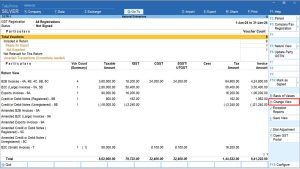
The e-Commerce Summary appears, as shown below:
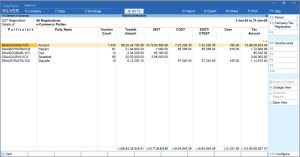
- Press F12 (Configure) to enable Show breakup of Tax amount.
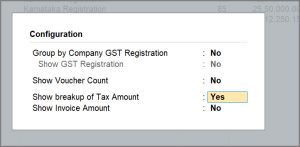
Ensure that the other options are disabled in the Configuration screen.
This will help you to refer the details of e-Tin, taxable amount and breakup of tax (IGST, CGST, SGST & Cess) easily in the report.
- Select an e-TIN under Particulars and press Enter to drill down.
You can view the e-Commerce Voucher Register for a particular e-Commerce operator, along with the transactions details, voucher type, and voucher number.
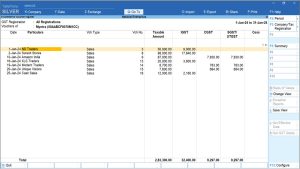
Now, by referring to this report, you can easily enter the relevant details on the GST portal.
Questions & Answers
What is the use of the Reset Delete Request option in GSTR-1?
Reset Delete Request allows you to remove the delete request for a voucher that is valid in the current Return period but was uploaded to the portal with a delete request in the earlier period.
- Press Alt+G (Go To) > GSTR-1 > Marked for Deletion on Portal > select the transactions
- Press Alt+Q (Reset Delete Request).
A confirmation message appears on the screen, as shown below:
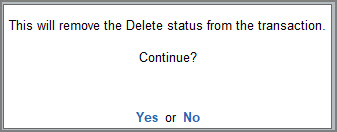
- Select Yes to remove the delete status from the transaction.
The transaction no longer appears under Marked for Deletion on Portal in the GST report.


