
Access Your Company Remotely | Remote Access in TallyPrime
Remote Access in TallyPrime allows authorised users to securely access company data from any location using their Tally.NET credentials. You can also monitor the company’s connection status and disconnect it from Tally.NET services whenever required.

Ensure that:
- You have enabled remote access for the company.
- Users have the remote access rights, as applicable.
- Your company is connected to Tally.NET services.
Access Company from Remote Location | Remote Access
Authorized users can remotely access connected companies using their Tally.NET credentials.
- Open TallyPrime at the remote location, and press Alt+F3 (Select Company).
- In the Select Company screen, choose Select Remote Company.
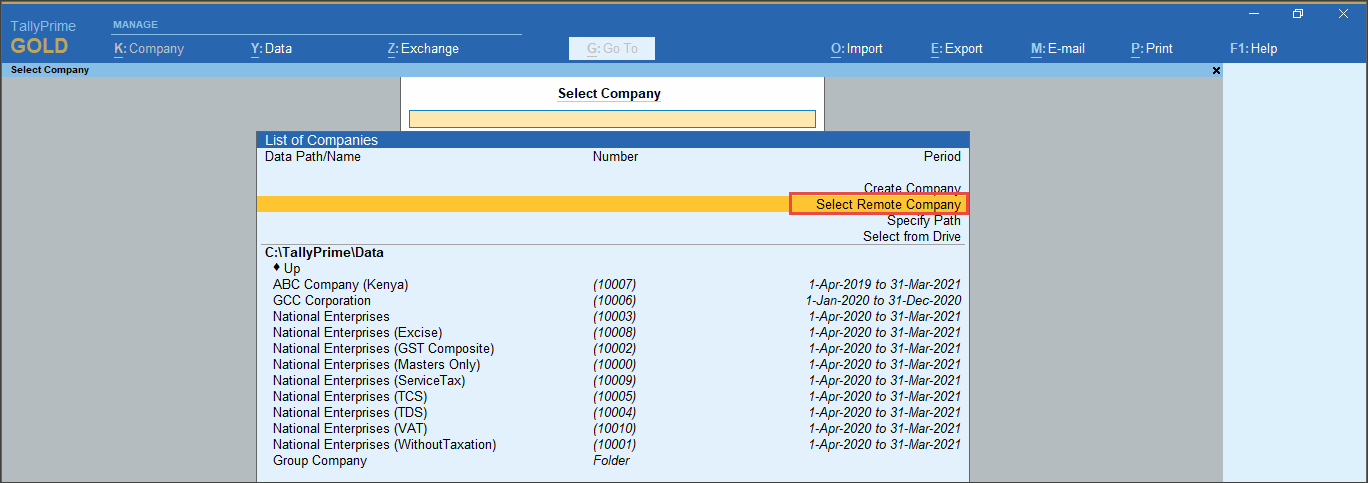
- Enter your Tally.NET ID and Password to login for remote access.

- Select the required company connected to the Tally.NET server.
- Start working with the company based on the permissions assigned to you.
View Connectivity Status of Company
You can identify whether a company is connected to Tally.NET services in the following ways:
Connectivity Status: This report gives you details of all the companies connected for Browser Access and Tally.NET Services. This report is active when at least one company is connected.
- Press Alt+K (Company) > Connectivity Status.

The Connectivity Status report displays the company name, the company’s connect name, and the status of connection for Tally.NET Services.
Connection indicator: The symbol (c) appearing next to the company name on the Gateway of Tally indicates that the company is connected to Tally.NET services.
Disconnect from Remote Access
When remote access is no longer required, disconnect the company from Tally.NET services.
- Press Alt+K (Company) > Disconnect.
- Select one or more companies to disconnect.
- Press Ctrl+A to save.
The selected companies are disconnected and will no longer be available for remote login until reconnected.
Connect Company to Tally.NET Services For TallyPrime 2.1 & Earlier
Click here.
You can decide when to connect your company for users to access remotely and disconnect the same when it is not needed. You need to have internet connection on the computers where TallyPrime is installed.
- Click F11 (Features) and set Show more features to Yes. Now under Online Access section set Enable Tally.NET Services for Remote Access & Synchronisation to Yes
- Press Alt+K (Company) or click on Company menu from Top menu bar > Press O (hotkey for Connect) or click on Connect

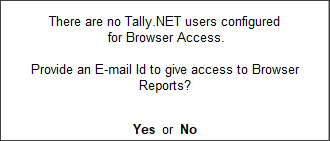
- If you have enabled Control User Access to Company Data for your company, move to point 3 below.
In case you have not enabled Control User Access to Company Data feature for your company, TallyPrime will prompt you for the same.- In the Security and User Access screen, the option Control User Access to Company Data is set to Yes
- Provide the administrator details. This login credential is for the company data.
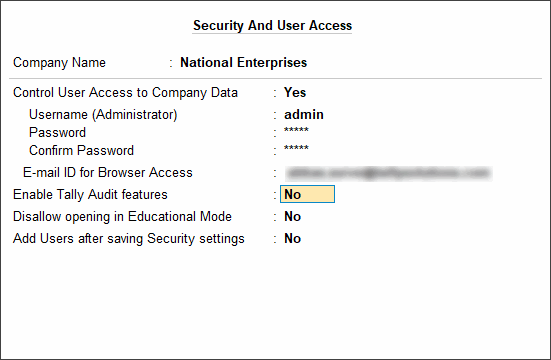
- Specify E-mail ID which needs to be provided for Browser Access or it can be left None.
If you use a Tally.NET id for Browser Access same will not work for Remote Access.
- Accept the screen and the Company is connected to Tally.NET Server for Remote Access
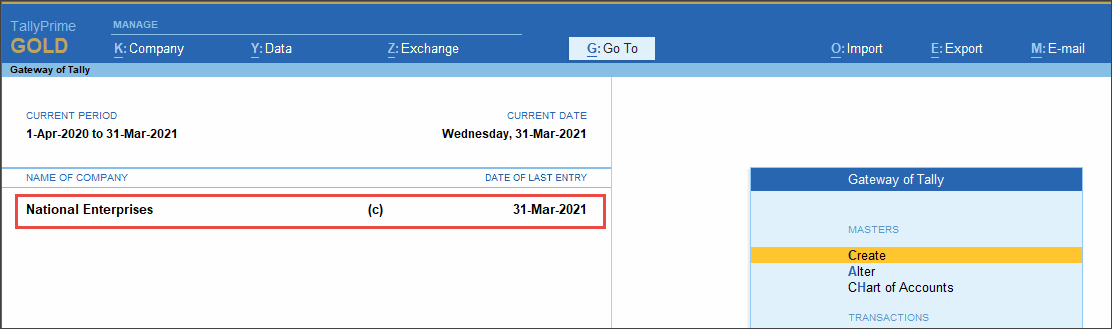
- Once the company is connected, a sign (c) appears against the company name in the List of Selected Companies in the Gateway of Tally.
- If you have enabled Control User Access to Company Data for your company, move to point 3 below.
- Provide Remote access to Tally.NET users.
- Configure the user for Remote Access from Alt+K (Company) or click on Company menu from Top menu bar > Users and Passwords
Authorised users can login to a remote instance using TallyPrime Installation and use the connected company.
Questions & Answers
- What benefits do I have with Remote Access?
Remote access allows you to access your company from anywhere and refer to the data or make necessary changes, without you having to be present at your business location. In addition, you can:
- Record or Alter Vouchers: The user with the required permissions can create or alter vouchers. If you or your employee meets a supplier, and strike a favourable deal, a purchase order can be raised immediately from your TallyPrime company.
- Audit Accounts: You can allow your auditor to do verification of your books using remote access. For this, you just need to allow remote access to your company for the auditor’s Tally.NET ID. Like you or your employees logging in to the company, auditor also can log in and do the work.
- Why am I not able to select more than one company to connect?
Selecting more than one company is supported only in TallyPrime Rel 3.0 & later. If you are still using TallyPrime 2.1 or earlier, you can upgrade to the latest release, if your TSS is valid.


