
Set Up Your GST Profile for Connected GST
Setting up your GST profile allows you to stay connected with the portal for uninterrupted connected GST activities like Upload, Download, and Filing. First enable the API Request on the GST portal for your GSTIN. Next, set up the GST login credentials and manage your login sessions conveniently in TallyPrime.

Ensure that:
- You have proper Internet connectivity.
- You have the required login credentials for the GST portal.
Enable API Requests on the GST Portal
- Log in to the GST portal.
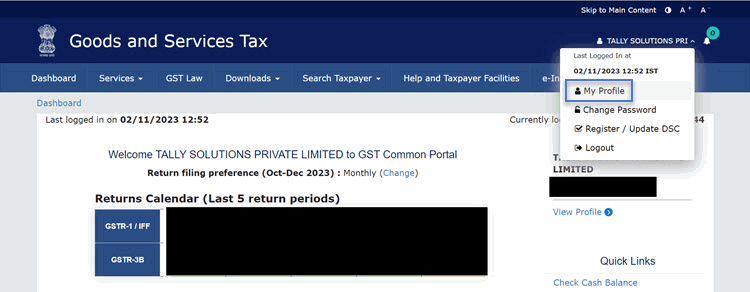
- Click your username in the top-right corner.
- Select My Profile from the list of options.
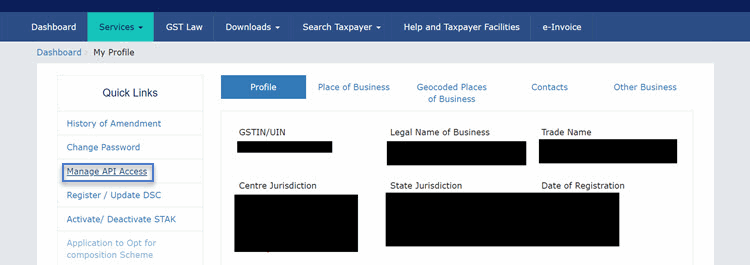
- In the My Profile screen, under Quick Links, click Manage API Access.
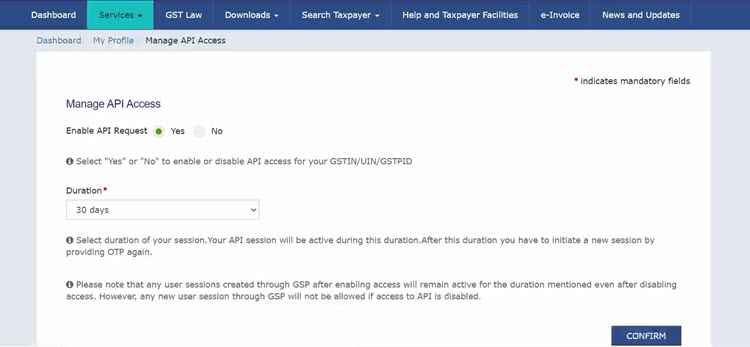
- Set the Enable API Request option to Yes.
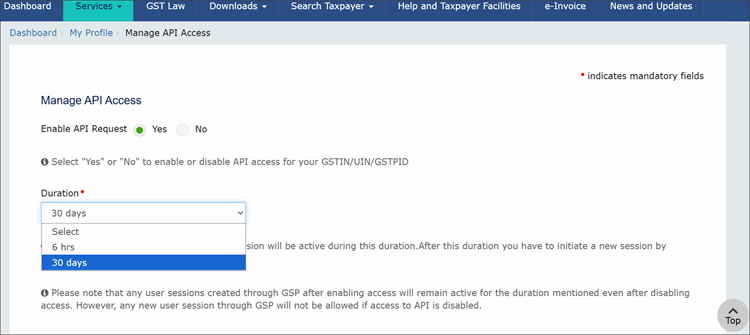
- Set the Duration.
- Click Confirm
30 days: Suitable for users with regular GST activity. Minimises frequent sign-ins. New OTP required after session expiry.
6 hrs: Suitable for temporary access. New OTP required after 6 hours.
Now you can proceed to manage the credentials in TallyPrime and reap the benefits of the Connected GST experience.
Set Up GST Login in TallyPrime
- Ensure to specify the Connected GST Details.
- Set up GST Login session.
- Press Alt+Z (Exchange) > All GST Options > GST Login & Logout.
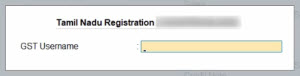
- Enter your GST Username.
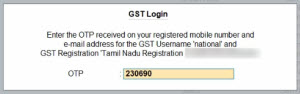
- Enter the OTP received on your registered mobile number.
Once you have logged in, the session will be valid for up to 30 days, which will ensure the safety and security of your activities. The GST Login & Logout screen appears, where you can view the details of your GST sessions, such as the name of the registration, GSTIN/UIN, and the validity.
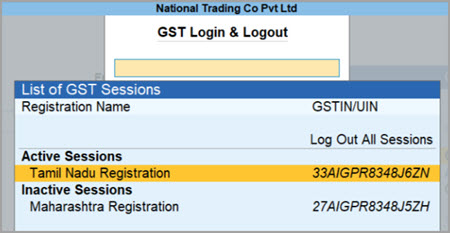
Log out of all GST session: Use this option anytime you want to log out of the GST session.
Reset GST Login: Use this option anytime you want to clear all of your GST login details, along with your active and inactive sessions.
- Press F1 (Help) > Troubleshooting > Reset GST Login.
- Press R to reset your GST login details.
- Press L to log out of the GST sessions, if you do not want to reset all your GST credentials.
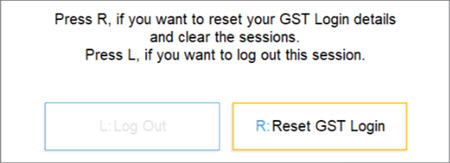
- Press Enter to confirm reset.
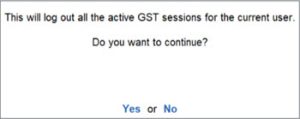
The GST login details will be cleared, after which you can enter your fresh details, as needed.
Questions & Answers
- What should I do if I face get an error during a 30-day GST session or while logging out?
If you get an error that interrupts your GST activities, TallyPrime will ask you to generate a new OTP and log in again to continue working.
If you are unable to log out or the login option is not available, reset the GST login details.- Press F1 (Help) > Troubleshooting > Reset Login > Reset GST Login.
If an error interrupts your GST activities, generate a new OTP and log in again to continue working.
- Press F1 (Help) > Troubleshooting > Reset Login > Reset GST Login.
- If I change the API session duration on the GST portal for my GSTIN, will my current session be affected?
Changing the API session duration on the GST portal does not affect your current GST session in TallyPrime. The new setting applies only to sessions created after the change.
To use the updated session duration, you need to start a new session by logging out from the current session or by resetting the GST login.
To reset, press F1 (Help) > Troubleshooting > Reset Login > Reset GST Login.
Once completed, generate a new OTP and log in again to continue working.


