
Set Up Bank Ledgers in TallyPrime
To set up TallyPrime for payments and receipts through a bank, you need to create and maintain your bank account details by creating bank ledgers.
Create a ledger under Bank Accounts.
Set Up Bank Account Details
- In the Ledger Creation/Alteration screen, update Bank Account Details.
- A/c Holder’s Name: By default, this is prefilled as the Company name. You can specify the name, as applicable.
- A/c No.: Enter the account number of your bank.
- IFS Code: Enter the IFS code for your bank.
An IFS code follows a unique format prescribed by each bank. Therefore, you will need to enter the code in that specific format.
- SWIFT Code: Applicable for international bank payments.
-
Bank Name: Select the bank name from the List of Banks.
The List of Banks is displayed only when TSS and internet connectivity are available. Additionally, the bank configurations depend on the bank you select.
- Branch: Enter the Branch name of the bank.
- Client Code: Enter the unique code given by the bank to their customer as an identifier.
Client Code will be displayed only when Bank Name is selected as Kotak Mahindra Bank (India), Bank of Baroda (India) or Yes Bank and its a mandatory field in payment instruction file. In case of Yes Bank this is mandatory field in payment instruction file in Delimited (|) format.
-
Press Ctrl+A to save.
Set Up Bank Configuration
- In the Ledger Creation/Alteration screen, enable Set/Alter Bank configuration.
- In the Bank Configuration screen, configure the cheque printing, Reconciliation, and e-Payments details.
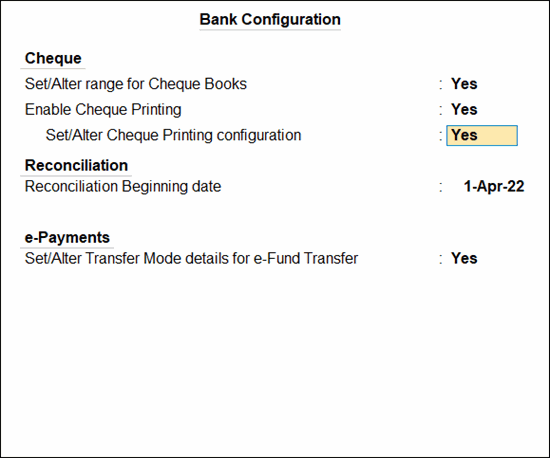
- Press Ctrl+A to save.


