Security Configuration in TallyPrime Server
As an administrator, use TallyPrime Server Monitor to configure security levels, assign permissions to users, and control access to company data and server operations.

Provide User Access | Monitoring Tool
As an administrator, use the Monitoring Tool to configure security levels and assign permissions for operations such as Backup, Restore, Create Company, and Split Company.
Configure Security
As an administrator, you can configure security in TallyPrime Server to control user access and permissions for company operations, Server Monitor, and server management activities.
If you permit only a required set of users to perform these operations, it will ensure better administration and enhance data security.
- Press Alt+K (TallyPrime Server) > Monitoring Tool.
The Monitoring Tool menu appears.

Create and Alter Security Levels
Create security levels to manage user permissions in TallyPrime Server, including access to company operations, monitoring, data export, user disconnection, and server configuration. Security levels can be modified or deleted as needed.
- Press Alt+K (TallyPrime Server) > Monitoring Tool > Security Level.

- In Security Levels for TallyPrime Server screen, enter a name for the Security Level in the List of Security Levels field.
- Press Enter to set permissions for the Security Level being created.
- Enable the required permissions for the Security Level. Configure permissions under the following sections:
- Company Data: Allow or restrict operations such as Create Company, Backup, Restore, Repair, and Split Company.
- TallyPrime Server: Rights to perform the following operations using TallyPrime Server Monitor can be allowed or restricted:
- Monitoring Data: Allows users to monitor data operations for the data locations they can access. If set to No, the respective users will not be able to monitor data operations. If set to Yes, the users will be able to view the data operations being done on data endpoints to which they have access.
- Allow disconnecting Company/Users: Allows users to disconnect companies or users from TallyPrime Server Monitor. If set to No, the Disconnect Users option in TallyPrime Server Monitor will be disabled for the respective users.
- Allow export server data: Allows users to export server data. If set to No, the Export Data option in TallyPrime Server Monitor will be disabled for the respective users.
Allow disconnecting Company/Users and Allow export server data are available only when Monitoring Data is set to Yes.
- Server Configuration: Allows users to access Manage Server and related configuration options. If set to No, the Manage Server option in TallyPrime Server Monitor will be disabled for the respective users, along with the accompanying options.

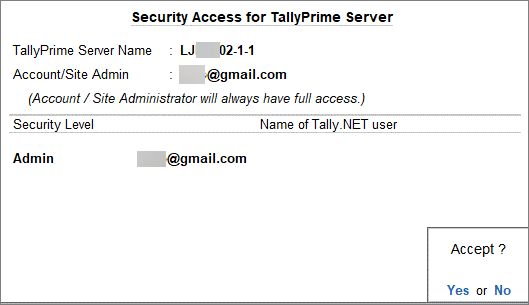
- Press Enter to return to Security Access for TallyPrime Server.
Repeat the steps to create another security level, or press Enter to save.

- To alter a Security Level: Place the cursor on the required Security Level and press Enter.
The Security Level screen will appear, where permissions can be configured. - To delete a Security Level:
- Place the cursor on the required Security Level and press Spacebar.
- Press Ctrl+A to accept.
- To alter a Security Level: Place the cursor on the required Security Level and press Enter.
Assign Security Levels
Use the User and Access screen in TallyPrime Server Monitor to assign predefined security levels to Tally.NET users and control their access permissions. Once a security level is assigned and saved for a user, it cannot be deleted.
- Press Alt+K (TallyPrime Server) > Monitoring Tool > User and Access.
- Select a Security Level from the Security List.
- Enter the Tally.NET ID of the user for whom Security Level needs to be assigned.
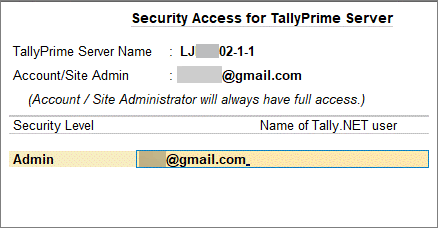
- After assigning Security Levels to the relevant Tally.NET users, press Enter to save the configuration.