
Install TallyPrime Server, Server Monitor, & Tally Gateway Server
Whether you are installing TallyPrime Server for the first time or upgrading from an earlier version, the Setup Manager guides you through the installation and configuration process.

- The required hardware is available.
- Ensure that TallyPrime Gold is installed. This enables you to configure TallyPrime Server during installation.
Install TallyPrime Server for the First Time | Install TallyPrime Server
If you are installing TallyPrime Server for the first time, the Setup Manager guides you through the installation.
The TallyPrime Server installation setup.exe includes three applications: TallyPrime Server, TallyPrime Server Monitor, and Tally Gateway Server. You must have Windows administrator rights to install TallyPrime Server.
- Download the TallyPrime Server setup.exe from the Tally website.
- Double-click the setup.exe file to open the TallyPrime Server Setup Manager.

- Press C (Configure) if you want to change the default settings.
- Configure the options such as the Application Path, Desktop Shortcut, Start Menu Entry Name, and so on.
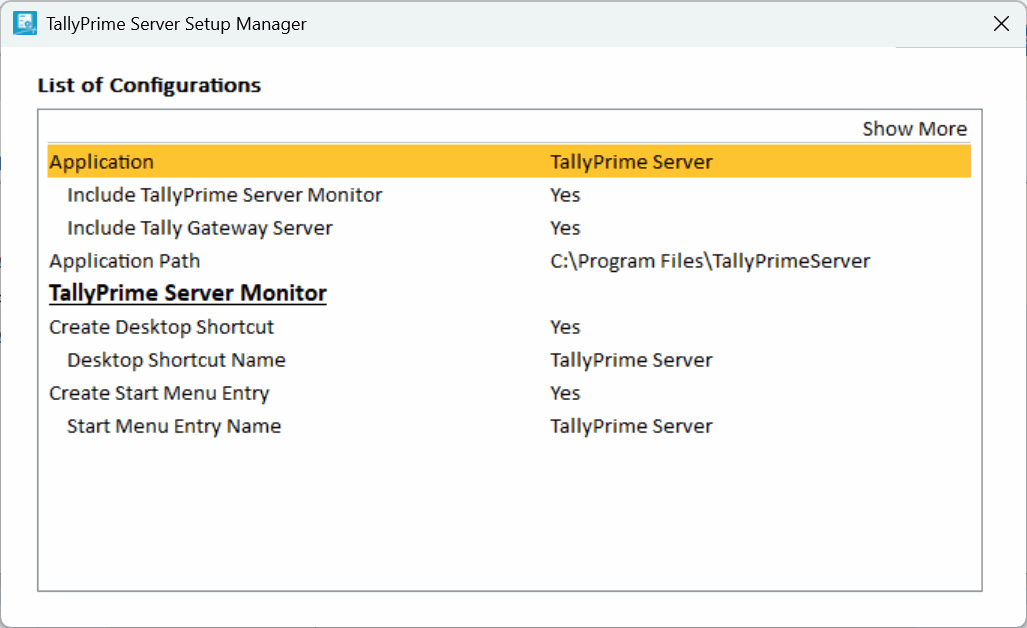
- Press Esc to save and go back to the TallyPrime Server Setup Manager screen.
- Configure the options such as the Application Path, Desktop Shortcut, Start Menu Entry Name, and so on.
- Press I (Install) to continue the installation.
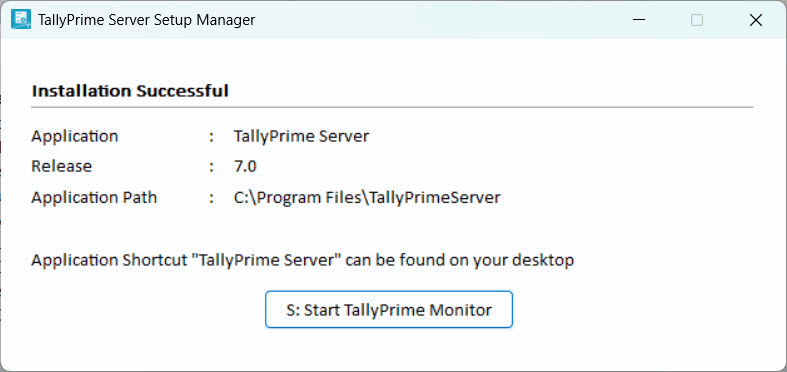
Ensure that exclusion rules are taken care of in the firewall and antivirus software.
Components of TallyPrime Server
The application folder in TallyPrime Server contains the following files:
- Setup.exe: Starts the Setup Manager, which is used to install the TallyPrime Server components.
- tallygatewayserver.exe: This is the Tally Gateway Server service.
- tallyserver.exe: This is the TallyPrime Server Monitor application.
- tssvc.exe: Runs the TallyPrime Server service that performs Data Server operations.
Install TallyPrime Server Monitor
As an organisation owner or administrator, if your requirement is limited to monitoring activities, you may choose to install only the TallyPrime Server Monitor.
You must have Windows administrator rights to install TallyPrime Server Monitor.
- Download the TallyPrime Server setup file from the Tally website.
- Double-click the setup.exe file to open the TallyPrime Server Setup Manager.
- Press C (Configure) to open the List of Configurations.
- Select TallyPrime Server Monitor as the Application, and press Ctrl+A to accept.
You can also configure other options such as the application path, desktop shortcut, Start menu entry, and so on.
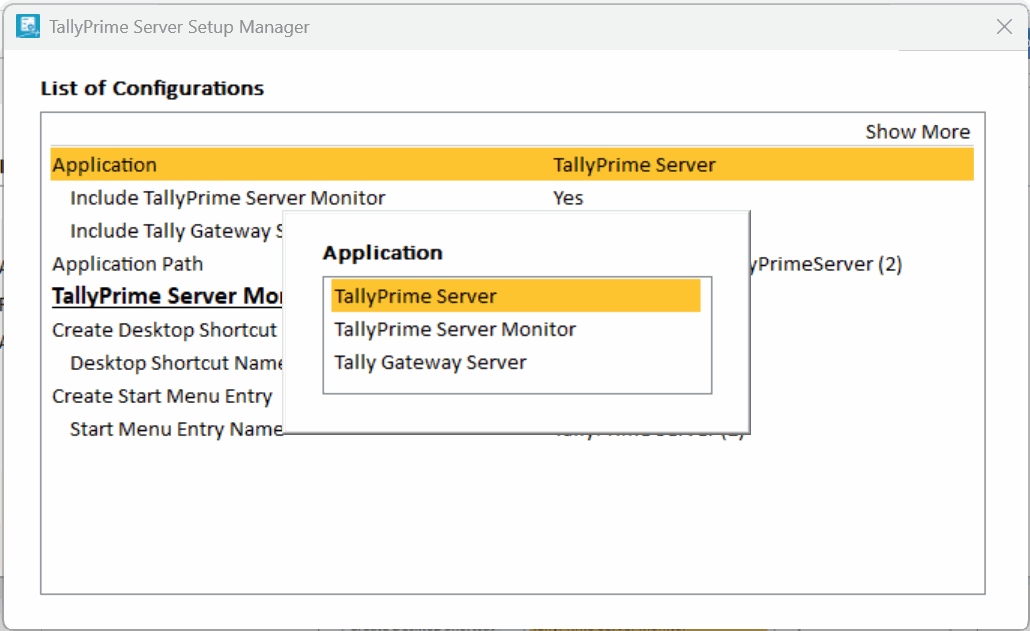
- Press Esc to save, and then I (Install) to continue the installation.
Install or Upgrade Tally Gateway Server
The current release of TallyPrime Server should be compatible with Tally Gateway Server. If an earlier version of the Tally Gateway Server is used, the following message appears:
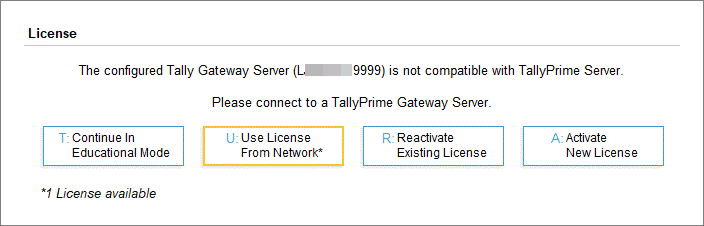
To continue, you have to install the latest version of Tally Gateway Server.
- Download the TallyPrime Server setup file from the Tally website.
- Double-click the setup.exe file to open the TallyPrime Server Setup Manager.
- Press C (Configure) to open the List of Configurations.
- Select Tally Gateway Server as the Application, and press Ctrl+A to accept.
You can also configure other options such as the application path, desktop shortcut, Start menu entry, and so on.
- Press Esc to save, and then I (Install) to continue the installation.
Now Tally Gateway Server is installed successfully or compatible with the TallyPrime Server.
Tally Gateway Server Compatibility Check/Installation
The current release of TallyPrime Server should be compatible with Tally Gateway Server. If a lower version of the Tally Gateway Server is used, then TallyPrime Server displays the following message:
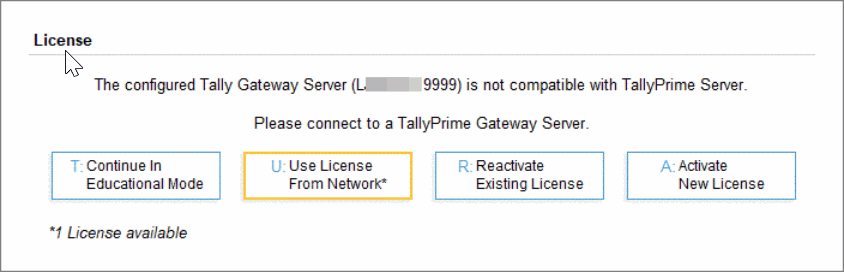
To continue, you have to install the latest version of Tally Gateway Server.
- Download the TallyPrime Server setup file from the Tally website.
- Double-click the setup.exe file to open the TallyPrime Server Setup Manager.
- Press C (Configure) to open the List of Configurations.
- Select Tally Gateway Server as the Application, and press Ctrl+A to accept.
You can also configure other options such as the application path, desktop shortcut, Start menu entry, and so on.
- Press Esc to save, and then I (Install) to continue the installation.
Now Tally Gateway Server is installed successfully or compatible with the TallyPrime Server.
Questions & Answers
- What is Tally Gateway Server? What is the need for this?
tallygatewayserver.exe: This is the installation file for Tally Gateway Server service. - What is TallyPrime Server Monitor application? Why am I getting TallyPrime Server Monitor while installing TallyPrime Server?
tallyserver.exe: This is the TallyPrime Server Monitor application, which enables you to monitor and manage activities related to users and companies connected to TallyPrime Gold. - What is TallyPrime Server service? What is the need for TallyPrime Server service?
tssvc.exe: This is the TallyPrime Server service that facilitates the functions of the Data Server. It runs in the background. You can go to your Windows Task Manager > Services to view it.


