
Record Sales of Goods Without TCS — Section 206C(1H)
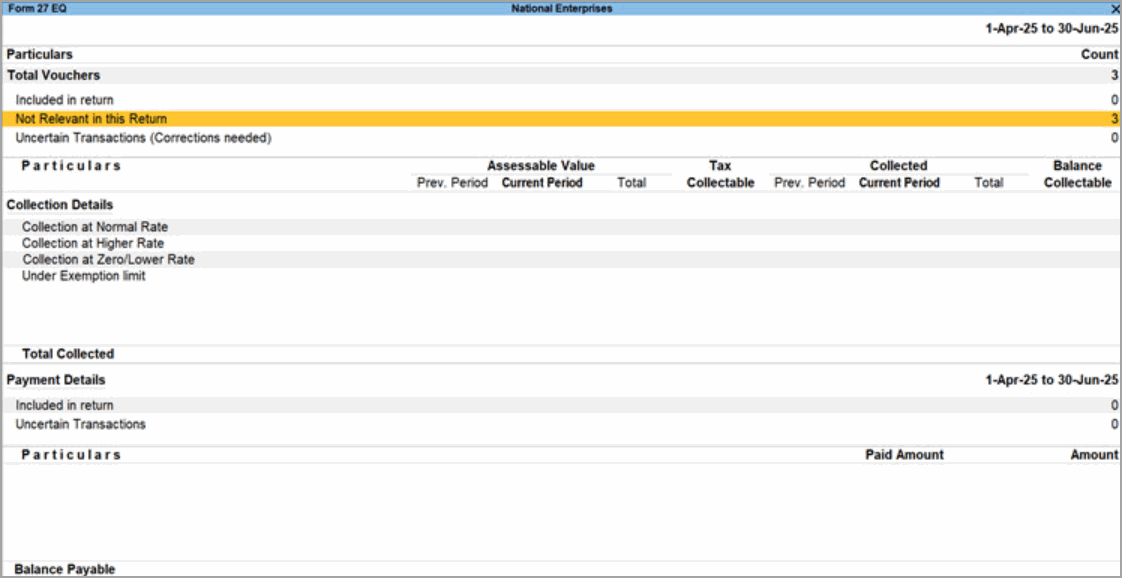
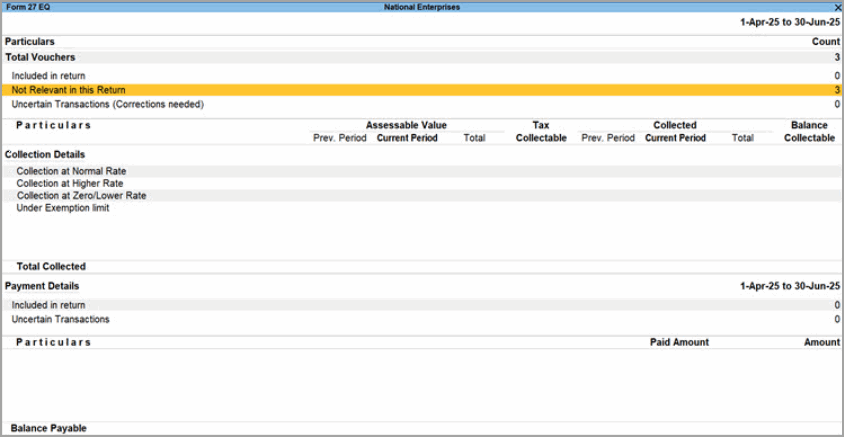
Section 206C(1H), which applied TCS on the sale of any goods, has been omitted with effect from 1 April 2025. Such transactions are no longer subject to TCS and are displayed under Not Relevant in this Return in the TCS Form 27EQ report.
To learn how to migrate TCS data from TallyPrime Release 1.1.3 or earlier refer to Migrate TCS Data After Upgrading from Release 1.1.3 or Earlier.
For transactions from 1 April 2025, use the following methods to exclude such transactions from the Form 27EQ return and e-Return text file.
Record Sales of Goods on Accrual Basis Without TCS
For sales of goods on accrual basis, you can use any of the following methods:
- Create a new sales ledger or stock item with Is TCS Applicable set to Not Applicable.
- Set Is TCS Applicable to Not Applicable in an existing sales ledger or stock item if your company data is split as per the new financial year.
- Override the Nature of Goods as Not Applicable while recording a particular sales transaction.
Create a new sales ledger
Creating a new sales ledger with Is TCS Applicable set to Not Applicable is recommended when your existing sales ledger contains transactions before 1 April 2025. Altering TCS applicability in an existing sales ledger can affect returns applicable before 1 April 2025.
- Press Alt+G (Go To) > Create Master > Ledger.
- Enter the Name of the ledger, and in Under select Sales Account.
- Under Statutory Details, set Is TCS Applicable to Not Applicable.
- Press Ctrl+A to save the ledger.
Use the new sales ledger while recording the relevant TCS sales transactions.
The transaction will be displayed under Not Relevant in this Return in the TCS Form 27EQ report.
Create a new stock item
You can also create a new stock item with Is TCS Applicable set to Not Applicable and use it while recording the relevant sales transactions.
Disable TCS applicability in an existing sales ledger
When your company data is split as per the new financial year, you can continue using an existing sales ledger for transactions starting from 1 April 2025 by setting Is TCS Applicable to Not Applicable.
- Press Alt+G (Go To) > Alter Master > Ledger.
- Select the Sale of Any Goods (Accrual) or Sale of Any Goods (Realisation) ledger.
- Set Set/Alter other Statutory details to Yes.
- Under TCS, set Is TCS Applicable to Not Applicable.
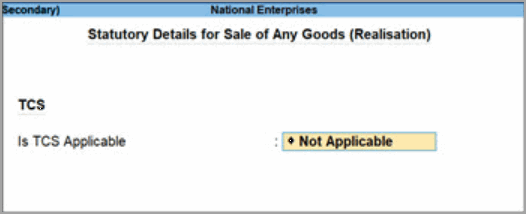
- Press Ctrl+A to save the ledger.
Use the new sales ledger while recording the relevant TCS sales transactions.
The transaction will be displayed under Not Relevant in this Return in the TCS Form 27EQ report.
Disable TCS applicability in an existing stock item
When your company data is split as per the new financial year, you can continue using an existing stock item for transactions starting from 1 April 2025 by setting Is TCS Applicable to Not Applicable.
- Press Alt+G (Go To) > Alter Master > Stock Item.
- Select the required stock item.
- Set Set/Alter other Statutory details to Yes.
- Under TCS, set Is TCS Applicable to Not Applicable.
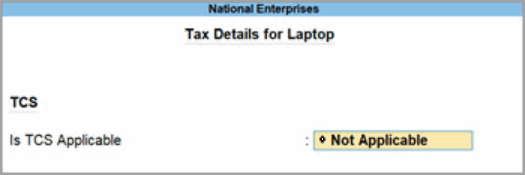
- Press Ctrl+A to save the stock item.
Use the new sales ledger while recording the relevant TCS sales transactions.
The transaction will be displayed under Not Relevant in this Return in the TCS Form 27EQ report.
Override TCS Nature of Goods in a Transaction
Use this method when you want to continue using an existing sales ledger where TCS is applicable, but do not want to calculate TCS for a particular sales transaction.
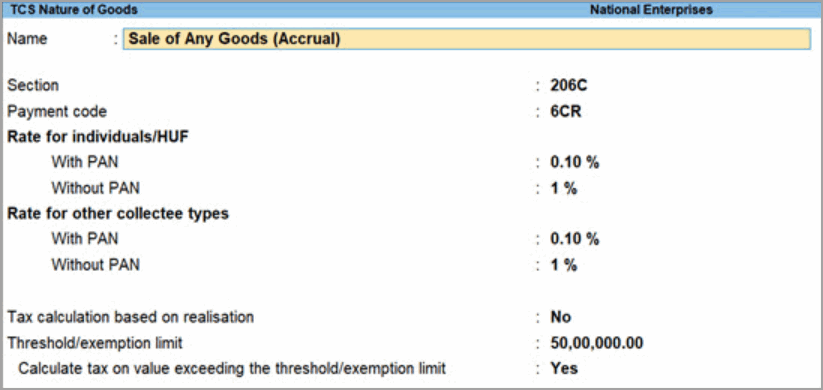
Create a TCS Nature of Goods
- Create a TCS Nature of Goods, for example, Sale of Any Goods (Accrual).
Assign the TCS Nature of Goods to the Sales Ledger
- Press Alt+G (Go To) > Alter Master > Ledger.
- Select the existing sales ledger where TCS is applicable.
- Set Set/Alter other Statutory details to Yes.
- Under TCS, select the Nature of Goods created earlier.
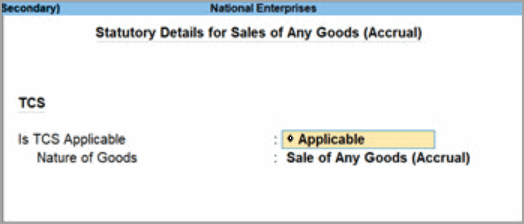
- Press Ctrl+A to save the ledger.
You can now override the Nature of Goods while recording the relevant TCS sales transactions.
Override the Nature of Goods in the Sales Transaction
In the Sales voucher:
- Press F12 (Configure) and set Use TCS Allocations to Yes.
- Enter the stock item details.
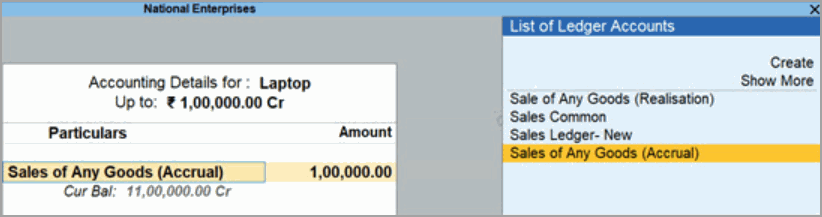
- In the Accounting Details for screen, select Sales of Any Goods (Accrual) from the List of Ledger Accounts.
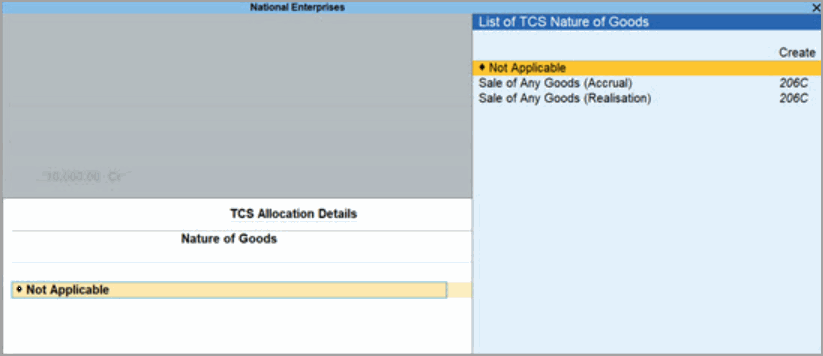
- In TCS Allocation Details, change Nature of Goods from Sale of Any Goods (Accrual) to Not Applicable.
- Save the voucher by selecting O: Override (accept without conflicts).
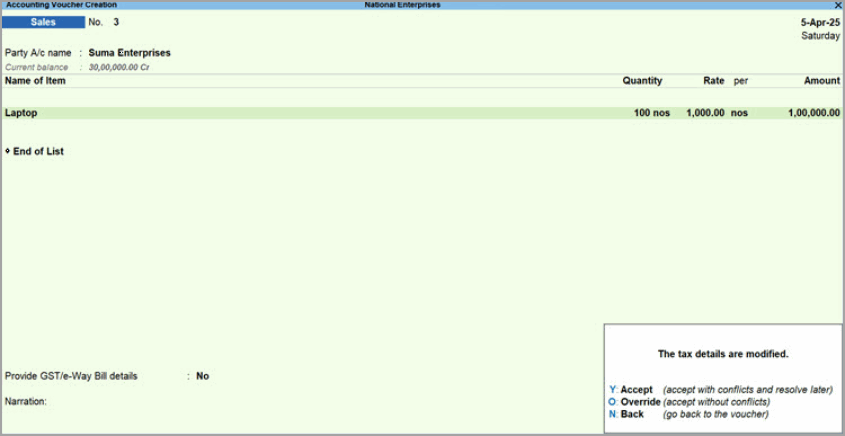
The transaction will be displayed under Not Relevant in this Return in the TCS Form 27EQ report.
Record Sales of Goods on Realisation Basis Without TCS
For realisation-based transactions, you can use either of the following methods to prevent the transactions from being reflected in the TCS Form 27EQ report and e-TCS returns.
Record a Realisation-Based Receipt Without a Duty Ledger
- Record a Receipt voucher without a duty or tax ledger.
- Enter the Cash or Bank ledger in the Account field.
- Under Particulars, enter a party ledger for which TCS applicability is enabled.
- Do not select any duty or tax ledger.
- Press Ctrl+A to save the voucher.
The transaction will be displayed under Not Relevant in this Return in the TCS Form 27EQ report.
Record a Realisation-Based Receipt Using TCS Allocations
- Record a Receipt voucher with a TCS Duty ledger.
- Press F12 (Configure) and set Use TCS Allocations to Yes.
- Enter the account and party details.
Select a party ledger for which TCS applicability is enabled. - Select Sale of Any Goods (Realisation) or the required Duty ledger.
- In TCS Allocation Details, set Nature of Goods to Not Applicable.
- Press Ctrl+A to save the voucher.
The transaction will be displayed under Not Relevant in this Return in the TCS Form 27EQ report.


