
Map Data with & Without Column Headers in Excel
When preparing data in Excel for import, you might have files that include column headers (for example, Party Name, GSTIN, Amount, etc.) or files without any headers where data starts directly from the first row.
TallyPrime allows you to import such data easily by creating a Mapping Template that maps the fields in your Excel file with the corresponding fields in TallyPrime.
Map Data with Column Headers
Let’s say you have entered the data in Excel with column headers, as shown below.

In the Mapping Template Creation screen:
- Set Excel Data has column headers to Yes.
- Under Field (TallyPrime), map the following fields with their corresponding columns in Excel:
- Name with Party.
- Group Name with Debtor/Creditor.
- Address with Location.
- GST Registration – GSTIN/UIN with GSTIN.
- Ledger – Opening Balance with Op.Bal.

- Press Ctrl+A to save the mapping template and import the data using the saved template.
Map Data Without Column Headers
Let’s say your Excel file does not have column headers for any or all columns, you can specify the columns during mapping.

In the Mapping Template Creation screen:
- Set Excel Data has column headers to No.
- Under Field (TallyPrime), map the following fields with their corresponding columns in Excel:
- Name with column A.
- Group Name with column B.
- Address with column C.
- GST Registration – GSTIN/UIN with column D.
- Ledger – Opening Balance with column E.
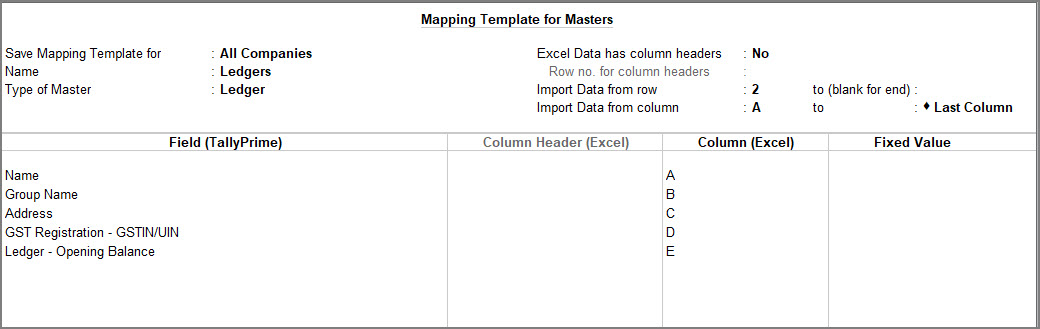
- Press Ctrl+A to save the mapping template and import the data using the saved template.
Is this information useful?
YesNo


