
Map Data from Multiple Rows & Columns in Excel
When preparing data in Excel for import, you might have entered details in different formats, either spread across multiple rows (for different parties or vouchers) or across multiple columns (for various items or components within a voucher).
TallyPrime allows you to import such data easily by creating a Mapping Template that maps the fields in your Excel file with the corresponding fields in TallyPrime.
Map Data from Multiple Rows
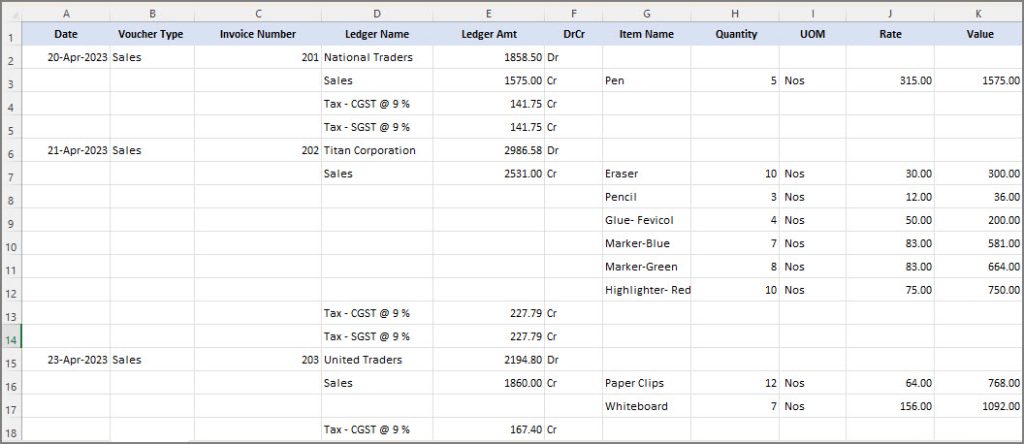
Let’s say you have entered the sales voucher details across multiple rows in Excel, as shown below.
In the Mapping Template Creation screen:
- Save Mapping Template for: Select All Companies.
- Name: Enter a name for the mapping template, for example, Sales.
- Type of Voucher: Select Accounting Vouchers.
- Set Excel Data has column headers to Yes and Row no. for column headers to 1.
- Import Data from row: Enter 2.
- Under Field (TallyPrime), map the following fields with their corresponding column headers in Excel:
- Voucher Type Name with Voucher Type.
- Voucher Date with Date.
- Voucher Number with Invoice Number.
- Ledger Name with Ledger Name.
- Ledger Amount with Ledger Amt.
- Ledger Amount Dr/Cr with DrCr.
- Item Name with Item Name.
- Billed Quantity with Quantity.
- Item Rate with Rate.
- Item Amount with Value.
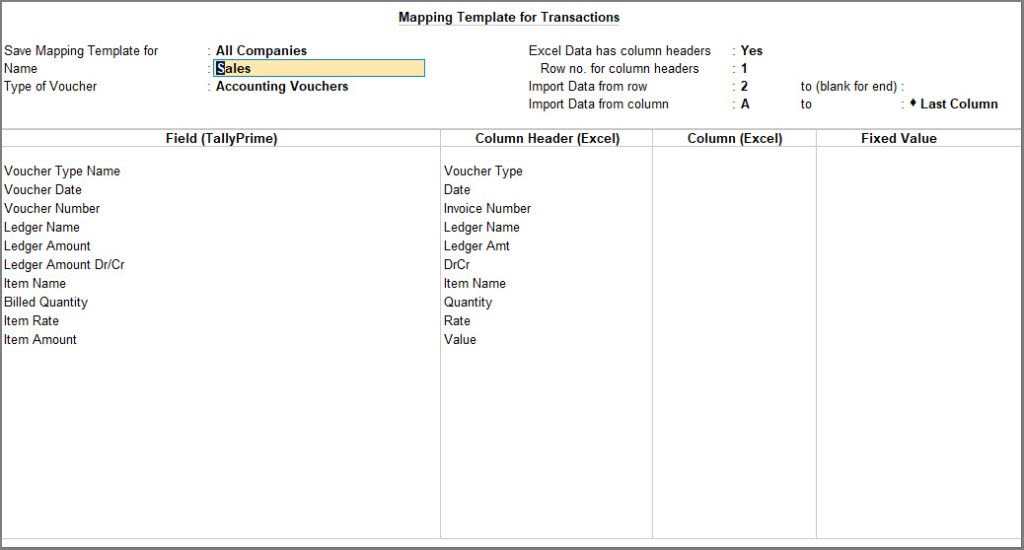
- Press Ctrl+A to save the mapping template and import the data using the saved template.
Map Data from Multiple Columns
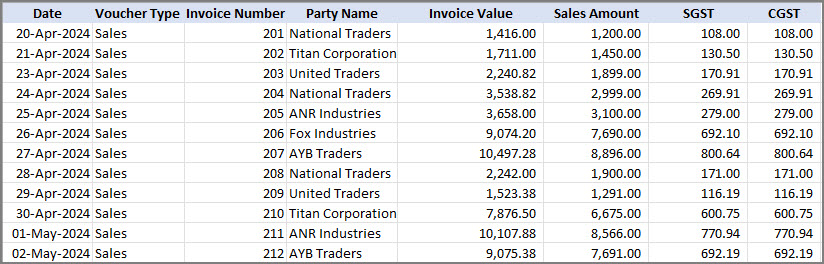
Let’s say you have entered the sales voucher details in multiple columns in Excel, as shown below.
In the Mapping Template Creation screen:
- Save Mapping Template for: Select All Companies.
- Name: Enter a name for the mapping template, for example, Sales Voucher Without Inventory.
- Type of Voucher: Select Accounting Vouchers.
- Set Excel Data has column headers to Yes and Row no. for column headers to 1.
- Import Data from row: Enter 2.
- Under Field (TallyPrime), map the following fields with their corresponding column headers in Excel:
- Voucher Number with Invoice Number.
- Change Mode: Select Specify Fixed Field Value and enter Accounting Invoice under Fixed Value.
- Under Top Ledgers (Party, Cash, Bank, & so on),
- Map Ledger Name with Party Name
- Ledger Amount with Invoice Value.
- For Ledger Amount Dr/Cr, select Specify Fixed Field Value and enter Dr under Fixed Value.
- Under Bottom Ledgers (Tax, Discount, & so on),
- Map the Sales ledger by selecting Specify Fixed Field Value for Ledger Name and entering Sales under Fixed Value.
- Map Ledger Amount with Sales Amount and set Ledger Amount Dr/Cr to Cr using Specify Fixed Field Value.
- To map the CGST ledger,
- Select Specify Fixed Field Value for Ledger Name and enter CGST under Fixed Value.
- Map Ledger Amount with CGST and set Ledger Amount Dr/Cr to Cr using Specify Fixed Field Value.
- Similarly, to map the SGST ledger,
- Select Specify Fixed Field Value for Ledger Name and enter SGST under Fixed Value.
- Map Ledger Amount with SGST and set Ledger Amount Dr/Cr to Cr using Specify Fixed Field Value.
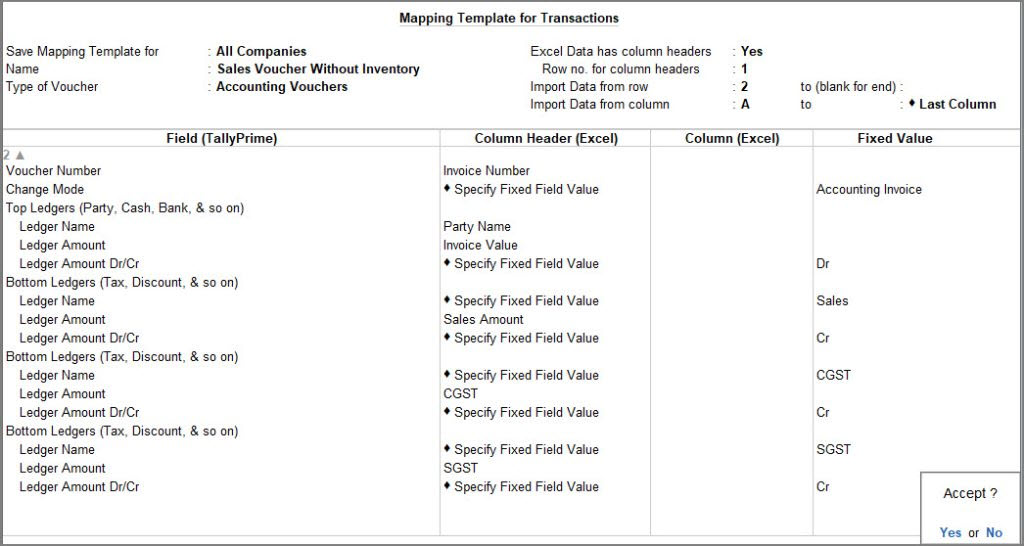
- Press Ctrl+A to save the mapping template and import the data using the saved template.
To refer to some sample data and corresponding Mapping Templates, click here.


