
Exclude Rows in Excel for Importing Data into TallyPrime
You can specify the conditions based on which data from one or more rows should be excluded while importing the data.

Let’s say you have entered transaction details with parties in an Excel worksheet in the following manner:

Now, let’s say you want to exclude rows that contain the entries for Sunday.
In the Mapping Template Creation screen,
- Set the option Exclude Rows in Excel to Yes.
In case you do not see this option, press F12 (Configure) > set the option Exclude rows in Excel while importing Data as Yes. - In the Conditions for Excluding Rows subform, select the Column Header (Excel) where the data in the row is to be excluded.
- Select the Condition from the List of Conditions.
- Enter the value based on which you want to exclude the row while importing, in this case, Sunday.
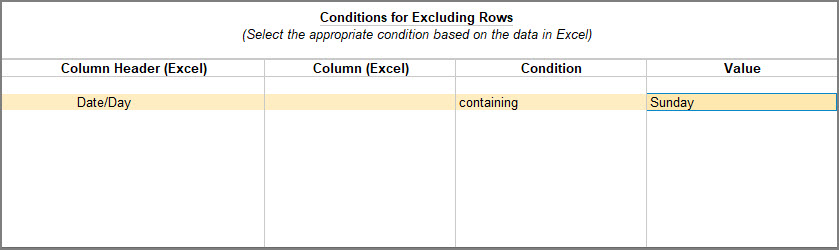
- Press Ctrl+A to save the mapping template and import the data using the saved template.
You can select more than one Column Header or more conditions for the same Column Header for excluding rows in the Excel worksheet.
Is this information useful?
YesNo


