
Track Outstanding Receivables & Payables
Use the Outstandings reports in TallyPrime, including Receivables, Payables, Ledger Outstandings, and Group Outstandings, to view pending balances, monitor outstanding amounts, check due dates, identify overdue bills, and analyse outstanding amounts age-wise.
In these reports, receivables appear as debit balances and payables as credit balances. For parties that are both customers and suppliers, TallyPrime displays a net outstanding balance, showing either a receivable or payable amount based on the current balance position.
You can also use the Outstandings reports to settle outstanding bills, share outstanding statements with customers, and send reminder communications to support collections and payment follow-ups.

Ensure that:
- Bill-wise tracking is enabled, if invoice-level visibility is required.
- You have the required access rights to view outstandings reports.
Review Receivables and Ageing | Bills Receivable
Use the Receivables report to review customer outstanding amounts, due dates, overdue bills, and ageing analysis.
- Go to Gateway of Tally > Display More Reports > Statements of Accounts > Outstandings > Receivables.
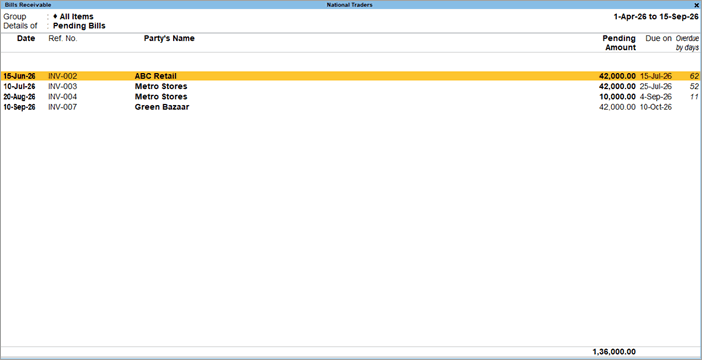
- Review the outstanding bills, party names, pending amounts, due dates, overdue days, and other details.
- Press F12 (Configure) to set the values you want to view.
- To view only overdue bills, use Basis of Values to select Overdue Bills in Type of Bills.
Alternatively, you can use Alt+G (Go To) > Overdue Receivables.
- Press F6 (Ageing Method) to configure the report view as per ageing by bill dates or by due dates and set the ageing windows.
- Select any outstanding line and press Enter to show/hide the transaction details.
- Press Enter on the transaction details to view the voucher in alteration mode.
Review Payables and Ageing
Use the Payables report to review supplier outstanding amounts, due dates, overdue bills, and ageing analysis.
- Go to Gateway of Tally > Display More Reports > Statements of Accounts > Outstandings > Payables.
- Review the outstanding bills, party names, pending amounts, due dates, overdue days, and other details.
- Press F12 (Configure) to set the values you want to view.
- To view only overdue bills, use Basis of Values to select Overdue Bills in Type of Bills.
Alternatively, you can use Alt+G (Go To) > Overdue Payables.
- Press F6 (Ageing Method) to configure the report view as per ageing by bill dates or by due dates and set the ageing windows.
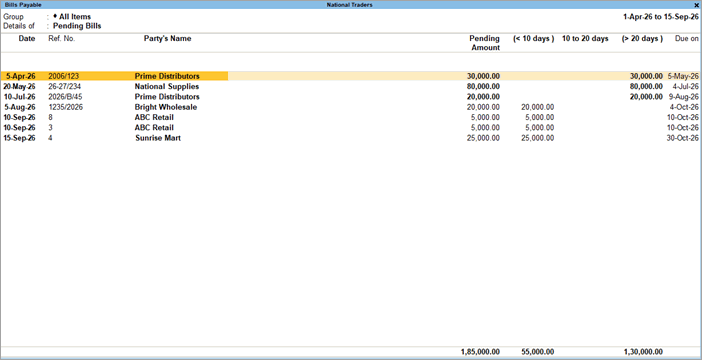
- Select any outstanding line and press Enter to show/hide the transaction details.
- Press Enter on the transaction details to view the voucher in alteration mode.
Review Ledger-wise Outstanding Receivables, Payables, and Ageing
Use the Ledger Outstandings report to review detailed outstanding transactions for a specific customer or supplier.
- Go to Gateway of Tally > Display More Reports > Statements of Accounts > Outstandings > Ledger.
- Select the required customer/supplier ledger from the List of Ledgers.
- Review the outstanding balances, due dates, overdue days, and other bill details.
- Press F12 (Configure) to set the values you want to view.
- Press F6 (Ageing Method) to configure the report view as per ageing by bill dates or by due dates and set the ageing windows.
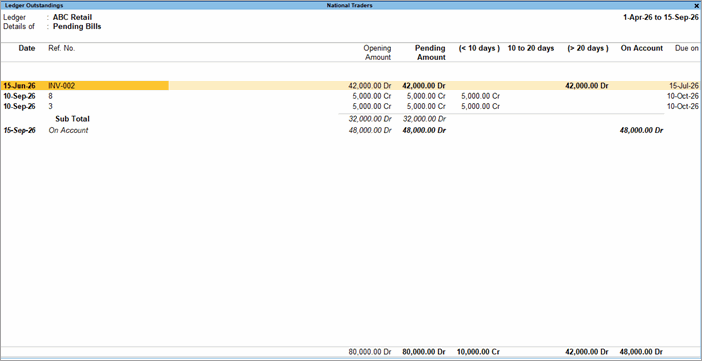
- Select any outstanding line and press Enter to show/hide the transaction details.
- Press Enter on the transaction details to view the voucher in alteration mode.
Review Group-wise Outstanding Receivables, Payables, and Ageing
Use the Group Outstandings report to analyse outstanding balances across customer and supplier groups.
- Go to Gateway of Tally > Display More Reports > Statements of Accounts > Outstandings > Group.
- Select the required group, such as Sundry Debtors or Sundry Creditors.
- Review the outstanding balances displayed for the debtors and creditors. In this report, amounts shown in the Credit column represent payables, while amounts shown in the Debit column represent receivables.
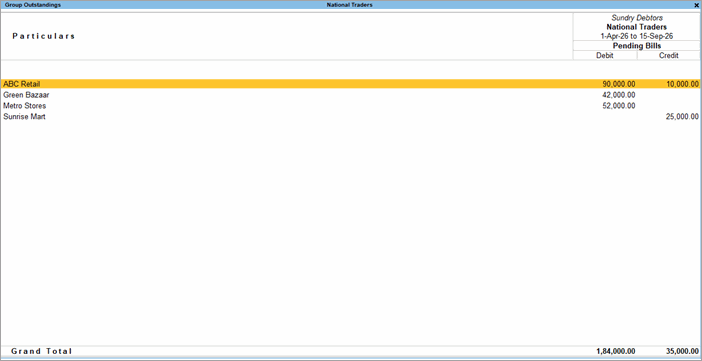
- Press F5 (Ledger-wise) to view the outstanding amount for each customer/supplier.
- Press Enter on a ledger to drill down and view the list of outstanding transactions.
- Select any outstanding line and press Enter to show/hide the transaction details.
- Press Group Outstandings report in TallyPrimeon the transaction details to view the voucher in alteration mode.
- Press F6 (Ageing Method) to configure the report view as per ageing by bill dates or by due dates and set the ageing windows.
- Press Ctrl+F8 (Bill-wise) to view the due date, number of days overdue, and so on for each bill.
To understand bill-wise and on-account tracking, refer to Flexible Tracking of Receipts, Payments, and Outstanding Amounts. - Press F12 (Configure) to show the values you want to view.
Send Outstanding Statements and Reminders
Open the Group Outstandings report for the customer group whose outstanding invoices require follow-up.
- Select the subgroups and customers to be included in the reminder using Ctrl+Space Bar.
- Choose the required communication method, select Reminder Letter or Ledger Outstanding as required.
- Verify the communication details, select the required ageing interval, and send the communication.
Outstanding statements or reminders are generated and shared using the selected communication channel.
Communication options
- Alt+M (Share) > Current under E-mail > review the details > E-mail.
Sends the communication to configured e-mail IDs. - Alt+M (Share) > Current under WhatsApp > WhatsApp.
Sends the communication to configured WhatsApp numbers. - Alt+E (Export) > Current > Export.
Saves the communication to the folder path configured for exported files. - Alt+P (Print) > Current > Print.
Prints the communication using the configured printer.
Q&A
- Should receivables and payables be tracked party-wise or bill-wise?
Track receivables and payables party-wise when you need an overall view of the amount due from each customer or owed to each supplier. Track them bill-wise when you need to monitor individual invoices or bills, due dates, overdue amounts, and pending balances. - What does an ageing period indicate?
Ageing indicates the period for which an amount has remained outstanding, based on the invoice date or due date selected in the report. - Why am I not able to see the Outstandings report under Statements of Accounts in Gateway of Tally?
The Outstandings report is available only when Bill-wise tracking is enabled.
To view the Outstandings report in the Gateway of Tally, set Enable Bill-wise entry to Yes for your company in F11 (Features). - Why does the same party appear under Debit in some cases and Credit in others?
If a party is involved in both sales and purchases, the report displays the net outstanding balance. The balance appears under Debit when the party owes money to your business and under Credit when your business owes money to the party. - Should an outstanding supplier bill from a previous financial year be deleted?
Deleting a bill payable from a closed or audited financial year can affect outstanding balances, reports, and reconciliations. If the transaction has already been accounted for in statutory or audited records, consider passing an adjustment journal entry instead of deleting the bill.


