Manage Mapping Templates for Importing Data
You can create, alter, or delete Mapping Templates in TallyPrime to manage how data from Excel files is mapped to the corresponding fields in TallyPrime.
Create Mapping Templates
You can create Mapping Templates for Masters or Transactions, depending on the type of data you want to import. Map the fields in TallyPrime to the corresponding columns in your Excel worksheet and save the template for use during import.
For Masters

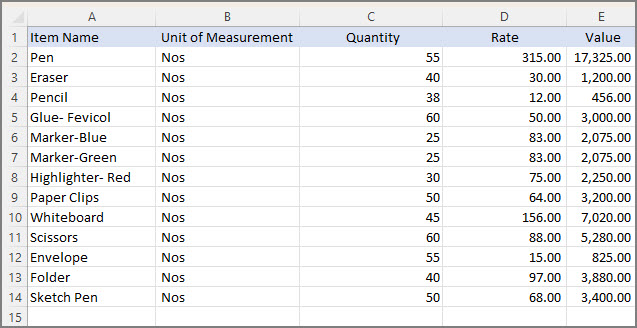
Say you maintain all the stock item details of your company for the financial year or quarter-wise in a worksheet named Sheet1 in the Excel file named Item List.xlsx.
Let’s consider the following sample data for ease of understanding.
- Press Alt+O (Import) > Manage > Mapping Templates > MASTERS > Create.
- Provide details of the Excel file for which you need to create a template, and press Enter.
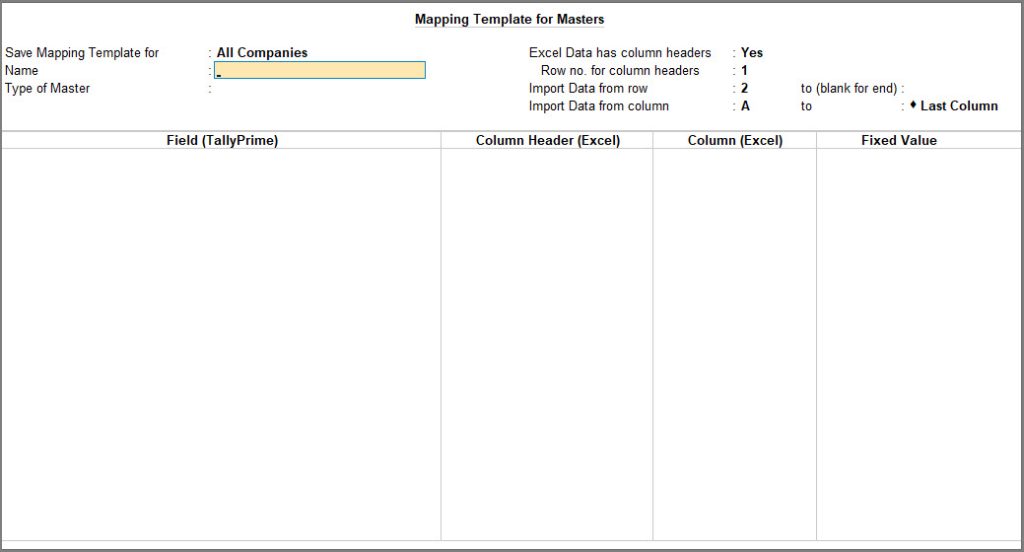
- Provide details required for saving the mapping template.
- Provide row and column details of the Excel worksheet.
- Map Field (TallyPrime) with Column Header (Excel) or Column (Excel).
Name and Group Name are mandatory fields for creating a mapping template for Accounting Masters.
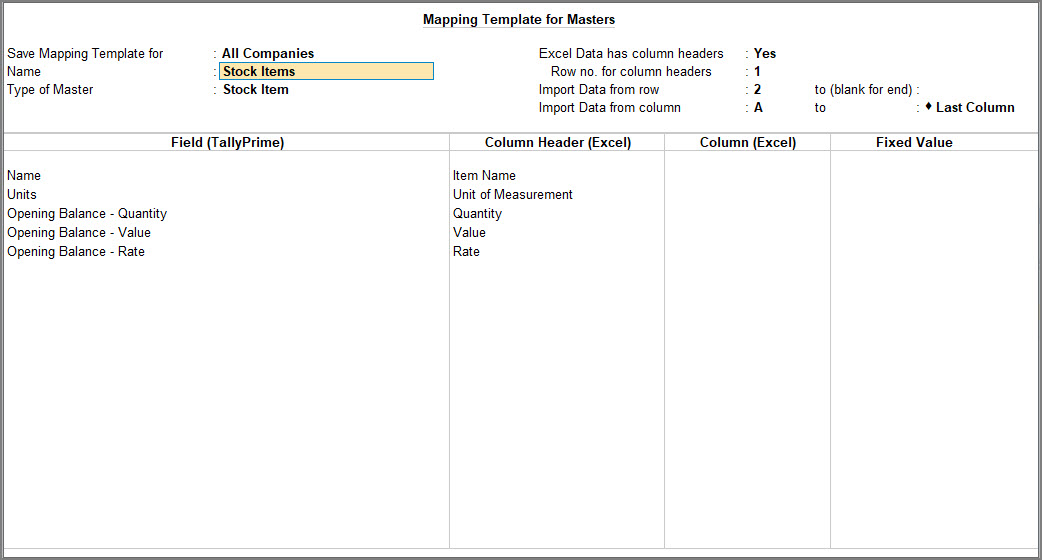
- Press Ctrl+A to save the mapping template and import the data using the saved template.
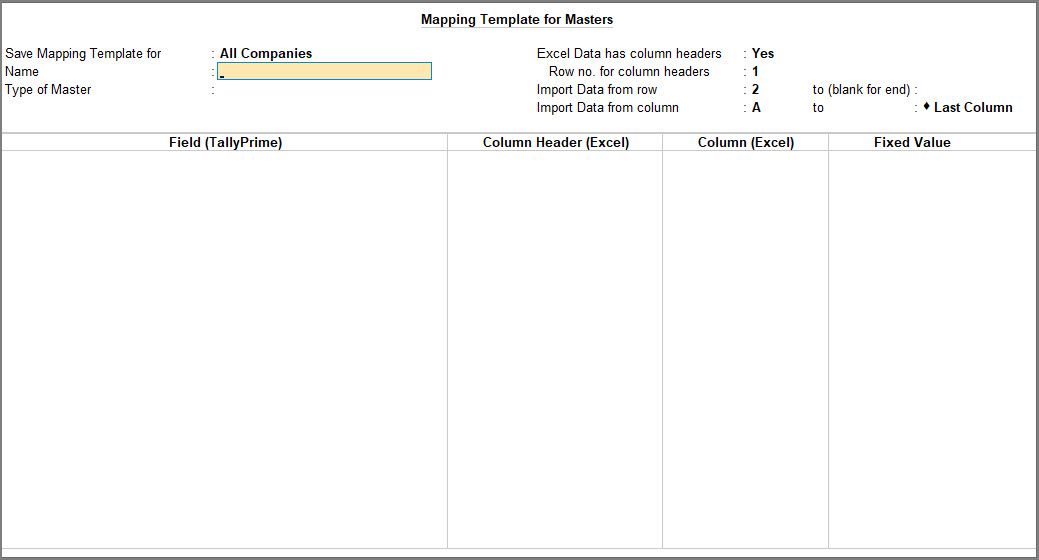
The template gets saved under the config > excelmaps folder available under the folder where your TallyPrime application is installed. You can use this template next time you import data from the Sheet1 worksheet.
For Transactions
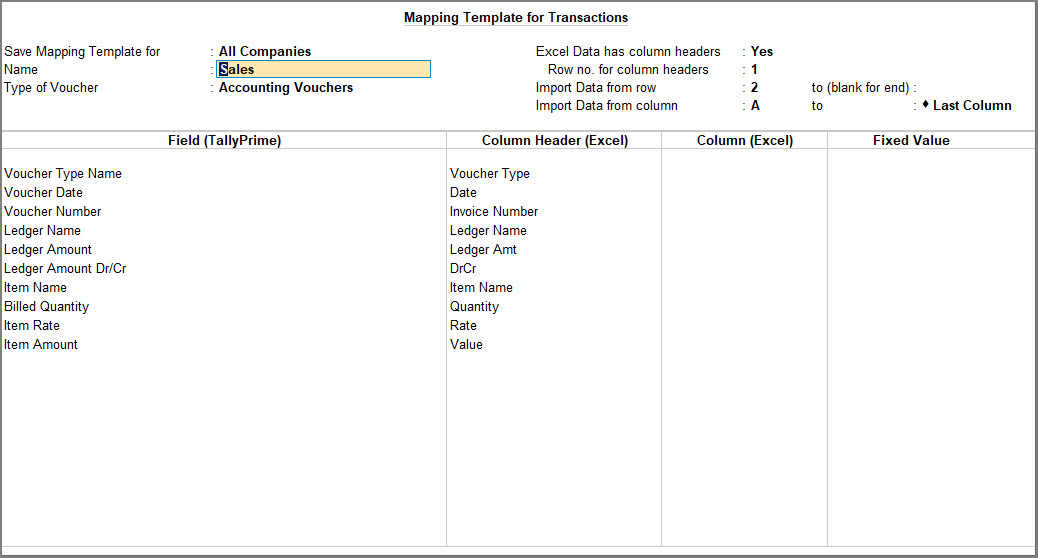
Say you maintain all the Sales transaction details of your company for the financial year or quarter-wise in a worksheet named Sales Bills in the Excel file named Sales Transactions Q1.xlsx. Let’s consider the following sample data for ease of understanding.
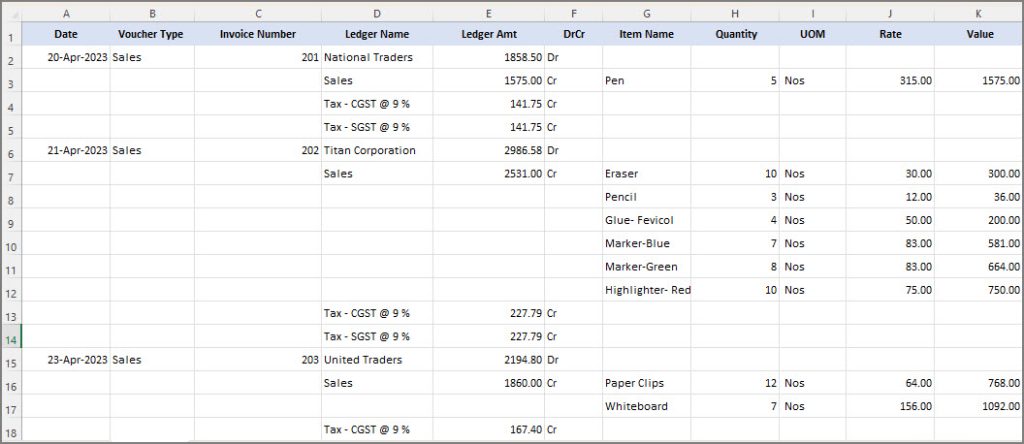
You can use the Ledger Details from Multiple Rows option in the mapping template to easily import this data into TallyPrime.
- Press Alt+O (Import) > Manage > Mapping Templates > TRANSACTIONS > Create.
- Provide details of the Excel file for which you need to create a template, and press Enter.
- Provide details required for saving the mapping template.
- Provide row and column details of the Excel worksheet. This is similar to how you would do in case of masters.
- Map Field (TallyPrime) with Column Header (Excel) or Column (Excel).
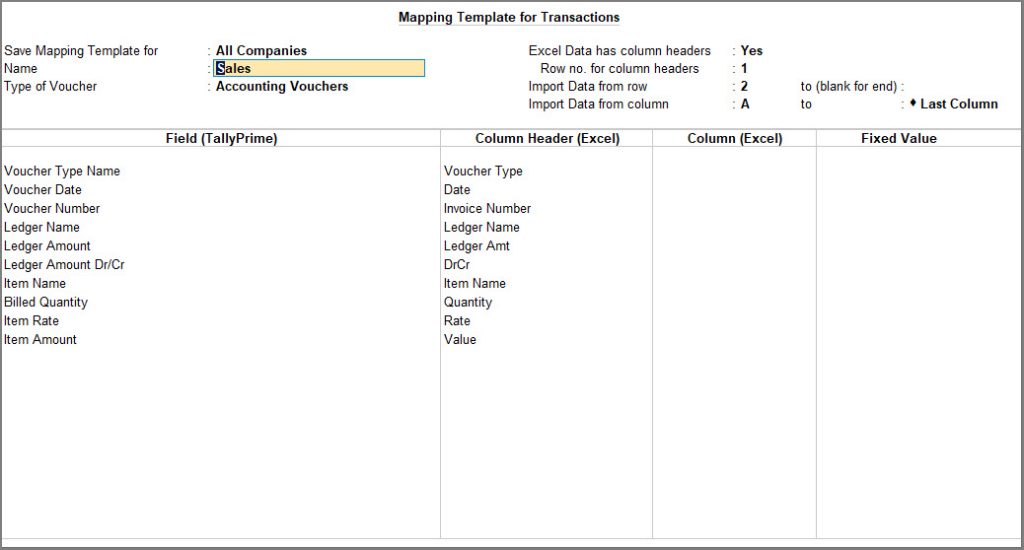
- Press Ctrl+A to save the mapping template and import the data using the saved template.
Alter Mapping Templates
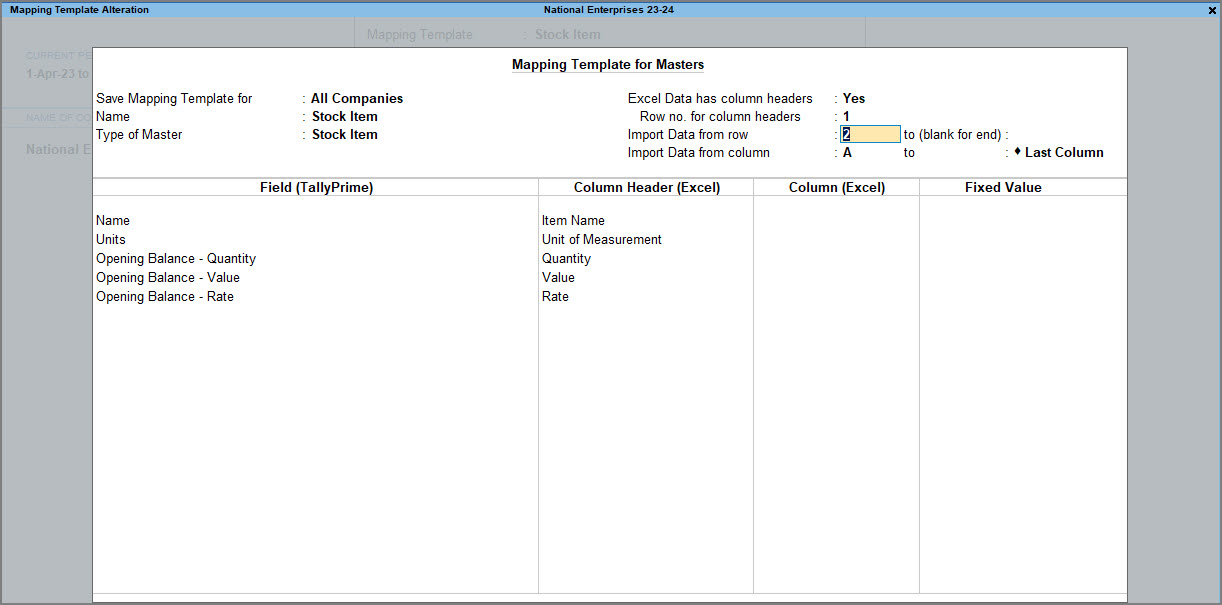
After saving a mapping template, you can alter the same in the Mapping Template Alteration screen.
For example, you may have created a mapping template for the list of Stock items in Excel and now you want to alter the row number from which you want to import the data from.
- Press Alt+O (Import) > Manage > Mapping Templates > MASTERS > Alter.
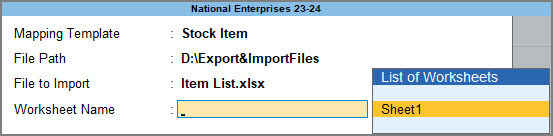
- Provide details for the mapping template that needs to be altered.
- Select the Mapping Template that you want to alter.
- Specify the File Path.
- Select the File to Import.
- Select the Worksheet Name.
The Mapping Template Alteration screen appears, as shown below:
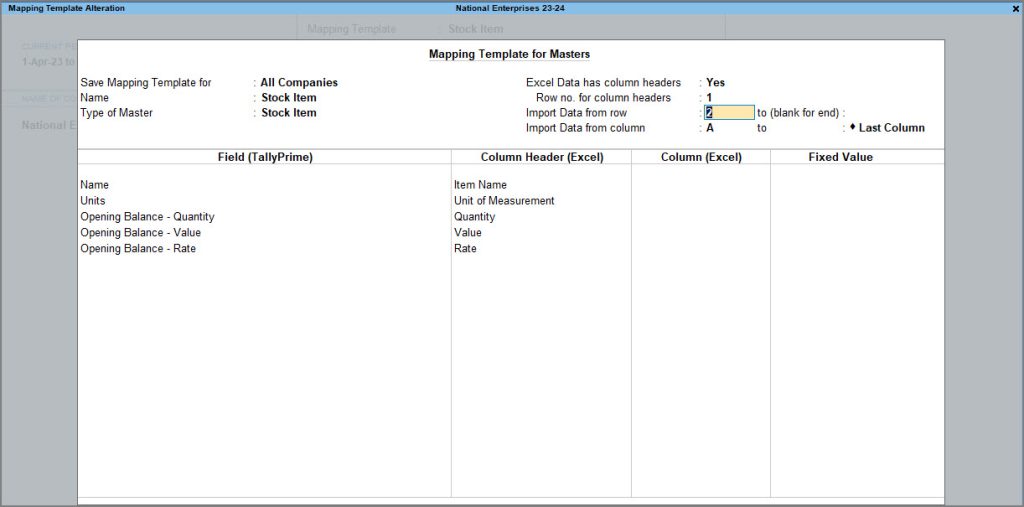
- Proceed with altering the field in the mapping template.
- Press Ctrl+A to save the mapping template.
Delete Mapping Templates
You can delete a specific mapping template in case you do not require it any further, in just a few simple steps.
- Press Alt+O (Import) > Manage > Mapping Templates > Alter.
- Press Alt+D (Delete) to delete the saved mapping template.
Moreover, TallyPrime provides you the flexibility of deleting the mapping templates saved for either All Companies or This Company in your TallyPrime.
Delete Mapping Templates saved for All Companies
You can delete the mapping templates saved for All Companies in your TallyPrime.
- Press F1 (Help) > Troubleshooting > Delete Mapping Templates Saved for All Companies.
- From the List of Mapping Templates, select the mapping template that you want to delete, say Groups in this case.
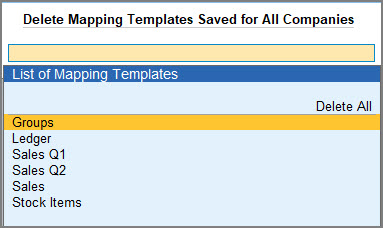
The following message appears:

- Select Yes and confirm the deletion.
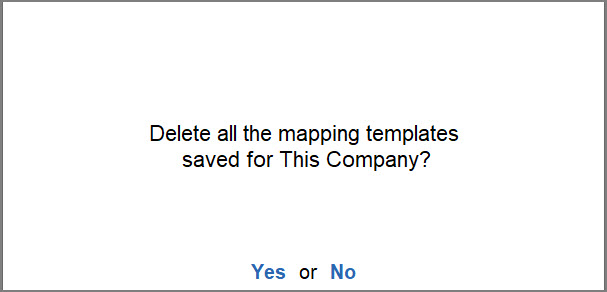
Similarly, you can also delete all the mapping templates saved for all companies at one go.
- From the List of Mapping Templates, select Delete All.
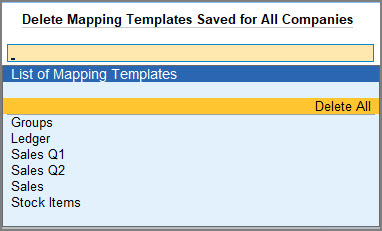
The following message appears:

- Select Yes and confirm the deletion.
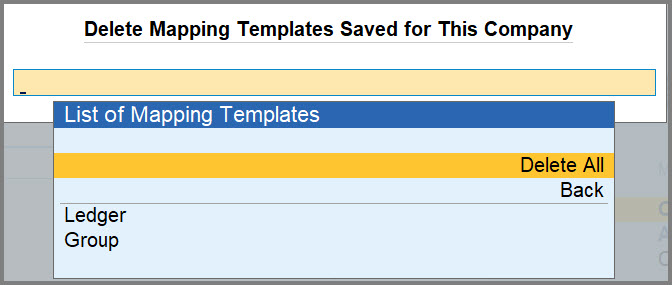
Delete Mapping Templates saved for This Company
You can delete a mapping template saved only for the company that is currently loaded in your TallyPrime.
- Press F1 (Help) > Troubleshooting > Delete Mapping Templates Saved for This Company.
- From the List of Companies, select the Company for which you want to delete the mapping template.
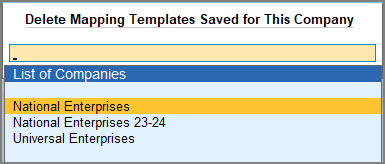
- From the List of Mapping Templates, select the mapping template that you wish to delete, say Ledger in this case.
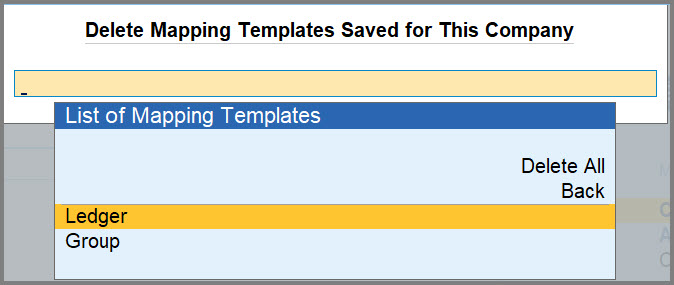
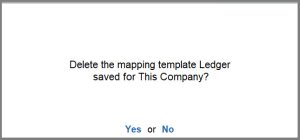
- Select Yes and confirm the deletion.
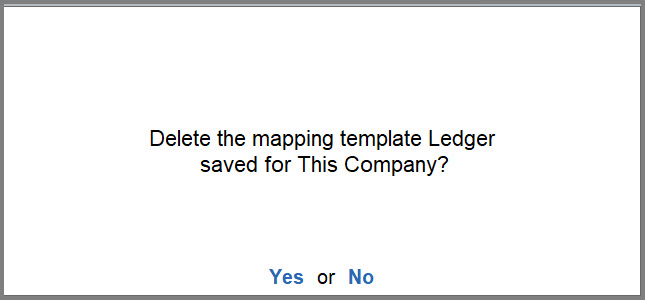
The selected mapping template will be deleted for the company that you have selected.
You can also delete all the mapping templates saved for the company at one go.
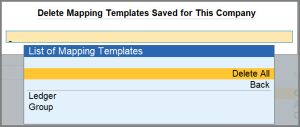
- From the List of Mapping Templates, select Delete All.
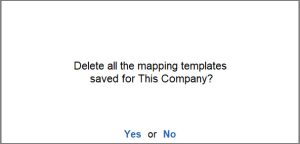
- Select Yes and confirm the deletion.