
Could not connect one or more companies
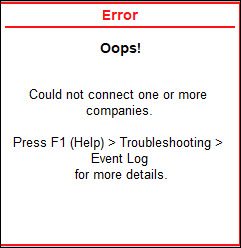
Cause 1: One or more companies do not have the security feature enabled.
Resolution 1: Alter the company and enable the security feature
- Press Alt+K (Company) > Alter > set Control User Access to Company Data to Yes.
- Provide Username and Password and save.
- Reconnect the company: Alt+K (Company) > Connect.
Cause 2: You do not have internet connectivity.
Resolution 2: Check your internet connection. Ensure that you have proper internet connectivity before you connect the company to Tally.NET Services.
Cause 3: The same Connect Name is used for more than one company. Alternatively, the Connect Name is invalid.
Resolution 3: Identify the companies that have the same Connect Name and change the display name as needed.
- Press Alt+K (Company) > Online Access > select the company for which you want to change the Connect Name.
- In the Online Access Configuration screen, select Contact Details > alter Company Display Name > press Ctrl+A to save.
- Reconnect the company: Alt+K (Company) > Connect.
Next when you attempt to access a company remotely in TallyPrime, you will be prompted to use the Tally.NET ID and password for remote login.
Is this information useful?
YesNo


