
Accept Payment and Create Receipt Voucher in TallyPrime
Once you receive the payment details, you can see them under Bharat Connect Activities – Supplier > Bharat Connect > Payment Acknowledgement Pending.

Ensure that:
- Bharat Connect for Business is enabled for the license.
- You are logged in to Bharat Connect for Business and connected to the internet.
- Bharat Connect registration is done, and B2B ID is created.
- The buyer has shared the payment details for the invoice.
- You have user access to manage Bharat Connect for Business data.
Accept Payment Against Invoices
- Press Alt+G (Go To) > type or select Supplier – Activities.
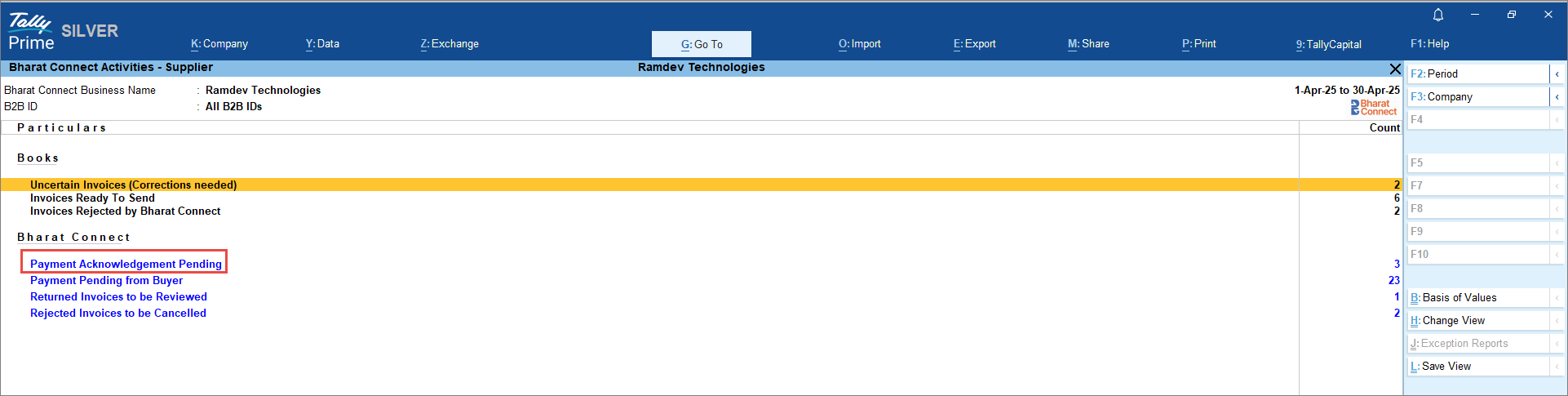
- In the Bharat Connect Activities – Supplier screen, drill down from Payment Acknowledgement Pending.
To view the invoice details, press F10 (Invoice View).
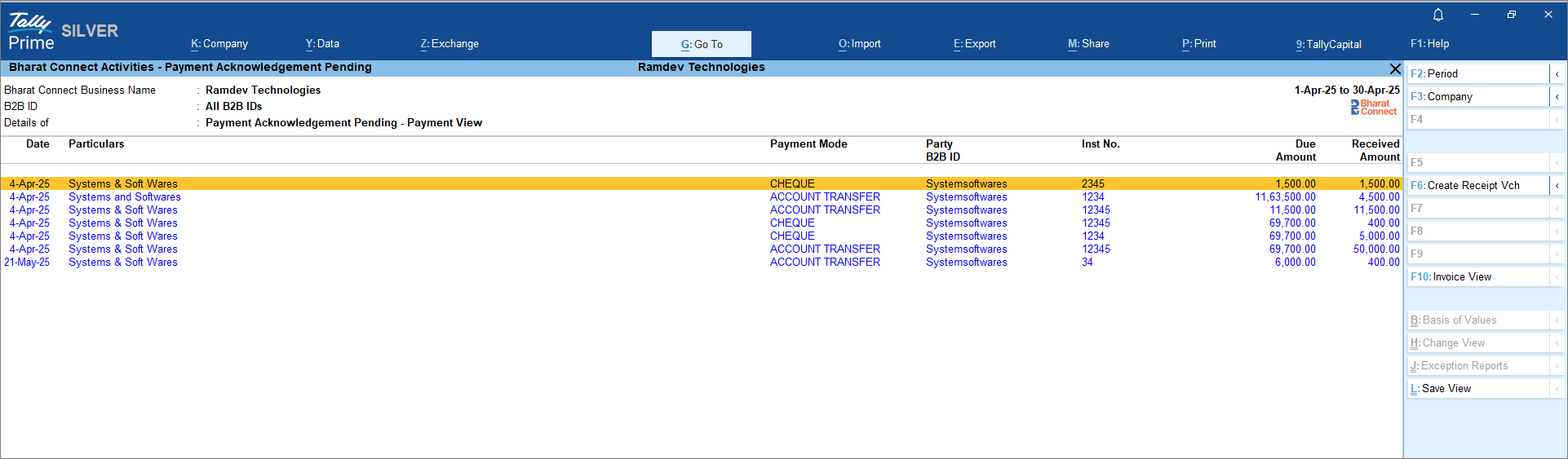
- In the Bharat Connect Supplier – Payment Acknowledgement Pending screen, press Alt+F6 (Acknowledge Payment).
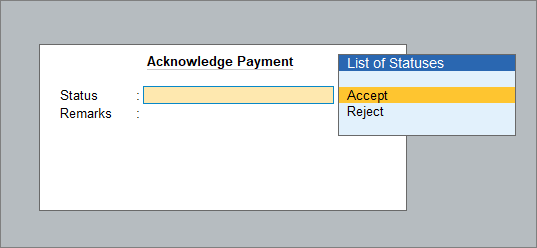
- In the Acknowledge Payment screen, you can Accept the payment.
If the shared payment details are incorrect, you can Reject the payment.
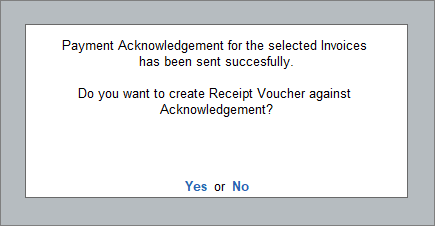
- Once you accept, the payment acknowledgement will be sent to the buyer.
If rejected, it will move back to Bharat Connect Activities – Supplier > Bharat Connect > Payment Pending from Buyer. - To create the Receipt Voucher against the payment, press Y.
- Create the Receipt Voucher and ensure the auto-filled details are correct.
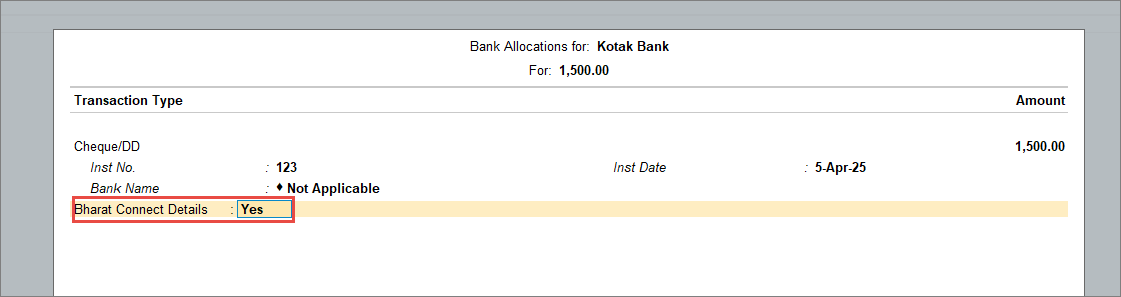
- In the Bank Allocations screen, enable Bharat Connect Details and press Enter.
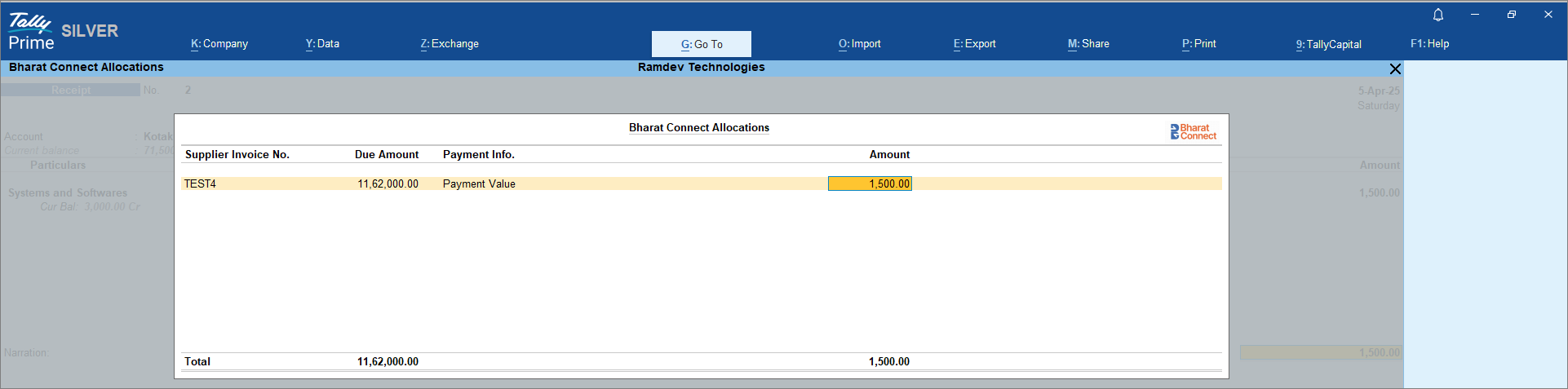
- In the Bharat Connect Allocations screen, check the payment details.
- Press Ctrl+A to save the Receipt Voucher.
Alternatively, you can first create the Receipt Voucher and then acknowledge the payment.
Accept Payment After Adjusting Credit Notes
- Press Alt+G (Go To) > type or select Supplier – Activities.
- In the Bharat Connect Activities – Supplier screen, drill down from Payment Acknowledgement Pending.
- Select the transaction and press Enter.
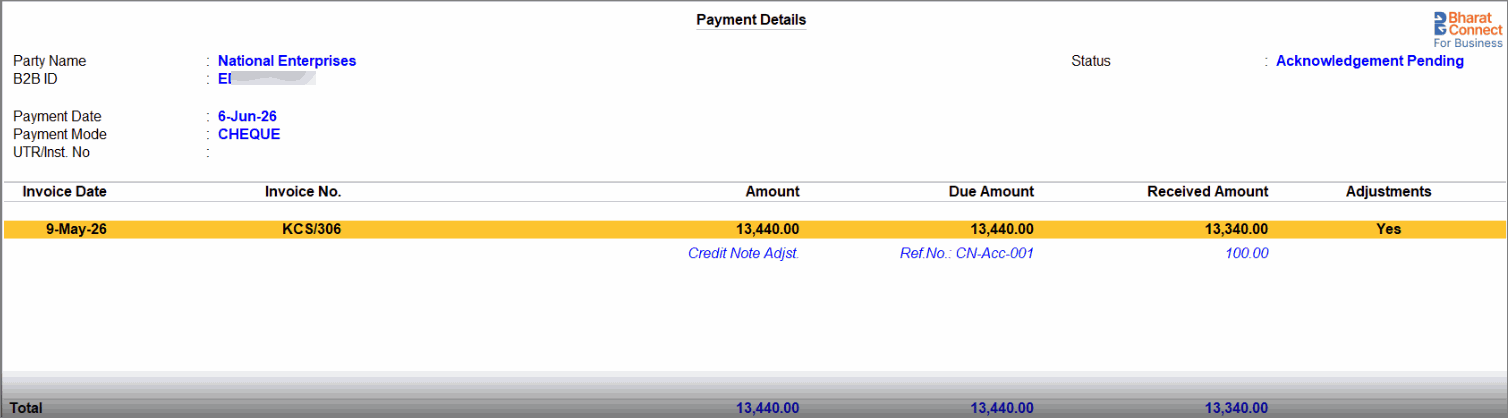
In the Payment Details screen, you can view the payment details along with adjustment details, such as credit note adjustments, TDS deductions, or advance payments.
- On the Bharat Connect Supplier – Payment Acknowledgement Pending screen, select the transaction and press Alt+F6 (Acknowledge Payment).
- On the Acknowledge Payment screen, you can Accept the payment.
If the shared payment details are incorrect, you can Reject the payment.
- Once you accept, the payment acknowledgement will be sent to the buyer.
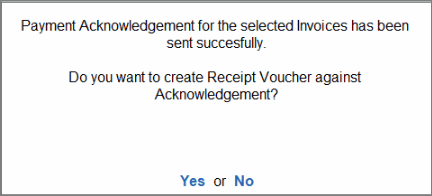
If rejected, it will move back to Bharat Connect Activities – Supplier > Bharat Connect > Payment Pending from Buyer. - To create the Receipt Voucher against the payment, press Y.
- Create the Receipt Voucher and ensure the auto-filled details are correct.
- In the Bank Allocations screen, enable Bharat Connect Details and press Enter.
- In the Bharat Connect Allocations screen, check the payment details displayed after adjusting the credit note.
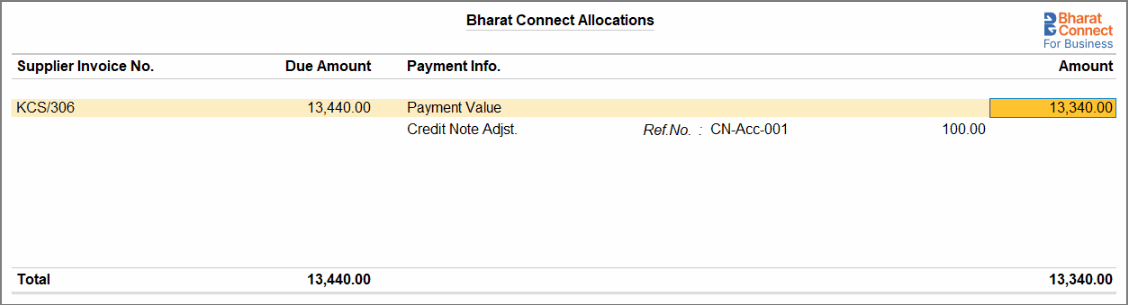
- Press Ctrl+A to save the Receipt Voucher.
Alternatively, you can first create the Receipt Voucher and then acknowledge the payment.
Questions & Answers
- Can I review the payment details before accepting or rejecting them?
Yes, before taking any action, you can view complete payment and invoice details from Payment Acknowledgement Pending, including allocations and references. This helps you verify the accuracy before accepting or rejecting the payment. - Do I have to create a receipt voucher immediately after accepting a payment?
No. You can either create the receipt voucher at the time of acceptance or record it later and then acknowledge the payment. Both workflows are supported.
- What should I check while creating the receipt voucher for a received payment?
Review the auto-filled amount, party, and allocation details in the receipt voucher. Ensure that the Bharat Connect allocation details correctly link the payment to the relevant invoices before saving.
Is this information useful?
YesNo


