
Use Job Work Order Reports – Job Worker
As a job worker , you can refer to a variety of reports in TallyPrime to keep a track of:
- Your Job Work In orders
- The raw material you received from the principal manufacturer
- The finished good delivered to the principal manufacture.
Job Work In Orders
- Press Alt+G (Go To) > Create Voucher > press F10 (Other Vouchers) > type or select Job Work Out Order and press Enter.
- To view more information such as Narration and Stock Items, select a row and press Shift+Enter.
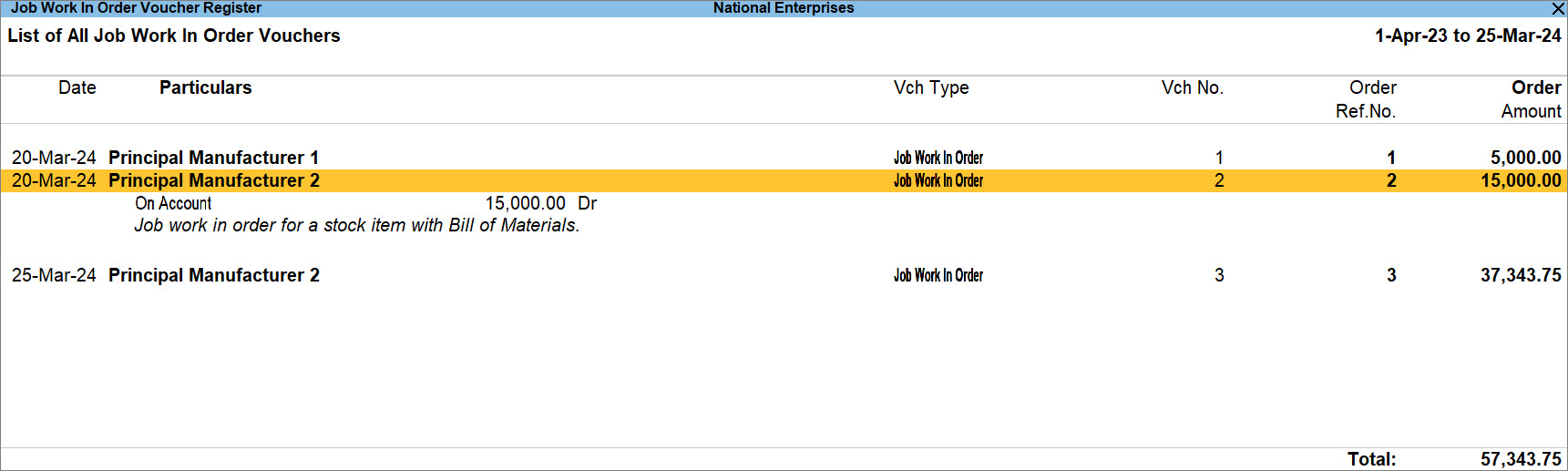
- To view values such as Voucher No., Quantity and Value for each Job Work Out Order recorded during the Period, press F8 (Columnar) and then configure it.
The Job Work In Orders report does not have any impact on the inventory or books of accounts and is meant only to gain the information on your Job Work Out Orders.
Job Order Summary
You can identify job work in orders for which you haven’t received the raw materials.
-
Press Alt+G (Go To) > type or select Job Work Order Summary, and press Enter.
You can view the Ordered Quantity and Balance Quantity and also identify if an order is completely or partially fulfilled for the job work.

-
To view the report based on the vouchers recorded for principal manufactures, press F5 (Party-wise).
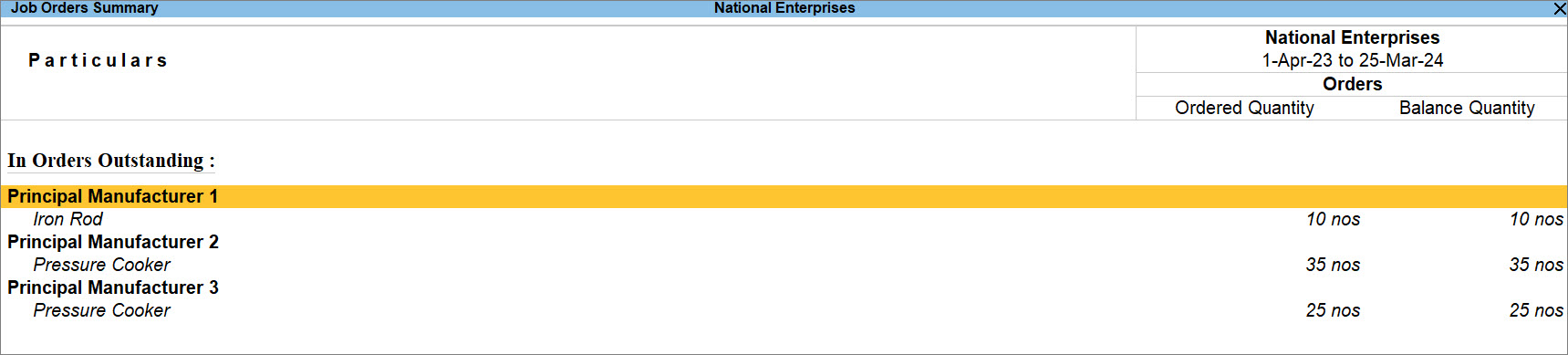
Once you know the job orders that are on hold, you can communicate with your principal manufacturer about the balance quantity of raw materials.
Components Order Summary
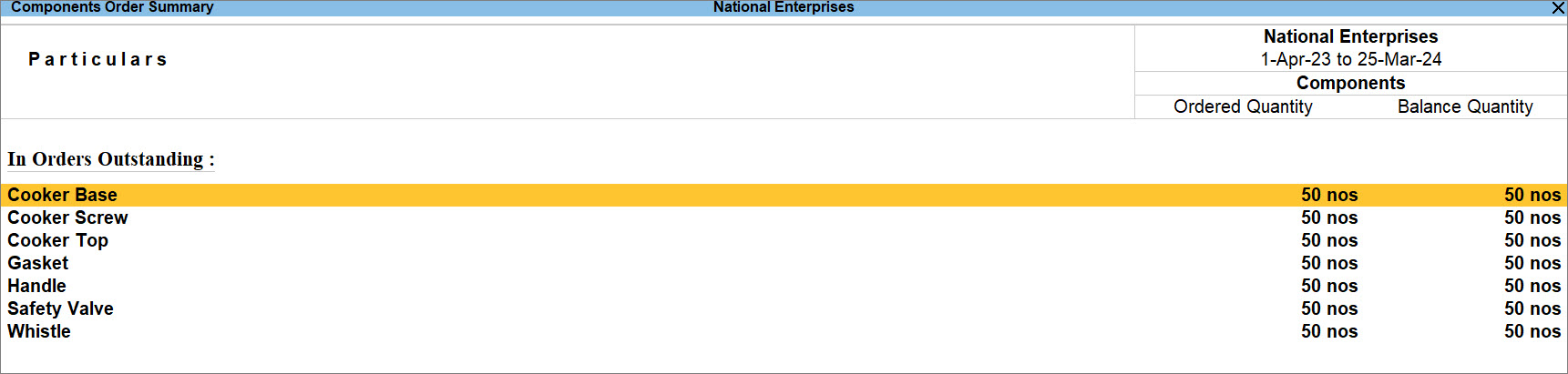
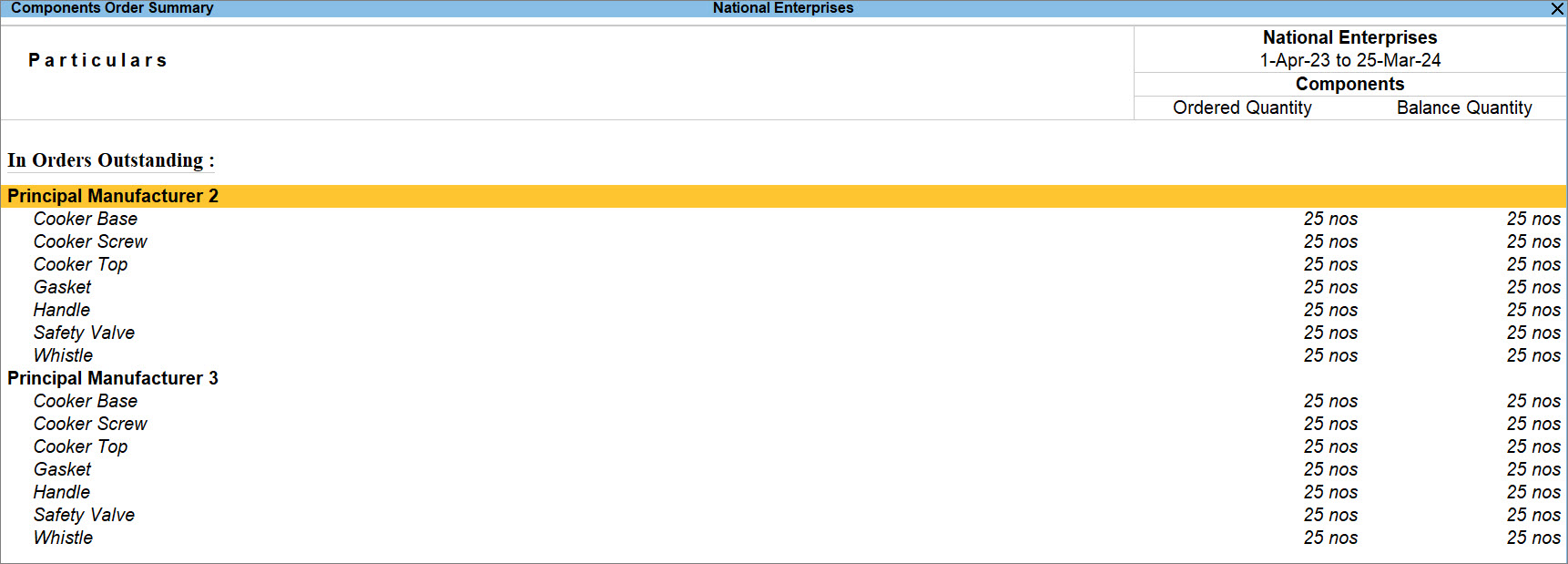
The Components Order Summary report shows:
- Quantity of components for which job work in orders are recorded.
- Quantity of raw materials pending to be received from the principal manufacturer for the job work.
With the Balance quantity column, you can also identify the partial receipt of components.
- Press Alt+G (Go To) > type or select Job Work Components Order Summary and press Enter.
- To view the report based on the vouchers record for principal manufacturers, press F5 (Party-wise).
- Configure the Job Orders Summary and Component Orders Summary reports, based on the values you want to view.
- Press F12 (Configure).
- To view the job work in orders that are not cleared yet, enable Show Outstanding Job Orders.
- To view the job work in orders against which you have delivered the finished goods and are cleared, enable Show Cleared Job Orders.
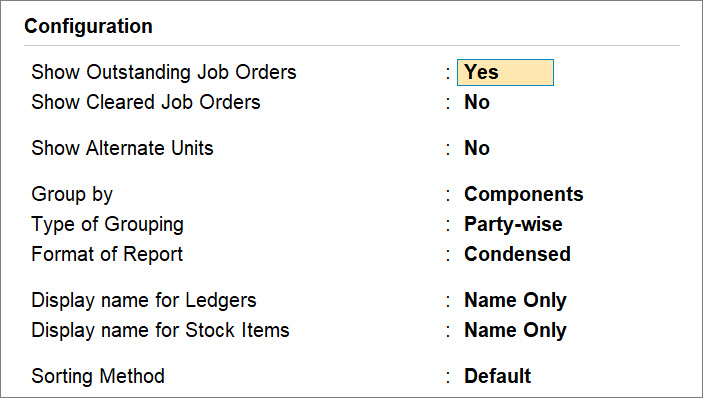
Knowing the outstanding and cleared job orders along with the balance quantity helps you take actions on clearing the job work in orders, as per the need.
Job Work In Orders Book
When a principal manufacturer assign a job work to you, you record a Job Work In Order. Job Work In Orders Book essentially displays all the Job Work In Orders recorded in a specific month or any period. You just need to drill down from a specific month, and you get to know all the Job Work In Orders. Moreover, you have an option to view a Columnar report and configure it to view details such as Quantity and Value of stock item, as needed.
- Press Alt+G (Go To) > type or select > Job Work Out Orders Book and press Enter.
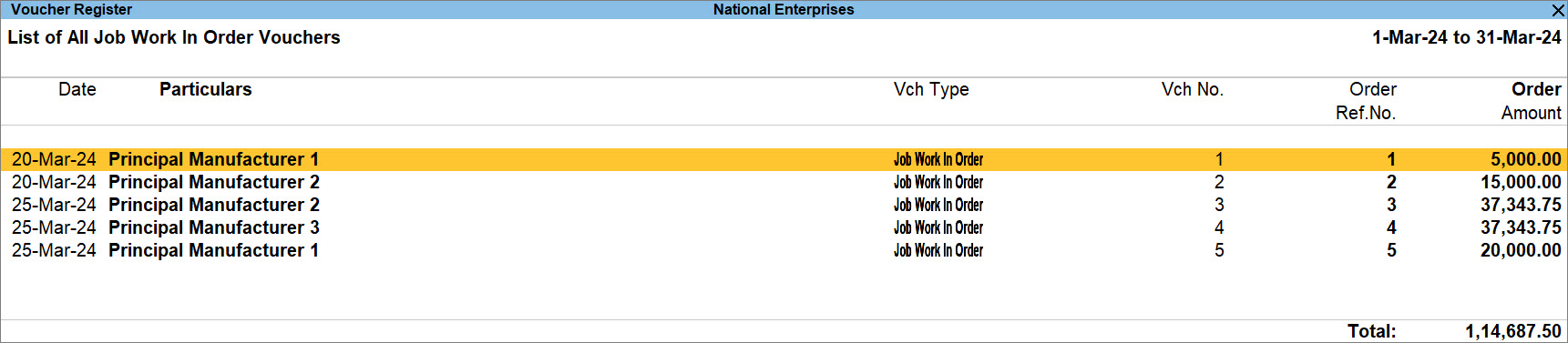
- To view values such as Voucher No., Quantity and Value for each Job Work Out Order recorded during the Period, Press F8 (Columnar) and then configure it.
With all the essential information such as Voucher No. and Order No., the Job Work In Orders Book is a go-to report to refer to all the Job Work In Orders recorded during a specific period.
Material In Register Displaying the Raw Material Received from Principal Manufacturer
- Press Alt+G (Go To) > type or select > Material In Register and press Enter.
- Drill down from the required month.
For example, March.
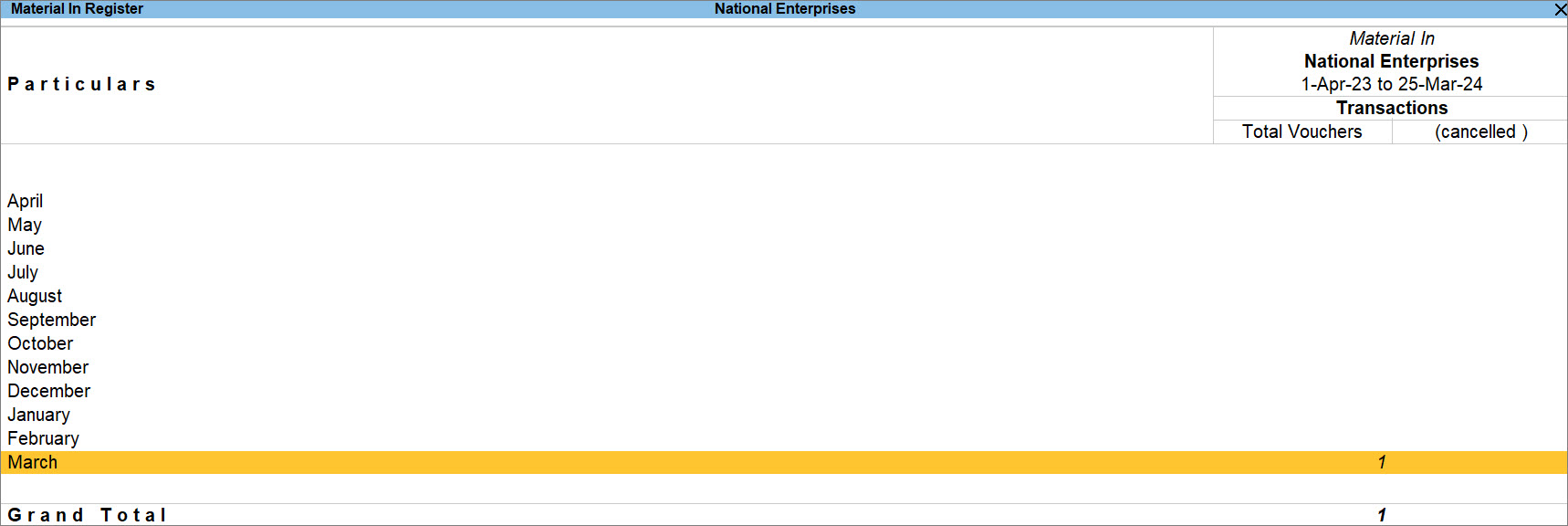
- Select a row and press Shift+Enter to view more information.
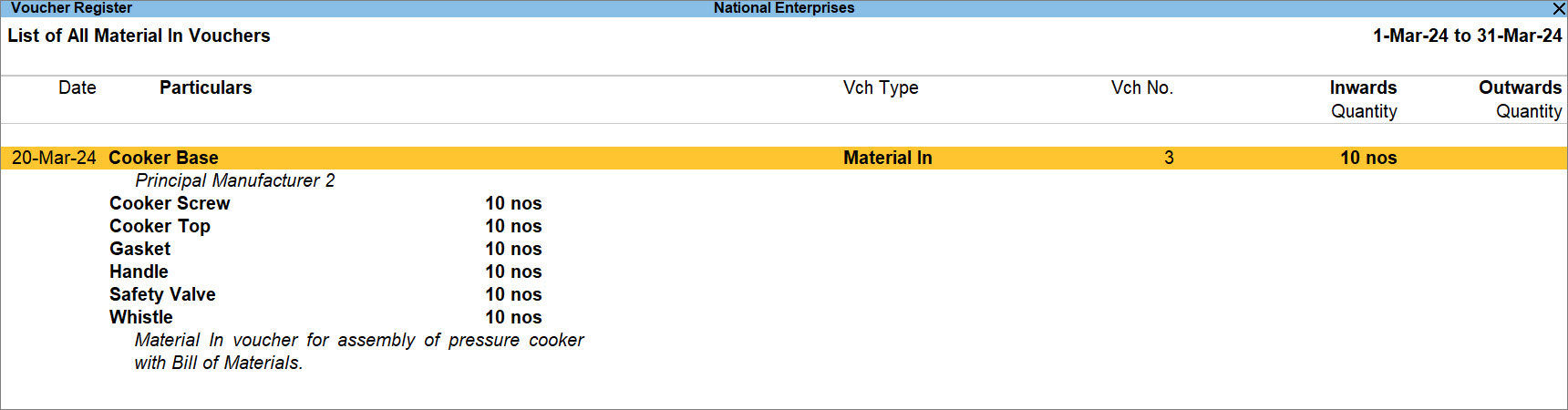
- To view values such as Voucher No., Quantity and Value for each Job Work Out Order recorded during the Period, press F8 (Columnar) and then configure it
- To view the Inwards and Outwards Quantity, press Alt+F8 (Extract).
Based on the quantity of raw materials availed from the principal manufacturer, you can plan to manufacture the finished goods, and address discrepancies in the quantity received, if any.
Material Out Register Displaying Finished Goods Delivered to Principal Manufacturer
- Press Alt+G (Go To) > type or select > Material Out Register and press Enter.
- Drill down from the required month.
For example, March.
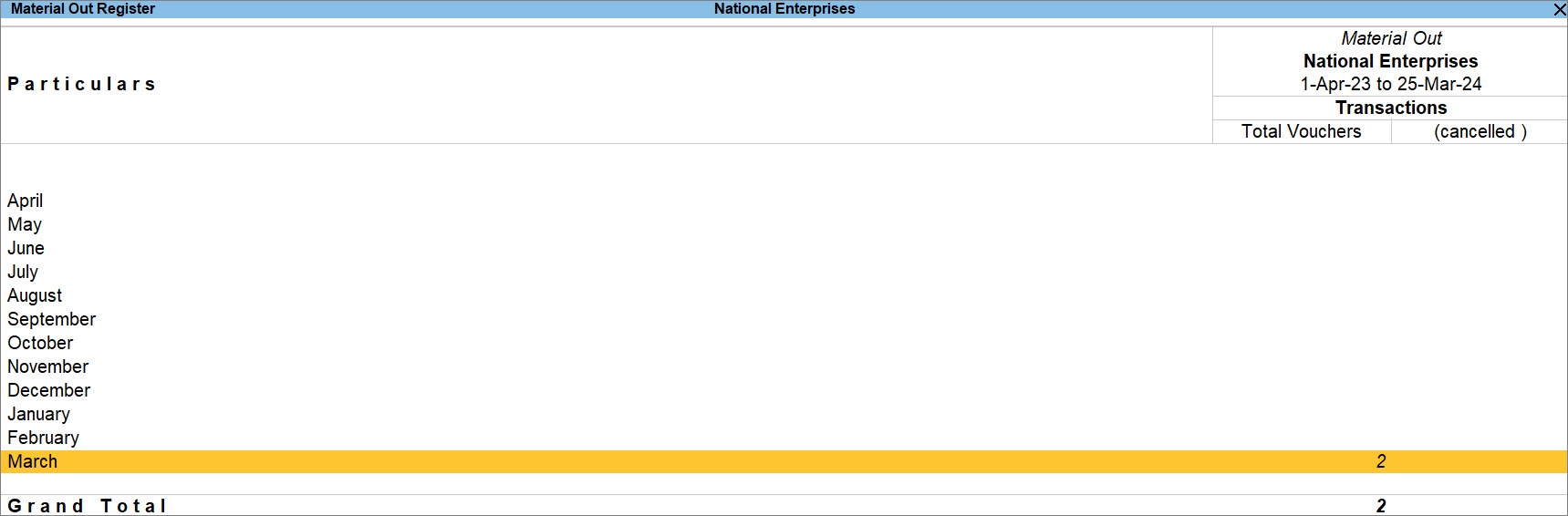
- To view more information, select a row and press Shift+Enter.

- To view values such as Voucher No., Quantity and Value for each Job Work Out Order recorded during the Period, press F8 (Columnar) and then configure it.
- To view the Inwards and Outwards Quantity, press Alt+F8 (Extract).
Based on the quantity of finished goods delivered to the principal manufacturer, you can create the sales invoice.
Material Movement Register
- Press Alt+G (Go To) > type or select > Material Movement Register and press Enter.
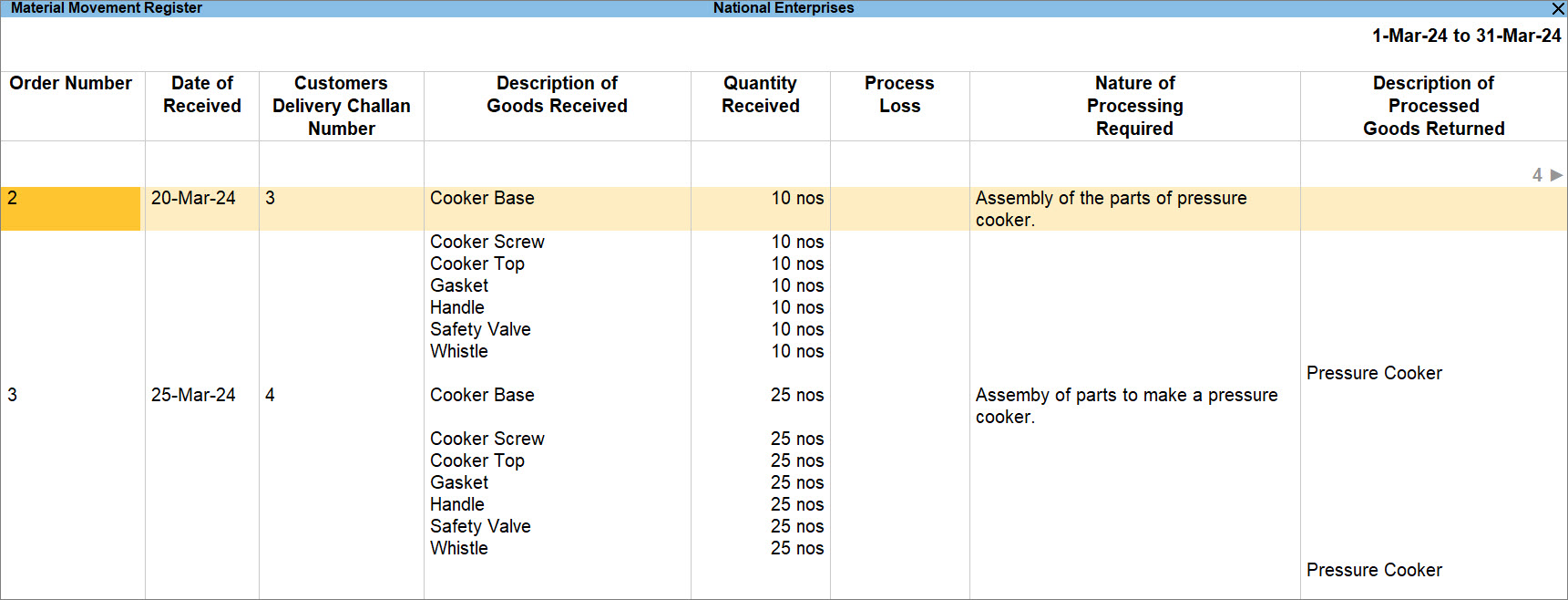
You get a holistic view of the job work in order with details such as Delivery Challan Number, Date of Dispatch, Description of Goods Dispatched, Quantity Dispatched to Job Worker and others related to the Job Worker Out Orders.
Column Description of Material Movement Register
The following table describes the entities in the columns of Material Movement Register:
| Column Title | Meaning |
| Order Number | Job Work In Order Number. |
| Date of Receipt | The date on which the components were received form the Principal manufacturer. |
| Customers Delivery Challan | The voucher number of the material In voucher through which the components for Job work was received. |
| Description of Goods Received | The description of the components received. |
| Quantity Received | The quantity of components received towards a Job Work In Order. |
|
Process Loss |
The loss of stock during manufacture of Finished goods. |
|
Nature of Process Required |
The Natures of Processing instructed by the Manufacturer. |
|
Quantity Processed Goods Returned |
The details of stock (Finished Goods/Scrap/By-Products/Co-Products) manufactured. |
|
Quantity Issued |
The Quantity of goods manufactured and delivered to the principal Manufacturer. |
|
Wastage Scrap at end of Job Work |
The quantity of Wastage or Scrap produced during the manufacture of Finished goods. |
|
Job Worker’s Challan No. & Date |
The Job workers challan number and Date. These details will be captured from the Material out voucher recorded to deliver the goods to the manufacturer. |
|
Remarks |
To enter the information of closure of stock. |
Stock from Party Displaying the Raw Materials Received from Principal Manufacturer
- Press Alt+G (Go To) > type or select Stock From Party and press Enter.
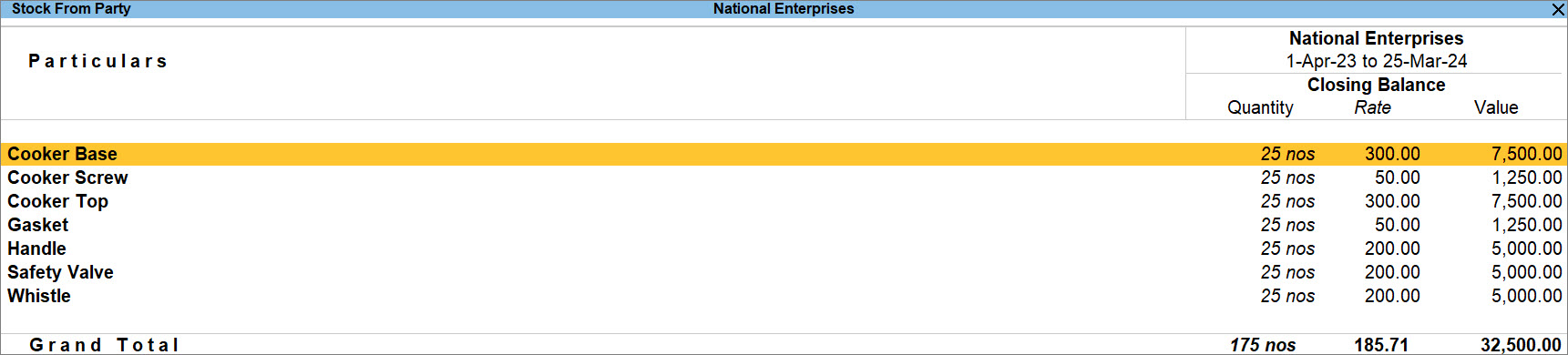
When you know the total quantity of raw materials available with you, you can plan the process of manufacturing the finished product accordingly.
Receipt Variance
When you receive raw materials from a principal manufacturer, you deliver finished goods accordingly. However, the quantity of raw materials received might differ. Receipt Variance Analysis helps identify these discrepancies.
The table below explains the concept of Variance Quantity in the Receipt Variance Analysis report.
| Sl No. | Variance Quantity | Description |
| 1 |
0 |
The raw materials received are exactly as per the finished goods expected by the principal manufacturer. |
| 2 |
Negative |
The raw materials received are lesser than that expected as per the finished goods delivered to the principal manufacturer. |
| 3 | Positive |
The raw materials received are greater than that expected as per the finished goods delivered to the principal manufacturer. |
- Press Alt+G (Go To) > type or select > Receipt Variance Analysis and press Enter.
- To view more information, select a row and press Shift+Enter.
- To view vouchers recorded for job workers, press F5 (Party-wise).
- To view goods delivered but orders not raised, press Ctrl+B (Basis of Value) and enable Show Goods delivered but orders not raised.
Once you know the variance in quantity received from the principal manufacturer, you can take actions to avail the necessary raw materials or adjust your sales invoice accordingly.
Issue Variance
When you receive raw materials from a principal manufacturer, you are expected to deliver finished goods accordingly. However, the quantity of finished goods delivered might differ. Issue Variance Analysis helps identify these discrepancies.
The table below explains the concept of Variance Quantity in the Issue Variance Analysis report.
| Sl No. | Variance Quantity | Description |
| 1 |
0 |
The finished goods received are exactly as per the raw material received from the principal manufacturer. |
| 2 |
Negative |
The finished goods delivered are greater than that expected as per the raw material received from the principal manufacturer. |
| 3 | Positive |
The finished goods delivered are lesser than that expected as per the raw material received from the principal manufacturer. |
- Press Alt+G (Go To) > type or select > Issue Variance Analysis and press Enter.
- To view the report for the Job Work In orders, press F8 (Job Work In).
- To view more information, select a row and press Shift+Enter.

- To view vouchers recorded for principal manufacturers, press F5 (Party-wise).
- To view goods delivered but orders not raised, press Ctrl+B (Basis of Value) and enable Show Goods delivered but orders not raised
Once you know the variance in quantity issued to you, you can communicate with your principal manufacturer to avail the raw materials or make adjustments in your sales invoice accordingly.
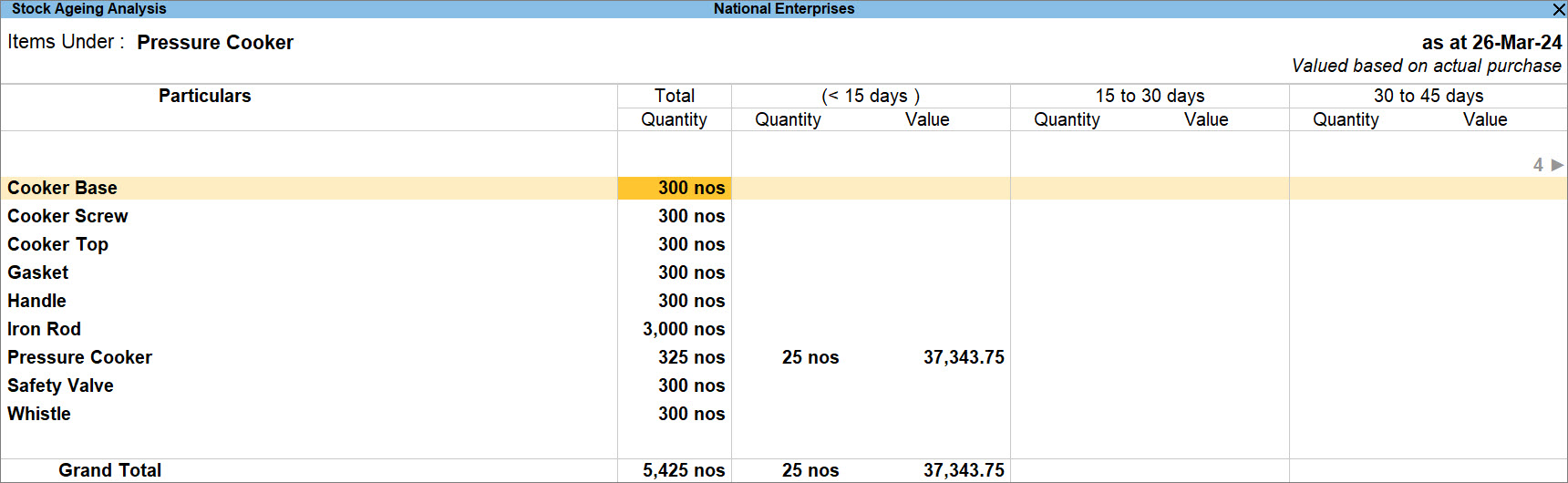
Stock Ageing Analysis
The information about the age of the stock helps you plan the usage of raw materials, based on first in and first out (FIFO) or any other business practices that you follow.
- Press Alt+G (Go To) > type or select > Stock Ageing Analysis and press Enter.
- Change the Ageing Period.
- Press F6 (Ageing Period).
- Alter the ageing period, as needed.
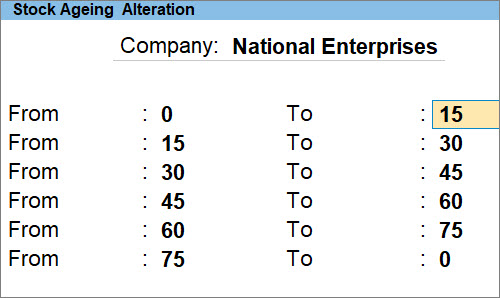
- Press Ctrl+A to save.
Questions & Answers
- I received raw materials from a customer for a job work order and have now delivered the finished goods. However, I want to verify whether the quantity of materials received accounts for the finished goods delivered and identify any shortages, excesses, or process losses. How can I analyse this?
Use the Receipt Variance Analysis and Issue Variance Analysis reports. These reports highlight positive, negative, and zero variances, helping you determine whether the materials received support the quantity of finished goods delivered or whether shortages, excesses, or process losses need investigation.
- I am reviewing a completed Job Work In Order and need to trace the entire process, from the materials received from the customer to the finished goods delivered back. Which report can I use to get a complete audit trail?
The Material Movement Register provides a consolidated view of the entire job work cycle. It includes details such as receipt date, customer’s delivery challan, quantity received, process loss, nature of processing, quantity manufactured, quantity delivered, wastage/scrap, and closure remarks. This makes it ideal for audits and operational reviews.


