
Create & Configure Company in Tally e-Billing
Start by creating a company in Tally e-Billing to manage your business transactions and generate the required IRD reports. If you use a Tally.NET ID associated with multiple Tally serial numbers, select the appropriate serial number before proceeding. After creating the company, you can configure its settings, update company details when required, and set it as the default company for quick access whenever you open Tally e-Billing. You can also switch between companies easily as required.
Create Company
When you sign in to Tally e-Billing for the first time, create a company to start working with your business data. If you already have a company and want to create another one, you can create it from Gateway. Once you have a company created in Tally e-Billing, select the required company from the List of Companies to continue working.
To create your first company, follow the steps below.
- Click Create.
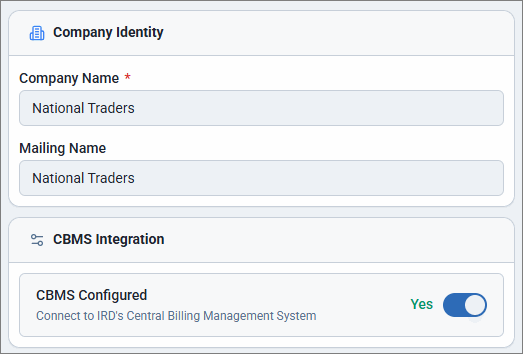
- In the Company Creation screen, enter the Company Name.
The Mailing Name is automatically populated based on the Company Name. You can modify it later, if required, before recording transactions. - Under CBMS Integration, by default, CBMS Configured is enabled.
If your annual turnover is less than NPR 10 crore, you can disable this option.
- Enable and update the Currency Details.
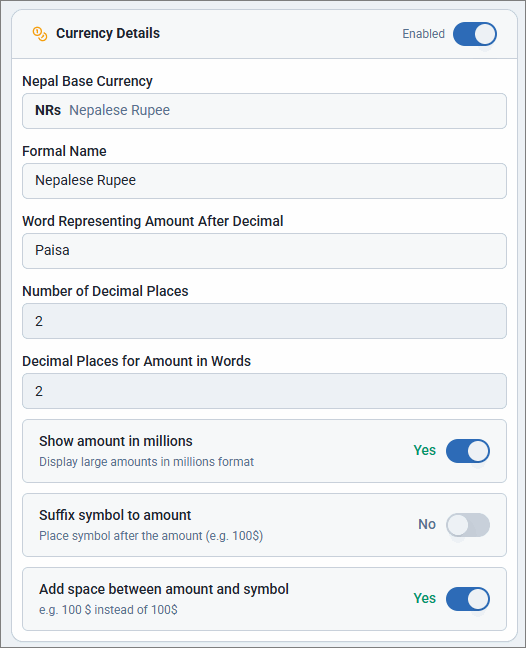
- Nepal Base Currency, Formal Name, and Word Representing Amount After Decimal are prefilled and cannot be modified.
- Enter the Number of Decimal Places and Decimal Places for Amount in Words.
- To display amounts in millions, enable Show amount in millions.
- To place the currency symbol after the amount, enable Suffix symbol to amount.
- To add space between amount and symbol, enable Add space between amount and symbol.
- Enter the Financial Details of the company.
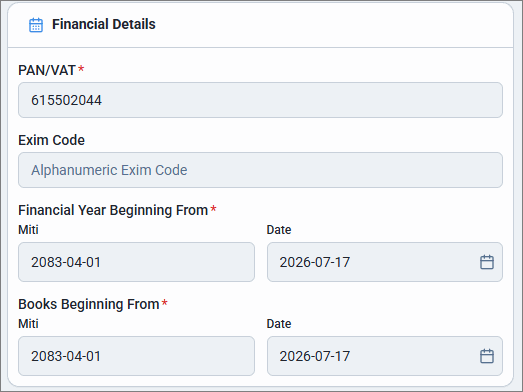
- PAN/VAT: Enter the 9-digit PAN/VAT number.
- Exim Code: Enter the 13-digit Export-Import Code.
- Enter the Financial Year Beginning From and Books Beginning From date.
The corresponding Miti date is updated automatically.
- You can enable Address & Contact to update Address, Province, Country, PO Box, and Mobile.
- You can enable Additional Information to update Telephone, Fax, E-mail, and Website.
- Accept the Terms of Use and Privacy Policy.
- Click Save to create the company.
Once you create the company, set up the required company details and masters to start recording transactions.
Configure Company
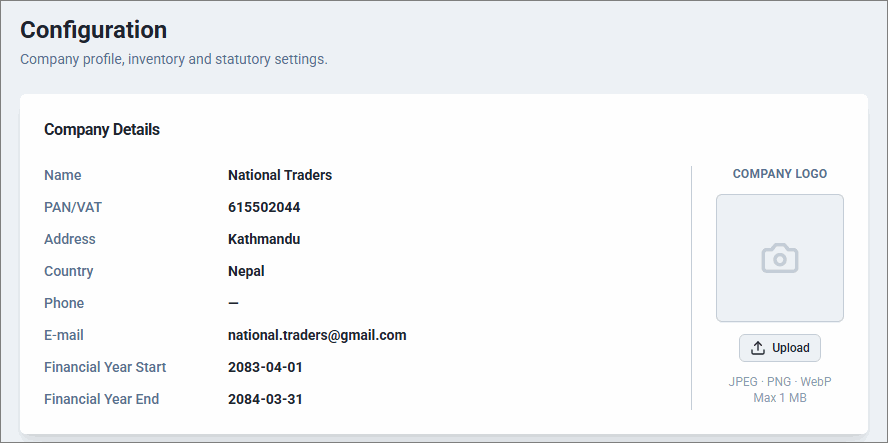
- From Gateway > click Configuration.
- Upload the Company Logo and view the Company Details.
- Configure Voucher Settings.
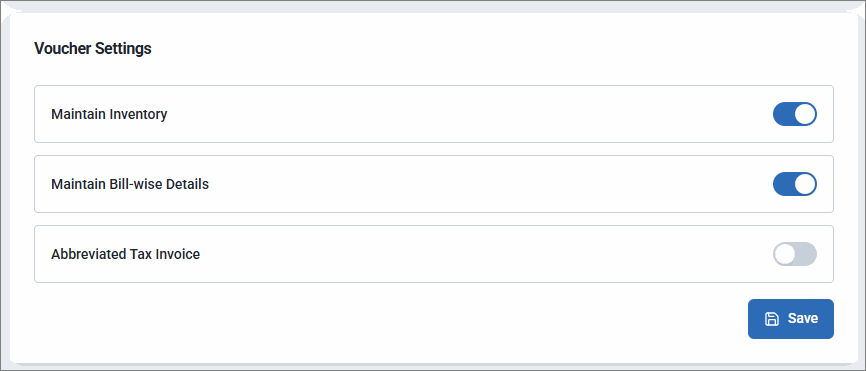
- Maintain Inventory: By default, this option is enabled. If you are doing business in the service industry, you can disable it.
- Maintain Bill-wise Details: By default, this option is enabled. You can maintain credit sales and purchases as separate bills to track the corresponding receipts and payments.
- Abbreviated Tax Invoice: Enable this option to record sales below NPR 5000. VAT is calculated on an inclusive basis, where the total invoice value includes the applicable VAT.
- Click Save.
- Configure Statutory Settings.

- Open Print Configuration to define the required print settings.
- Open CBMS Integration to configure CBMS settings.
Load Default Company
If you want a company to load automatically each time you open Tally e-Billing, you can configure it as the default company.
- From Gateway > click Settings.
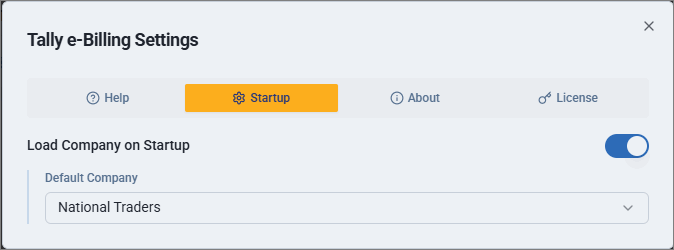
- In Tally e-Billing Settings screen, click Startup.
- Enable Load Company on Startup.
- Select the company under Default Company.
Switch Company
- From Gateway > click on the company name.
- In the List of Companies screen, select the required company.
Alter Company
- From Gateway > click Company > and select Alter Company.
You can see the list of companies created. - Click the edit option for the company you want to alter.
- In the Alter Company screen, make the necessary changes.
- Click Save.
Questions & Answers
- How many companies can I create under one Tally serial number?
If you are a Single User with a TallyPrime Gold license, you can create up to 10 companies under one Tally serial number. If you are a Multi-User with a TallyPrime Silver license, you can create up to 2 companies.
- Why can’t I create a company with a different PAN?
As per IRD guidelines, all companies created under a Tally serial number must have the same PAN. You cannot create a company with a different PAN.


